This is the full developer documentation for Revue
# Your first review
> Open a pull request that’s waiting for you, read it, leave a comment and submit your review.
This tutorial takes you from the end of Setup to a review on GitHub: open a pull request that’s waiting for you, read it, leave one comment and submit. It takes about ten minutes. You need Revue installed and signed in to GitHub (see [Install Revue](/start/install/)).
## Open a pull request from Setup
[Section titled “Open a pull request from Setup”](#open-a-pull-request-from-setup)
Setup’s last screen, **Open**, lists the pull requests **Waiting for your review**, then **Yours**.
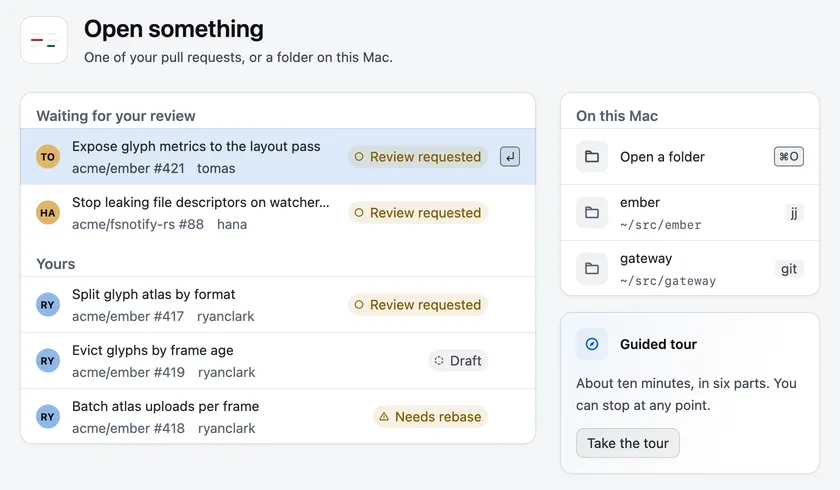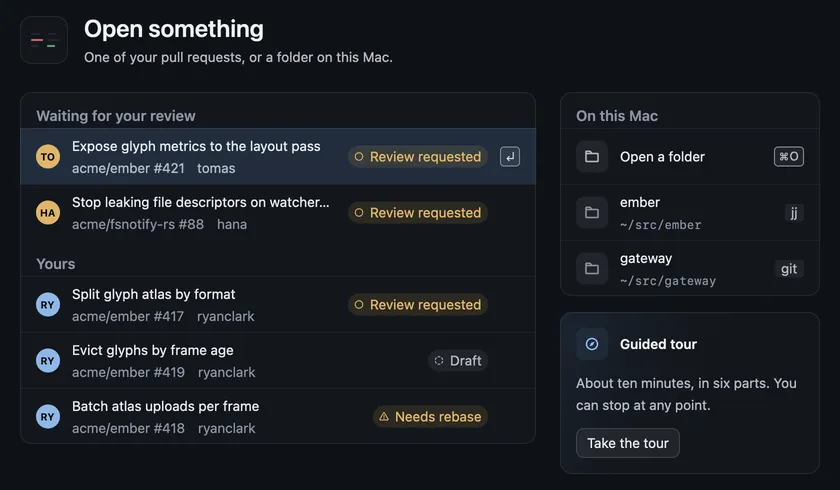
Choose a pull request under **Waiting for your review**. It opens in a tab of its own, on its **Overview**.
If the list says “No open pull requests are waiting for you”, choose **Go to the Inbox** and open any pull request from there. Setup is already behind you, so later you’ll start from the [Inbox](/guides/inbox/).
## Read the changes
[Section titled “Read the changes”](#read-the-changes)
The **Overview** shows the description, the timeline of pushes and reviews, and the threads people have started. A column at its right says what stands before merge, how the checks are doing and who reviews. Read the description first.
Then choose **Changes** in the bar at the top, or press `⌥``⌘``O`. The same key takes you back to the Overview.
1. The sidebar lists the files that changed. Choose one, or press `J` and `K` to move to the next and previous file.
2. When you’ve read a file, press `V` to mark it viewed. The count in the sidebar goes up.
Single keys like these act only when no text field has focus.
## Leave a comment
[Section titled “Leave a comment”](#leave-a-comment)
1. Select a line, or drag across several.
2. Press `C`, or choose **Comment** in the bar that appears over your selection.
3. Write your comment. The line under it says “Goes to your pending review. Only you can see it until you submit.”
4. Choose **Add comment**, or press `⌘``↩︎`.
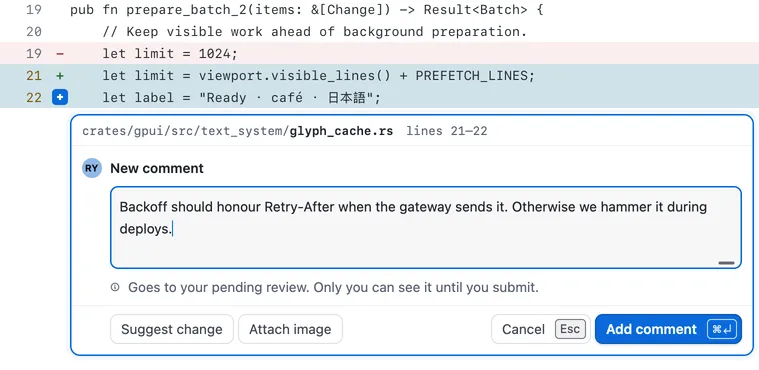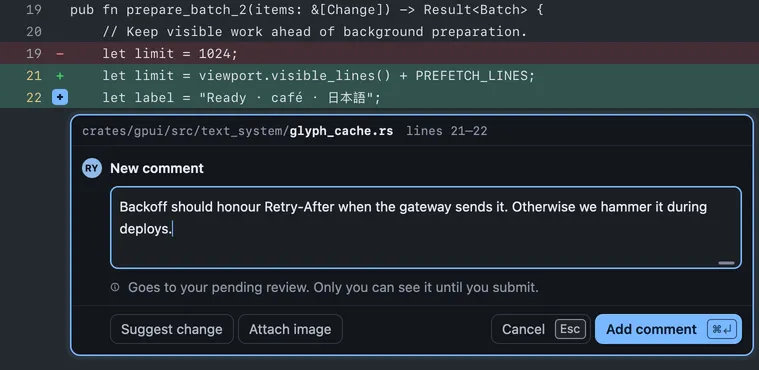
The comment now shows under the line, marked **Pending**. Nobody else can see it yet. You can edit or delete it until you submit.
## Submit your review
[Section titled “Submit your review”](#submit-your-review)
1. Choose **Review** at the right of the bar, or press `⌥``⌘``R`. The review panel opens. It lists the other reviews, the checks and **Your pending comments**.
2. Choose a verdict: **Comment**, **Approve** or **Request changes**.
3. Add a summary in the box above the verdicts if you want one. Request changes asks you to say what needs to change.
4. Choose the button at the bottom of the panel. It’s named for your verdict. Or press `⌘``↩︎`.
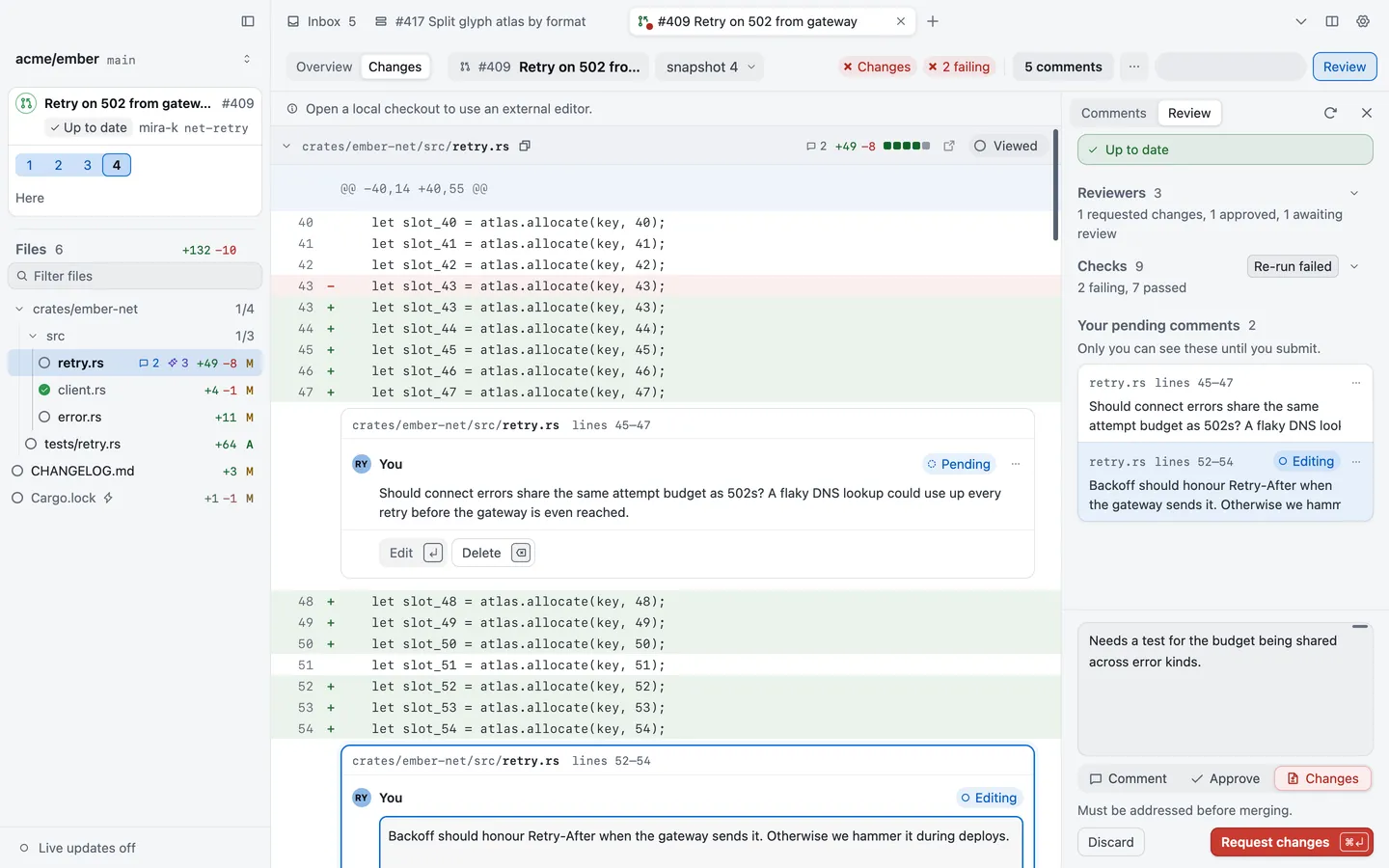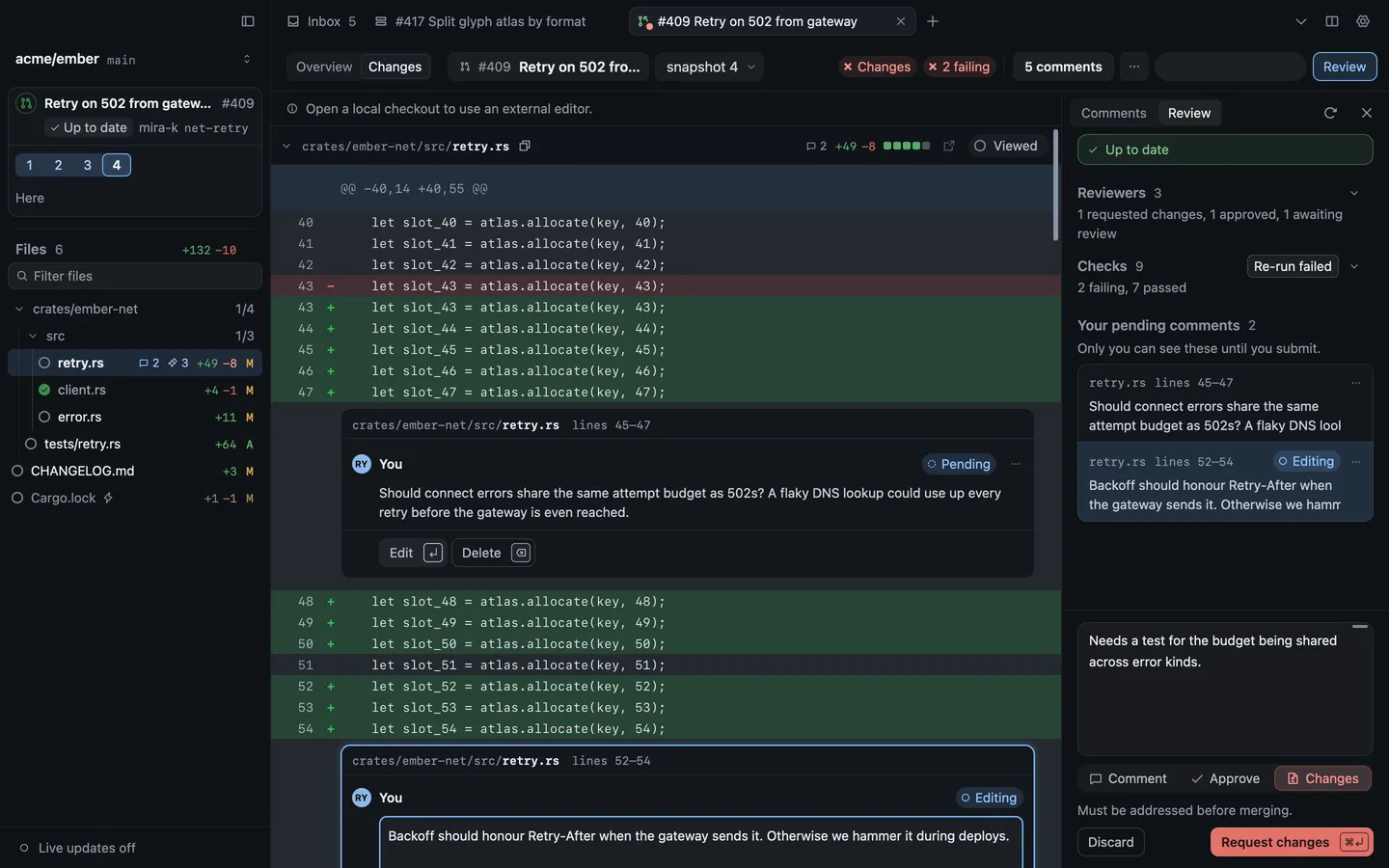
Revue sends your verdict, your summary and every pending comment to GitHub together, as one review. Until you submit, your comments stay in your pending review, where only you can see them.
## What to try next
[Section titled “What to try next”](#what-to-try-next)
* **Take the tour.** Help › Take the Tour walks through Revue on a sample repository, in six parts. Each part can be started on its own from that menu.
* **Come back after a push.** When the author pushes again, press `R` to see only what changed since you last looked. See [Re-review with snapshots](/guides/snapshots/).
* **Learn the keys.** Help › Keyboard Shortcuts (`⌘``/`) lists the keys. [Keyboard shortcuts](/reference/keyboard-shortcuts/) has the same list.
* **Go further.** [Review a pull request](/guides/review-a-pull-request/) covers suggestions, threads, checks and more.
# Sign in to GitHub
> Connect Revue to GitHub with your GitHub CLI sign-in or a code, and switch or sign out.
Revue reads your pull requests and review requests from GitHub, and posts the reviews you submit. It can use the GitHub CLI’s sign-in, or sign in on its own with a code. You can still open a folder and review local work without GitHub.
## Use your GitHub CLI sign-in
[Section titled “Use your GitHub CLI sign-in”](#use-your-github-cli-sign-in)
If the GitHub CLI (`gh`) is installed and signed in, Revue uses its sign-in straight away. Setup’s GitHub row says **Connected as** and your login, and there’s nothing else to do.
If `gh` is installed but not signed in, the row says “The GitHub CLI has no sign-in to share. Run gh auth login.”
1. Choose **Copy command** and paste `gh auth login` into Terminal.
2. Follow the GitHub CLI’s prompts.
3. Back in Revue, choose **Check again**.
## Sign in with a code
[Section titled “Sign in with a code”](#sign-in-with-a-code)
Without the GitHub CLI, sign in with a code from GitHub instead. You don’t need to install anything.
1. In Setup’s GitHub row, choose **Sign in with a code**. In Settings, it’s **Connect GitHub** under **Settings › Accounts**.
2. Revue shows a code and waits. Choose **Copy and open GitHub**. Revue copies the code and opens GitHub’s sign-in page in your browser.
3. Paste the code there and allow access. GitHub asks you to allow access to your repositories.
4. Back in Revue, the row says **Connected as** and your login.
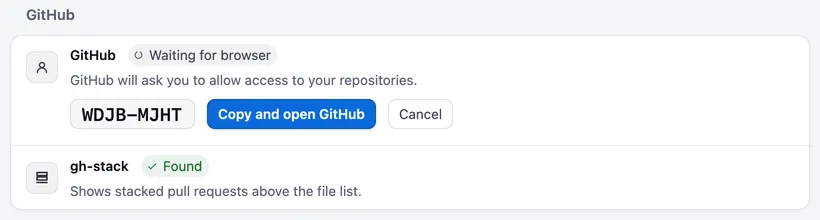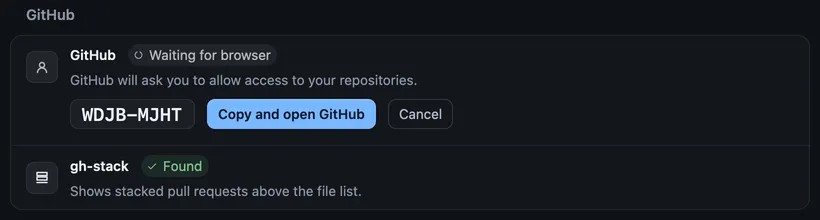
To stop part way, choose **Cancel**. If you’d rather use the GitHub CLI after all, Settings offers **Use GitHub CLI sign-in** while it waits.
## Where Revue keeps the token
[Section titled “Where Revue keeps the token”](#where-revue-keeps-the-token)
* **GitHub CLI sign-in:** Revue asks `gh` for a token when it needs one. Nothing is copied into Revue.
* **Sign in with a code:** Revue keeps the token in a file named `token` in its data folder, `~/.revue`.
When both exist, Revue uses the token it keeps. [Files and folders](/reference/files/) lists everything Revue keeps on your Mac.
## Sign out or switch
[Section titled “Sign out or switch”](#sign-out-or-switch)
**Settings › Accounts** shows the account Revue uses, with **Open profile** and **Check again**. There’s no Sign out button.
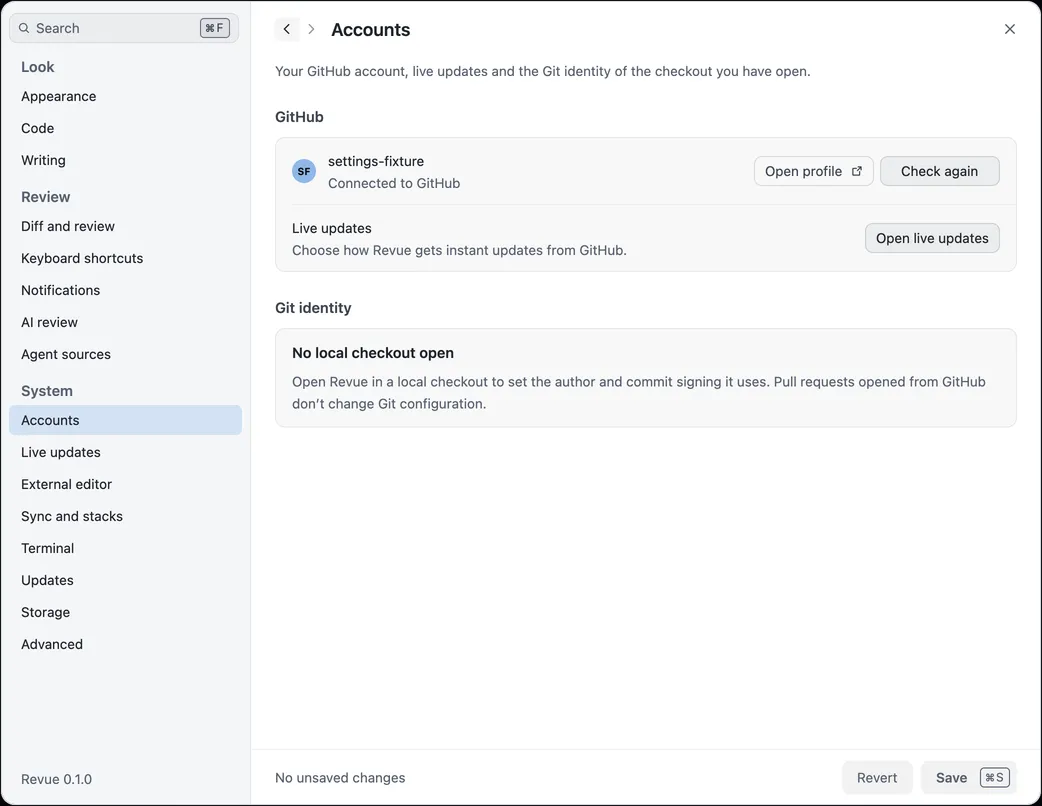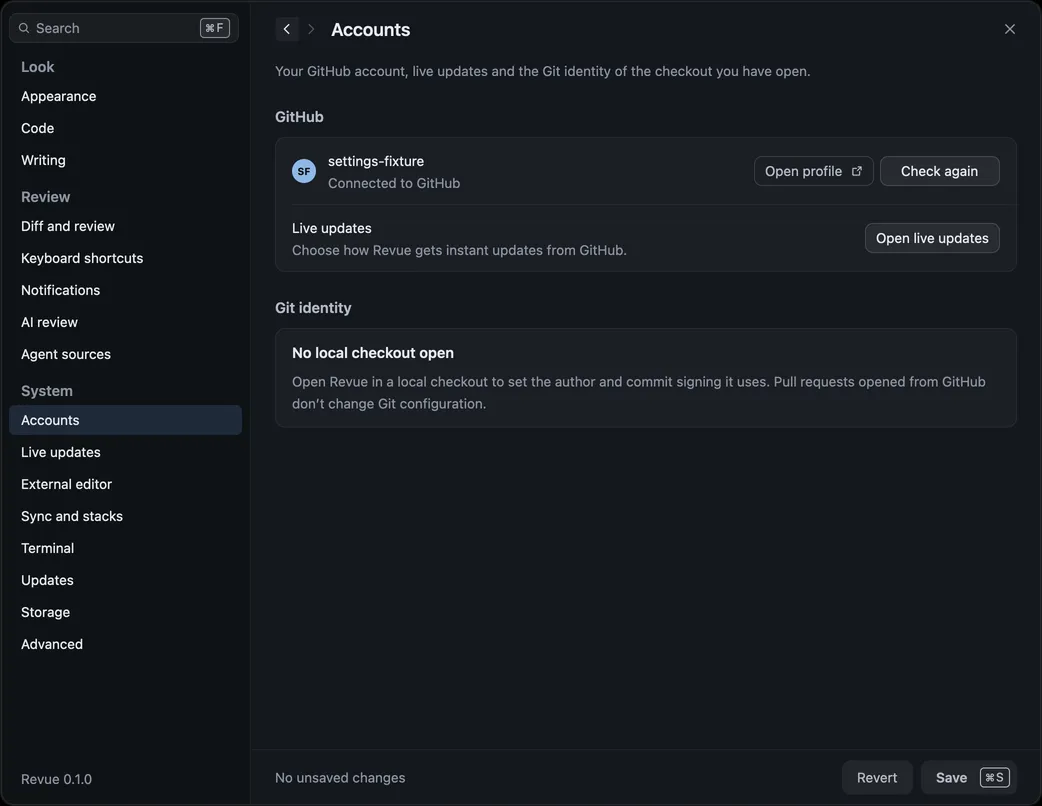
To use a different account:
* **If you signed in with the GitHub CLI,** switch accounts in the GitHub CLI (for example with `gh auth login`), then quit Revue and open it again.
* **If you signed in with a code,** quit Revue, delete `~/.revue/token` and open Revue again. Revue then uses the GitHub CLI’s sign-in if there is one. Otherwise sign in with a code again, as the account you want.
Deleting `~/.revue/token` with no GitHub CLI sign-in signs Revue out.
## If sign-in fails
[Section titled “If sign-in fails”](#if-sign-in-fails)
| What Revue says | What to do |
| ------------------------------------------------------------------------- | ------------------------------------------------------------------------------ |
| “This code expired. Generate a new one to continue.” | Choose **Try again** for a new code. |
| “Authorization was declined on GitHub. Try again whenever you are ready.” | Choose **Try again**, and allow access on GitHub this time. |
| “Install the GitHub CLI and run gh auth login, then check again.” | Install `gh` and sign in, or choose **Sign in with a code**. |
| “GitHub’s rate limit was reached. Check again in a few minutes.” | Wait. When Revue knows when the limit lifts, it says so and checks again then. |
| “Couldn’t check your GitHub connection. Local review still works.” | Check your connection, then choose **Retry**. |
When an error has a code, the code’s entry says more: [GH-002](/troubleshooting/error-codes/#gh-002) for a sign-in GitHub refused, [GH-006](/troubleshooting/error-codes/#gh-006) for the GitHub CLI, and [NET-001](/troubleshooting/error-codes/#net-001) when Revue can’t reach GitHub.
## Related
[Section titled “Related”](#related)
* [Install Revue](/start/install/)
* [Your first review](/start/first-review/)
* [Common problems](/troubleshooting/)
# Install Revue
> Install Revue on your Mac, run Setup, and connect GitHub, the revue command and Claude Code.
Revue runs on a Mac with Apple silicon (M1 or later) and macOS 14.5 or later. Version 0.1.0 has no build for Intel Macs. Installing it takes a few minutes, most of them in Setup, which checks what your Mac has and helps you add what’s missing.
## Before you start
[Section titled “Before you start”](#before-you-start)
You need:
* **The Revue disk image (DMG).** Whoever invited you to Revue sends a download link. See [Get help](/troubleshooting/get-help/) if you don’t have one.
* **git.** If your Mac doesn’t have it yet, Setup gives you the command that installs Apple’s command line tools.
* **A GitHub account** with access to the repositories you review.
These are optional, and you can add them later:
* **The GitHub CLI (`gh`), signed in.** Revue uses its sign-in, so you don’t sign in twice.
* **Claude Code or Codex,** for AI review and for reviewing your agent’s work.
* **gh-stack,** if you work with stacked pull requests.
## Install the app
[Section titled “Install the app”](#install-the-app)
1. Open the DMG.
2. Drag **Revue** onto **Applications** in the window that opens.
3. Eject the disk image.
4. Open Revue from Applications, Launchpad or Spotlight.
Open Revue from Applications
Revue can’t update itself, or install the Claude Code plugin, while it runs from the disk image or from a temporary place macOS chose. If you see “Move Revue to Applications and open it from there to get updates.” quit Revue, drag it to Applications and open it again.
## Run Setup
[Section titled “Run Setup”](#run-setup)
The first time Revue opens, Setup fills the window. It has three screens: **Set up**, **Learn** and **Open**. To come back to it later, choose **Help › Set Up Revue**.
### Set up
[Section titled “Set up”](#set-up)
The first screen checks your Mac. It has one row each for git, GitHub, gh-stack, AI review, the Claude Code plugin, an agent source, the command line tool, your editor, appearance and updates. Each row says what it found, and offers to fix what’s missing.
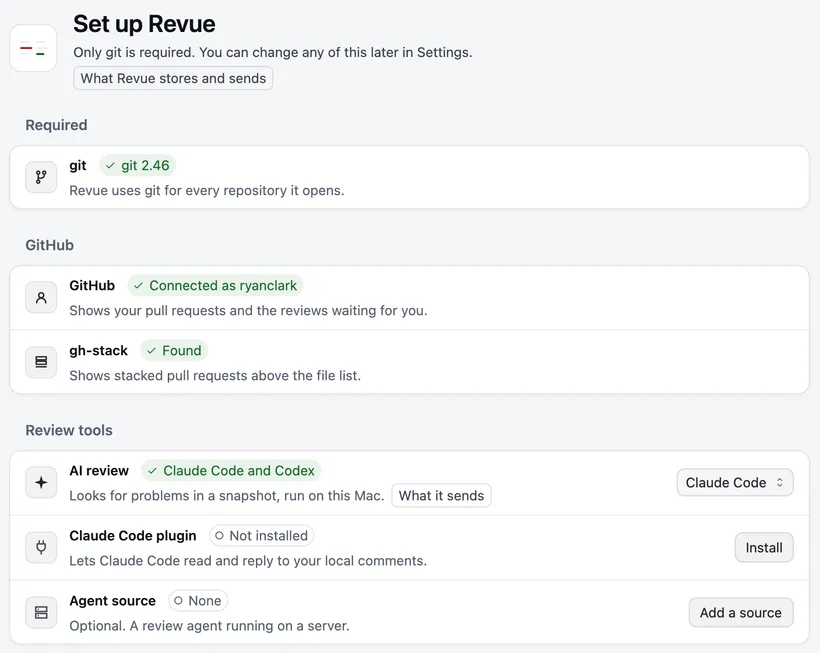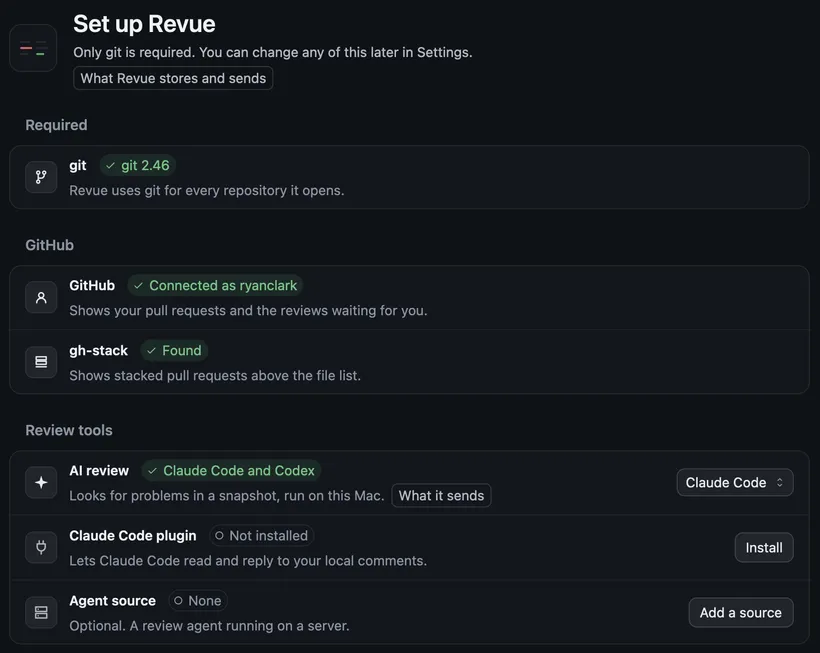
Only git is required. **Continue** stays off until Setup finds it.
* **git missing:** the row says “Install Apple’s tools: `xcode-select --install`”. Choose **Copy command**, paste it into Terminal and follow the installer. When it finishes, choose **Check again**.
* **GitHub:** if the GitHub CLI is signed in, Revue uses that sign-in at once. Otherwise choose **Sign in with a code**. See [Sign in to GitHub](/start/github-sign-in/).
Everything else can wait. **Skip setup** leaves Setup and goes straight to the window.
### Learn
[Section titled “Learn”](#learn)
The second screen, “Three things to know first”, sums up how Revue differs from reviewing on github.com:
* **One tab, one change.** Each tab reads one thing: a pull request, a branch, your working copy or a comparison.
* **Each push is a snapshot.** Snapshot 2 shows the full pull request as of its second push. To see only what changed since snapshot 1, compare the two with Range.
* **Comments wait until you submit.** A comment you write goes to your pending review. Only you can see it until you choose Submit review.
[How Revue works](/concepts/how-revue-works/) says more about each.
### Open
[Section titled “Open”](#open)
The last screen lists pull requests waiting for your review and your own, beside **Open a folder** and your recent folders. Choose one to start, or **Take the tour**: about ten minutes, in six parts, on a sample repository. You can stop at any point. [Your first review](/start/first-review/) picks up from here.
## Install the command line tool
[Section titled “Install the command line tool”](#install-the-command-line-tool)
The `revue` command opens a checkout or a pull request in Revue from your terminal. Claude Code and Codex also use it to read and answer your comments.
1. Choose **Revue › Install Command Line Tool**. Setup opens at its Command line tool row. During Setup, you can choose **Install** on that row instead.
2. Revue asks “Install the revue command?” and shows the path it writes, `/usr/local/bin/revue`. Choose **Install**.
3. If that folder needs an administrator, the row says “Revue couldn’t write to /usr/local/bin. Run this in Terminal instead:” with a `sudo` command. Choose **Copy command**, paste it into Terminal and enter your password. Then choose **Check again**.
Then type `revue` in a checkout to open it in Revue, or `revue --pr owner/repo#123` to open a pull request from anywhere. See [Command line](/reference/cli/).
If you move Revue later, a notice says “The revue command needs updating”. Choose **Point it here**. **Not now** hides the notice until you update Revue.
## Connect Claude Code (optional)
[Section titled “Connect Claude Code (optional)”](#connect-claude-code-optional)
The Revue plugin for Claude Code lets a Claude Code session read the comments you send it, reply and mark them addressed.
1. Install Claude Code and sign in to it.
2. Choose **Revue › Install Claude Code Plugin**. Settings opens on **AI review** and asks “Install the Claude Code plugin?” Choose **Install**. The plugin row in Setup does the same.
3. Start a new Claude Code session in a checkout you’ve opened in Revue.
[Claude Code plugin](/reference/claude-code-plugin/) covers updating and removing it, and other ways to install it. Using Codex instead? Codex has no plugin. Follow [Use Revue with Codex](/guides/codex/).
## Turn on updates
[Section titled “Turn on updates”](#turn-on-updates)
Revue asks before it checks for updates. Setup’s Updates row only says what a check sends. Once you put Setup away, a notice asks “Automatically check for updates?” Choose **Turn on**, and Revue asks updates.ryc.sh for a new version about every hour. **Not now** leaves automatic checks off.
You can change your answer, and how often Revue checks, in **Settings › Updates**. To have new versions download in the background and install the next time Revue quits, also turn on **Download and install updates automatically** there. **Revue › Check for Updates** works either way. See [Update Revue](/guides/update/).
Usage statistics
Revue sends usage statistics and crash reports to help improve it. Your code is never sent. You can turn both off under Privacy in **Settings › Updates**. [What Revue stores and sends](/privacy/) has the details.
## Next steps
[Section titled “Next steps”](#next-steps)
* [Your first review](/start/first-review/)
* [Review a pull request](/guides/review-a-pull-request/)
* [Keyboard shortcuts](/reference/keyboard-shortcuts/)
* Something not working? See [Common problems](/troubleshooting/).
# Command line
> Every revue command: opening things in the app, git hooks, agent commands and developer commands.
The `revue` command opens checkouts and pull requests in the app, installs Revue’s git hooks, and gives coding agents the comments you send them. Install it from Setup or with Revue › Install Command Line Tool, which writes a small script to `/usr/local/bin/revue` that starts Revue.
The app answers the commands that open things. Every other command goes to `revue-server`, a helper inside the app, so `revue hooks status` and `revue-server hooks status` are the same command.
## Open things in the app
[Section titled “Open things in the app”](#open-things-in-the-app)
### `revue`
[Section titled “revue”](#revue)
```sh
revue [PATH]
```
Opens the current folder, or `PATH`, in Revue, starting the app if it isn’t running, then returns. A checkout opens on its current branch, with its stack and snapshots. If a tab already shows it, Revue switches to that tab. `revue stack` does the same as `revue`.
To compare two revisions of a checkout, name it with `--repo` and add `--compare`:
```sh
revue --repo PATH --compare FROM TO
```
`revue --version` prints the version, and `revue --help` prints a usage summary.
### `--new-tab` and `--new-window`
[Section titled “--new-tab and --new-window”](#--new-tab-and---new-window)
Add `--new-tab` to open a new tab even when one already shows the checkout, or `--new-window` to open a new window.
### `revue relaunch`
[Section titled “revue relaunch”](#revue-relaunch)
```sh
revue relaunch [same arguments as revue]
```
Quits the running app so the copy you installed starts again with your windows and tabs, then opens what you named, as `revue` would. Use it after replacing Revue.app by hand.
## Pull request targets
[Section titled “Pull request targets”](#pull-request-targets)
### `revue --pr`
[Section titled “revue --pr”](#revue---pr)
```sh
revue --pr OWNER/REPO#NUMBER [one target]
```
Opens a pull request without a checkout. Add at most one target to open it at one thing:
* `--thread` `ID`: a review thread, by its GitHub node ID.
* `--comment` `ID`: a review comment, by its node ID or the number in a `#discussion_r` link.
* `--review` `ID`: a submitted review, by its node ID or the number in a `#pullrequestreview-` link.
* `--item` `ID`, with `--source` `NAME`: a result from an agent source. Without `--source`, every source is searched.
* `--path` `FILE`, with `--line` `N`, `--side` `LEFT|RIGHT` and `--head` `SHA`: a file, or a line in it. The side is `RIGHT` unless you say otherwise, and `--head` names the commit the line number is for.
`--view` `backport` opens the pull request in the backport comparison, and can go with any target.
A Revue link does the same as `--pr`. Copy one with Edit › Copy Revue Link to Thread, and open it with:
```sh
revue 'revue://pr/OWNER/REPO/NUMBER?thread=ID'
```
`--pr` and a Revue link open on their own, so they can’t be combined with a checkout path or `--repo`.
## Sign in to GitHub
[Section titled “Sign in to GitHub”](#sign-in-to-github)
### `revue auth`
[Section titled “revue auth”](#revue-auth)
```sh
revue auth login
```
Signs in to GitHub with a code from the terminal and saves the token as `token` in Revue’s data folder. It needs a `config.json` in that folder naming a GitHub OAuth app, so it’s for scripted setups. Most people sign in from Setup or Settings › Accounts. See [Sign in to GitHub](/start/github-sign-in/).
## Git hooks
[Section titled “Git hooks”](#git-hooks)
### `revue hooks`
[Section titled “revue hooks”](#revue-hooks)
Run these inside a checkout. With neither flag, they act on both hooks.
```sh
revue hooks install [--rewrite-log] [--change-id]
revue hooks uninstall [--rewrite-log] [--change-id]
revue hooks status [--rewrite-log] [--change-id]
revue hooks print --rewrite-log|--change-id
```
* `--rewrite-log` is git’s `post-rewrite` hook. It logs each amend and rebase, so a change keeps its snapshots and comments when you rewrite it.
* `--change-id` is a `commit-msg` hook that adds a Gerrit-style `Change-Id` trailer to each commit. Under jj, installing it is refused, because jj tracks changes itself.
* `status` prints `installed`, `absent` or `foreign` for each hook. Foreign means a hook Revue didn’t write is there. Revue never overwrites one, and prints the line to add to your own hook instead.
* `print` writes one hook’s script to the terminal, so you can share it.
If `core.hooksPath` points somewhere else, `install` says so, because git won’t run the hooks it installed. See [Keep track of changes through rebases](/guides/git-hooks/).
## Agent commands
[Section titled “Agent commands”](#agent-commands)
Coding agents run these in a checkout to read the comments you send them. Claude Code’s plugin runs them for you (see [Claude Code plugin](/reference/claude-code-plugin/)), and Codex runs them when you ask (see [Use Revue with Codex](/guides/codex/)). They work whether or not the app is running.
### `revue comments`
[Section titled “revue comments”](#revue-comments)
```sh
revue comments [--json] [--since ] [--all] [--session ]
```
Lists the comment threads sent to this session, with where their lines are now. `--json` prints them for a program, with a cursor to pass to `--since` next time. `--all` lists every local thread in the checkout.
### `revue reply`
[Section titled “revue reply”](#revue-reply)
```sh
revue reply <<'EOF'
What you changed and where.
EOF
```
Replies on a thread. Give the text after the ID, or leave it out (or write `-`) to read it from standard input. A quoted heredoc, as above, stops the shell changing the text. A resolved thread takes no replies until you reopen it in Revue.
### `revue resolve`
[Section titled “revue resolve”](#revue-resolve)
```sh
revue resolve [--message ]
```
Marks a thread addressed, with an optional last reply. It doesn’t resolve the thread: you check the change and resolve it in Revue.
### `revue checkpoint`
[Section titled “revue checkpoint”](#revue-checkpoint)
```sh
revue checkpoint [--message ] [--quiet] [--leftover]
```
Records the working copy as a checkpoint, labelled with the message. Checkpoints need a branch, so with a detached HEAD it prints that nothing was recorded. `--leftover` records only turns that earlier sessions captured but never recorded, and `--quiet` prints only errors.
### `revue agent`
[Section titled “revue agent”](#revue-agent)
```sh
revue agent attach [--agent claude-code|codex] [--name ]
revue agent await [--timeout <seconds>]
revue agent prompt | stop | tool | detach
```
What the plugin’s hooks run. Codex runs `revue agent attach --agent codex --name Codex` at the start of a task, so Revue shows its session. The others follow a Claude Code session’s turns and wake it when comments arrive.
### `revue agents`
[Section titled “revue agents”](#revue-agents)
```sh
revue agents install [--dry-run] [--yes]
revue agents uninstall [--dry-run] [--yes]
revue agents status
```
Installs, updates or removes the Claude Code plugin, and prints its state. Install and uninstall show their plan and ask first. `--dry-run` only prints the plan, and `--yes` skips the question. See [Claude Code plugin](/reference/claude-code-plugin/).
## For developers
[Section titled “For developers”](#for-developers)
These serve Revue’s review API and run its AI review outside the app, for scripts and Revue’s own tests. The app never needs them.
### `revue serve`
[Section titled “revue serve”](#revue-serve)
Serves every tracked repository on `127.0.0.1:8787` and syncs them from GitHub every minute. It prints `REVUE_READY` and the address once it’s listening.
### `revue track`
[Section titled “revue track”](#revue-track)
```sh
revue track <owner/repo>
```
Copies a GitHub repository into the data folder and adds it to what `revue serve` syncs.
### `revue ai-review`
[Section titled “revue ai-review”](#revue-ai-review)
```sh
revue ai-review <owner/repo> <pr> <toSeq> [fromSeq]
```
Runs an AI review of a tracked pull request’s snapshot `toSeq`, or of what changed since snapshot `fromSeq`.
### `revue ai-review-backport`
[Section titled “revue ai-review-backport”](#revue-ai-review-backport)
```sh
revue ai-review-backport <owner/repo> <backportPr> <sourcePr[,sourcePr...]|auto> [backportSeq]
```
Reviews a backport against the pull requests it came from. `auto` finds them.
### `revue gql-schema`
[Section titled “revue gql-schema”](#revue-gql-schema)
Prints the review API’s GraphQL schema.
The app also takes flags that only development builds and tests use: `--server` with `--group` and `--snapshot`, `--demo`, `--demo-files`, `--visual-fixture` and `--benchmark`. See [Environment variables](/reference/environment/) for the variables these commands read.
## Exit codes
[Section titled “Exit codes”](#exit-codes)
| Command | 0 | 1 | 2 |
| ------------------------------------------------------ | ------ | ------------------------------------------------- | ---------------------------------------------- |
| `revue`, `revue --pr`, `revue relaunch` | Opened | The app couldn’t open it | A mistake in the arguments |
| `revue hooks`, `revue auth` and the developer commands | Done | The command failed | A mistake in the arguments |
| The agent commands | Done | The command failed, or a mistake in the arguments | Only `revue agent await`: new comments arrived |
Run by one of the plugin’s hooks outside a checkout Revue knows, the agent commands exit 0 and do nothing.
# Claude Code plugin
> Install, update and remove Revue’s Claude Code plugin, and what its hooks and states mean.
Revue’s plugin for Claude Code connects each Claude Code session to Revue. It hands Claude the comments you send, wakes an idle session when they arrive, and records each of Claude’s turns as a checkpoint you can read in Revue. This page covers installing it, what it changes, and what its states mean. To use it, see [Review Claude Code’s work](/guides/claude-code/).
## Install and update
[Section titled “Install and update”](#install-and-update)
Install it from any of these. Each shows what it will change before it changes anything.
* Setup’s Claude Code plugin row.
* Settings › AI review, under Claude Code integration. Revue › Install Claude Code Plugin opens it there.
* The terminal:
```sh
revue agents install
```
Run Revue from Applications first. A copy running from its disk image, or from a temporary location macOS chose, is refused, because the plugin would run a Revue that’s about to go away.
The install copies the plugin into `~/.revue/integrations/claude-code.versions/`, points `~/.revue/integrations/claude-code` at the new copy, and registers it with Claude Code’s own commands:
```sh
claude plugin marketplace add ~/.revue/integrations/claude-code --scope user
claude plugin install revue@revue --scope user
```
If the `claude` command isn’t on your `PATH`, `revue agents install` prints the `/plugin` commands to run inside a Claude Code session instead.
To update, do the same again. The row offers Update when the copy Claude Code loads differs from the one this Revue brings. Each update makes a new copy, so a running session never finds the plugin missing, and a copy is deleted 14 days after a newer one replaced it.
Caution
If Claude Code already has a marketplace named `revue` from another folder, the install removes it first, with every plugin installed from it and their saved options. The plan says so before anything changes.
## Hooks it adds
[Section titled “Hooks it adds”](#hooks-it-adds)
The plugin acts only in checkouts Revue knows: one you’ve opened in Revue, or one whose remote is under an owner you allowed in Settings › Agent sources. Everywhere else its hooks exit at once and record nothing.
| Claude Code event | Runs | What it does |
| ------------------------------------------- | ------------------------------------------------ | ---------------------------------------------------------------------------------------------------------------------------------------- |
| SessionStart | `revue agent attach` | Shows the session in Revue, and tells Claude when comments are waiting. |
| SessionStart | `revue checkpoint --leftover`, in the background | Records turns an earlier session captured but never recorded, such as the last turn of a `claude -p` run. |
| UserPromptSubmit | `revue agent prompt` | Marks the session working, and hands Claude any comments sent since it last listened. |
| PreToolUse, PostToolUse, PostToolUseFailure | `revue agent tool` | Notes which tool calls are running, so a comment never wakes Claude in the middle of one. The two post-tool hooks run in the background. |
| Stop | `revue agent stop` | Captures the files as the turn ended, and marks the turn over. Claude Code waits for this one. |
| Stop | `revue checkpoint`, in the background | Records that capture as a checkpoint, labelled with Claude’s last message. |
| Stop | `revue agent await`, in the background | Waits up to 30 minutes and wakes the idle session when you send comments. |
| StopFailure | `revue agent stop`, then `revue checkpoint` | The same when a turn ends on an API error, without the error as a label. |
| SessionEnd | `revue agent detach` | Marks the session ended, and returns its unread comments to the checkout. |
The plugin also puts `revue` on the `PATH` of Claude’s Bash tool, so Claude can run the [agent commands](/reference/cli/#agent-commands) even when your own `PATH` doesn’t have it.
## The nine states
[Section titled “The nine states”](#the-nine-states)
Setup, Settings › AI review and `revue agents status` show one of these, with the button that fixes it.
| State | What it means | Button |
| ------------------------------ | -------------------------------------------------------------------------------------------------------------- | ------------------------ |
| Installed | Claude Code loads Revue’s own copy for every project. | |
| Not installed | Claude Code has no Revue plugin. | Install |
| Update available | The installed copy differs from the one this Revue brings, or it runs another copy of Revue. | Update |
| Claude Code not found | Revue couldn’t find the claude command. Install Claude Code, or set Claude executable in Settings › AI review. | |
| Turned off | Installed, but turned off in Claude Code, so sessions don’t receive the comments you send. | Turn on |
| Failed to load | Claude Code couldn’t load the plugin. Reinstalling puts a plain copy in place of the link. | Reinstall |
| Installed from another source | Claude Code loads a plugin named revue that isn’t this Revue’s own copy, so it may not match. | Reinstall |
| Source not confirmed | This version of Claude Code doesn’t say where it loads the plugin from. Update Claude Code to confirm it. | |
| Installed for one project only | Installed for one project only, so sessions in other checkouts don’t receive the comments you send. | Install for all projects |
## The revue-comments skill
[Section titled “The revue-comments skill”](#the-revue-comments-skill)
The plugin brings a skill, `revue-comments`, that teaches Claude the comment loop. Claude reads the threads with `revue comments`, changes the code, replies with `revue reply`, and marks each thread addressed with `revue resolve`. It asks in a reply when a comment is unclear rather than guessing. Only you resolve a thread, in Revue.
## Remove it
[Section titled “Remove it”](#remove-it)
Choose Remove plugin in Settings › AI review or in Setup, or run:
```sh
revue agents uninstall
```
It runs `claude plugin uninstall revue@revue --scope user`, removes the `revue` marketplace when it’s Revue’s own copy, then deletes `~/.revue/integrations/claude-code` and `~/.revue/integrations/claude-code.versions`. Without `claude` on your `PATH`, it prints the `/plugin` commands to run in a Claude Code session instead.
Remove the plugin before you delete Revue. Otherwise each Claude Code session says once, as it starts, that Revue is missing or too old, and the plugin’s other hooks stay silent. See [Uninstall Revue](/guides/uninstall/).
## Related
[Section titled “Related”](#related)
* [Review Claude Code’s work](/guides/claude-code/)
* [Checkpoints and agent sessions](/concepts/agent-sessions/)
* [Command line](/reference/cli/)
# Checkpoints and agent sessions
> How Revue follows a coding agent’s session, records checkpoints and knows what it addressed.
When you work on a branch on your own Mac, alone or with Claude Code or Codex, Revue keeps a history of the work as checkpoints and follows each agent session in the checkout. This page explains when that happens and what the session states and Addressed mean.
## When checkpoints are recorded
[Section titled “When checkpoints are recorded”](#when-checkpoints-are-recorded)
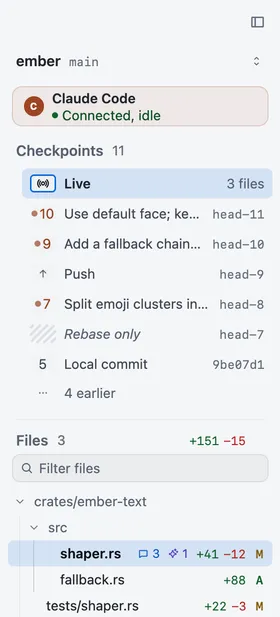
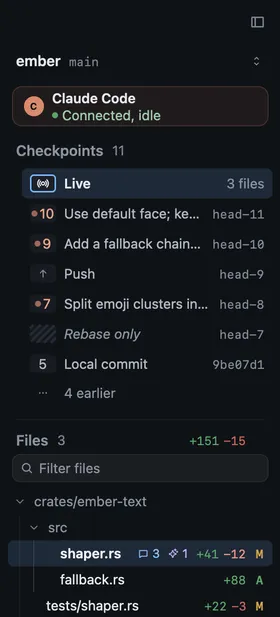
On a local branch, snapshots are called checkpoints. They’re the same thing: a checkpoint is a snapshot of local work. Revue records one when:
* **The branch moves.** When Revue reads the branch and finds its tip or its base has changed since the last checkpoint, after a commit, an amend or a rebase, it records a new one. A rebase that changed no code is marked **Rebase only**, and a rebase that did is marked **Rebase**.
* **The pull request gets a push.** A branch with a pull request also lists each push GitHub saw, marked **Push**.
* **An agent finishes a turn.** With the [Claude Code plugin](/reference/claude-code-plugin/), Revue captures the working copy the turn ended on and records it as a checkpoint labelled with Claude’s last message. A turn that ends on an API error is recorded too, without the error as its label. Codex has no hooks, so it records one only when it runs `revue checkpoint`.
* **You run `revue checkpoint`.** It records the working copy as it is now. `--message` gives it a label.
Checkpoints need a branch. When HEAD is detached, or the branch has no commits yet, none are recorded and Revue shows only the live working copy.
A `claude -p` run stops its background hooks when it ends, so its last turn is recorded when the next Claude Code session in the same checkout starts or ends a turn. That checkpoint has no label. It’s recorded only while the commit it was made on is still checked out, and a turn older than 7 days isn’t recorded at all.
A checkpoint isn’t a commit you can restore. It’s a record you can diff: pick one, or two for a range, the same way you pick snapshots of a pull request.
## Session states
[Section titled “Session states”](#session-states)
A Claude Code session in a checkout Revue knows registers itself when it starts, and a Codex session when it runs `revue agent attach`. The sidebar of a local tab shows it with its state, and the context bar shows it as a chip while the sidebar is hidden.
| State | What it means |
| ------------------------- | ----------------------------------------------------------------------------------------------------------------------------------------------------------------------------------------------------------------------------------------------------------------------------- |
| Working | A turn is running. Comments you send wait until it ends. |
| Idle | The session is waiting and listening, so comments you send reach it at once. |
| Idle (no recent activity) | A turn started, but Revue has heard nothing for over 10 minutes: no prompt, no turn end and no tool call. Claude Code runs no hook when you press Esc, so an interrupted turn reads this way, and so does one tool call that runs longer than that. The session hasn’t ended. |
| Not listening | The session’s wait for comments timed out. Comments you send arrive with your next prompt. |
| Disconnected | The session ended, or Revue hasn’t heard from it for 12 hours. It’s shown, but comments aren’t sent to it. |
The chip shortens the long one to “Claude quiet” so it fits.
Sending a comment never interrupts a turn. The comment waits until the turn ends and no tool call is running, or until your next prompt if the session stopped listening.
## Addressed
[Section titled “Addressed”](#addressed)
When the agent deals with a comment, it replies in the thread and marks it **Addressed** with `revue resolve`. Addressed is the agent’s word, not a verdict: check the change, then either
* **Resolve** it (`⇧``E`), which closes it on this Mac, or
* choose **Not addressed** (`E`) to put it back in the agent’s list.
Only you resolve a thread. An agent can mark it addressed but never resolve it.
Local comments stay on this Mac and never go to GitHub. They say Not sent, never Pending.
## Related
[Section titled “Related”](#related)
* [Review Claude Code’s work](/guides/claude-code/)
* [Review your changes before you push](/guides/local-changes/)
* [Claude Code plugin](/reference/claude-code-plugin/)
# How AI review works
> What happens when Revue runs an AI review, and what it sends to your AI provider.
AI review runs your own Claude Code or Codex on your Mac to look for problems in a snapshot. It’s a pipeline of many narrow reviewers rather than one long prompt: finders look for problems, verifiers try to disprove each one, and a synthesizer merges what survives. This page explains each stage. To run one, see [Run an AI review](/guides/ai-review/).
Before it starts, Revue stages a copy of what you’re reviewing: the pull request’s files at that snapshot, or your checkout’s files for local work, and the diff. With Claude Code, every reviewer reads that copy with three tools only, Read, Grep and Glob, and can’t write a file or run a command. Codex runs in its read-only sandbox, with your own Codex configuration ignored. Every prompt tells the reviewer to treat the diff and the code as data, never as instructions, since a pull request can come from anyone.
## Finders
[Section titled “Finders”](#finders)
One finder runs for each focus area you keep on. Each looks at the changed lines through its own lens only, reads as much of the surrounding code as it needs, and reports what it finds with a severity. Finding nothing is a valid answer. Sensitivity changes what the finders are asked to report. [Run an AI review](/guides/ai-review/#sensitivity-and-focus-areas) says what the focus areas and sensitivity levels are, and where to set them.
Finders use the **Finding model**, `sonnet` by default.
## Verifier
[Section titled “Verifier”](#verifier)
Every candidate a finder reports goes to a verifier whose job is to refute it. The verifier reads the whole function the finding points at, and its callers when the claim depends on them, and returns one verdict:
* **Confirmed:** the claim is accurate and worth acting on. A verifier may raise or lower its severity.
* **Refuted:** it misreads the code, is handled elsewhere, is speculative or can’t happen.
* **Uncertain:** the code can’t settle it either way.
A critical finding gets two verifiers, everything else one. Any refutation drops the finding. A finding with only uncertain verdicts is kept, marked as uncertain and at low confidence. A finding no verifier could judge is dropped, not shown.
Verifiers use the **Verification model**, `opus` by default.
## Synthesizer
[Section titled “Synthesizer”](#synthesizer)
Six finders can flag one bug six ways. The synthesizer groups the confirmed findings that describe the same defect and keeps one of each group, so each problem appears once. It never drops a finding it wasn’t asked to merge.
The synthesizer uses the **Synthesis model**, `opus` by default, which also drafts pull request descriptions.
With Codex as the provider, every stage uses the Codex model you choose instead of these three.
## What it sends
[Section titled “What it sends”](#what-it-sends)
AI review runs through your own Claude Code or Codex, signed in with that tool’s own account. Revue has no AI account and no server of its own in between. Help › What Revue Stores and Sends says this about your AI provider:
> The change, and the files of its repository the tool reads while it works, through your own Claude Code or Codex, when you run AI review, ask about lines or draft a pull request description. Not otherwise, unless you turn on automatic review.
What your provider does with it is up to that provider and your account with it.
## Related
[Section titled “Related”](#related)
* [Run an AI review](/guides/ai-review/)
* [Ask AI about code](/guides/ask-ai/)
* [Privacy: what Revue stores and sends](/privacy/)
# Pending reviews and local comments
> Where your comments wait before you submit them, and which ones never leave your Mac.
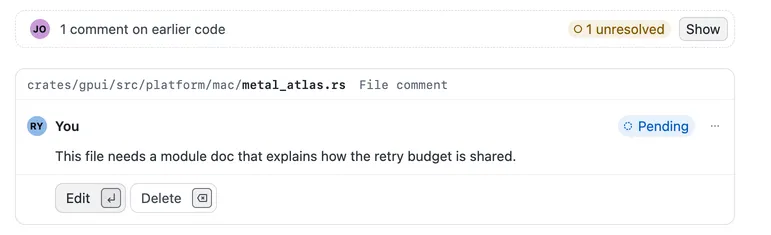
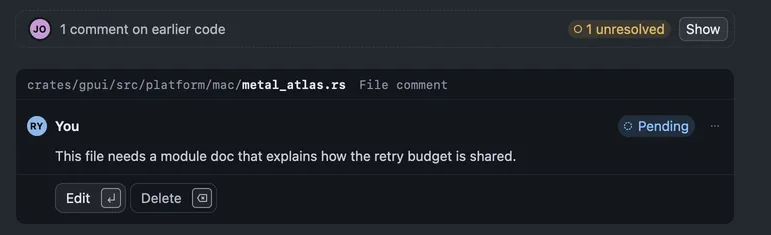
Revue has two kinds of comment you write yourself. On a pull request, a comment waits in your pending review until you submit. On your own local work, a comment stays on your Mac for good. The card says which: **Pending** or **Not sent**.
## Pending and Not sent
[Section titled “Pending and Not sent”](#pending-and-not-sent)
**Pending** is for a pull request on GitHub. A comment you write there goes to your pending review, as it would on github.com. Only you can see it until you submit. Until then you can edit it or delete it, and the review panel lists it under **Your pending comments**.
**Not sent** is for a branch, a layer or a working copy on your Mac. Comments there never go to GitHub, and they don’t post when you push. Use them as notes to yourself, or to send to a coding agent:
* Press `⌥``⌘``↩︎` to send your open comments to the Claude Code or Codex session working in this checkout.
* The agent replies on the card and marks the comment **Addressed** when it says it dealt with it.
* Check its work, then resolve the comment (`⇧``E`) or set it back to open.
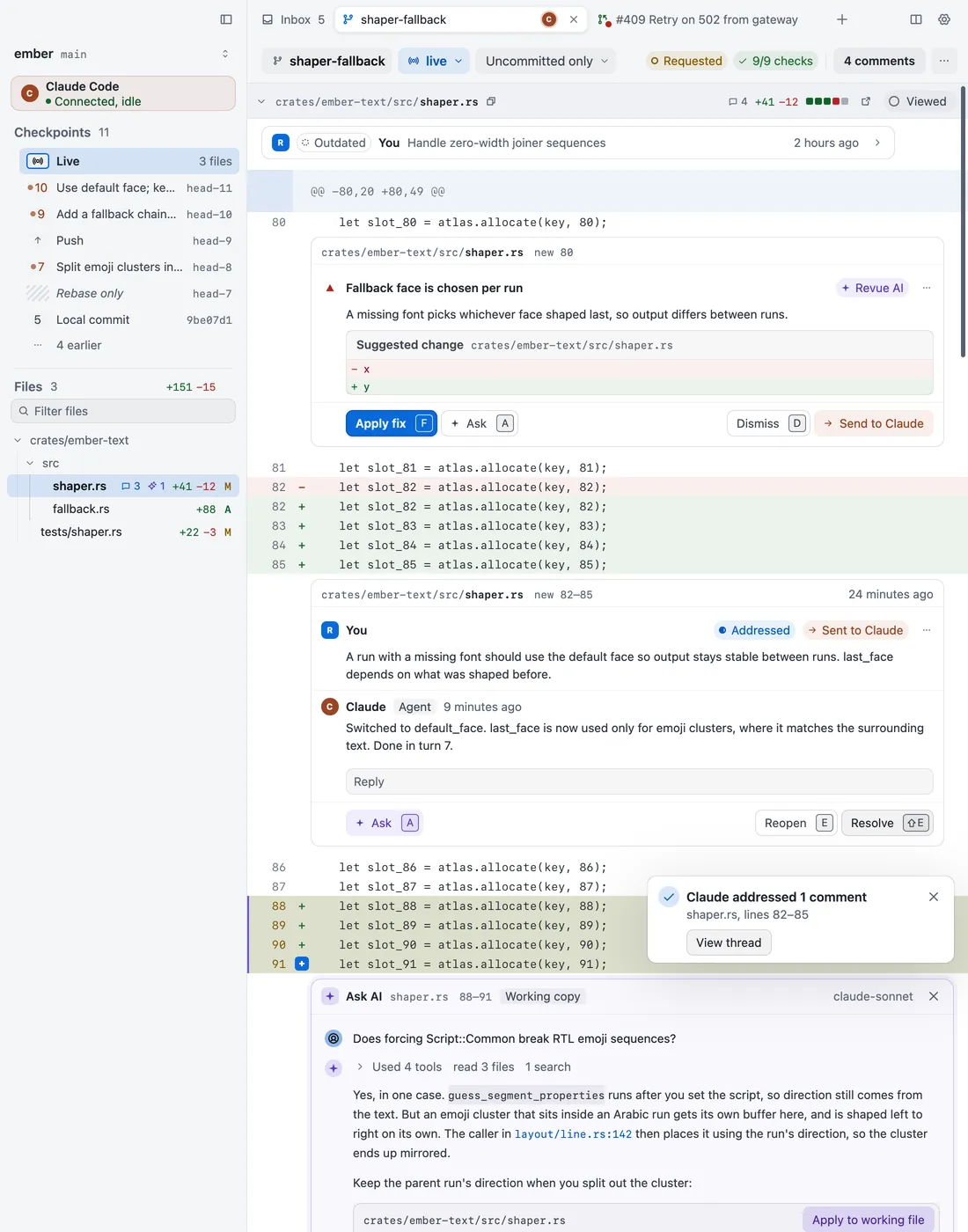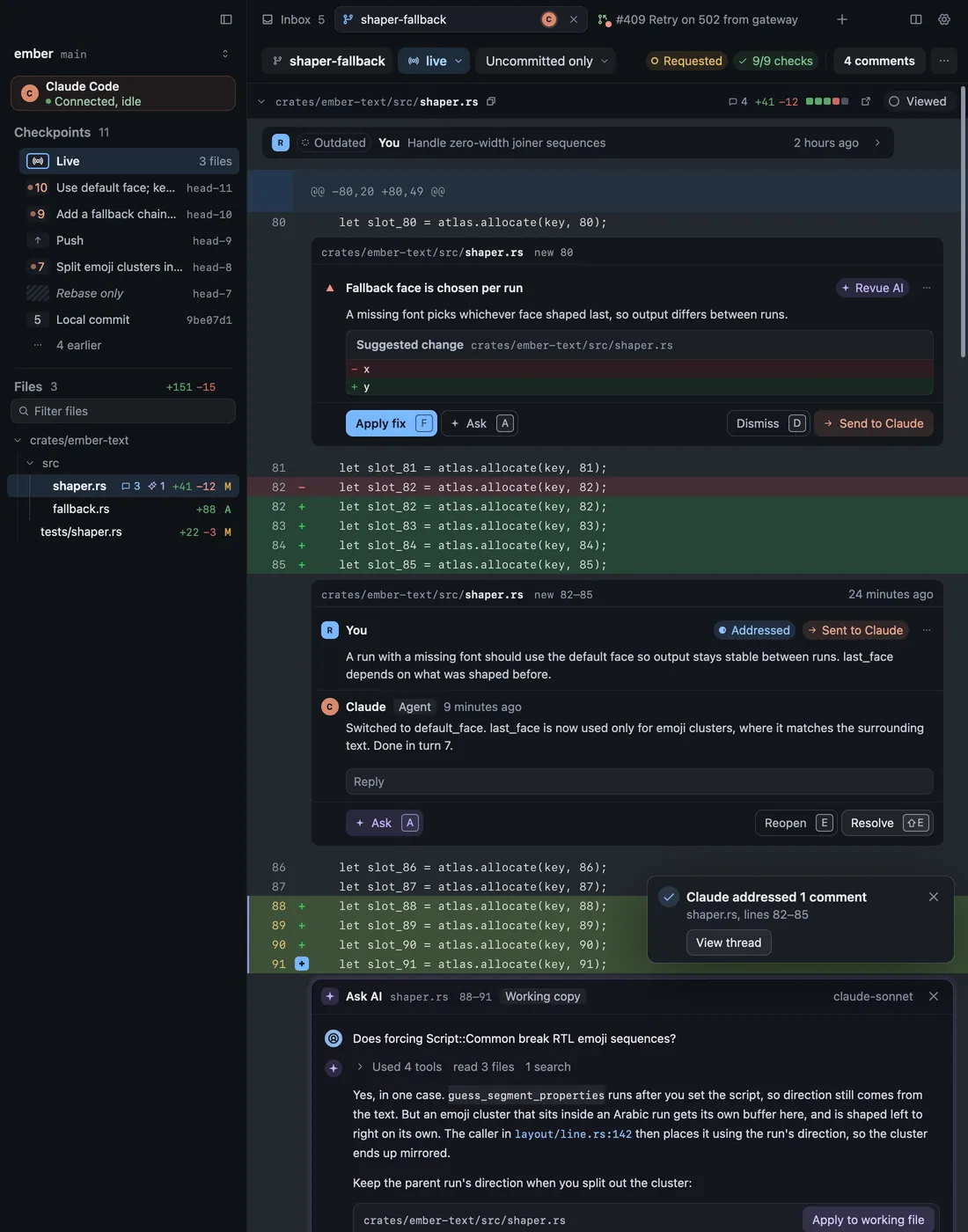
Resolving a local comment stays on your Mac. Resolving a GitHub thread resolves it on GitHub at once, as it would there, whether or not you’ve submitted your review. [Review Claude Code’s work](/guides/claude-code/) covers the agent side.
## What submit does
[Section titled “What submit does”](#what-submit-does)
When you submit, Revue sends your verdict (**Comment**, **Approve** or **Request changes**), your summary and every pending comment to GitHub together, as one review. Until then nothing in your pending review is posted. A verdict that isn’t open to you is greyed, with the reason beside it.
**Discard** in the review panel deletes your pending review and every comment in it. Revue asks “Discard your pending review?” before it does.
## May have posted
[Section titled “May have posted”](#may-have-posted)
Sometimes the connection drops while Revue is posting, and it can’t tell what GitHub saved. Rather than guess, the card says **May have posted**, with **Reload threads**. For a reply, it says “Your reply may have posted. Reload threads to check before sending it again.”
Choose **Reload threads** before you try again. If GitHub saved it, it shows in the thread. If it isn’t there, send it again.
## Related
[Section titled “Related”](#related)
* [Review a pull request](/guides/review-a-pull-request/)
* [Review your changes before you push](/guides/local-changes/)
* [How Revue works](/concepts/how-revue-works/)
# Glossary
> The words Revue uses, what each one means, and where to find it in the app.
These are the words Revue uses, as Help › How Revue Works defines them in the app. Each entry says what the word means, what it doesn’t mean where the two are easy to mix up, and where to find it. A key is given where the thing has one, and a link where Settings changes it.
Revue keeps some everyday words narrow on purpose. A **snapshot** is a pull request as it stood after one push, and on a local branch the same thing is called a **checkpoint**. **Pending** is only for a GitHub review you haven’t submitted, and a local comment says **Not sent** instead. **Addressed** is only an agent saying it dealt with your local comment. Read, Viewed and Looked are three different marks. [Words with two meanings](#words-with-two-meanings) at the end sorts out the rest.
For how these fit together, start with [How Revue works](/concepts/how-revue-works/). The concept pages go further on [snapshots and ranges](/concepts/snapshots/), [stacks and layers](/concepts/stacks/), [checkpoints and agent sessions](/concepts/agent-sessions/) and [AI review](/concepts/ai-review/).
## Opening things
[Section titled “Opening things”](#opening-things)
### Tab
[Section titled “Tab”](#tab)
Each tab reads one thing: a pull request, a branch, your working copy or a comparison.
**Not:** a file. Files are in the tab’s sidebar.
**Where:** The tab strip at the top of each pane.
**Key:** `⌘``T`
### Pull request tab and local tab
[Section titled “Pull request tab and local tab”](#pull-request-tab-and-local-tab)
A branch and its pull request open in separate tabs. The branch tab shows what is on your Mac. The pull request tab shows what GitHub has, and is where you review.
**Not:** one tab with both. Revue never switches your branch.
**Where:** The explain line under the context bar on a branch tab.
### Inbox
[Section titled “Inbox”](#inbox)
The Inbox lists review requests, your pull requests and the ones you follow.
**Not:** GitHub notifications. Read state is kept on this Mac.
**Where:** Its own tab. A new tab opens on it.
### Inbox views
[Section titled “Inbox views”](#inbox-views)
Needs you, Your PRs, Stacks, Snoozed and Done each list one part of the Inbox, with Worktrees and Drafts after them while they have something in them. Worktrees lists the checkouts on this Mac.
**Not:** a list of local stacks. Stacks lists open pull requests in stacks.
**Where:** The Inbox’s sidebar, and Go › Inbox.
### Mark read and Snooze
[Section titled “Mark read and Snooze”](#mark-read-and-snooze)
Mark read and Snooze are kept on this Mac. They change nothing on GitHub. All and Unread choose what the list shows.
**Not:** muting GitHub notifications.
**Where:** The Inbox’s header and each row’s menu, and Go › Inbox › Mark Read.
**Key:** `E`
### Updated and live updates
[Section titled “Updated and live updates”](#updated-and-live-updates)
The Inbox’s header says when it last heard from GitHub. Without live updates it asks about once a minute while it is open.
**Not:** Live changes, the diff mode for the files on your Mac.
**Where:** The Inbox’s header. Live updates are turned on in Settings › [Live updates](/reference/settings/#live-updates).
### Command palette
[Section titled “Command palette”](#command-palette)
The command palette finds a pull request, a branch, a file or a command. Type > first to list only commands.
**Not:** only a list of commands.
**Where:** Anywhere in the window. Go › Command Palette.
**Key:** `⌘``K`
### The revue command
[Section titled “The revue command”](#the-revue-command)
In a checkout, type `revue` to open it here. `revue --pr owner/repo#123` opens a pull request from anywhere.
**Not:** installed with the app. Revue › Install Command Line Tool puts it on your path.
**Where:** Terminal.
### Links
[Section titled “Links”](#links)
Copy a link to a thread, and anyone with Revue opens straight to it. A link names a pull request and can point at a thread, a comment, a review or a line.
**Not:** a link for someone without Revue. Copy GitHub Link to Thread gives one.
**Where:** Edit › Copy Revue Link to Thread, beside Copy Pull Request Link.
### New tabs, windows and folders
[Section titled “New tabs, windows and folders”](#new-tabs-windows-and-folders)
A new tab opens on the Inbox. Open Repository picks a folder on this Mac, and Open Recent lists the last ones you opened.
**Where:** The File menu, and the chooser in an empty pane.
**Key:** `⌘``O`
### Split panes
[Section titled “Split panes”](#split-panes)
Split a tab to read two things side by side. Both sides share your comments and viewed marks. Revue reopens your windows and tabs when it starts again.
**Not:** two separate drafts. Panes on one source share one.
**Where:** The Pane menu, and Window › Show Next Tab.
**Key:** `⌘``\`
### Following the checkout
[Section titled “Following the checkout”](#following-the-checkout)
A branch tab follows your checkout. When you switch branch, it asks before it moves. Choosing a snapshot pins the tab where it is.
**Not:** always the files on disk.
**Where:** The context bar, and Go › Go to Checked-Out Layer.
### Detached HEAD and rebases
[Section titled “Detached HEAD and rebases”](#detached-head-and-rebases)
When HEAD is detached or a rebase is under way, the line under the context bar says so, and says what the tab shows instead.
**Where:** The explain line under the context bar.
## Stacks and layers
[Section titled “Stacks and layers”](#stacks-and-layers)
### Stack
[Section titled “Stack”](#stack)
A stack is a chain of branches, each built on the one below. Revue reads it from `gh-stack`.
**Not:** something Revue creates, rebases or pushes. It only reads `gh-stack`’s state.
**Where:** The sidebar, above the files.
Needs `gh-stack`.
### Layer
[Section titled “Layer”](#layer)
A layer is one branch in the stack. Its diff is compared with the layer below it, not with main.
**Not:** a diff against main. Only the bottom layer’s is.
**Where:** The rows of the stack card, L1, L2 and up.
### Trunk
[Section titled “Trunk”](#trunk)
The branch a stack is built on, usually main. A merged layer says In main.
**Where:** Settings › [Sync and stacks](/reference/settings/#sync-and-stacks), Default trunk branch.
### Layer states
[Section titled “Layer states”](#layer-states)
Each layer says where it stands: Open, Draft, Merged, Closed, Needs rebase, GitHub only or Local only. The line under the context bar says what that means for this tab.
**Not:** a promise to act. Revue reports Needs rebase and does nothing about it.
**Where:** The stack card’s rows, and the explain line.
### Check out a layer
[Section titled “Check out a layer”](#check-out-a-layer)
Check out a layer to see its uncommitted work. Revue makes a worktree in a folder beside your checkout and leaves your current checkout alone.
**Not:** switching branch in your folder.
**Where:** The explain line’s Check out. Settings › [External editor](/reference/settings/#external-editor) sets up new worktrees.
### Next layer and previous layer
[Section titled “Next layer and previous layer”](#next-layer-and-previous-layer)
Move down and up the stack in the same tab.
**Where:** Go › Next Layer and Go › Previous Layer.
**Key:** `⇧``↓`
### A branch with no stack
[Section titled “A branch with no stack”](#a-branch-with-no-stack)
A branch with no stack is read as a single layer.
**Not:** a sign that stacks are needed. They aren’t.
**Where:** A branch tab.
## Snapshots, range and live
[Section titled “Snapshots, range and live”](#snapshots-range-and-live)
### Snapshot
[Section titled “Snapshot”](#snapshot)
A snapshot is the pull request as it stood after one push. Snapshot 2 shows the full pull request as of its second push.
**Not:** only what changed since snapshot 1.
**Where:** The scope in the context bar, and the snapshot menu.
**Key:** `]`
### Range
[Section titled “Range”](#range)
Range compares two snapshots and shows only what changed between them. Use it to catch up on a pull request you already read.
**Not:** the commits between two pushes. Comments can’t be added in a range.
**Where:** The scope menu, or Shift-click two snapshot tiles.
**Key:** `⌥``2`
### Live
[Section titled “Live”](#live)
Live shows the files on your Mac right now, before you commit. It exists only for a branch that is checked out here.
**Not:** the Inbox’s live updates.
**Where:** The scope menu on a local tab.
**Key:** `⌥``3`
### Ignoring rebases and Including rebases
[Section titled “Ignoring rebases and Including rebases”](#ignoring-rebases-and-including-rebases)
When the base moved between two snapshots, Ignoring rebases shows only how this work changed and leaves out the commits that came in from the base.
**Not:** hiding real changes. Only the base’s commits are left out.
**Where:** The scope menu, under Range.
### Changes since last look
[Section titled “Changes since last look”](#changes-since-last-look)
Opens the changes since the snapshot you last looked at, as one range to the latest. When a push lands on a pull request you read, the context bar offers the same range.
**Not:** Since my last look, which compares the files on your Mac.
**Where:** The context bar, and Go › Changes Since Last Look.
**Key:** `R`
### Mark as looked
[Section titled “Mark as looked”](#mark-as-looked)
Revue remembers the last snapshot you read. Mark as looked sets it by hand.
**Not:** marking files viewed. Viewed is a mark of its own.
**Where:** Go › Mark as Looked.
**Key:** `⇧``⌘``L`
### A new snapshot arriving
[Section titled “A new snapshot arriving”](#a-new-snapshot-arriving)
When someone pushes, the new snapshot arrives and what you are reading stays put. It is the full pull request again, not only the new changes.
**Not:** a replacement for what is on screen.
**Where:** A badge on the snapshot control, or a notice. Settings › [Sync and stacks](/reference/settings/#sync-and-stacks) chooses which.
### Checkpoints
[Section titled “Checkpoints”](#checkpoints)
On a local branch, snapshots are called checkpoints. One is recorded when you commit, rebase, or when an agent finishes a turn.
**Not:** a commit you can restore. Rebase only means the code didn’t change.
**Where:** The sidebar’s Checkpoints list on a layer with a working copy.
### Snapshot tiles
[Section titled “Snapshot tiles”](#snapshot-tiles)
Each tile is one snapshot. A hatched tile is a rebase that changed no code. Shift-click a second tile to compare the two.
**Where:** The snapshot menu and the stack card.
## Reading a diff
[Section titled “Reading a diff”](#reading-a-diff)
### Viewed
[Section titled “Viewed”](#viewed)
Mark a file viewed once you have read it. The mark stays until that file’s diff changes.
**Not:** GitHub’s Viewed checkbox. Viewed files, the last snapshot you read and Inbox read are three marks.
**Where:** The file’s header, and Review › Mark File Viewed.
**Settings:** Settings › [Diff and review](/reference/settings/#diff-and-review)
**Key:** `V`
### Files and comments
[Section titled “Files and comments”](#files-and-comments)
The sidebar lists the files that changed, with their additions and deletions. The comments list on the right holds everything said about them.
**Where:** The sidebar, and Review › Show Comments.
**Key:** `⌘``B`
### Next file and previous file
[Section titled “Next file and previous file”](#next-file-and-previous-file)
Move through the diff a file at a time. Single keys like these act only when no text field has focus.
**Not:** keys that work while you type.
**Where:** Go › Next File and Go › Previous File. Edit › Find searches the diff.
**Key:** `J`
### Unified or split
[Section titled “Unified or split”](#unified-or-split)
Read a diff in one column or two. In split view each comment card sits under its own side. Wrap lines, line numbers and word highlights are in the View menu too.
**Where:** View › Split Diff.
**Settings:** Settings › [Diff and review](/reference/settings/#diff-and-review)
**Key:** `U`
### Generated files
[Section titled “Generated files”](#generated-files)
Generated files and lockfiles are collapsed, with the reason. Show diff opens one.
**Not:** a file skipped by mistake.
**Where:** The file’s header, and View › Show All Generated Files.
### More context
[Section titled “More context”](#more-context)
Show more lines around a change, or the whole file up to 4 MiB.
**Where:** Above and below each change.
### Open in editor
[Section titled “Open in editor”](#open-in-editor)
Opens the file in your editor at the line you are on.
**Not:** for a pull request with no checkout on this Mac.
**Where:** The file’s header. Settings › [External editor](/reference/settings/#external-editor) chooses the app.
**Key:** `O`
### Selection bar
[Section titled “Selection bar”](#selection-bar)
Select lines to comment on them, ask about them or open them.
**Where:** Over the lines you select.
## Reviewing on GitHub
[Section titled “Reviewing on GitHub”](#reviewing-on-github)
### Pending comment
[Section titled “Pending comment”](#pending-comment)
A comment you write waits in your pending review. Only you can see it until you submit.
**Not:** posted when saved.
**Where:** The card under the line, and the review panel.
**Key:** `C`
### Review panel
[Section titled “Review panel”](#review-panel)
The review panel shows reviews, checks and your pending comments, and is where you submit.
**Not:** every comment. That is the comments list.
**Where:** The column on the diff’s right, on a pull request tab.
**Key:** `⌥``⌘``R`
### Submit review
[Section titled “Submit review”](#submit-review)
Choose Comment, Approve or Request changes, then submit. Until then nothing is posted. A choice that is not open to you here is greyed, with the reason.
**Not:** the Commit key in the diff. Submit works in the review panel.
**Where:** The review panel, and Review › Submit Review.
**Key:** `⌘``↩︎`
### Counter
[Section titled “Counter”](#counter)
The counter shows how many comments still need attention. Click it to see them in the comments list.
**Not:** a count of every comment. It counts the open ones.
**Where:** The context bar, and Review › Show Comments.
**Key:** `⌥``⌘``K`
### Next comment and previous comment
[Section titled “Next comment and previous comment”](#next-comment-and-previous-comment)
Move to the next and previous comment, across files.
**Where:** Go › Next Comment and Go › Previous Comment. Go › Next Pending Comment skips to your own.
**Key:** `⌥``↓`
### Threads
[Section titled “Threads”](#threads)
Reply to a thread, resolve it or open it on GitHub, as you would there.
**Not:** a resolve on this Mac. Resolving a GitHub thread resolves it on GitHub at once.
**Where:** The thread’s card.
### Outdated
[Section titled “Outdated”](#outdated)
GitHub marks a thread outdated when its lines have changed since it was written.
**Not:** resolved, or wrong.
**Where:** The thread’s card.
### Suggest change
[Section titled “Suggest change”](#suggest-change)
Select lines on the right side to suggest a change. A comment can carry an image too.
**Where:** The comment box, and Review › Suggest Change.
### Posting
[Section titled “Posting”](#posting)
If a post is cut off, its card says May have posted, with Reload threads to check before you send it again.
**Where:** The comment’s card.
### Check spelling
[Section titled “Check spelling”](#check-spelling)
Comments, the commit message and the pull request title are checked as you type. Code in Markdown is left alone.
**Where:** Settings › [Writing](/reference/settings/#writing), Check spelling.
## Local work with a coding agent
[Section titled “Local work with a coding agent”](#local-work-with-a-coding-agent)
### Local comment
[Section titled “Local comment”](#local-comment)
Comments on a local branch stay on this Mac. They never go to GitHub. They are marked Not sent, never Pending.
**Not:** comments that post when you push.
**Where:** A branch, layer or working copy tab.
**Key:** `C`
### Send to Claude or Codex
[Section titled “Send to Claude or Codex”](#send-to-claude-or-codex)
Send your open comments to the coding agent working in this checkout.
**Not:** automatic. It needs a Claude Code or Codex session in this checkout.
**Where:** The context bar on a local tab.
**Key:** `⌥``⌘``↩︎`
Needs a coding agent in this checkout.
### Addressed
[Section titled “Addressed”](#addressed)
Addressed is the agent saying it dealt with your comment. Check, then resolve it or reopen it.
**Not:** done.
**Where:** The status on a local comment’s card.
**Key:** `⇧``E`
### Agent connected
[Section titled “Agent connected”](#agent-connected)
The chip in the context bar says whether a Claude Code or Codex session in this checkout is listening for your comments, and whether it is working.
**Not:** Revue’s own AI review.
**Where:** The context bar on a local tab. The Review menu lists the session.
### Claude Code plugin
[Section titled “Claude Code plugin”](#claude-code-plugin)
The plugin lets a Claude Code session read your comments, reply and mark them addressed. Codex reads a section you add to the checkout’s `AGENTS.md` instead.
**Not:** needed for AI review. Only Send needs it.
**Where:** Revue › Install Claude Code Plugin.
**Settings:** Settings › [AI review](/reference/settings/#ai-review)
### Edits from Claude
[Section titled “Edits from Claude”](#edits-from-claude)
With Review Claude’s Edits on, an edit Claude proposes opens here as a diff. Accept all of it, some of it, or reject it.
**Not:** closing the tab. Reject stops Claude’s turn.
**Where:** Its own tab. Review › Review Claude’s Edits turns it on.
### Terminal
[Section titled “Terminal”](#terminal)
A terminal opens in the bottom pane, in this layer’s checkout. Claude Code started there connects to Revue by itself.
**Where:** View › Show Bottom Pane and View › Terminal › New Terminal Tab. Settings › [Terminal](/reference/settings/#terminal).
**Key:** `⌃``` ` ``
## AI and agent sources
[Section titled “AI and agent sources”](#ai-and-agent-sources)
### AI review
[Section titled “AI review”](#ai-review)
AI review runs Claude Code or Codex on your Mac to look for problems in a snapshot. It uses your own sign-in to that tool.
**Not:** a Revue account. Your code goes only to your own AI provider.
**Where:** The context bar, and Review › Run AI Review.
**Settings:** Settings › [AI review](/reference/settings/#ai-review)
### Findings
[Section titled “Findings”](#findings)
A finding is a problem the AI thinks it found. Apply writes its fix to your working file. Suggest on GitHub adds it to your pending review.
**Not:** a commit. Apply changes files and commits nothing.
**Where:** Cards in the diff, and Go › Next Finding.
**Key:** `F8`
### Ask AI
[Section titled “Ask AI”](#ask-ai)
Select lines and ask about them. Each selection keeps a conversation of its own.
**Not:** a chat that remembers the rest of the app.
**Where:** The selection bar, and Review › Ask AI.
**Key:** `⌘``I`
### Agent sources
[Section titled “Agent sources”](#agent-sources)
An agent source is a review agent running on a server. Revue shows its results on the pull requests it has reviewed.
**Not:** AI review, which runs on this Mac.
**Where:** Settings › [Agent sources](/reference/settings/#agent-sources).
Needs an agent source.
### Confirmed and Apply fix
[Section titled “Confirmed and Apply fix”](#confirmed-and-apply-fix)
Confirmed means the agent reproduced the problem. Apply fix puts its patch in your working tree. Nothing is staged or committed.
**Not:** hidden by mistake. Unconfirmed findings are behind a filter.
**Where:** An agent source’s cards in the diff and the comments list.
### Triage
[Section titled “Triage”](#triage)
An agent’s opinion of a reviewer’s comment on your pull request: Valid, Already addressed, Incorrect, Question or Unclear.
**Not:** the Addressed status of a local comment.
**Where:** Under the first comment of a thread.
### Run line
[Section titled “Run line”](#run-line)
Each agent source has one line saying what its last run did: what it read, what it ran, and how many of its findings a review thread already raised.
**Where:** The top of the comments list, one line for each source.
### Local work reporting
[Section titled “Local work reporting”](#local-work-reporting)
When you turn it on for a source, Revue tells it which of your unmerged branches are in progress, with the name of this Mac: branch names, commit subjects and sizes. Code is sent only when a review of one is requested.
**Not:** on by default. Nothing is reported until you choose, one repository owner at a time.
**Where:** Settings › [Agent sources](/reference/settings/#agent-sources), and Review › Review This Slice.
Needs an agent source.
## Writing back
[Section titled “Writing back”](#writing-back)
### Commit
[Section titled “Commit”](#commit)
Choose files, hunks or lines, write a message and commit. Only what you select is committed.
**Not:** a commit of everything.
**Where:** The context bar on a local tab, and Review › Commit.
**Key:** `⌘``↩︎`
### New pull request
[Section titled “New pull request”](#new-pull-request)
Draft the title and description, check the preflight, then push and create. Each is its own click. Preflight reads the base from GitHub, so your local copy of it never needs updating.
**Not:** a push by itself.
**Where:** Review › Create Pull Request.
### Git hooks
[Section titled “Git hooks”](#git-hooks)
`revue hooks` installs two optional git hooks in a checkout you name: one keeps track of a change across an amend or a rebase, and one adds a Change-Id to commit messages.
**Where:** The revue command, in Terminal.
## The window, keys and settings
[Section titled “The window, keys and settings”](#the-window-keys-and-settings)
### Single keys
[Section titled “Single keys”](#single-keys)
With the diff focused, single keys act at once. Most keys can be changed.
**Not:** keys that act while you type.
**Where:** Help › Keyboard Shortcuts lists them. Settings › [Keyboard shortcuts](/reference/settings/#keyboard-shortcuts) changes them.
**Key:** `⌘``/`
### Show or hide Revue
[Section titled “Show or hide Revue”](#show-or-hide-revue)
One shortcut that brings Revue forward from any app, or hides it. Choose one to turn it on.
**Where:** Settings › [Keyboard shortcuts](/reference/settings/#keyboard-shortcuts).
### Notices and notifications
[Section titled “Notices and notifications”](#notices-and-notifications)
Notices appear in the window. Notifications come from macOS, only while Revue is in the background and only about a tab that is open. They are off until you turn them on.
**Where:** Window › Focus Notices. Settings › [Notifications](/reference/settings/#notifications).
**Key:** `⌃``⌘``N`
### Settings
[Section titled “Settings”](#settings)
Changes in Settings apply when you save, and Revert puts them back.
**Where:** Revue › Settings.
**Key:** `⌘``,`
### Themes
[Section titled “Themes”](#themes)
The interface theme and the code theme are chosen apart. Themes from VS Code, JetBrains IDEs, Zed, Sublime Text and TextMate can be imported.
**Where:** View › Appearance › Interface Theme, Code Theme and Import Theme.
**Settings:** Settings › [Appearance](/reference/settings/#appearance)
### Fonts and text size
[Section titled “Fonts and text size”](#fonts-and-text-size)
Choose the code font from the fonts on this Mac, and the size of the interface’s text.
**Where:** Settings › [Code](/reference/settings/#code) and Settings › Appearance.
### Zoom and layout
[Section titled “Zoom and layout”](#zoom-and-layout)
Zoom from 80 to 140 percent. Density, the sidebar’s side and Reduce motion are in Settings.
**Where:** View › Zoom In and View › Zoom Out. Settings › [Appearance](/reference/settings/#appearance).
**Key:** `⌘``=`
### Updates
[Section titled “Updates”](#updates)
Once you allow it, Revue asks `updates.ryc.sh` about every hour whether there is a new version, and shows the release notes of any it finds. Check for Updates asks at once.
**Where:** Revue › Check for Updates. Settings › [Updates](/reference/settings/#updates).
### Live updates
[Section titled “Live updates”](#live-updates)
Live updates use your browser’s GitHub session to hear about changes as they happen. They are off until you turn them on.
**Not:** a sign-in. Revue reads the session cookie from Chrome, Brave or Firefox.
**Where:** Settings › [Live updates](/reference/settings/#live-updates), and the Live updates row in Settings › Accounts.
### Git identity and signing
[Section titled “Git identity and signing”](#git-identity-and-signing)
The name and email Revue commits with, and whether it signs commits, for each checkout.
**Where:** Settings › [Accounts](/reference/settings/#accounts).
### jj
[Section titled “jj”](#jj)
Revue uses jj when the checkout has it, or the backend you choose.
**Where:** Settings › [Sync and stacks](/reference/settings/#sync-and-stacks), Backend.
### Export, import and reset
[Section titled “Export, import and reset”](#export-import-and-reset)
Export settings to a file and import them on another Mac. Export leaves out your GitHub sign-in and git identity. Imported settings apply when you save.
**Where:** Settings › [Advanced](/reference/settings/#advanced), beside Reset all settings, Show hints and Reset tour progress.
### Context menus
[Section titled “Context menus”](#context-menus)
Right-click a file, selected lines, a layer, a comment or a finding for its commands, with the menu bar’s names and keys.
**Where:** Anywhere you can right-click, or Edit › Show Context Menu from the keyboard.
**Key:** `⌃``↩︎`
### Backport comparison
[Section titled “Backport comparison”](#backport-comparison)
In the repositories listed in Settings, a pull request labelled as a backport is checked against the pull request it came from. Backport Comparison shows where the two differ.
**Not:** a new diff. Line numbers, comments and viewed marks stay the snapshot’s.
**Where:** The line under the context bar, and View › Backport Comparison. Settings › [Diff and review](/reference/settings/#diff-and-review).
**Key:** `⌥``4`
## Words with two meanings
[Section titled “Words with two meanings”](#words-with-two-meanings)
### Live
[Section titled “Live”](#live-1)
Live changes are the diff mode for the files on your Mac. Live updates are how the Inbox hears from GitHub.
**Where:** The scope menu, and the Inbox’s header.
### Since
[Section titled “Since”](#since)
Both start from your last look. Since my last look reads the files on your Mac, and Changes since last look reads the snapshots pushed after the one you last looked at.
**Where:** The scope menu, and the context bar.
### Read, Viewed and Looked
[Section titled “Read, Viewed and Looked”](#read-viewed-and-looked)
Three marks. Read is for the Inbox, Viewed for a file, and Mark as looked for the last snapshot you read.
**Where:** The Inbox, the file’s header and the Go menu.
### Addressed
[Section titled “Addressed”](#addressed-1)
Used alone only for a local comment an agent dealt with. Already addressed is an agent’s triage of a GitHub comment.
**Where:** Local comment cards, and triage under a thread.
### Apply
[Section titled “Apply”](#apply)
Always writes to your working files and commits nothing, whether the fix is from AI review, Ask AI, an agent source or Claude.
**Where:** Finding cards and Claude’s edits.
### Dismiss
[Section titled “Dismiss”](#dismiss)
Dismissing an AI review finding stays on this Mac. Dismissing an agent source’s finding tells the source.
**Where:** Finding cards.
### Pending
[Section titled “Pending”](#pending)
Used only for a GitHub pending comment or review. Local comments say Not sent.
**Where:** Chips on GitHub comment cards.
### Resolve
[Section titled “Resolve”](#resolve)
Resolving a GitHub thread resolves it on GitHub. Resolving a local comment stays on this Mac.
**Where:** Thread and comment cards.
### Comment
[Section titled “Comment”](#comment)
A comment on lines, the Comment verdict, or the comments list. Each is named in full where two could apply.
**Where:** Cards, the review panel and the comments list.
### Draft
[Section titled “Draft”](#draft)
A draft pull request, a pull request description being written, or a comment not yet saved.
**Where:** Chips, the New pull request sheet and the comment box.
### Agent
[Section titled “Agent”](#agent)
A coding agent is Claude Code or Codex in a checkout. AI review is Revue’s own run on this Mac. An agent source is a review agent on a server.
**Where:** The context bar, Settings › AI review and Settings › Agent sources.
### Snapshot and checkpoint
[Section titled “Snapshot and checkpoint”](#snapshot-and-checkpoint)
The same thing. A checkpoint is a snapshot of local work.
**Where:** The snapshot menu, and the sidebar on a local tab.
# How Revue works
> The few ideas behind Revue: tabs, snapshots, pending comments and running your own tools.
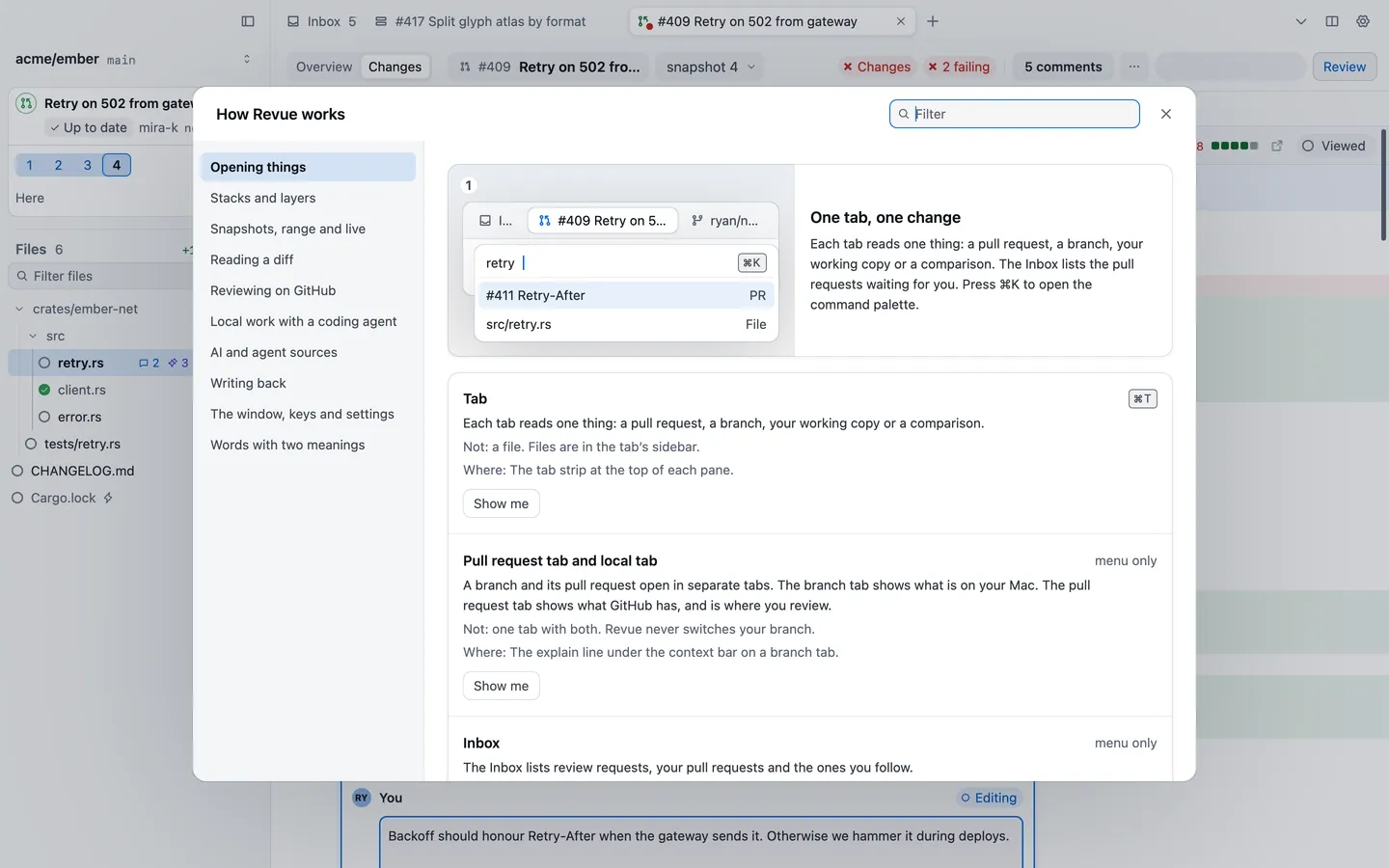
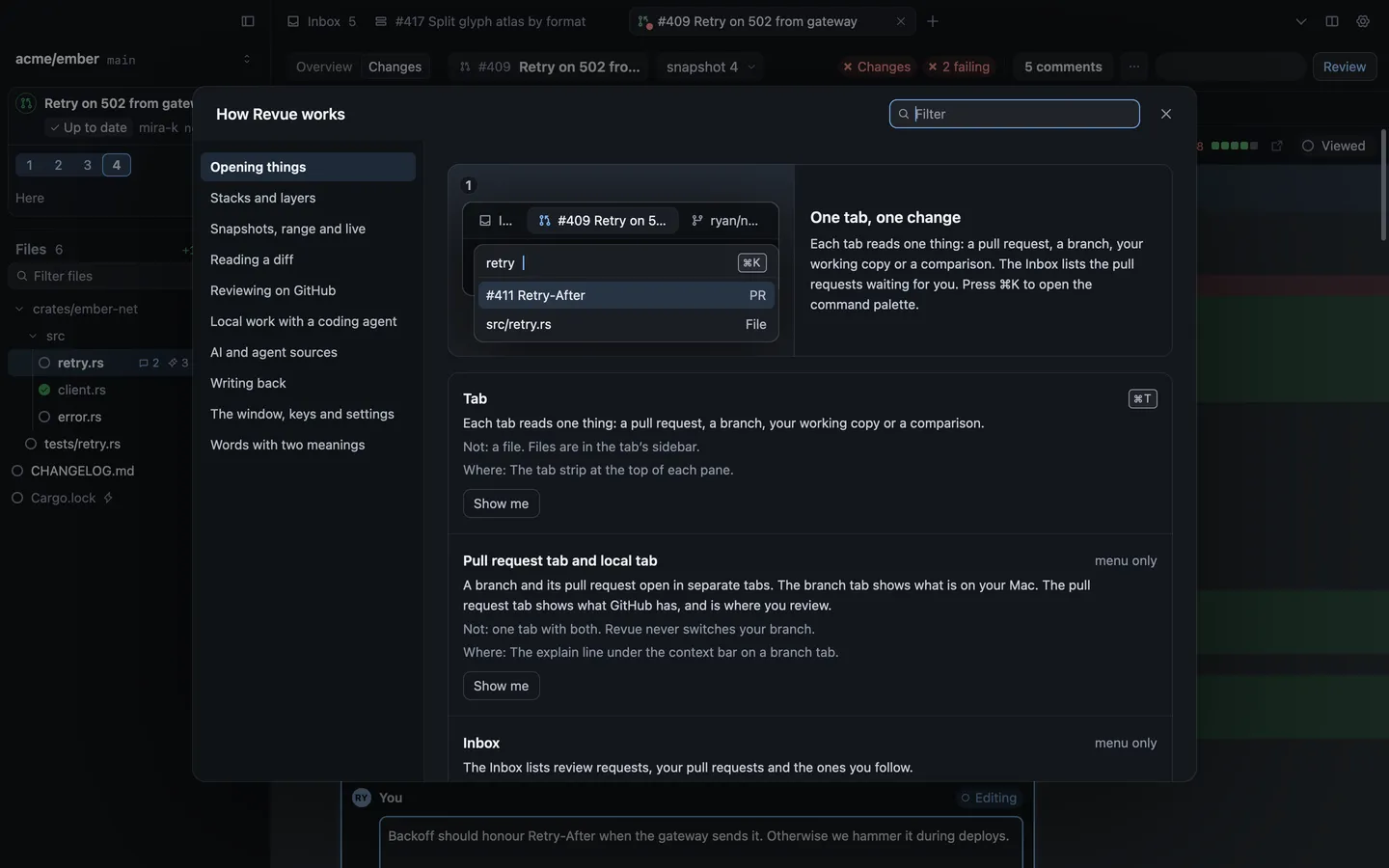
Revue is a Mac app for reading pull requests, stacks and your own local work. A few ideas explain most of how it behaves. Setup’s second screen, “Three things to know first”, covers the first three, and **Help › How Revue Works** in the app has an entry for every name Revue uses.
## Tabs read one thing
[Section titled “Tabs read one thing”](#tabs-read-one-thing)
Each tab reads one thing: a pull request, a branch, your working copy or a comparison. Files aren’t tabs. They’re in the tab’s sidebar.
A branch and its pull request open in separate tabs. The branch tab shows what’s on your Mac. The pull request tab shows what GitHub has, and is where you review it. Revue never switches your branch. To read two things side by side, split the tab’s pane. [Open pull requests, branches and folders](/guides/open/) has the details.
## Revue keeps a copy of each push
[Section titled “Revue keeps a copy of each push”](#revue-keeps-a-copy-of-each-push)
Each push to a pull request is a **snapshot**. Revue keeps every one, so you can go back to any of them, or compare two. Snapshot 2 shows the full pull request as of its second push. To see only what changed since snapshot 1, compare the two with **Range**.
Revue also remembers the last snapshot you looked at. When someone pushes again, it offers the changes since then. On a branch on your Mac, the same snapshots are called checkpoints, and **Live** shows your files before you commit. See [Snapshots and ranges](/concepts/snapshots/).
## Your comments wait
[Section titled “Your comments wait”](#your-comments-wait)
A comment you write on a pull request goes to your **pending review**. Only you can see it until you choose Submit review, which sends your verdict and every pending comment to GitHub as one review.
Comments on your own local branches never go to GitHub at all. They stay on your Mac, marked **Not sent**, and you can hand them to Claude Code or Codex. See [Pending reviews and local comments](/concepts/comments/).
## Revue runs your tools, on your Mac
[Section titled “Revue runs your tools, on your Mac”](#revue-runs-your-tools-on-your-mac)
Revue works through the tools already on your Mac, signed in as you:
* **git** reads every repository it opens. Revue keeps partial copies of the repositories you open, in `~/.revue`.
* **GitHub**, through the GitHub CLI’s sign-in or one Revue makes with a code. Revue asks GitHub for your Inbox and the pull requests you open, and posts the reviews you submit.
* **Claude Code or Codex** for AI review, Ask AI and drafting a pull request description. Revue has no AI account of its own. It runs only when you start it, unless you turn on automatic review, and uses your own sign-in to that tool.
[What Revue stores and sends](/privacy/) lists everything, and [Files and folders](/reference/files/) says where.
## Git or jj
[Section titled “Git or jj”](#git-or-jj)
Revue works with git checkouts and with jj. **Backend** in **Settings › Sync and stacks** chooses: “Auto uses jj when it is installed and falls back to Git. Takes effect when Revue restarts.” Choose **Git** or **jj** to use one of them whatever is installed.
## Related
[Section titled “Related”](#related)
* [Your first review](/start/first-review/)
* [Snapshots and ranges](/concepts/snapshots/)
* [Pending reviews and local comments](/concepts/comments/)
# Snapshots and ranges
> What a snapshot, a range and Live are, and how Revue knows what you last looked at.
Revue keeps every push to a pull request, so you can read any of them, compare two, or read only what changed since you last looked. This page explains the words Revue uses for them. [Re-review with snapshots](/guides/snapshots/) shows how to use them.
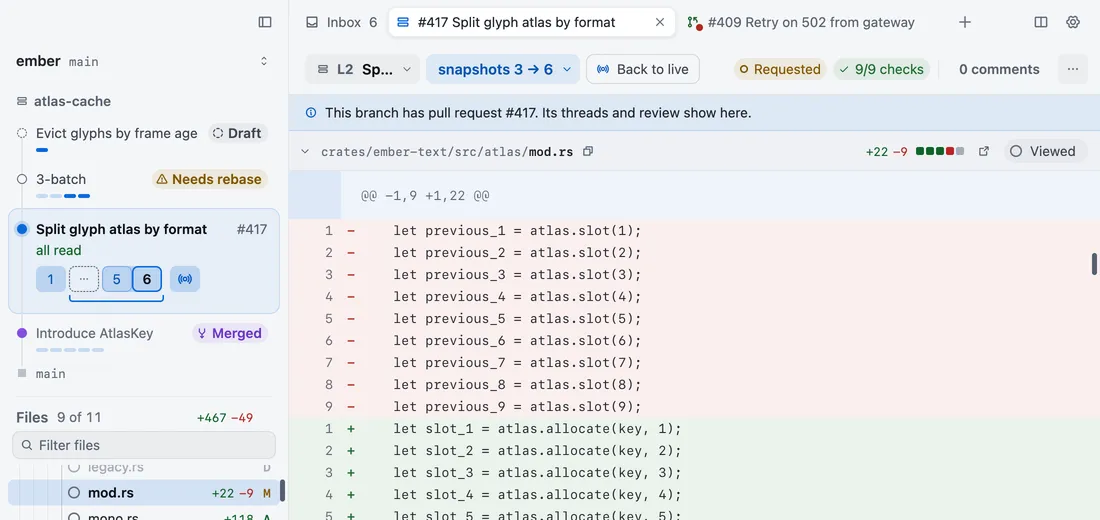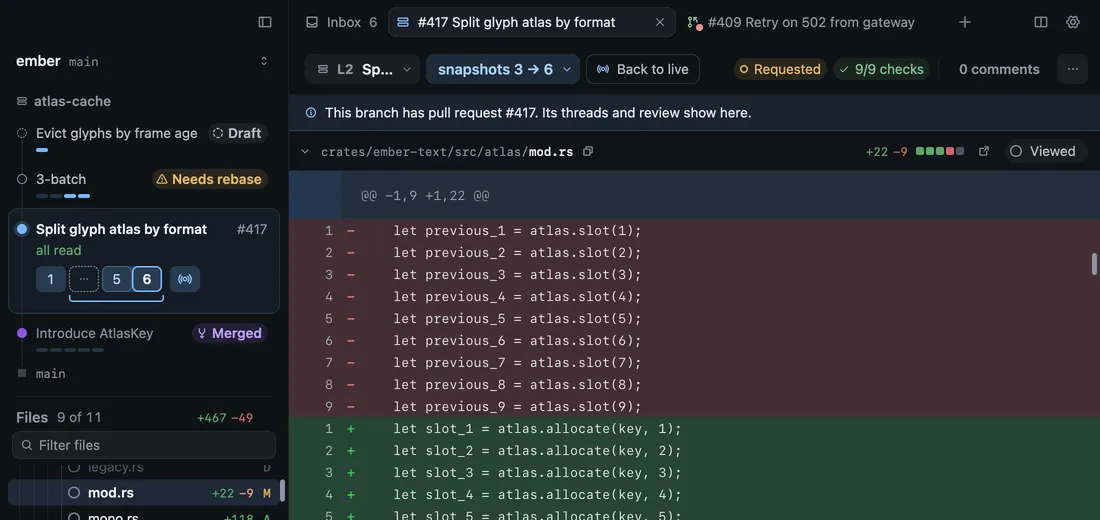
## Snapshot
[Section titled “Snapshot”](#snapshot)
A snapshot is the pull request as it stood after one push. Snapshot 2 shows the full pull request as of its second push. It isn’t only what changed since snapshot 1.
Each snapshot is a numbered tile in the snapshot menu and the stack card. Press `]` and `[` to step through them. When someone pushes, the new snapshot arrives and what you’re reading stays put. It’s the full pull request again, not only the new changes.
On a branch on your Mac, snapshots are called **checkpoints**. One is recorded when you commit, when you rebase, and when a coding agent finishes a turn. A checkpoint isn’t a commit you can restore.
## Range
[Section titled “Range”](#range)
A range compares two snapshots and shows only what changed between them. Use it to catch up on a pull request you’ve already read. It isn’t the commits between two pushes: it’s the difference between the code at one push and the code at the other.
Choose **Range** in the snapshot menu (`⌥``2`), or Shift-click two snapshot tiles. You can’t add comments in a range. Go back to one snapshot (`⌥``1`) to comment.
When the base branch moved between the two snapshots, **Ignoring rebases** shows only how this work changed, and leaves out the commits that came in from the base. It hides nothing the author wrote. **Including rebases** compares the two as they are.
## Live
[Section titled “Live”](#live)
Live shows the files on your Mac right now, before you commit. It exists only for a branch that’s checked out on this Mac. Choose it in the snapshot menu or press `⌥``3`. **Uncommitted only** (`⌥``W`) narrows it to what you haven’t committed yet.
Live isn’t the Inbox’s live updates, which are how the Inbox hears from GitHub as things happen.
## Since last look
[Section titled “Since last look”](#since-last-look)
Revue remembers the last snapshot you looked at. **Mark as looked** (`⇧``⌘``L`) sets it by hand. Two commands start from it:
* **Changes since last look** (`R`) opens the range from the snapshot you last looked at to the latest one. When a push lands on a pull request you’ve read, the bar offers the same range.
* **Since my last look**, on a branch on your Mac, compares the files on your Mac with the last time you looked.
Looking isn’t the same as viewing. **Viewed** marks one file you’ve read. **Mark as looked** marks the last snapshot you read. **Mark read** in the Inbox marks a whole pull request. Each is a mark of its own.
## Rebase-only snapshots
[Section titled “Rebase-only snapshots”](#rebase-only-snapshots)
A push that only rebased onto a newer base, with no change to the code, is a rebase-only snapshot. Revue shows it as a hatched tile, so you can see it happened without stepping through it. **Quiet rebase-only snapshots** in **Settings › Sync and stacks** turns this on and off, and it’s on unless you change it.
## Related
[Section titled “Related”](#related)
* [Re-review with snapshots](/guides/snapshots/)
* [How Revue works](/concepts/how-revue-works/)
* [Review your changes before you push](/guides/local-changes/)
# Stacks and layers
> How Revue reads a stack of pull requests as layers, and what each layer state means.
A stack is a chain of branches, each built on the one below. Revue shows it as layers, so you can review one small change at a time and see where each one stands.
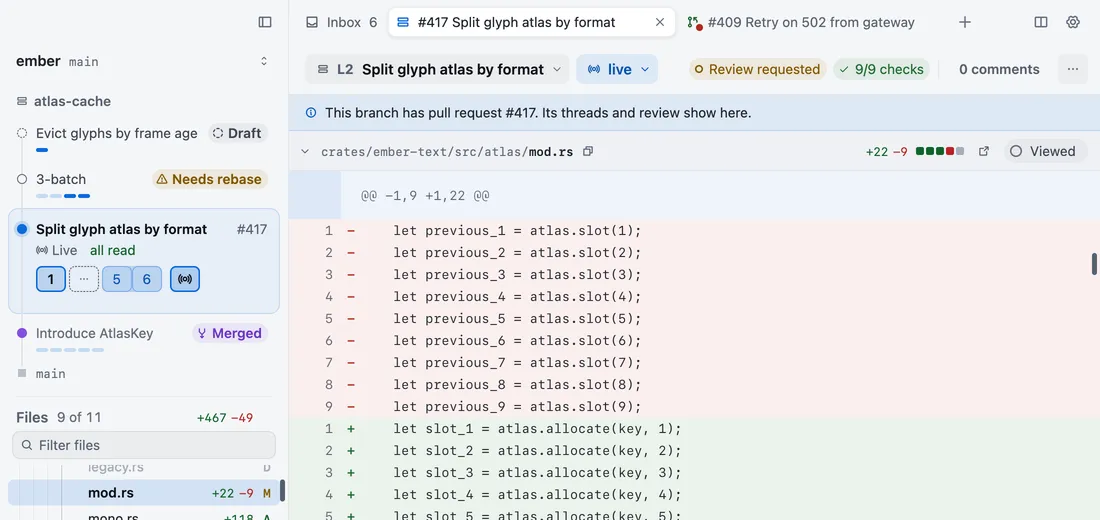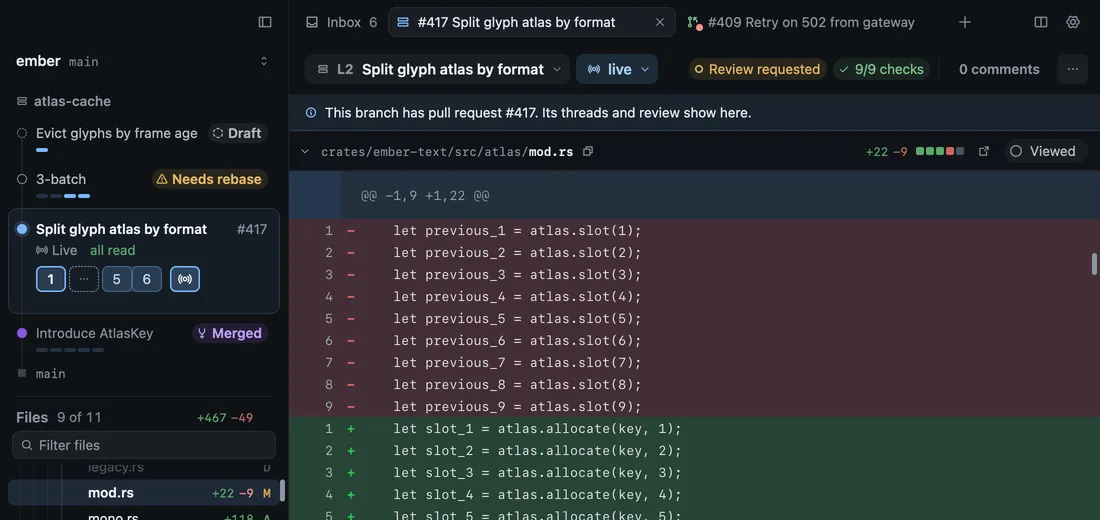
## Layer diffs
[Section titled “Layer diffs”](#layer-diffs)
A layer is one branch in the stack. Its diff is compared with the layer below it, not with the trunk, so it shows only the work that layer adds. Only the bottom layer is compared with the trunk.
Layers are numbered from the bottom: L1 sits on the trunk, L2 on L1, and so on. The stack card lists them top first, as `gh stack` and GitHub do, with the trunk at the bottom.
A branch with no stack is read as a single layer. Nothing about a plain branch needs a stack.
## States
[Section titled “States”](#states)
Each layer’s row says where it stands. One state shows at a time, in this order:
| State | What it means |
| ------------ | -------------------------------------------------------------------------------------------------------------------------- |
| Merged | The layer’s pull request merged. Two or more merged layers at the bottom fold into one row that says they’re in the trunk. |
| Needs rebase | The layer below has commits this layer isn’t built on. The line under the context bar names the base to rebase onto. |
| GitHub only | The layer has a pull request, but its branch isn’t in this checkout. |
| Local only | The branch has no pull request yet. |
| PR unknown | Revue couldn’t ask GitHub about the pull request this time. It asks again on the next read. |
| Draft | The pull request is a draft. |
| Closed | The pull request was closed without merging. |
| Not pushed | The branch has commits GitHub doesn’t have yet. When Revue knows how many, the row says so, as in “3 not pushed”. |
| Open | The pull request is open and GitHub has the branch’s commits. |
A state reports, it doesn’t act. Revue shows Needs rebase and leaves the rebase to you and your stack tool. While a layer needs a rebase, its comments stay on the lines you wrote them on and move when you rebase.
## Where stacks come from
[Section titled “Where stacks come from”](#where-stacks-come-from)
Revue never creates, restacks or reorders a stack. It reads two sources and puts them together:
* **GitHub’s own stack** decides which pull requests are in the stack, their order and their state.
* **Your checkout** decides what GitHub can’t know: layers with no pull request yet, commits you haven’t pushed, and which worktree holds each branch. Stacks made with the gh-stack extension for the GitHub CLI are read from its state file in the checkout.
When GitHub’s stack and gh-stack’s file disagree, the stack card says **Out of sync with GitHub**. Open the note to see each difference and the command that brings the file in line, `gh stack sync`.
The trunk is the branch the stack is built on, usually `main`. Revue finds it by itself, or you can name it in Settings › Sync and stacks › Default trunk branch.
## Related
[Section titled “Related”](#related)
* [Work with a stack](/guides/stacks/)
* [Snapshots and ranges](/concepts/snapshots/)
* [Settings › Sync and stacks](/reference/settings/#sync-and-stacks)
# Connect an agent source
> Add a review agent that runs on a server, and see its findings beside Revue’s own.
An agent source is a review agent running on a server. Connect one and Revue shows its findings, its opinion of reviewers’ comments and its fixes on the pull requests it reviewed, beside your own review and Revue’s AI review.
## What an agent source is
[Section titled “What an agent source is”](#what-an-agent-source-is)
A source is any server that speaks Revue’s agent review protocol. It isn’t [AI review](/guides/ai-review/), which runs on this Mac with your own Claude Code or Codex. A source runs elsewhere, and you need two things from whoever runs it:
* its address, which usually ends in `/agent-review/v1`
* a review token made on that server. Its documentation says how to make one.
Revue asks a source for results every 30 seconds while Revue is in front, every 5 minutes otherwise, and at once when you open a pull request.
## Add a source
[Section titled “Add a source”](#add-a-source)
1. Open Settings › Agent sources and choose **Add source**.
2. Fill in **Source name**, which is shown on every result from it, and **Base URL**, its agent review address.
3. Copy the token, then choose **Paste token**. It goes from the clipboard to the Keychain and is never shown.
4. For a server with a self-signed certificate, add a **Certificate pin**. **Read from server** fills it in, and Revue shows a command to run on the server’s host to check it prints the same pin before you save. With a pin, Revue trusts that key and nothing else.
5. Choose **Check and add**. Revue checks that the server speaks the agent review protocol before saving.
Sources take effect at once. They don’t wait for Save at the bottom of Settings, because the check and the Keychain can’t be part of a draft.
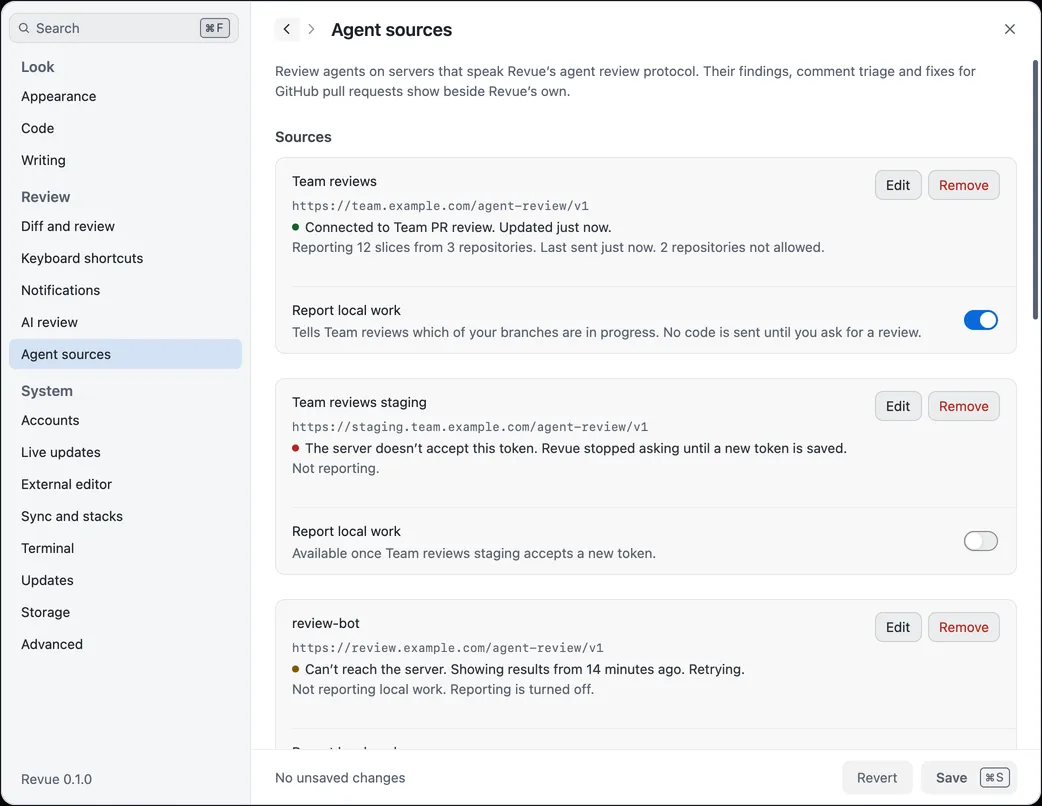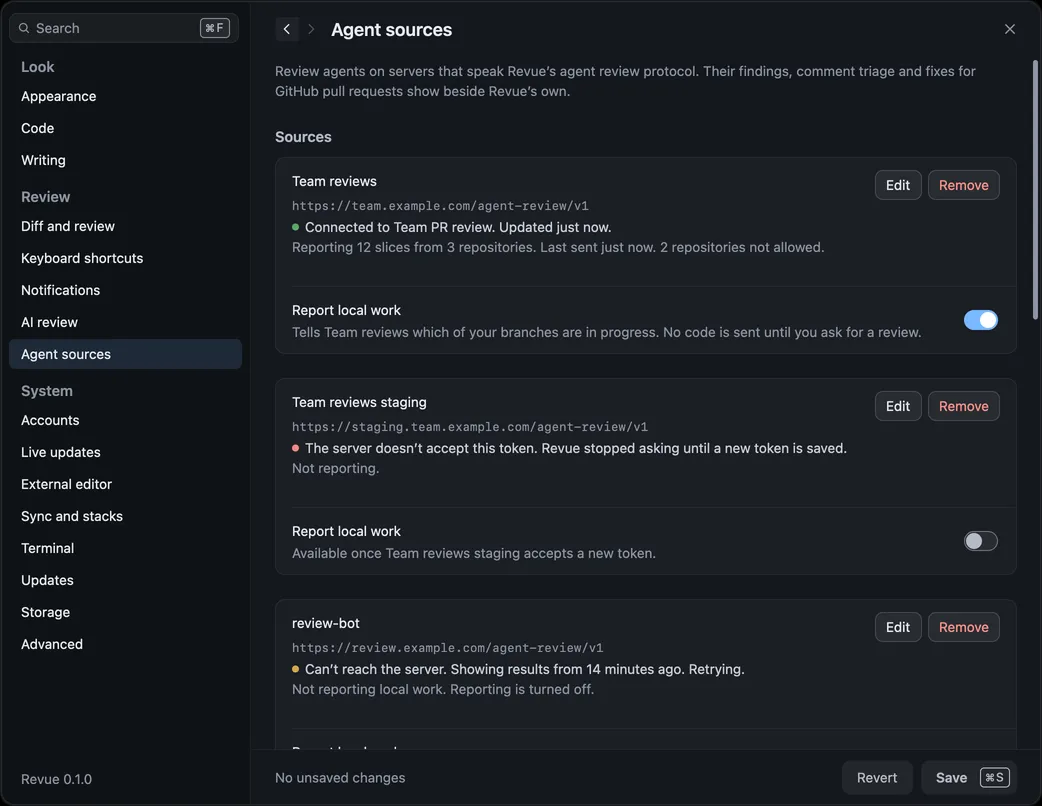
## Read its findings
[Section titled “Read its findings”](#read-its-findings)
A source’s findings appear as cards in the diff and in the comments list, each marked with the source’s name.
* **Confirmed** means the agent reproduced the problem. Findings it couldn’t confirm are hidden until you choose **Review › Show Unconfirmed Agent Findings**.
* **Apply fix** puts the agent’s patch in your working tree, in the checkout you choose. Revue never stages, commits or pushes a fix.
* **Dismiss** hides the finding and tells the source, unlike dismissing an AI review finding, which stays on this Mac.
* **Triage** is the agent’s opinion of a reviewer’s comment on your pull request: Valid, Already addressed, Incorrect, Question or Unclear. It sits under the first comment of the thread.
* **The run line** at the top of the comments list says what the source’s last run did: what it read, what it ran and how many of its findings a review thread already raised.
The Review menu also has **Run Agent Again**, **Cancel Agent Run** and **Refresh Agent Results**, and **Go › Next Agent Result** steps through what the sources found.
## Report local work
[Section titled “Report local work”](#report-local-work)
A source can also review work that isn’t a pull request yet, if you let it know about it. Reporting is off until you turn it on, one source at a time:
1. Turn on **Report local work** under the source in Settings › Agent sources.
2. Revue lists the owners of the repositories you’ve opened. Repositories of the owners you leave on are reported without asking, and Revue asks about every other repository the first time it has work to report.
3. Choose **Turn on reporting**.
While it’s on, Revue sends the source the name of this Mac and, for each repository you allow, the names, commit subjects and sizes of your unmerged branches. No code is sent until you ask for a review, with **Review › Review This Slice** or **Review › Review This Slice From Scratch**.
## Remove a source
[Section titled “Remove a source”](#remove-a-source)
Choose **Remove** under the source, then confirm. Its token is deleted from the Keychain and its results leave Revue. The agent keeps them on its server.
## Related
[Section titled “Related”](#related)
* [Run an AI review](/guides/ai-review/)
* [Privacy: what Revue stores and sends](/privacy/)
* [Settings › Agent sources](/reference/settings/#agent-sources)
# Run an AI review
> Run an AI review with your own Claude Code or Codex, then apply, ask about or dismiss what it finds.
AI review reads a snapshot and points out problems before you or your reviewers spend time on them. It runs on your Mac with the Claude Code or Codex you already use. Use it on a pull request you’re reviewing, or on your own branch before you push.
## What it needs
[Section titled “What it needs”](#what-it-needs)
* **Claude Code or Codex**, installed on this Mac and signed in. Revue uses that tool’s own account, so there’s no Revue account to set up.
* **The provider chosen** in Settings › AI review. Claude Code is the default. If the tool isn’t on your `PATH`, set Claude executable or Codex executable there.
* **Enable AI** left on in the same section.
AI review doesn’t need the [Claude Code plugin](/reference/claude-code-plugin/). Only sending comments to a session needs it.
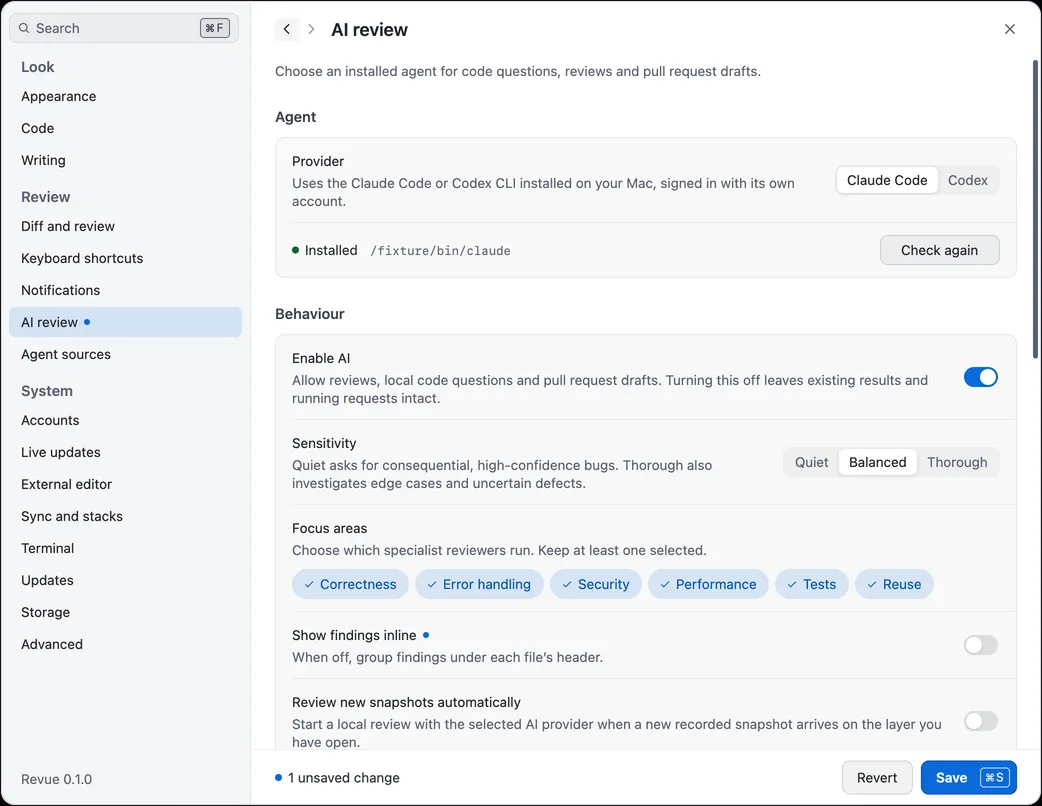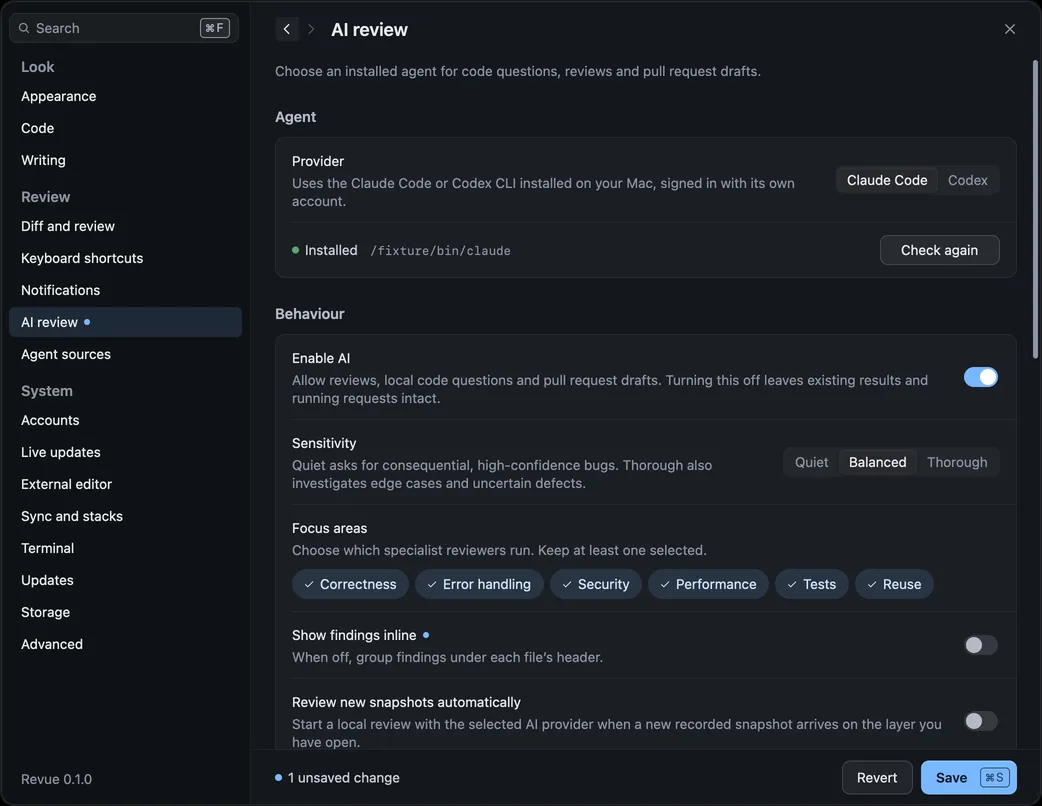
## Run it
[Section titled “Run it”](#run-it)
Open the pull request or branch, choose the snapshot you want reviewed, then choose **Review › Run AI Review**, or **AI review** in the context bar’s actions menu. While it runs, the same item reads **Stop AI review**. When it’s done it shows how many findings there are, and if it failed it offers **Retry AI review**.
A review reads the snapshot you have open. On a range, it reviews what changed between the two snapshots.
## Read findings
[Section titled “Read findings”](#read-findings)
Each finding is a card under the lines it’s about, marked **Revue AI**, with a severity, what’s wrong and, often, a suggested change.
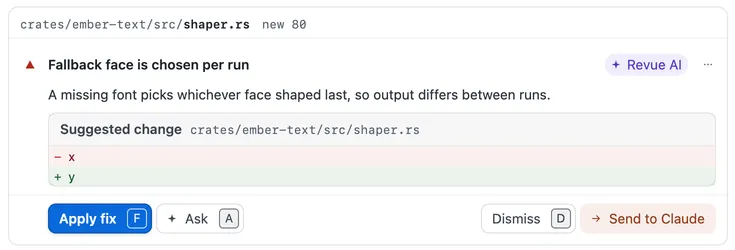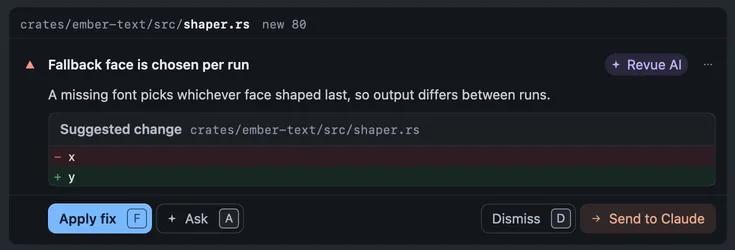
| Action | Key |
| ---------------- | ------- |
| Next finding | `F8` |
| Previous finding | `⇧``F8` |
To list findings under each file’s header instead of between the lines, turn off Show findings inline in Settings › AI review.
## Apply, ask or dismiss
[Section titled “Apply, ask or dismiss”](#apply-ask-or-dismiss)
| Action | Key | What it does |
| ----------------- | --- | ----------------------------------------------------------------------------------------------------------------------------------------- |
| Apply fix | `F` | On a branch checked out on this Mac, writes the suggested change into your working file. It commits nothing, and Undo puts the file back. |
| Suggest on GitHub | | On a pull request, adds the suggested change to your pending review as a suggestion. |
| Ask | `A` | Opens [Ask AI](/guides/ask-ai/) on the finding, to ask why or how. |
| Dismiss | `D` | Hides the finding. It folds in place with Undo for a moment first. Dismissing an AI review finding stays on this Mac. |
| Send to Claude | | On a local branch with a [Claude Code or Codex session](/guides/claude-code/), hands the finding to the agent. |
**Review › Add Finding as Comment** turns a finding into a comment of your own, and **Review › Show Dismissed Findings** brings dismissed ones back into view.
## Sensitivity and focus areas
[Section titled “Sensitivity and focus areas”](#sensitivity-and-focus-areas)
Sensitivity sets how much a review reports. Quiet asks for consequential, high-confidence bugs only. Thorough also looks at edge cases and less certain defects. Balanced sits between them.
Focus areas choose which specialist reviewers run, one for each area. Turn off the ones you don’t want, such as Tests on a branch that has none. Keep at least one on.
| Settings › AI review | Options | Default |
| -------------------- | ---------------------------------------------------------------- | -------- |
| Sensitivity | Quiet, Balanced, Thorough | Balanced |
| Focus areas | Correctness, Error handling, Security, Performance, Tests, Reuse | All |
[How AI review works](/concepts/ai-review/) explains what each specialist and stage does.
## Review new snapshots automatically
[Section titled “Review new snapshots automatically”](#review-new-snapshots-automatically)
With this on, Revue starts a review on its own each time a new recorded snapshot arrives on the layer you have open. It’s off by default, because each review uses your provider’s account.
| Settings › AI review | Options | Default |
| ---------------------------------- | --------- | ------- |
| Review new snapshots automatically | On or off | Off |
## What it costs you
[Section titled “What it costs you”](#what-it-costs-you)
A review runs many short turns of your own Claude Code or Codex, and any usage or charges are on that tool’s account. Revue never pays for or meters it. These settings bound a review:
| Settings › AI review | Options | Default |
| ----------------------- | -------------------------------- | -------- |
| Per-turn timeout | 15 s to 1800 s, in steps of 15 s | 180 s |
| Concurrent review turns | 1 to 16, in steps of 1 | 8 |
| Finding model | Any text | `sonnet` |
| Verification model | Any text | `opus` |
| Synthesis model | Any text | `opus` |
| Codex model | Any text | Not set |
A turn that runs past the timeout fails with [AI-002](/troubleshooting/error-codes/#ai-002), and an account with no credit left fails with [AI-003](/troubleshooting/error-codes/#ai-003).
## Related
[Section titled “Related”](#related)
* [How AI review works](/concepts/ai-review/)
* [Ask AI about code](/guides/ask-ai/)
* [Settings › AI review](/reference/settings/#ai-review)
# Ask AI about code
> Ask your AI tool about a selection or a comment, and follow up.
When a change puzzles you, ask about it where you’re reading. Ask AI sends your question about the lines you selected to your own Claude Code or Codex, which reads the code around them and answers beside the diff.
## Ask about a selection
[Section titled “Ask about a selection”](#ask-about-a-selection)
1. Select the lines you want to ask about.
2. Choose **Ask AI** in the selection bar, choose **Review › Ask AI**, or press `⌘``I`.
3. Type your question, or pick one of the suggestions: **Explain this change**, **What calls this?**, **What could go wrong?** or **Suggest a test**.
4. Choose **Ask AI** (`⌘``↩︎`).
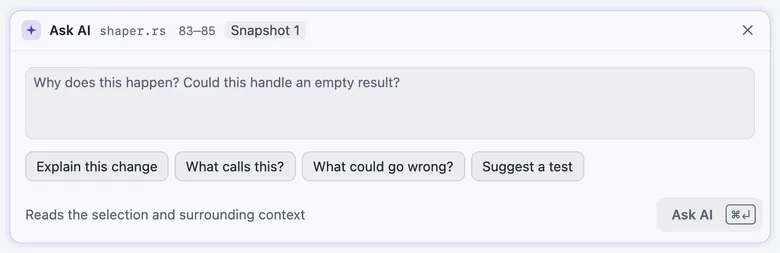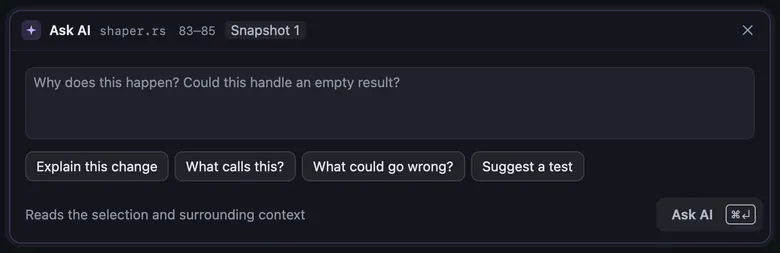
The panel’s header names the file, the lines and what you’re reading, such as Snapshot 1 or Working copy. The answer says which tools the AI used to read the code, which model answered, how long it took and the tokens it used.
Ask AI uses the provider in Settings › AI review and the model set for it:
| Settings › AI review | Options | Default |
| -------------------------- | -------- | ------- |
| Ask AI model (Claude Code) | Any text | `opus` |
| Ask AI model (Codex) | Any text | Not set |
## Follow up
[Section titled “Follow up”](#follow-up)
Each selection keeps a conversation of its own. Type in **Reply** under the answer and choose **Ask** to follow up. The AI remembers the earlier questions about these lines, not the rest of the app. Closing the panel keeps the conversation and any question you’d started.
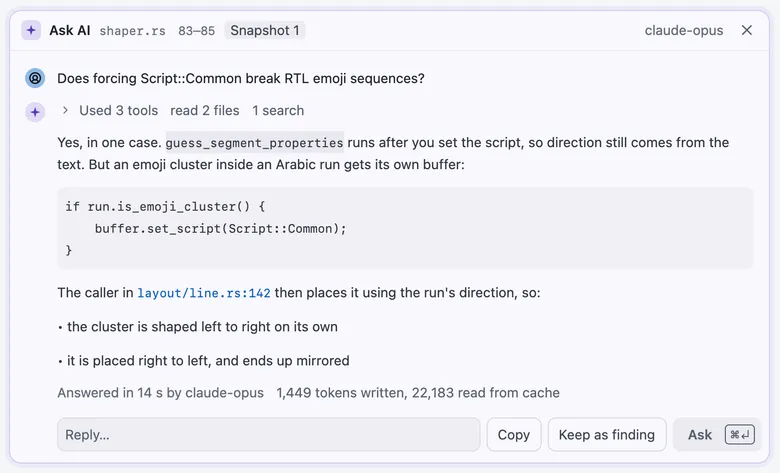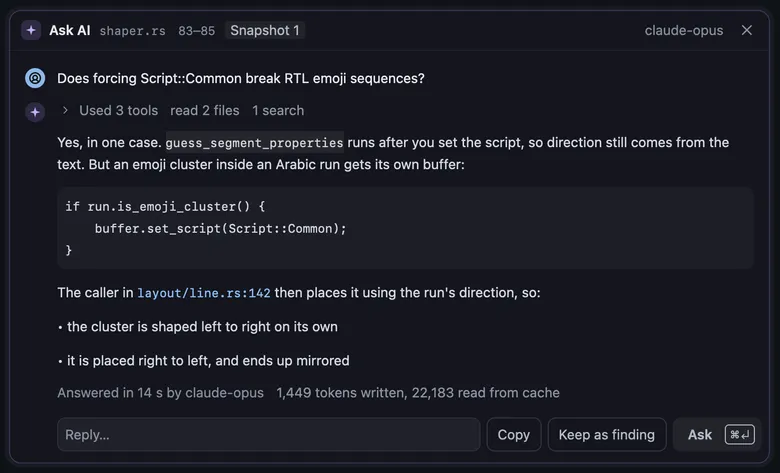
* **Copy** copies the answer.
* **Keep as finding** keeps the answer on these lines as a finding, so it stays with the review.
* **Apply to working file** appears when the answer suggests an edit and the branch is checked out on this Mac. It writes the edit to your file and commits nothing.
## Ask on a comment card
[Section titled “Ask on a comment card”](#ask-on-a-comment-card)
Comment and finding cards have an **Ask** button (`A`). It asks about that comment or finding, with its lines as the selection.
On a local comment, the answer arrives in the thread itself. The latest comment is the question, and the earlier comments and answers in the thread are the history. Such an answer never wakes a Claude Code or Codex session, and `revue comments` lists it labelled AI.
| Action | Key |
| ---------------------------- | ------ |
| Ask AI | `⌘``I` |
| Ask about finding or comment | `A` |
To draft a pull request’s title and description with AI, see [Commit and create a pull request](/guides/commit-and-create-pr/#draft-the-title-and-description).
## Related
[Section titled “Related”](#related)
* [Run an AI review](/guides/ai-review/)
* [How AI review works](/concepts/ai-review/)
* [Use Revue with Codex](/guides/codex/)
# Check a backport against its source
> See whether a backport matches the pull request it came from, and mark the files that match.
A backport carries a change that already merged onto another branch. Revue compares it with the pull request it came from, so you can read only where the two differ and mark the rest viewed.
## When Revue checks a backport
[Section titled “When Revue checks a backport”](#when-revue-checks-a-backport)
Revue checks a pull request when you open it if:
* **Check backports against their source** is on in **Settings › Diff and review**. It’s on unless you turn it off.
* Its repository is one of the **Repositories** listed under it. The list starts empty, so nothing is checked until you add a repository.
* It carries the **Label** set there, `backport` unless you change it.
To find the source, Revue reads the backport’s description first: the lines a backport bot writes, then any line that starts with “Backport”, “Backports” or “Backported” and names pull requests. If those find nothing, it tries a branch named `backport-<number>`, then the `(#number)` in its commit messages. A backport can have several sources.
The line under the bar at the top then says what it found, for example:
* “Matches #2497.” The backport changes the same lines in the same way.
* “3 files differ from #2497.” Some files don’t match.
* “Same words as #2497, but the lines differ in 2 files.” The changes match, but in different places.
* “No source pull request found for this backport.” Choose one yourself (see below).
Only pull requests in the same repository are compared. A source in another repository is named, but not read.
## Read the comparison
[Section titled “Read the comparison”](#read-the-comparison)
Choose **Read differences** on that line, press `⌥``4`, or choose **View › Backport Comparison**.
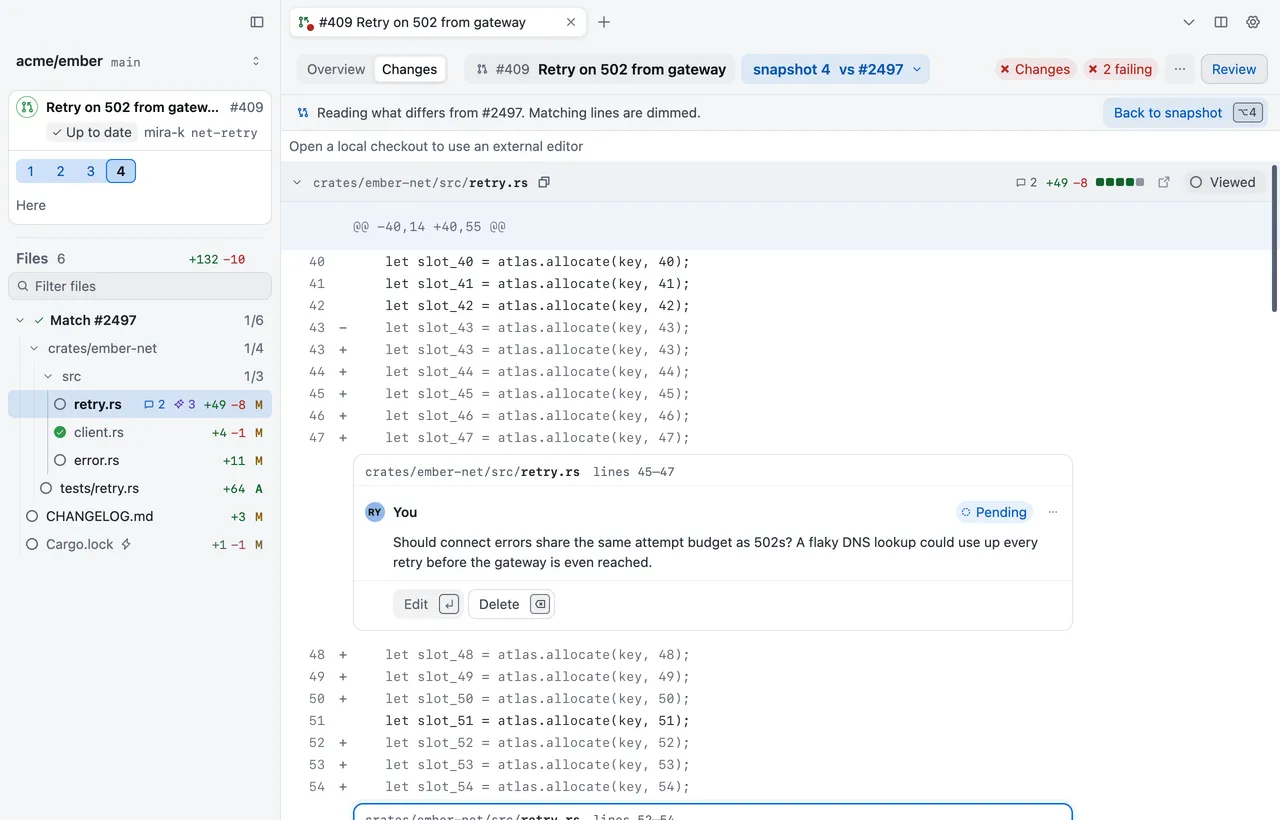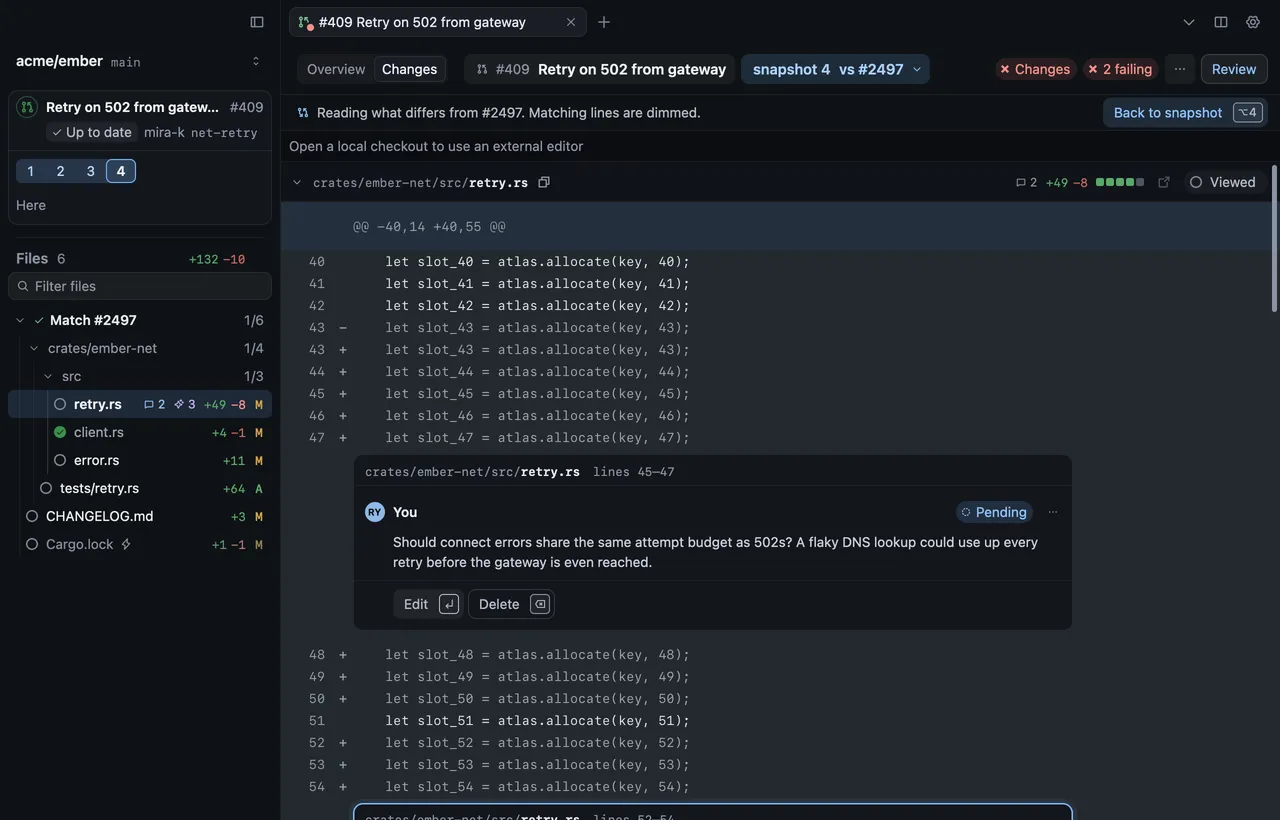
The diff stays the backport’s snapshot. Lines that match the source are dimmed, so what differs stands out. Line numbers, comments and viewed marks are the snapshot’s, so anything you do here is the same as on the snapshot. Press `⌥``4` again, or choose **Back to snapshot**, to leave the comparison.
To read the source itself, choose **Go › Open Backport Source**.
## Choose a different source
[Section titled “Choose a different source”](#choose-a-different-source)
If Revue found the wrong source, or none:
1. Choose **View › Choose Backport Source**, or **Choose source** in the snapshot menu.
2. Type the source’s number or link. To name several, put commas between them.
3. Choose **Compare**.
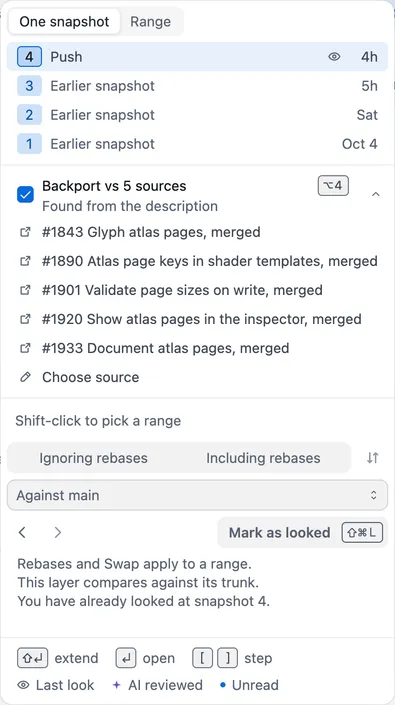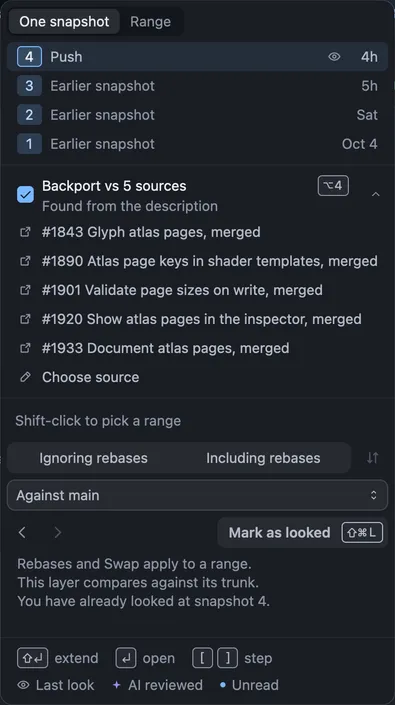
A source you choose is kept, and Revue doesn’t look for one again. **Clear chosen source** in the same sheet goes back to the one Revue finds. You can name up to 20 sources.
## Mark matching files viewed
[Section titled “Mark matching files viewed”](#mark-matching-files-viewed)
Files that match the source don’t need a second read. Choose **Review › Mark Matching Files Viewed** to mark every one of them viewed at once. Revue never marks them by itself.
## Settings
[Section titled “Settings”](#settings)
| Settings › Diff and review | Options | Default |
| ------------------------------------ | --------- | ---------- |
| Check backports against their source | On or off | On |
| Label | Any text | `backport` |
**Repositories** sits beside these in **Settings › Diff and review**. Type each repository as `owner/repo` and choose **Add**. Until you add one, the list says so and no pull request is checked.
## Related
[Section titled “Related”](#related)
* [Re-review with snapshots](/guides/snapshots/)
* [Review a pull request](/guides/review-a-pull-request/)
* [Settings](/reference/settings/)
# Change keyboard shortcuts
> Rebind Revue’s keys, reset them, and set a shortcut that shows Revue from any app.
Most of Revue’s review keys can be changed to the ones your hands already know. You can also set one key that brings Revue to the front from any app.
## Rebind a shortcut
[Section titled “Rebind a shortcut”](#rebind-a-shortcut)
1. Open Settings › Keyboard shortcuts. The shortcuts are grouped as Help › Keyboard Shortcuts groups them.
2. Click the shortcut you want to change. It reads “Press keys”.
3. Press the new keys. `Esc` cancels.
4. Choose Save (`⌘``S`).
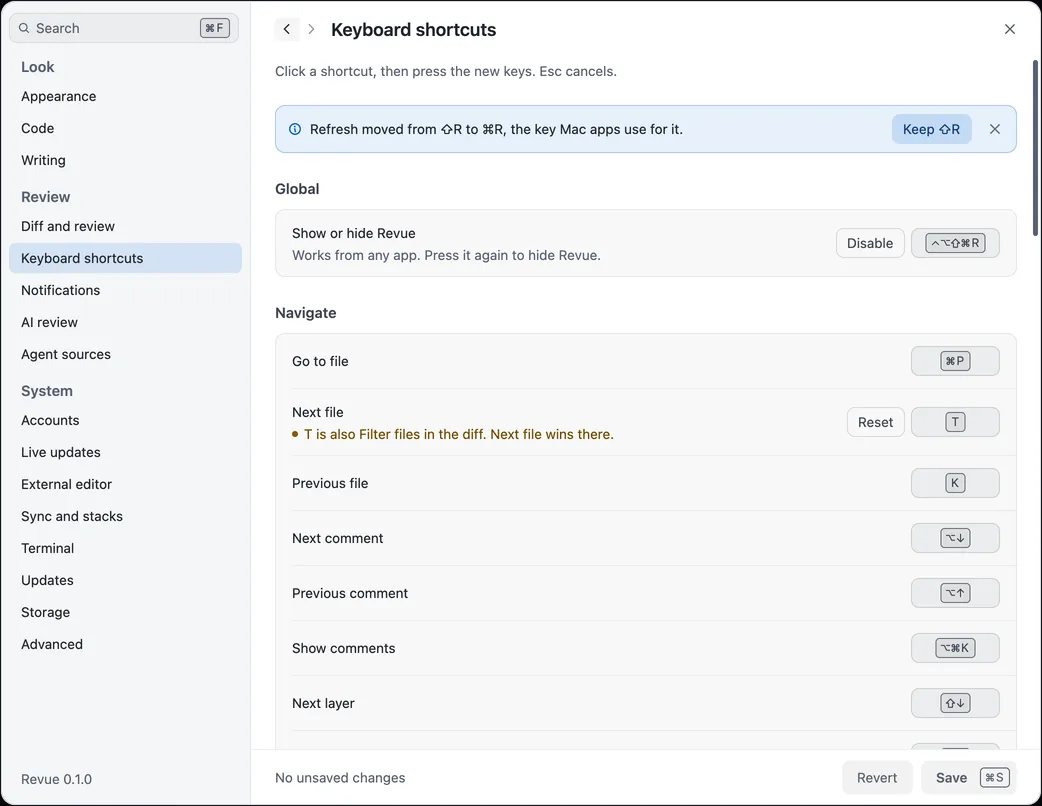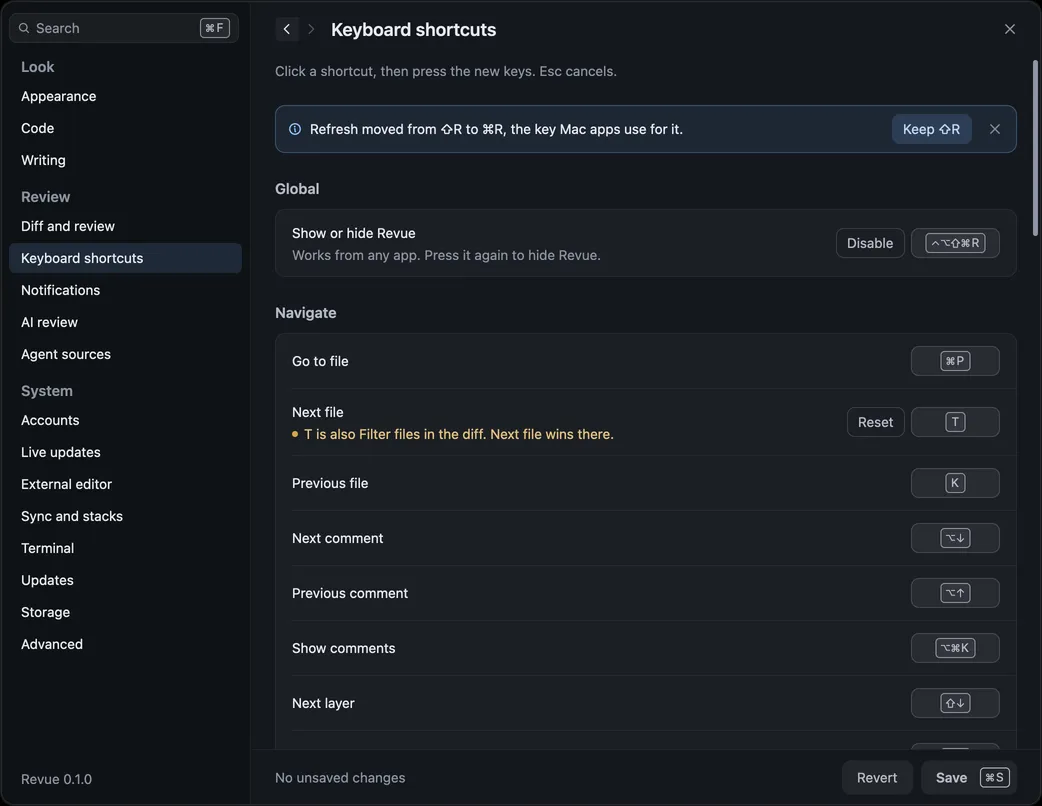
If the keys you chose already do something else in the same place, the row says so under the shortcut, and which of the two wins there. Pick other keys, or change the other command.
## Reset
[Section titled “Reset”](#reset)
A shortcut you’ve changed has its own Reset button, which puts back its default. Restore default shortcuts, at the end of the page, resets all of them. Reset all settings in Settings › Advanced resets them too, with every other setting.
## Keys you can’t change
[Section titled “Keys you can’t change”](#keys-you-cant-change)
35 of Revue’s keys can be changed: the ones marked **Yes** on [Keyboard shortcuts](/reference/keyboard-shortcuts/). The rest are fixed, such as the command palette (`⌘``K`), tabs and panes, and keys macOS defines, such as `⌘``C` and `⌘``Q`.
## Global show and hide
[Section titled “Global show and hide”](#global-show-and-hide)
Show or hide Revue, under Global at the top of the page, works from any app. Press it once to bring Revue to the front and again to hide it. It has no key until you set one, and Disable removes it. Pick a combination other apps don’t use, as this one takes it everywhere.
## Related
[Section titled “Related”](#related)
* [Keyboard shortcuts](/reference/keyboard-shortcuts/)
* [Settings › Keyboard shortcuts](/reference/settings/#keyboard-shortcuts)
# Review Claude Code’s work
> Follow a Claude Code session in Revue, send it your comments and review its edits before they land.
Review what Claude Code does in your checkout the way you’d review a colleague’s pull request: turn by turn, with comments it reads and answers. This page covers a session from start to finish.
## Before you start
[Section titled “Before you start”](#before-you-start)
You need:
* **The Revue plugin for Claude Code.** It’s what lets a session read your comments, reply and record its turns. [Claude Code plugin](/reference/claude-code-plugin/#install-and-update) shows how to install it.
* **A checkout Revue knows.** The plugin acts only in a checkout you’ve opened in Revue, or one whose remote is under an owner you allowed in Settings › Agent sources. Everywhere else its hooks do nothing.
## Start a session
[Section titled “Start a session”](#start-a-session)
Start Claude Code either way:
* **In Revue.** Choose **Review › Start Claude Code**. It opens a terminal tab in the bottom pane, in the checkout of the layer you’re on, and runs the command set in Settings › Terminal › Claude Code command. Claude Code started any other way in a Revue terminal connects too.
* **In your own terminal.** Start `claude` in the checkout as you normally would.
The session appears in the sidebar with its state, and the tab shows Claude’s mark. If more than one session works in the checkout, the sidebar’s session menu chooses which one gets your comments.
## Read each turn
[Section titled “Read each turn”](#read-each-turn)
Claude’s turns appear as checkpoints in the sidebar, labelled with Claude’s last message, newest first under **Live**, which is the files as they are now.
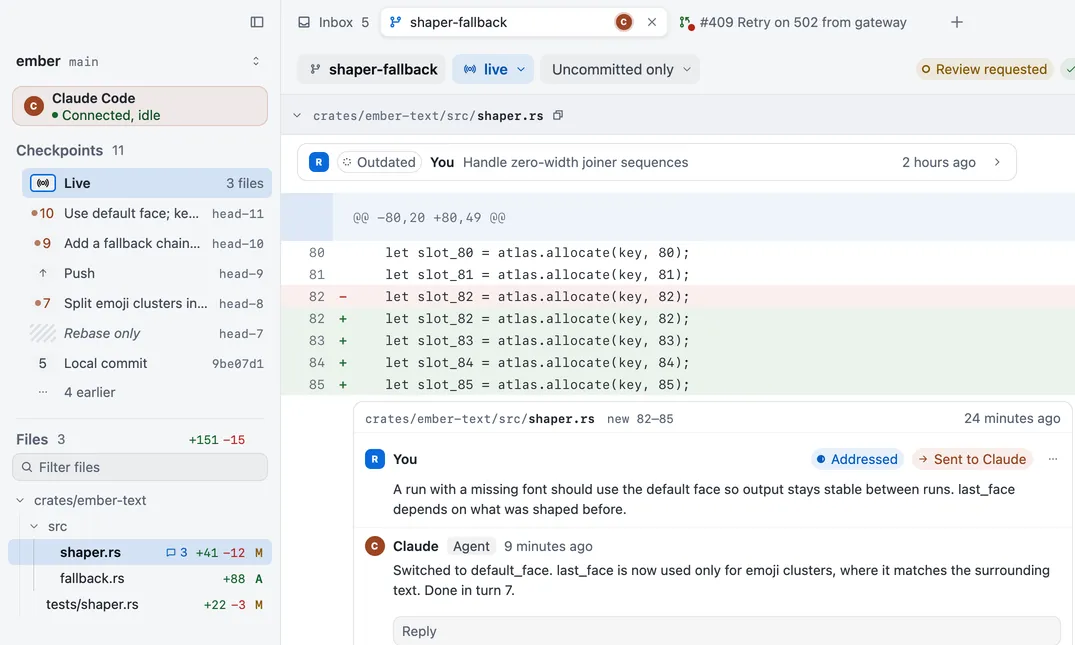
Pick a checkpoint to read that turn’s state, or two for a range of what changed between them. [Checkpoints and agent sessions](/concepts/agent-sessions/#when-checkpoints-are-recorded) explains when checkpoints are recorded.
Lines you select in the diff go with your next prompt to Claude Code in a Revue terminal, or press `⇧``⌘``I` to mention them in the prompt yourself.
## Send comments to Claude
[Section titled “Send comments to Claude”](#send-comments-to-claude)
1. Select a line and press `C`, or click the **+** beside it, and write your comment. It stays on this Mac and says Not sent.
2. Send it. **Send to Claude** on a comment’s card sends that one. **Send 3 to Claude** in the context bar, or **Review › Send Comments to Claude**, sends every open comment not yet sent.
Sending never interrupts a turn. If Claude is working, your comments wait until the turn ends and no tool call is running. If the session says Not listening, they arrive with your next prompt.
| Action | Key |
| ----------------------- | ---------- |
| Add comment | `C` |
| Send comments to Claude | `⌥``⌘``↩︎` |
## Check what it addressed
[Section titled “Check what it addressed”](#check-what-it-addressed)
Claude reads your comments, changes the code and replies in each thread, then marks it **Addressed**. A notice says how many it addressed, with **View thread**.
Addressed is Claude’s word, not yours. Read the reply and the change, then choose:
* **Resolve** (`⇧``E`) when it’s right. Only you can resolve a comment.
* **Not addressed** (`E`) when it isn’t, so it goes back on Claude’s list.
## Review Claude’s edits before they land
[Section titled “Review Claude’s edits before they land”](#review-claudes-edits-before-they-land)
With Review Claude’s Edits on, Claude asks before each edit, even in auto mode, and the edit opens in Revue as a diff in its own tab before anything changes on disk. Each change has a checkbox:
* **Accept** writes the changes you left ticked. The button says how many, such as Accept 2 changes.
* **Reject** writes nothing and stops Claude’s turn. Closing the tab doesn’t reject the edit.
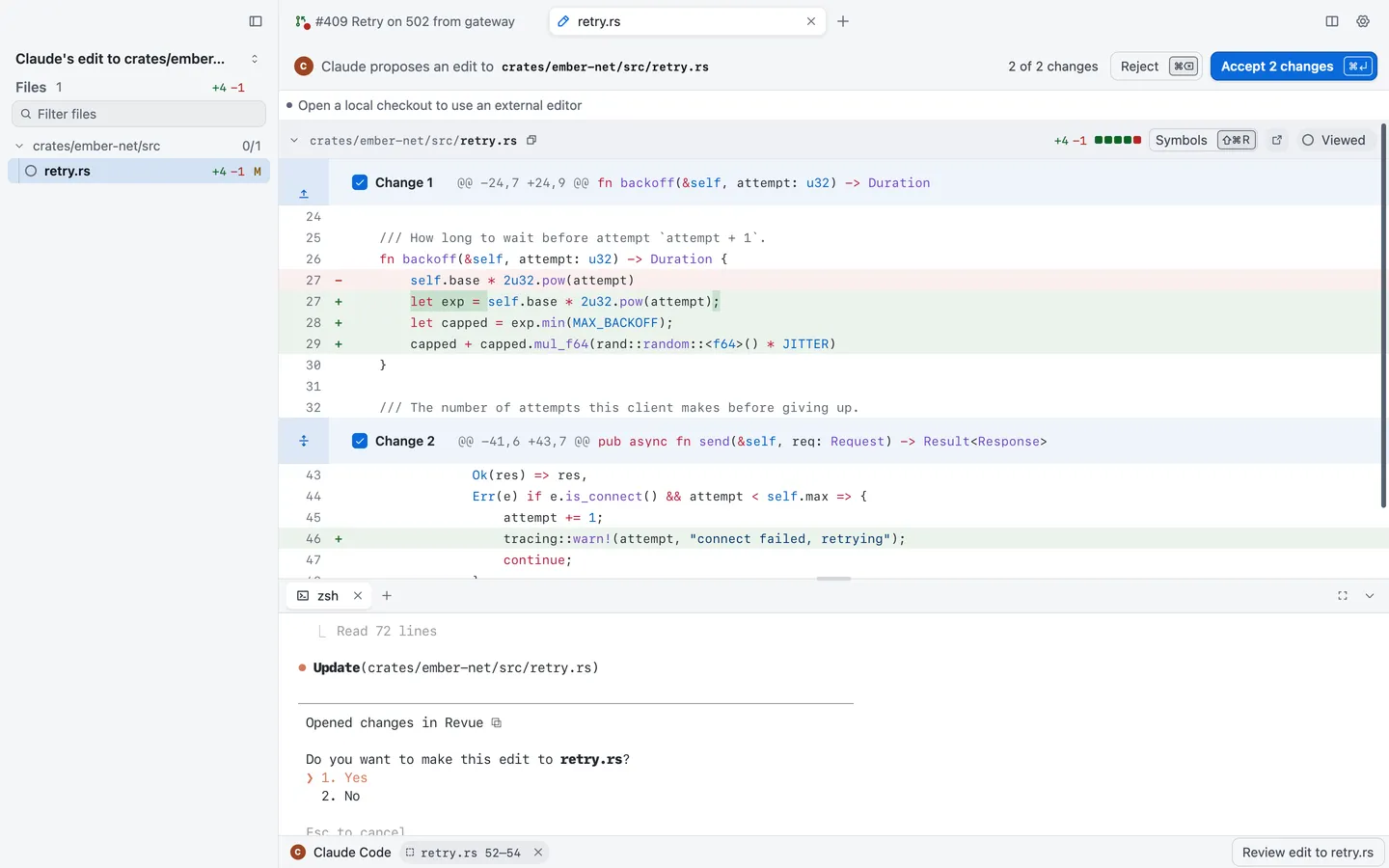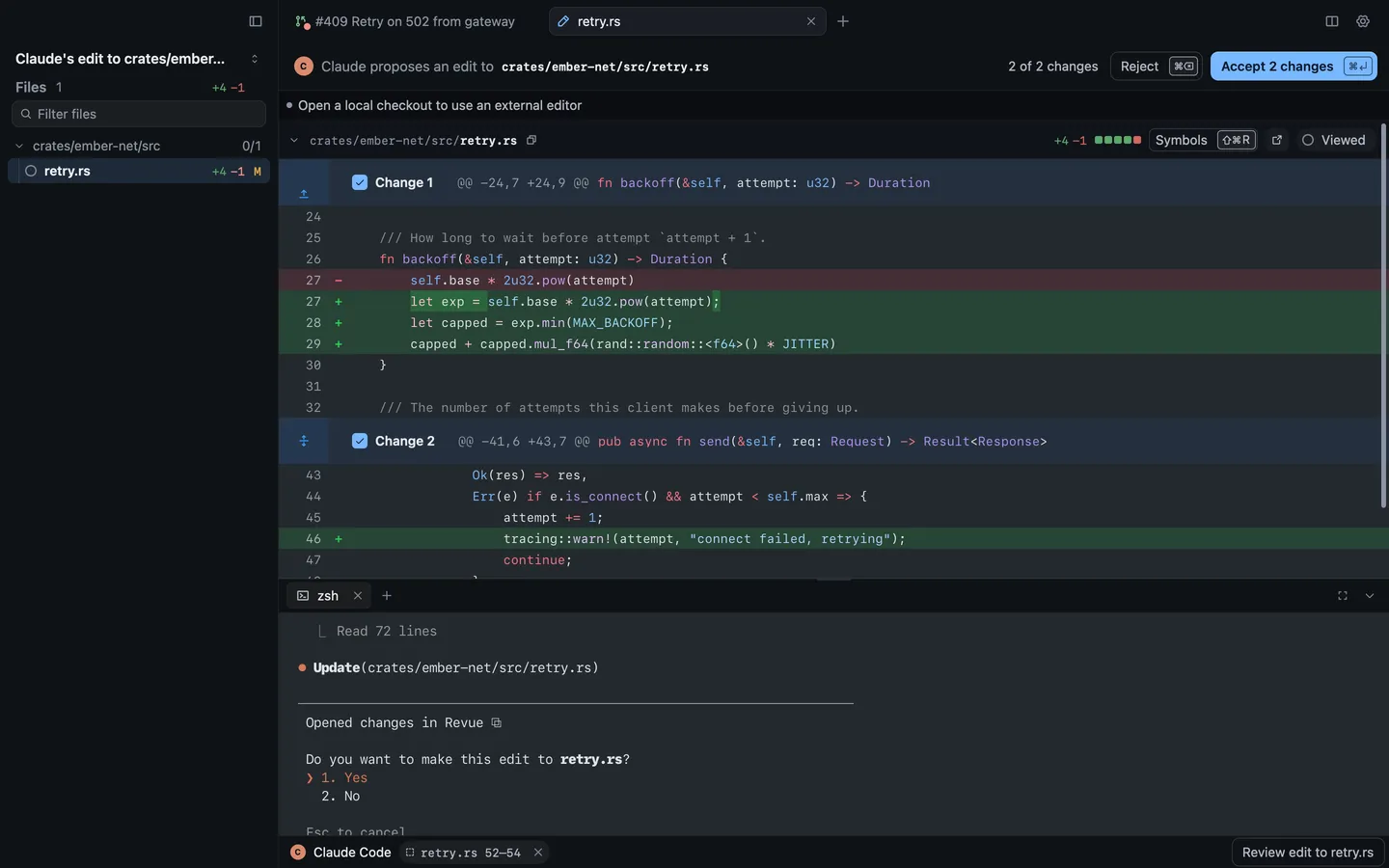
Turn it on with **Review › Review Claude’s Edits**, or in Settings › Terminal. It works only for sessions Revue starts.
| Action | Key |
| -------------------- | ------- |
| Accept Claude’s edit | `⌘``↩︎` |
| Reject Claude’s edit | `⌘``⌫` |
| Settings › Terminal | Options | Default |
| --------------------------------- | --------- | -------- |
| Review Claude’s edits | On or off | Off |
| Share selections with Claude Code | On or off | On |
| Claude Code command | A command | `claude` |
## The agent chip
[Section titled “The agent chip”](#the-agent-chip)
The session’s card in the sidebar, and a chip in the context bar while the sidebar is hidden, say what the session is doing: connected, working, quiet, not listening or disconnected. [Session states](/concepts/agent-sessions/#session-states) says what each means. Click it for the session’s menu.
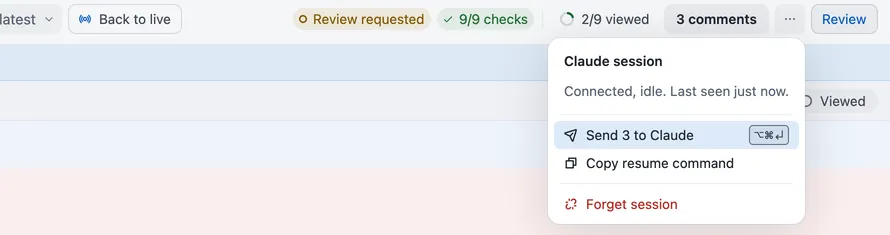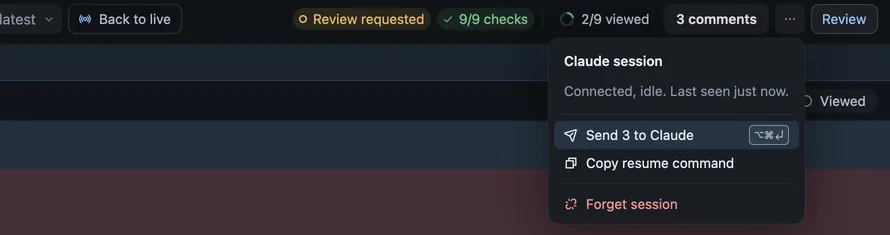
* **Send N to Claude** sends your open comments.
* **Copy resume command** copies the command that resumes the session in a terminal.
* **Forget session** disconnects it and returns its unread comments to the checkout. Claude Code keeps running, and the session connects again when it next starts, resumes or clears.
**Review › Show Claude Code Session** shows the session’s folder and when it last checked in.
## Related
[Section titled “Related”](#related)
* [Checkpoints and agent sessions](/concepts/agent-sessions/)
* [Claude Code plugin](/reference/claude-code-plugin/)
* [Use Revue with Codex](/guides/codex/)
# Use Revue with Codex
> Send your comments to a Codex session, and use Codex for AI review.
Codex can read the comments you write in Revue, change the code and answer in each thread, as Claude Code does. It takes a short section in the checkout’s `AGENTS.md` and one line of Codex configuration. Codex can also run Revue’s AI review instead of Claude Code.
## What’s different from Claude Code
[Section titled “What’s different from Claude Code”](#whats-different-from-claude-code)
Codex has no hooks, so there’s no plugin to install and Revue can’t follow it turn by turn:
* Codex reads your comments when you ask it to, not when a turn ends.
* A turn is recorded as a checkpoint only when Codex runs `revue checkpoint`.
* Review Claude’s Edits and the Claude Code terminal features don’t apply.
Everything else works the same way: comments, Send, Addressed and Resolve. [Review Claude Code’s work](/guides/claude-code/#send-comments-to-claude) covers them, with Codex in place of Claude.
Codex runs the `revue` command, so install it first with **Revue › Install Command Line Tool**, and open the checkout in Revue.
## Add the AGENTS.md block
[Section titled “Add the AGENTS.md block”](#add-the-agentsmd-block)
Add this section to the `AGENTS.md` at the root of the checkout:
````markdown
## Review comments
The user reviews changes in Revue. At the start of a task run `revue agent attach --agent codex --name Codex`.
When asked to address review comments, run `revue comments`, make each change, then reply with the text on stdin
through a quoted heredoc, never in double quotes:
```sh
revue reply <id> <<'EOF'
<what you changed and where>
EOF
```
Then run `revue resolve <id>`. Ask in a reply when a comment is unclear, and never resolve a thread you did not
address.
````
`revue resolve` marks a thread Addressed. Only you resolve it, in Revue.
## Let Codex write to \~/.revue
[Section titled “Let Codex write to \~/.revue”](#let-codex-write-to-revue)
Codex’s `workspace-write` sandbox has to be able to write Revue’s data folder, or every `revue` command fails with “Revue’s data folder is read-only here.” Add the folder’s full path to `~/.codex/config.toml`, with your own home folder in place of `/Users/you`:
```toml
[sandbox_workspace_write]
writable_roots = ["/Users/you/.revue"]
```
## Send comments
[Section titled “Send comments”](#send-comments)
Once Codex has run `revue agent attach`, its session shows in Revue with Codex’s mark. Write comments as usual, then send them with **Send N to Codex** in the context bar or **Send to Codex** on a comment’s card, or press `⌥``⌘``↩︎`. Then ask Codex to address the review comments.
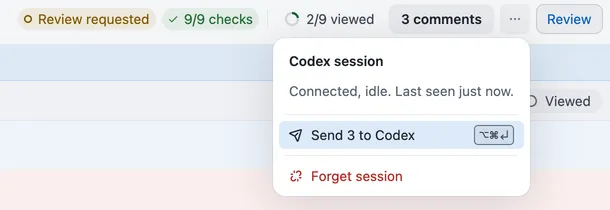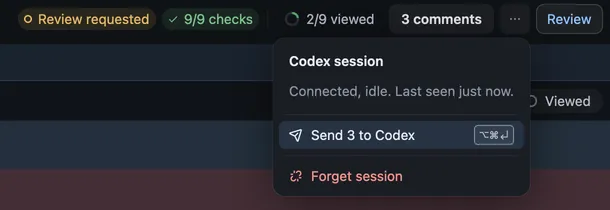
## Codex for AI review
[Section titled “Codex for AI review”](#codex-for-ai-review)
To run [AI review](/guides/ai-review/) and [Ask AI](/guides/ask-ai/) with Codex, choose Codex as the provider in Settings › AI review. Revue runs the Codex command line tool installed on your Mac, signed in with its own account. It doesn’t need the `AGENTS.md` section.
| Settings › AI review | Options | Default |
| -------------------- | ------------------ | ----------- |
| AI provider | Claude Code, Codex | Claude Code |
| Codex executable | A command | `codex` |
| Codex model | Any text | Not set |
| Ask AI model | Any text | Not set |
## Related
[Section titled “Related”](#related)
* [Review Claude Code’s work](/guides/claude-code/)
* [Command line](/reference/cli/#agent-commands)
* [Checkpoints and agent sessions](/concepts/agent-sessions/)
# Use the command palette
> Find files, commands, lines and symbols from one search box.
The command palette finds almost anything in Revue from one box: a tab, a file, a branch or pull request, a command, a line or a symbol. Use it when you know what you want but not where it is.
## Open it
[Section titled “Open it”](#open-it)
Press `⌘``K`, or choose Go › Command Palette. `⇧``⌘``P` opens it too. Type to narrow the list, move with `↑` and `↓`, and press `↩︎` to choose. `Esc` closes it.
## What it searches
[Section titled “What it searches”](#what-it-searches)
With nothing typed, the palette lists your tabs and the commands you ran last. As you type, it lists matches in these groups:
* **Tabs**: the tabs open in this window.
* **Commands**: everything in the menus, grouped as Review, Navigate, Panes and so on.
* **Files in this comparison**: the files in the change you’re reading.
* **Branches and pull requests**: in the checkout you have open.
* **Worktrees**: the checkout’s other worktrees.
* **GitHub**: choose Search GitHub to look for pull requests on GitHub that match what you typed.
## Commands only
[Section titled “Commands only”](#commands-only)
Type `>` first to list only commands. It’s the quickest way to find a command whose menu you don’t remember, and the list shows each command’s key, so you learn it as you go. The last five commands you ran are at the top, under Recent.
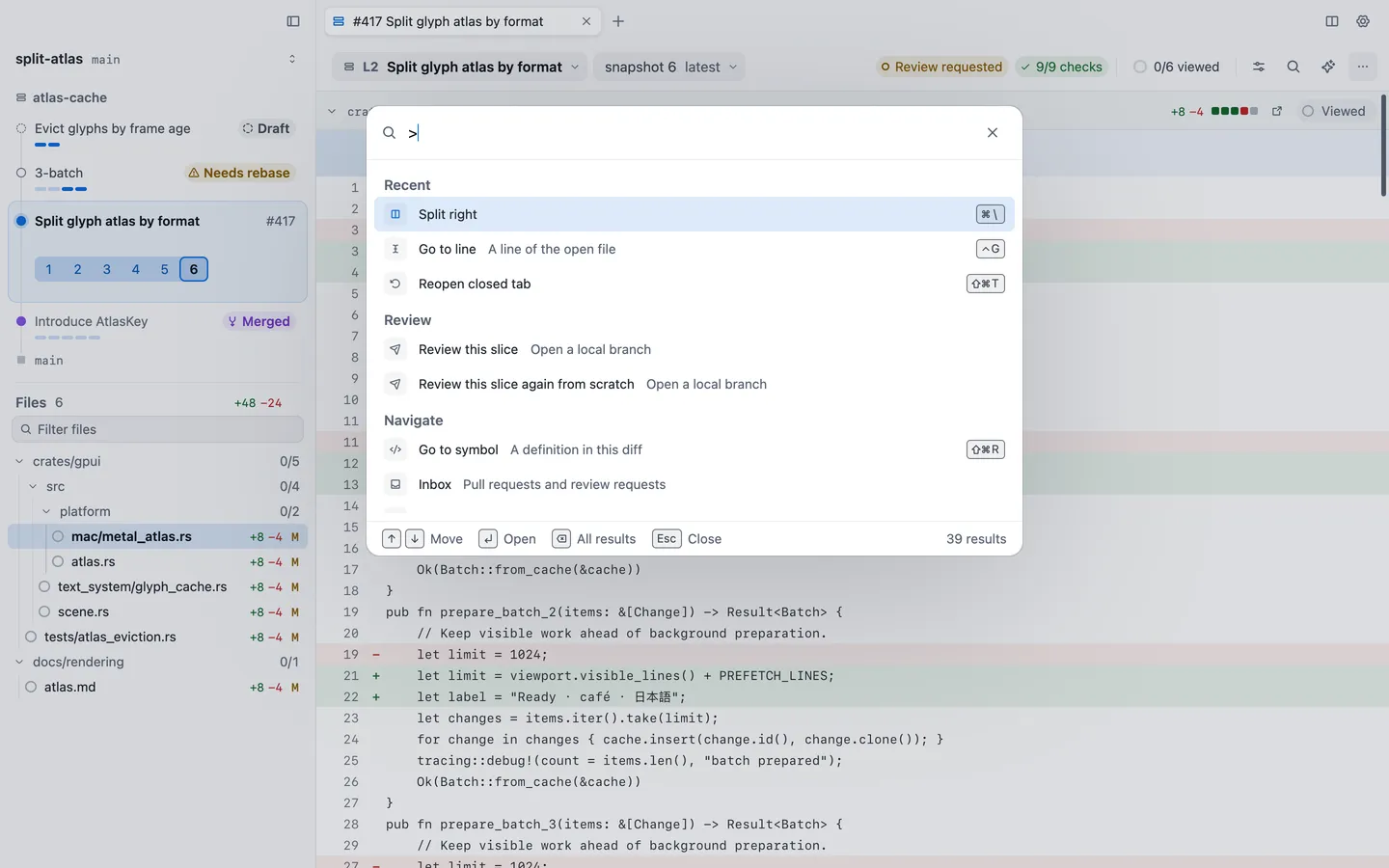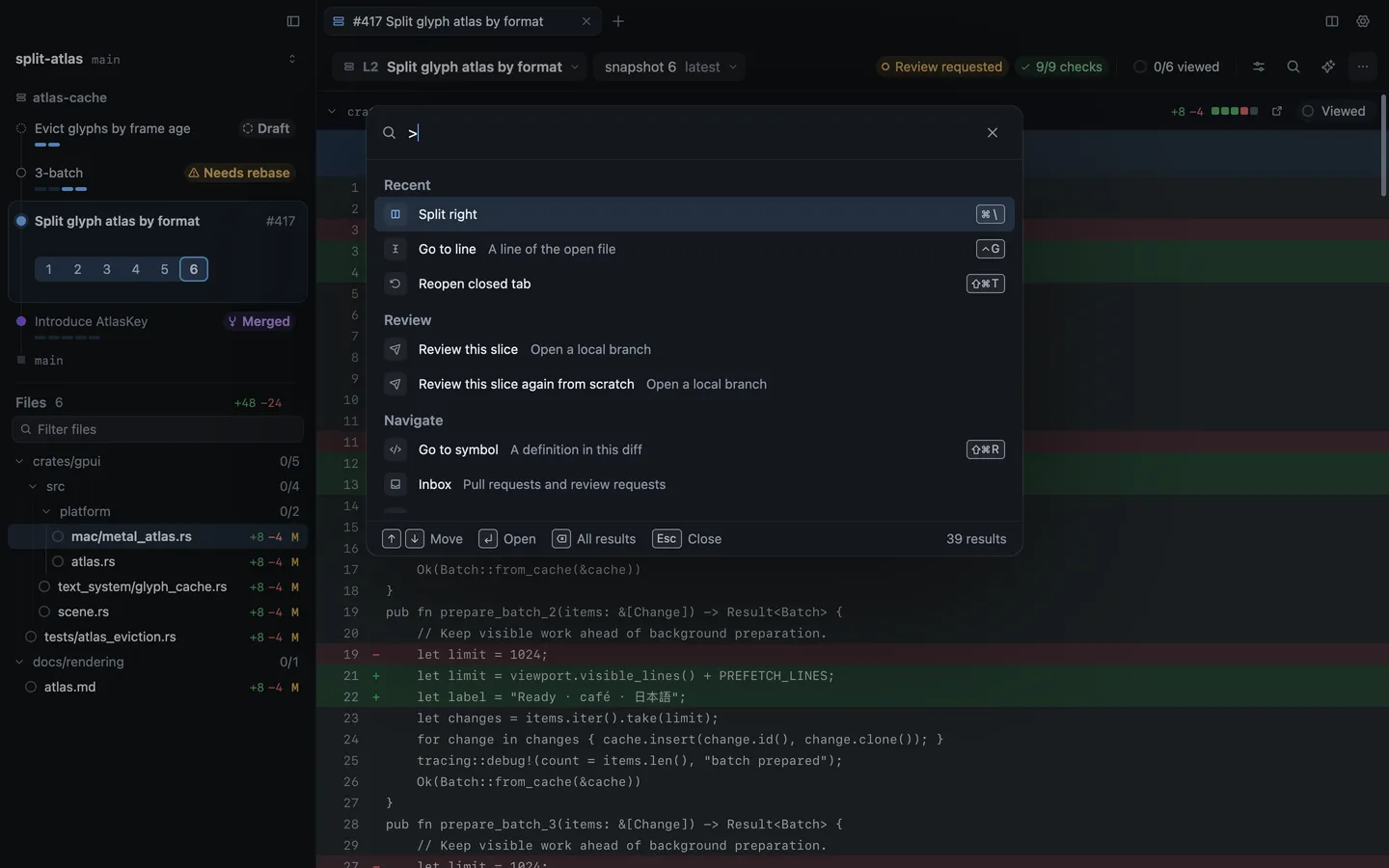
## Go to line and symbol
[Section titled “Go to line and symbol”](#go-to-line-and-symbol)
Type `:` and a line number to jump to that line in the current file. Type `@` and part of a name to list the functions, types and other symbols in the diff. Go › Go to Line (`⌃``G`) and Go › Go to Symbol (`⇧``⌘``R`) open the palette with those already typed. Go › Go to File (`⌘``P`) finds a file in the change by name.
| Action | Key |
| --------------- | --------- |
| Command palette | `⌘``K` |
| Go to file | `⌘``P` |
| Go to line | `⌃``G` |
| Go to symbol | `⇧``⌘``R` |
## Related
[Section titled “Related”](#related)
* [Open pull requests, branches and folders](/guides/open/)
* [Menu bar](/reference/menus/)
* [Keyboard shortcuts](/reference/keyboard-shortcuts/)
# Commit and create a pull request
> Commit files, hunks or lines, then push and open a pull request from Revue.
When the work in your checkout reads right, commit exactly the lines you mean to, then push and open the pull request without leaving Revue. Each step is its own click, and nothing goes to GitHub until you choose Create.
## Commit files, hunks or lines
[Section titled “Commit files, hunks or lines”](#commit-files-hunks-or-lines)
Choose **Review › Commit** (`⌘``↩︎`), or **Commit** in the context bar’s actions menu, on a branch checked out on this Mac. The commit sheet lists every changed file with its hunks and lines, each with a checkbox. Only what you tick is committed.
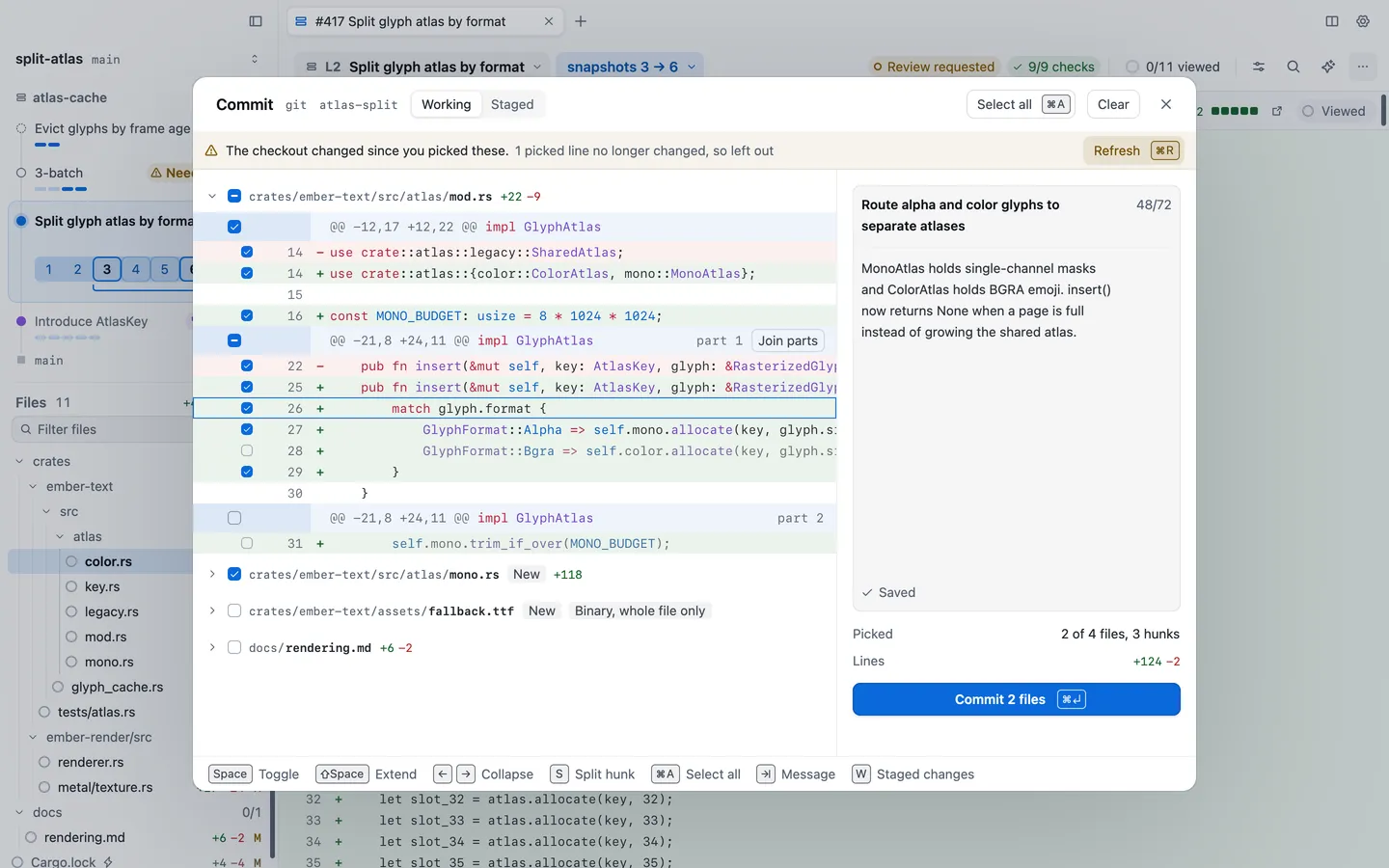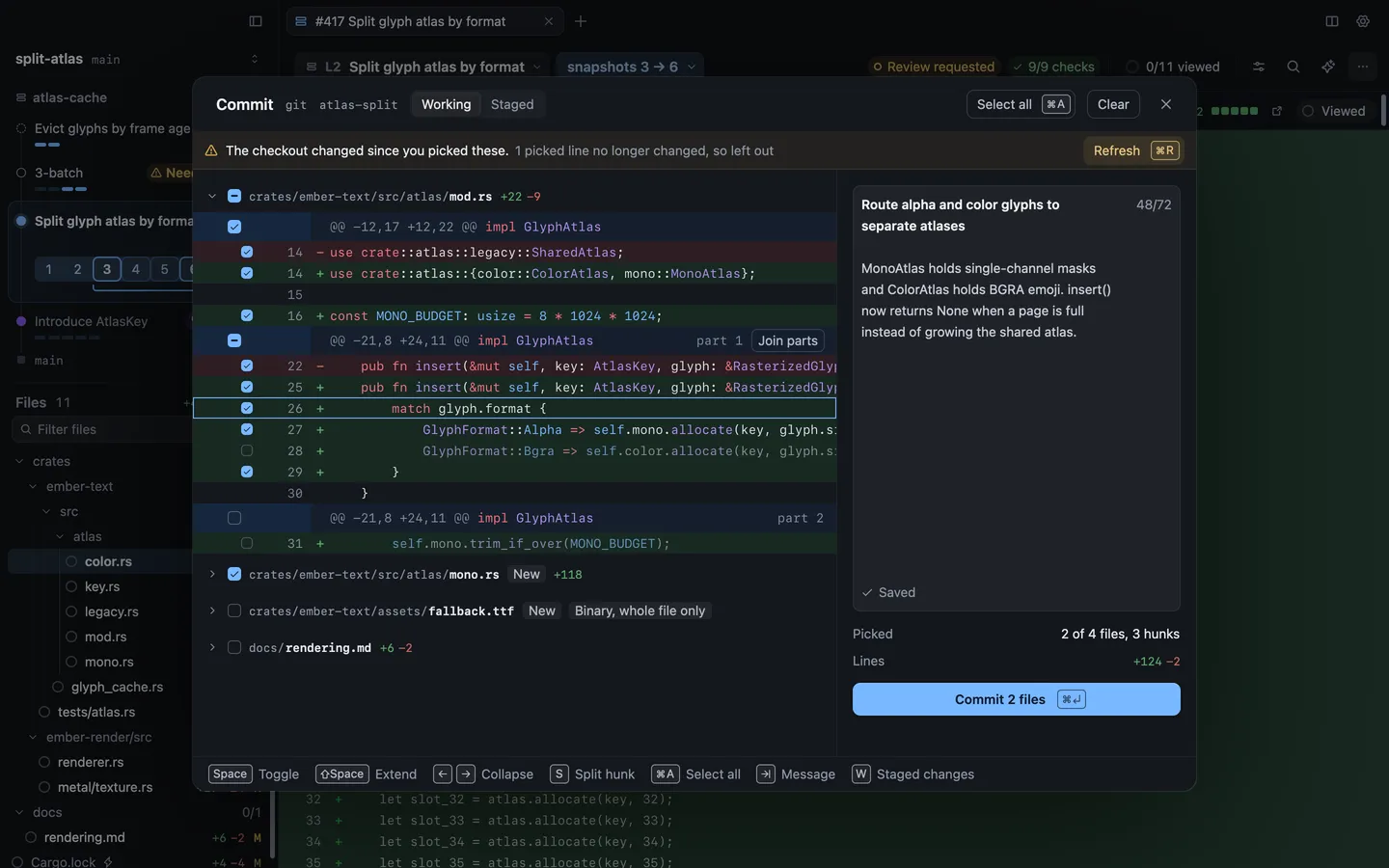
| Key | What it does |
| ---------- | --------------------------------------------------------------- |
| `Space` | Tick or untick the file, hunk or line you’re on |
| `⇧``Space` | Extend the selection |
| `←` `→` | Fold or open a file |
| `S` | Split a hunk into parts you can pick on their own |
| `⌘``A` | Select all |
| `⇥` | Move to the message |
| `W` | Switch between working and staged changes, when some are staged |
A binary file can only be committed whole. Write the message on the right, where spelling is checked as you type, then choose **Commit**. The button says how many files go in, such as Commit 2 files.
The sheet follows your checkout while it’s open. If a file changes under it, your picks follow their lines, and the sheet says when a picked line no longer changed and was left out.
## Draft the title and description
[Section titled “Draft the title and description”](#draft-the-title-and-description)
Choose **Review › Create Pull Request**. The New pull request sheet shows your branch, the base it opens against and, on the right, the preflight.
Write the title and description, or start from one of these. Revue asks before it replaces anything you wrote.
* **From commits** fills the description with a list of the branch’s commit subjects.
* **Draft with AI** asks your own Claude Code or Codex, as chosen in Settings › AI review, to write a title and description from the diff. It uses the Synthesis model, or the Codex model with Codex.
Add reviewers and labels under them. The draft saves itself a moment after you stop typing. `⌘``'` moves focus between the form and the diff, so you can check a line while you write.
## Preflight
[Section titled “Preflight”](#preflight)
Preflight checks the branch before anything is pushed. It reads the base branch from GitHub, so your local copy of the base never needs updating. Red cards stop the pull request until you fix them, such as a conflict with the base. Amber cards are worth fixing, such as a code owner who isn’t requested yet, with **Add as reviewer**. Then come the checks that passed or are only information: whether GitHub has your commits, debug statements, test files touched, whether the change is larger than usual for the repository, and uncommitted changes left out, with **Commit them**.
The refresh button at the top runs preflight again.
## Push and create
[Section titled “Push and create”](#push-and-create)
When nothing red is left, choose **Create pull request** (`⌘``↩︎`). If GitHub doesn’t have your latest commits, Revue pushes the branch first, then creates the pull request. The arrow beside the button offers **Create draft pull request** instead.
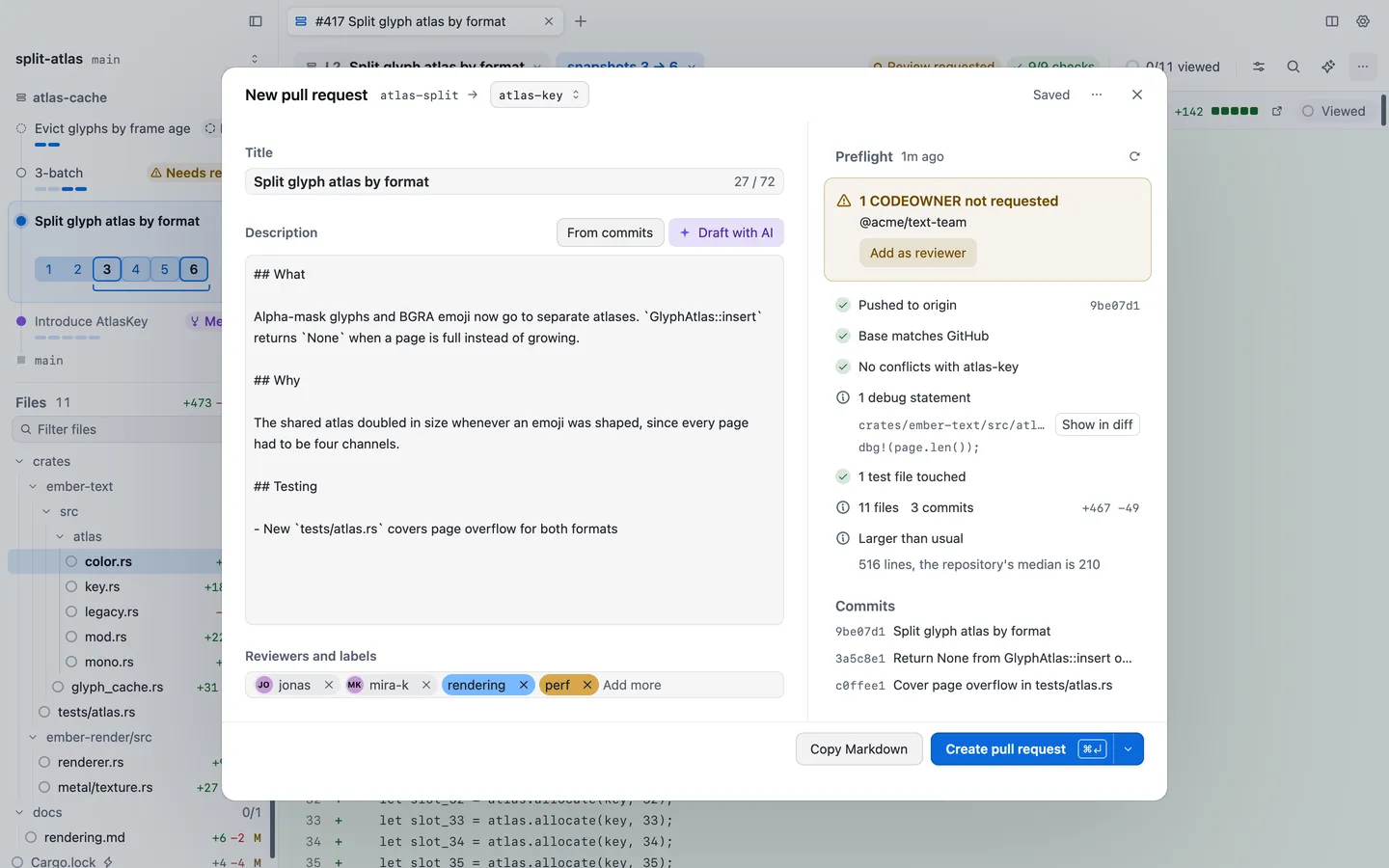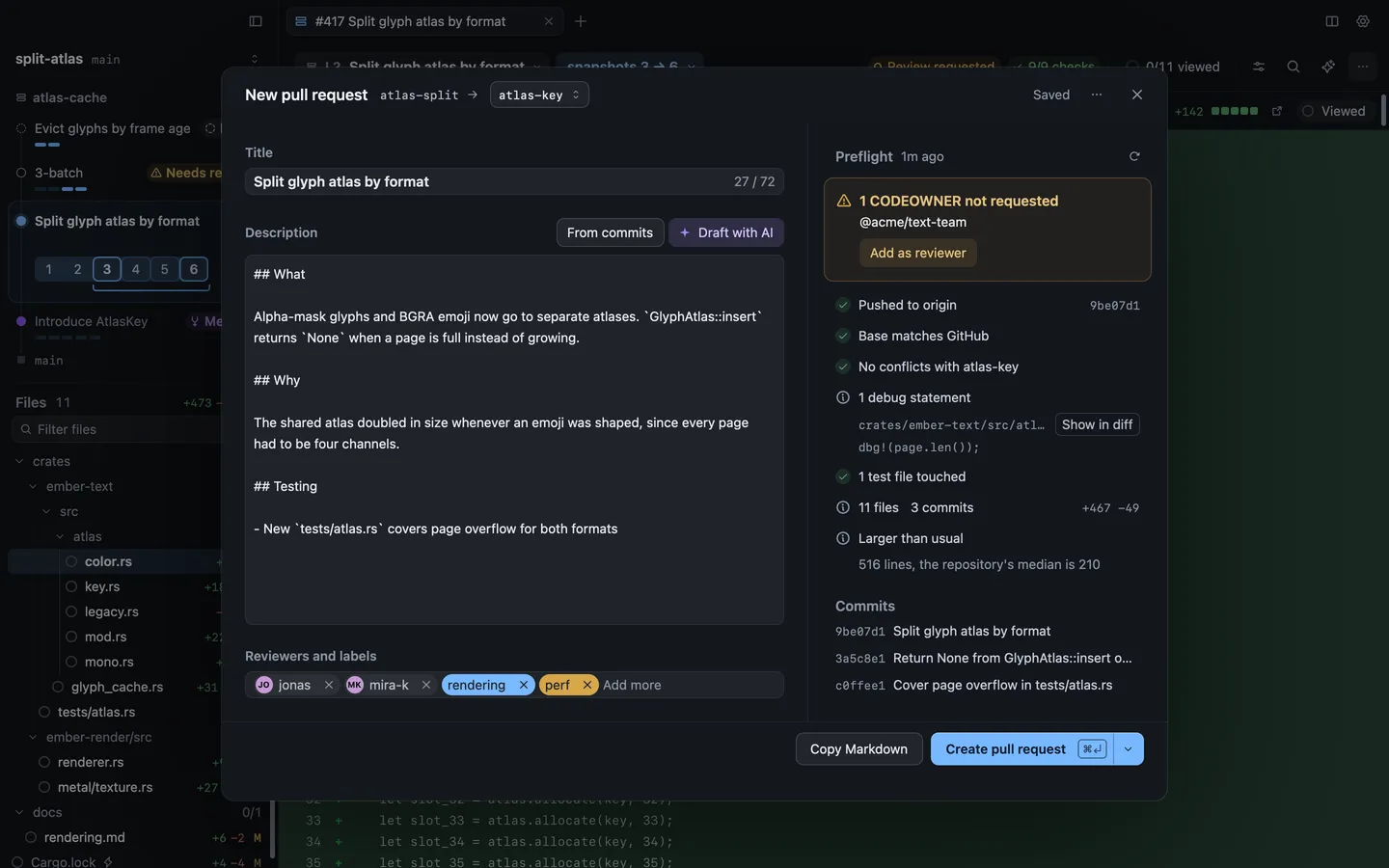
## Force push
[Section titled “Force push”](#force-push)
If you rebased or amended after your last push, creating the pull request means replacing GitHub’s commits with yours. Preflight says it will ask first, and Create asks inside the sheet: “Force push to atlas-split?” Choose **Force push and create** (`⌘``⌫`) to go ahead, or **Cancel**.
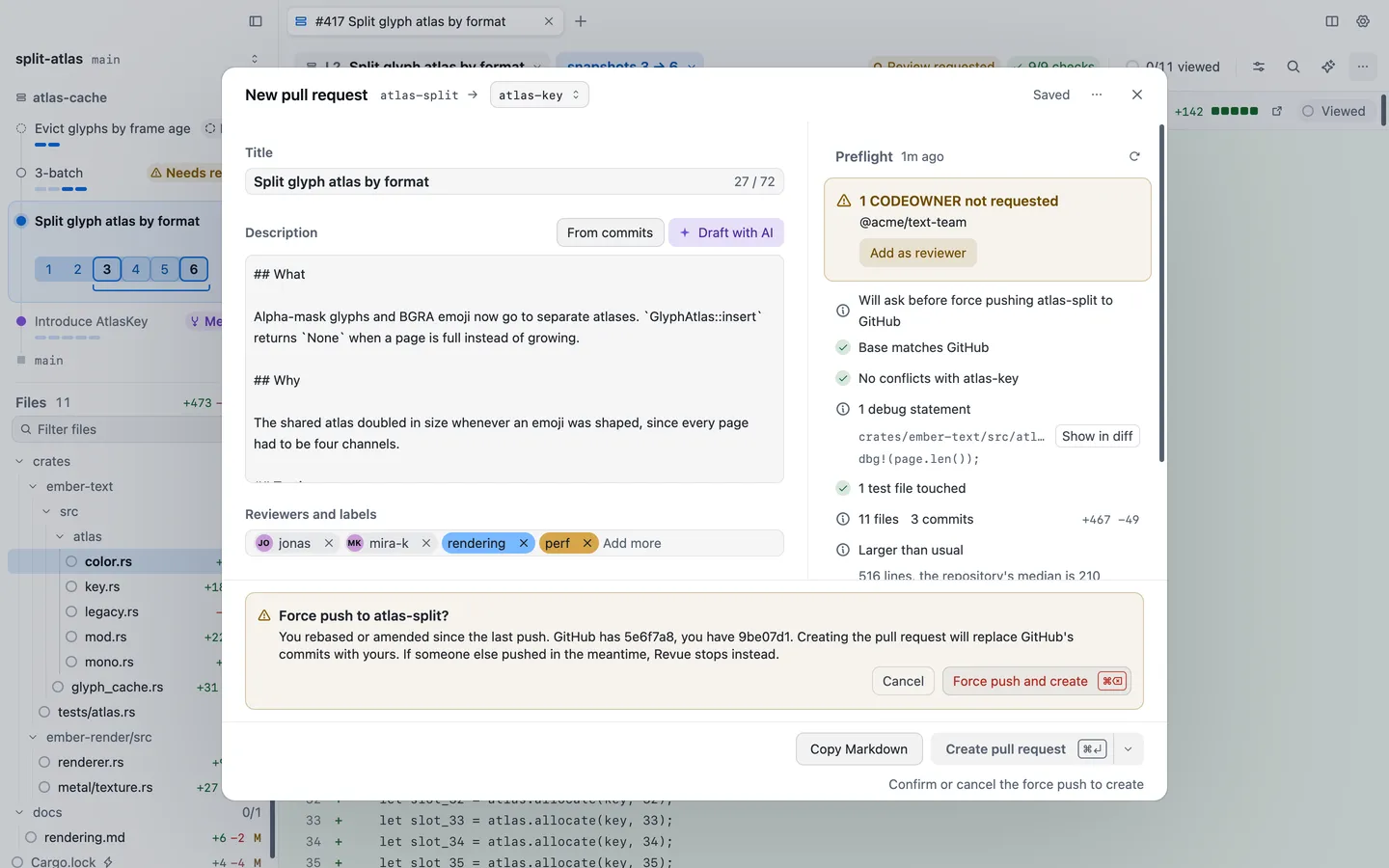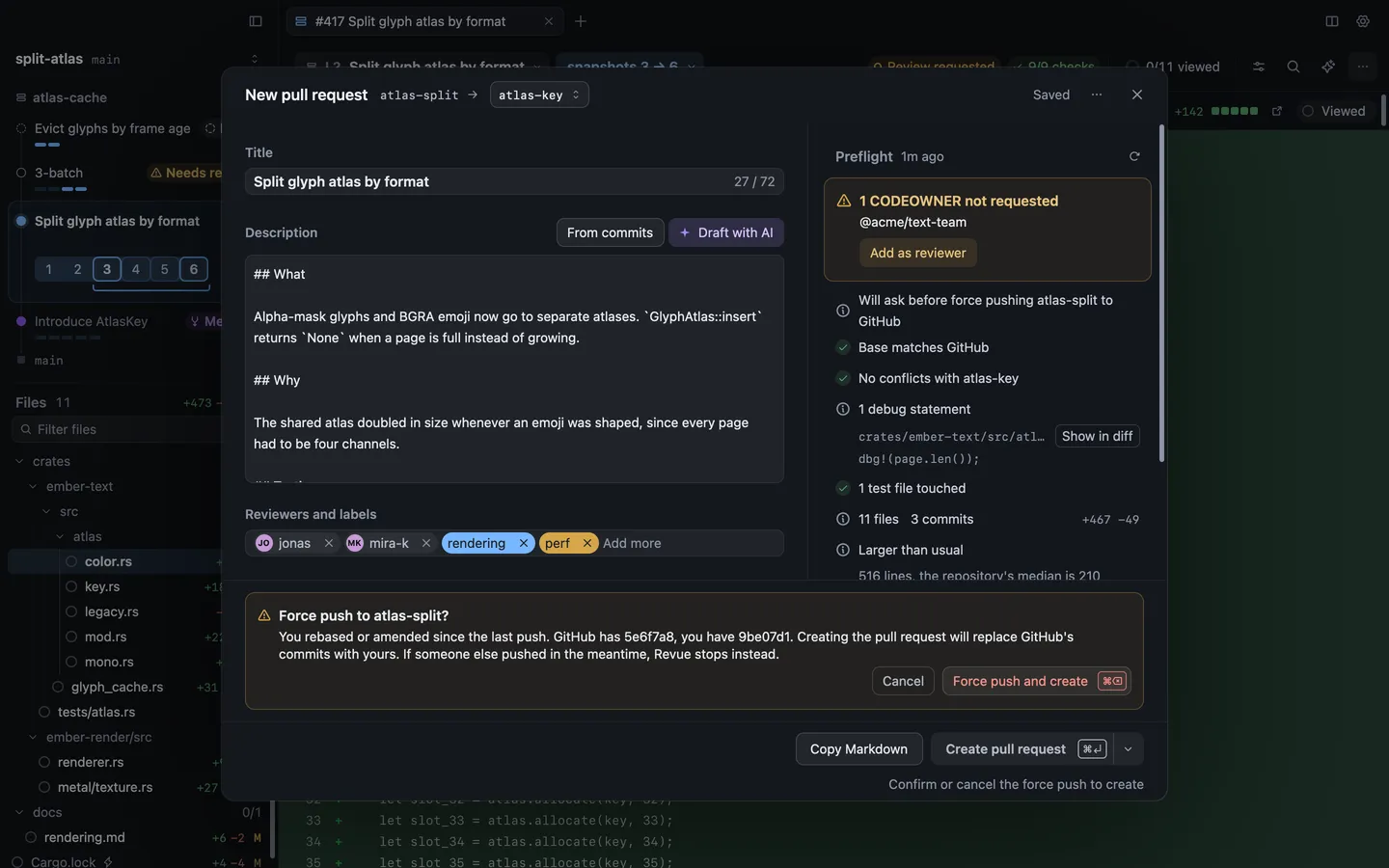
Caution
A force push removes GitHub’s commits from the branch. If someone else pushed to it in the meantime, Revue stops instead of replacing their work. When GitHub has commits your branch doesn’t, the question lists them.
| Action | Key |
| ----------------------- | ------- |
| Commit | `⌘``↩︎` |
| Focus pull request form | `⌘``'` |
## Related
[Section titled “Related”](#related)
* [Review your changes before you push](/guides/local-changes/)
* [Work with a stack](/guides/stacks/)
* [Run an AI review](/guides/ai-review/)
# Keep track of changes through rebases
> Install Revue’s git hooks so snapshots and comments follow a change through amend and rebase.
Revue has two optional git hooks. The one most people want records each amend and rebase, so Revue knows exactly which new commit a rewritten one became, and your snapshots and comments follow the change. Neither is installed unless you install it, and only in the checkout you name.
## What the hooks do
[Section titled “What the hooks do”](#what-the-hooks-do)
| Hook | Installs as | What it does |
| ------------- | -------------- | ------------------------------------------------------------------------------------------------------------------------------------------ |
| `rewrite-log` | `post-rewrite` | After an amend or a rebase, hands git’s list of old and new commits to Revue, so a change keeps its identity. It runs the `revue` command. |
| `change-id` | `commit-msg` | Adds a Gerrit-style `Change-Id` trailer to each commit message. It needs only git and `sh`, not Revue. |
Under jj, Revue won’t install the change-id hook, since jj records a change id of its own on every commit. The rewrite log is still worth installing there, because jj never sees a rewrite made with plain git.
Hooks go in the repository’s shared hooks folder, so every worktree of the checkout uses them.
## Install them in a checkout
[Section titled “Install them in a checkout”](#install-them-in-a-checkout)
The hooks are installed with the `revue` command. If you don’t have it yet, choose **Revue › Install Command Line Tool** and open a new terminal.
In the checkout, run:
```sh
revue hooks install
```
With no flag it installs both. To install one, name it:
```sh
revue hooks install --rewrite-log
revue hooks install --change-id
```
Each installed hook is printed with its path, such as `installed rewrite-log at …/.git/hooks/post-rewrite`.
Revue never overwrites a hook it didn’t write. If the checkout already has a `post-rewrite` or `commit-msg` hook of your own, the install stops and prints the one line to add to your hook instead:
```sh
revue hook post-rewrite "$@"
```
```sh
revue hooks print --change-id | sh -s -- "$1"
```
Two warnings can follow an install. If the `revue` command isn’t on your `PATH`, git will skip the rewrite-log hook, so install the command and open a new terminal. If `core.hooksPath` sends git to another folder, git won’t run the hooks until you copy them there or unset it.
To share the change-id hook with someone who doesn’t use Revue, `revue hooks print --change-id` writes its script to the terminal.
## Check their status
[Section titled “Check their status”](#check-their-status)
```sh
revue hooks status
```
Each hook reads `installed`, `absent` or `foreign` for a hook of the same name that Revue didn’t write.
## Remove them
[Section titled “Remove them”](#remove-them)
```sh
revue hooks uninstall
```
Like install, it takes `--rewrite-log` or `--change-id` to remove only one. It removes only hooks Revue wrote, and leaves a hook of your own for you to edit.
## Related
[Section titled “Related”](#related)
* [Command line › Git hooks](/reference/cli/#git-hooks)
* [Checkpoints and agent sessions](/concepts/agent-sessions/)
* [Uninstall Revue](/guides/uninstall/)
# Triage your Inbox
> Use the Inbox to see the pull requests that need you, mark them read and snooze them.
The Inbox lists review requests, your own pull requests and the stacks you work in, grouped by what each one asks of you. Use it to decide what to read next. A new tab opens on the Inbox, and **Go › Inbox** reaches each of its views.
## The seven views
[Section titled “The seven views”](#the-seven-views)
The Inbox’s sidebar lists its views. Press `⌥``1` to `⌥``7` to switch between them.
| View | What it lists |
| ------------- | ------------------------------------------------------------------------------------------------------------------------------------------------------------- |
| **Needs you** | Pull requests waiting on your review, others worth a look (mentions, bots and requests made of a team you’re in), and your own pull requests that need a fix. |
| **Your PRs** | Your open pull requests: those that need your fix, those waiting on reviewers, and those ready to merge. |
| **Stacks** | Open pull requests in stacks, yours first. |
| **Snoozed** | Pull requests you’ve snoozed. |
| **Done** | Pull requests that were merged or closed. |
| **Worktrees** | The checkouts on this Mac that your repositories have registered. |
| **Drafts** | Your own draft pull requests. |
Worktrees and Drafts show in the sidebar only while they have something in them.
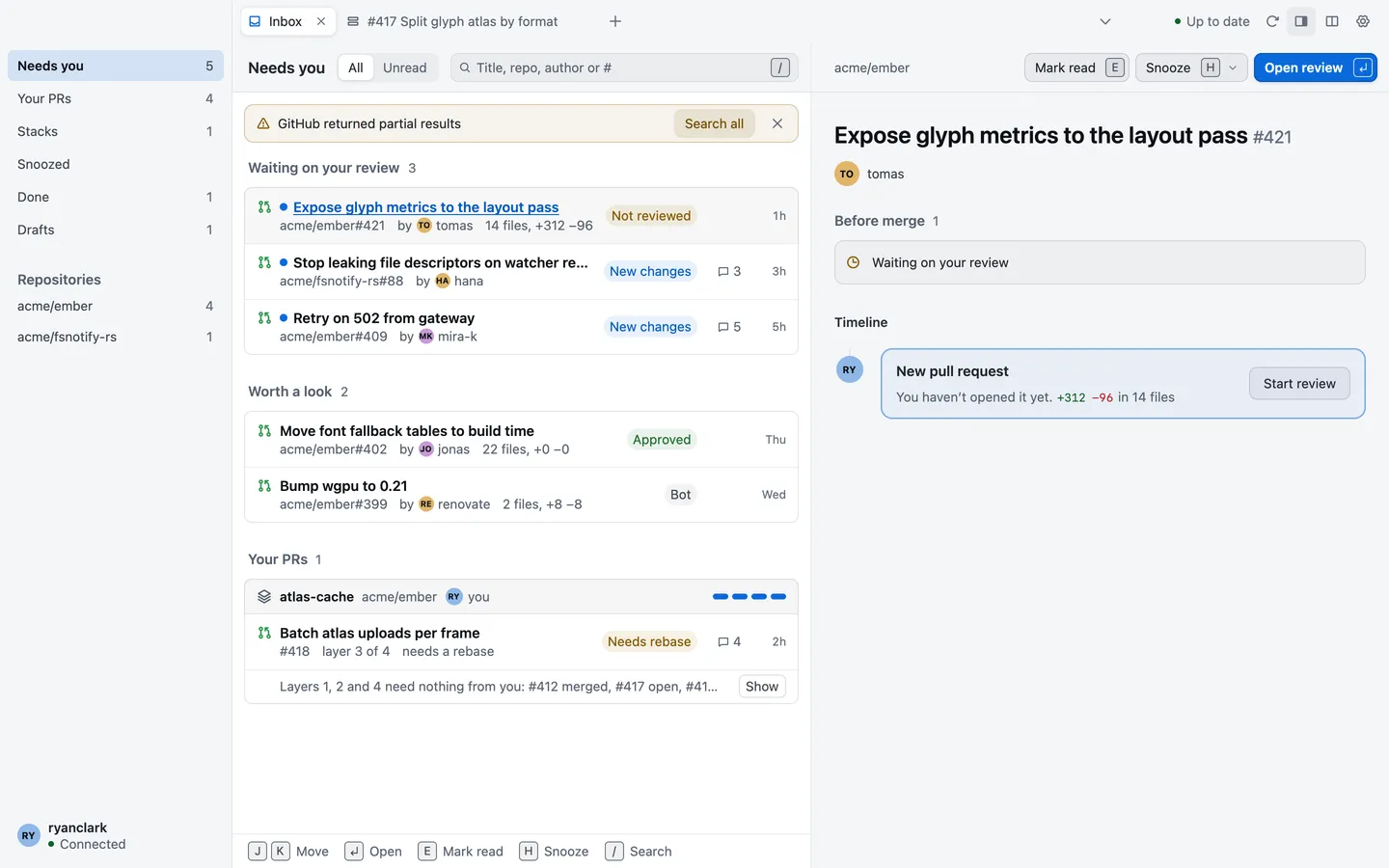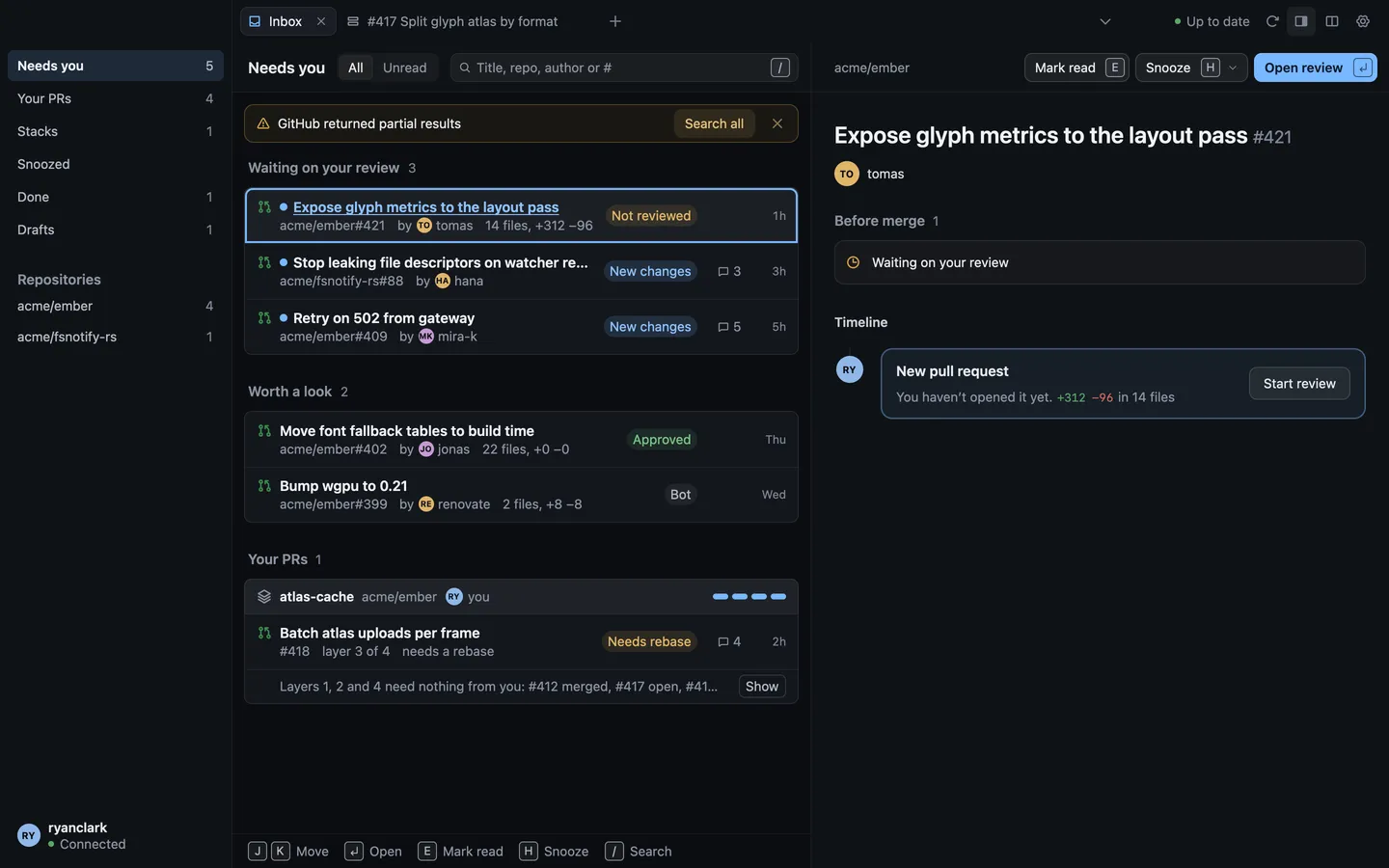
## Mark read and snooze
[Section titled “Mark read and snooze”](#mark-read-and-snooze)
A dot marks a pull request with something you haven’t seen, such as a new snapshot or new comments.
* **Mark read** (`E`) clears the dot until something new happens. Mark unread puts it back.
* **Snooze** (`H`) hides a pull request until later: **In 1 hour**, **This evening**, **Tomorrow**, **Next week** or **Until a new snapshot**. Tomorrow and Next week end at 9:00. This evening isn’t offered after 17:00. A snoozed pull request comes back to its view when its snooze ends, and waits in **Snoozed** until then.
* **Undo** (`⌘``Z`) takes back your last mark or snooze.
Mark read and Snooze are kept on this Mac. They change nothing on GitHub, and they aren’t GitHub’s notifications.
## Filters
[Section titled “Filters”](#filters)
* **All** and **Unread** at the top of the list narrow the view to what you haven’t read.
* **Repositories** in the sidebar narrows the list to one repository.
* **Search** finds a pull request by its title, repository, author or number. Press `/` to start typing.
When nothing matches, the list says “No pull requests match these filters.” Choose **Clear filters** to see them all again.
## The preview pane
[Section titled “The preview pane”](#the-preview-pane)
The preview pane shows the selected pull request beside the list: what stands in the way of merging it and its recent activity, with **Mark read**, **Snooze** and **Open review**. Turn it on or off with **View › Show Inbox Preview** (`⌥``⌘``\`). In a narrow window, the pane says “Widen the window to show the preview”.
Move through the list with `J` and `K` or the arrow keys. Press `↩︎` to open the selected pull request in a tab.
## How often it updates
[Section titled “How often it updates”](#how-often-it-updates)
The Inbox’s header says when it last heard from GitHub, such as “Updated 5m ago”. While the Inbox is open, it asks GitHub about once a minute. Choose **Refresh** or press `⌘``R` to ask at once.
With live updates on, changes arrive as they happen instead. Until you turn them on, the sidebar says “Live updates off”. See [Turn on live updates](/guides/live-updates/).
## Keys
[Section titled “Keys”](#keys)
| Action | Key |
| ------------------ | --------- |
| Mark read | `E` |
| Snooze | `H` |
| Needs you | `⌥``1` |
| Your PRs | `⌥``2` |
| Stacks | `⌥``3` |
| Snoozed | `⌥``4` |
| Done | `⌥``5` |
| Worktrees | `⌥``6` |
| Drafts | `⌥``7` |
| Show Inbox preview | `⌥``⌘``\` |
| Refresh | `⌘``R` |
The Inbox also takes `J`, `K`, the arrow keys, `↩︎`, `⌘``Z` and `/`. Every key is listed in [Keyboard shortcuts](/reference/keyboard-shortcuts/).
## Related
[Section titled “Related”](#related)
* [Open pull requests, branches and folders](/guides/open/)
* [Review a pull request](/guides/review-a-pull-request/)
* [Work with a stack](/guides/stacks/)
# Turn on live updates
> See changes on GitHub as they happen, through your browser’s GitHub sign-in.
Without live updates, Revue checks GitHub for changes to the pull requests you track on a timer. With live updates on, new checks, comments and notifications appear as they happen, the way they do on github.com.
## What it does
[Section titled “What it does”](#what-it-does)
Live updates use the GitHub sign-in in your web browser, the same one github.com uses there, to hear about changes as GitHub sends them. Revue reads that sign-in from the browser profile you choose. It stays on this Mac. A CI log tab for a running job also shows the job’s lines as it writes them.
Live updates are off until you turn them on. Pull request sync keeps running whether they’re on or off, so if live updates stop, pull requests still update, only less often. See [Privacy](/privacy/) for what this reads and sends.
## Choose a browser and profile
[Section titled “Choose a browser and profile”](#choose-a-browser-and-profile)
1. Open Settings › Live updates. Settings › Accounts has a Live updates row that opens it too.
2. Under Browser, choose the browser you’re signed in to GitHub with. Revue reads Chrome, Brave and Firefox. Automatic reads your default browser.
3. Turn on Live updates, and beside it choose the profile you use for GitHub. Automatic names the profile it reads.
4. Choose Save.
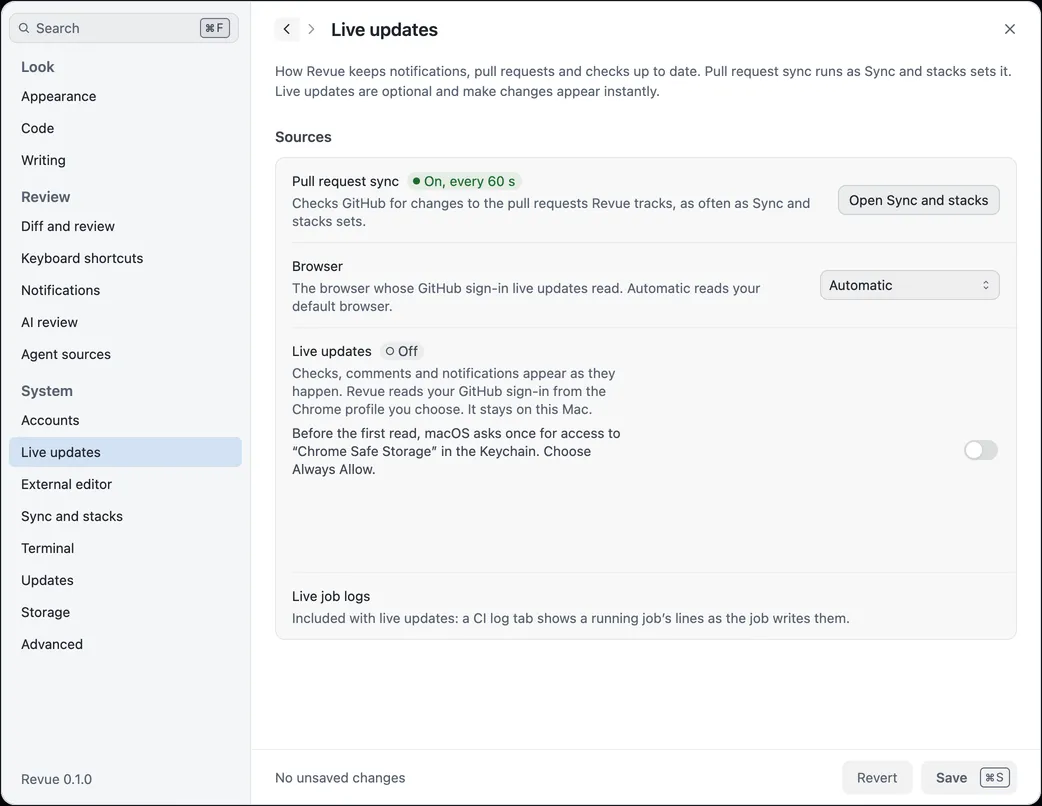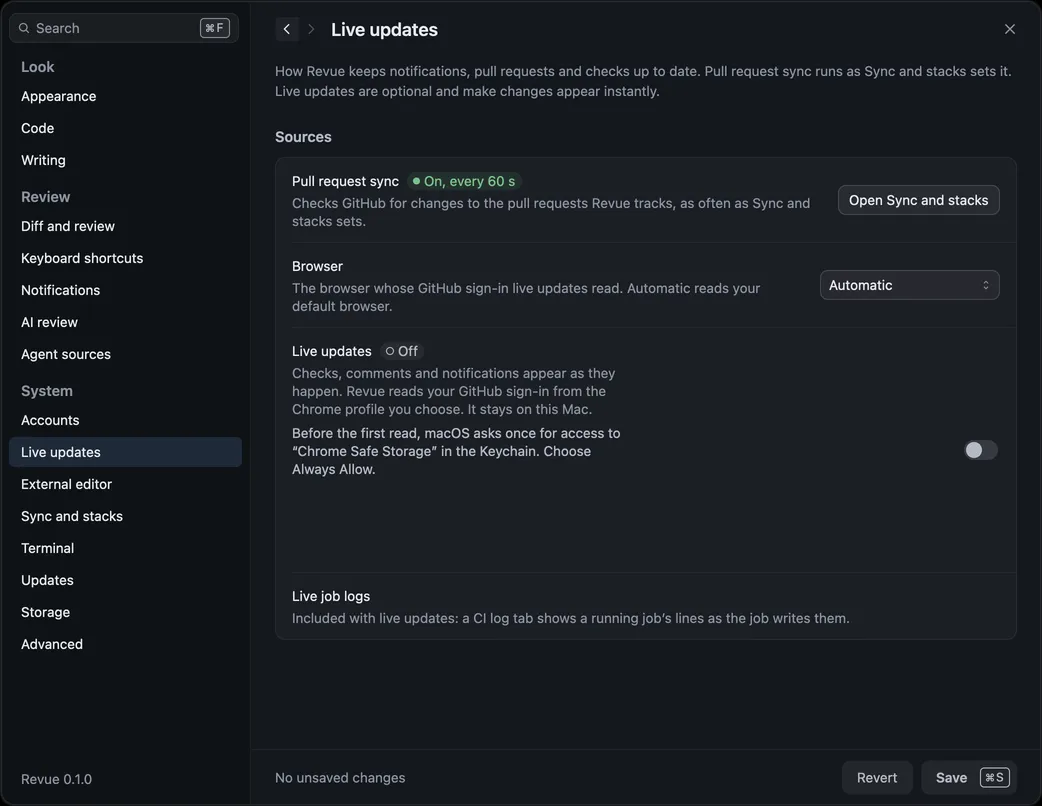
The row then says Connecting, and Live once it’s working, with the account it’s signed in as. If it’s the wrong account, choose the profile you use for GitHub instead.
## Allow Keychain access
[Section titled “Allow Keychain access”](#allow-keychain-access)
Chrome and Brave keep their saved sign-ins locked with a key in your Keychain. Before the first read, macOS asks once whether Revue may use “Chrome Safe Storage” or “Brave Safe Storage”. Choose Always Allow, so it doesn’t ask again each time Revue opens. Firefox doesn’t ask.
If you choose Deny, the row says Keychain access wasn’t allowed and Revue reads nothing. Choose Try again, then Always Allow.
## If it stops
[Section titled “If it stops”](#if-it-stops)
The row in Settings › Live updates always says how live updates stand and what to do:
| It says | What to do |
| ------------- | ------------------------------------------------------------------------------------------------------------------------------------------------------- |
| Needs sign-in | The profile isn’t signed in to GitHub, or GitHub signed it out. Sign in to github.com in that profile, or choose another one. Revue retries on its own. |
| Paused | Revue is offline, or Keychain access wasn’t allowed. It picks up again when the connection comes back, or after Try again. |
| Off | Live updates are off, or the browser has no profiles Revue can read. |
Show details under the row has what the browser or GitHub said. For the exact messages, see [Common problems](/troubleshooting/#live-updates) and [NET-002](/troubleshooting/error-codes/#net-002).
## Related
[Section titled “Related”](#related)
* [Settings › Live updates](/reference/settings/#live-updates)
* [Privacy](/privacy/)
# Review your changes before you push
> Review the work in your checkout, yours or an agent’s, and keep notes that stay on your Mac.
Read your own branch the way a reviewer will, before anyone else sees it: uncommitted edits, the whole branch, or only what changed since you last looked. Comments you leave here are notes for you or for a coding agent, and never reach GitHub.
## Open your checkout
[Section titled “Open your checkout”](#open-your-checkout)
In Terminal, `cd` into the checkout and run `revue`. You can also choose **File › Open Repository** (`⌘``O`) and pick its folder, or choose it from **File › Open Recent**. The `revue` command comes from **Revue › Install Command Line Tool**.
The tab opens on the branch you have checked out and follows it: when you switch branch, it asks before it moves. Choosing a checkpoint pins the tab where it is.
A branch and its pull request open in separate tabs. The branch tab shows what’s on your Mac, and the pull request tab shows what GitHub has.
## Live, Uncommitted only and Since my last look
[Section titled “Live, Uncommitted only and Since my last look”](#live-uncommitted-only-and-since-my-last-look)
On a branch checked out on this Mac, the scope menu in the context bar starts with **Live**: the files as they are on disk right now, before you commit. Live has three views:
* **Uncommitted only** compares your working files with HEAD, so it shows only what you haven’t committed.
* **Include branch commits** shows everything since the branch left the trunk: its commits and your uncommitted changes together.
* **Since my last look** shows only what changed in your files since you last chose **Mark as looked**. A rebase starts it over, since a diff from before it would carry the trunk’s changes too.
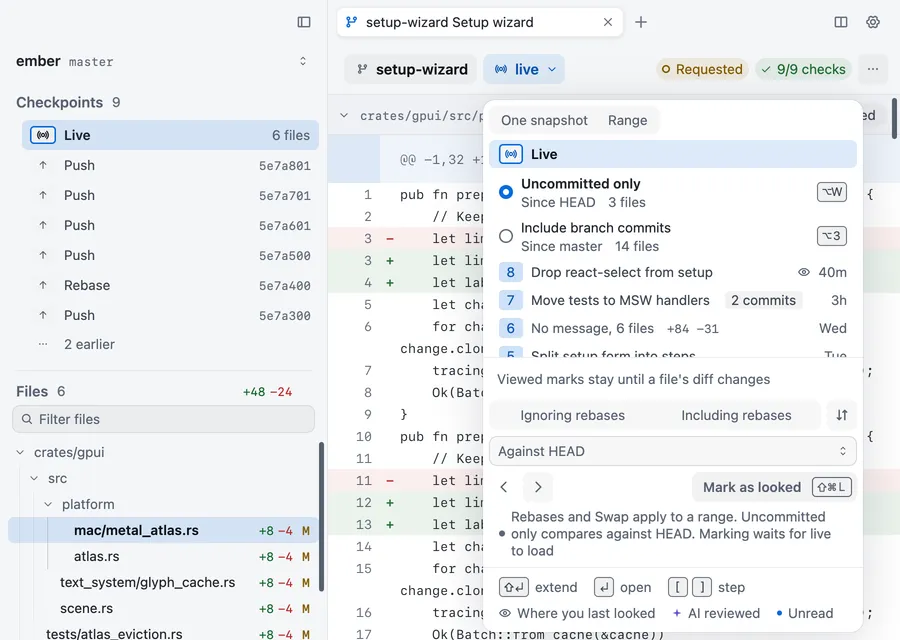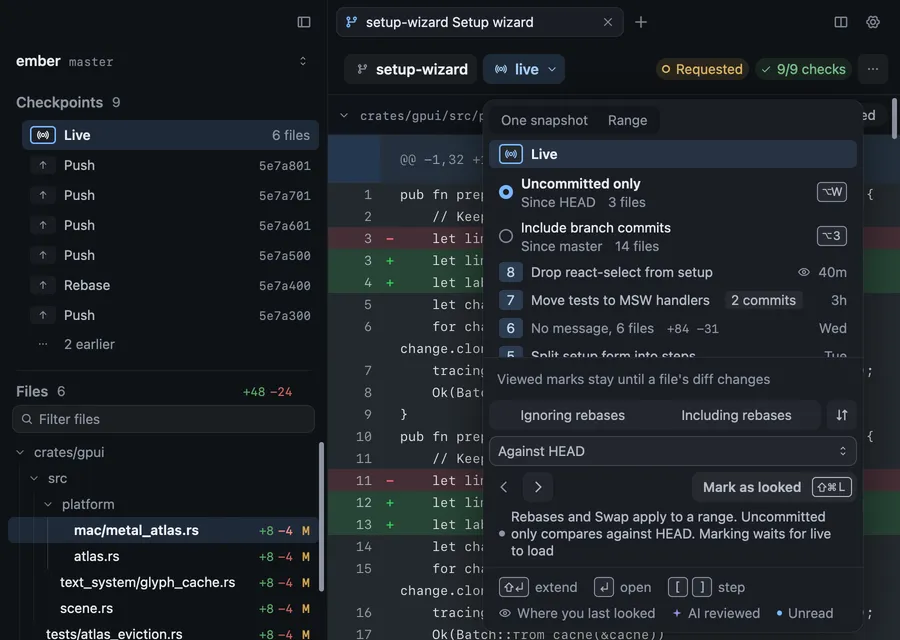
A branch with commits opens on Include branch commits, and one with no commits yet on Uncommitted only.
| Action | Key |
| ---------------- | --------- |
| Live | `⌥``3` |
| Uncommitted only | `⌥``W` |
| Mark as looked | `⇧``⌘``L` |
Viewed marks in Live stay until that file’s diff changes.
## Checkpoints
[Section titled “Checkpoints”](#checkpoints)
On a local branch, snapshots are called checkpoints, and the sidebar lists them under **Live**. [Checkpoints and agent sessions](/concepts/agent-sessions/#when-checkpoints-are-recorded) explains when they’re recorded.

Pick one to read the branch as it stood then, or two to see what changed between them, as you would with a pull request’s snapshots.
## Local comments stay on this Mac
[Section titled “Local comments stay on this Mac”](#local-comments-stay-on-this-mac)
Comment on your own work as you would on a pull request: select a line and press `C`. On a branch, layer or working copy tab the comment is local. It stays on this Mac and never goes to GitHub, even when you push. Its card says **Not sent**, never Pending, because there’s no review to submit.
Resolving a local comment stays on this Mac too.
## Hand comments to your agent
[Section titled “Hand comments to your agent”](#hand-comments-to-your-agent)
If Claude Code or Codex is working in this checkout, it can read your local comments, change the code and reply in each thread. Send them with **Send N to Claude** in the context bar, or press `⌥``⌘``↩︎`. The agent marks each one Addressed when it’s done, and you resolve it once you’ve checked.
[Review Claude Code’s work](/guides/claude-code/) and [Use Revue with Codex](/guides/codex/) cover each agent.
## Related
[Section titled “Related”](#related)
* [Checkpoints and agent sessions](/concepts/agent-sessions/)
* [Commit and create a pull request](/guides/commit-and-create-pr/)
* [Pending reviews and local comments](/concepts/comments/)
# Merge a pull request
> Check that a pull request is ready and merge it, or merge a stack up to a layer.
When a pull request is ready, you can merge it without leaving Revue. GitHub’s own verdict decides whether it can merge. Revue shows that verdict, and adds its own notes beside it as advice.
## When a pull request is ready
[Section titled “When a pull request is ready”](#when-a-pull-request-is-ready)
The bar at the top of a pull request’s tab has a merge pill that says where it stands:
| Pill | What it means |
| ------------------------ | ------------------------------------------------------------------------------ |
| **Ready to merge** | GitHub has nothing in the way. |
| **Blocked** and a count | GitHub needs something first, such as an approving review or a required check. |
| **Behind base** | The branch needs updating before it can merge. |
| **Conflicts** | It conflicts with its base. Resolve the conflicts, then merge. |
| **Draft** | Mark it ready for review on GitHub before merging. |
| **Checking** | GitHub is still checking whether it can merge. |
| **Auto-merge on** | It merges by itself once GitHub’s rules are met. |
| **Queued** | It’s in the merge queue, for example **Queued 2nd**. |
| **Merge refused** | GitHub refused the last merge. The reason shows beside it. |
| **Merged** or **Closed** | Nothing left to do. |
**Before merge**, at the top of the column at the **Overview**’s right, lists what GitHub requires, one row each, with a merge card at its foot. When the window is too narrow for the column, choose the **Before merge** button under the pull request’s header instead. The card says what to do next, such as “GitHub has nothing in the way.” Revue’s own notes, such as open threads, are listed there too. They’re advice, and never stop a merge GitHub allows.
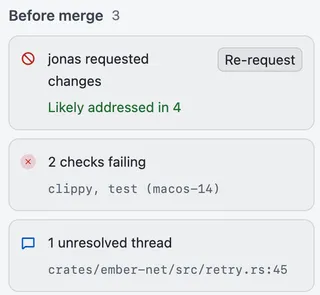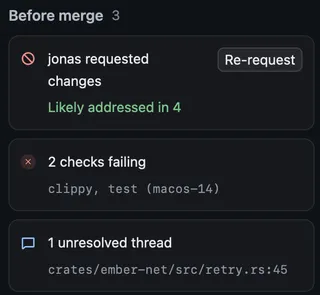
## Merge it
[Section titled “Merge it”](#merge-it)
1. Choose the pill when it says **Ready to merge**, or **Merge** on the merge card.
2. Revue asks you to confirm, for example “Merge #409”. Choose how to merge (**Merge commit**, **Squash and merge** or **Rebase and merge**, as the repository allows) and check the commit title.
3. Choose **Merge**.
The merge is pinned to the newest snapshot in your tab, and the confirmation names it. If someone pushes after that, the card says so, for example “#409 changed since snapshot 4. Review the new push before merging it.” It offers **Review new push** and **Merge it anyway**.
Depending on the repository and your access, the card offers other ways instead:
* **Add to merge queue**, when the repository uses a merge queue. The queue picks the method.
* **Merge when ready** turns on auto-merge. **Cancel auto-merge** turns it off again.
* **Update branch** brings a branch that’s behind its base up to date.
* **Merge as admin** merges past GitHub’s rules, where you’re allowed to. Its confirmation names what it bypasses.
Merging needs write access to the repository. Without it, the card says so.
## Merge a stack up to a layer
[Section titled “Merge a stack up to a layer”](#merge-a-stack-up-to-a-layer)
In a GitHub stack, a layer merges from the bottom. The stack card in the sidebar offers **Merge up to #N**, which lands that layer and every unmerged layer below it in one go.
To stop lower down, choose the arrow beside it (“Choose how far to merge”) and pick **Up to #N** for any layer. A layer that can’t land yet says why, such as “Draft or closed”. A layer above a draft or closed one reads **Blocked by #N**.
* A layer behind its base needs the stack synced first. Revue doesn’t sync stacks, so the card gives you the command, `gh stack sync`, to copy and run.
* For a pull request that targets another open pull request’s branch, the pill reads **Waits for #N** until that one lands.
* A ghstack stack reads **Land with ghstack**, since ghstack lands its own pull requests.
[Work with a stack](/guides/stacks/) covers stacks in Revue.
## Related
[Section titled “Related”](#related)
* [Review a pull request](/guides/review-a-pull-request/)
* [Work with a stack](/guides/stacks/)
* [Stacks and layers](/concepts/stacks/)
# Notifications
> Choose what notifies you, set quiet hours, and use the notices in the window.
Revue can tell you when something you’re waiting for happens while you work in another app: a review finishing, checks passing, a new comment. Inside the window, notices tell you what Revue did and what went wrong.
## Turn them on
[Section titled “Turn them on”](#turn-them-on)
Desktop notifications are off until you turn them on.
1. Open Settings › Notifications.
2. Turn on **Desktop notifications**, and **Notification sound** if you want one.
3. Choose **Save**. The first time, macOS asks whether Revue may send notifications. Choose **Allow**.
The Permission row at the top says what macOS allows. If you said no, choose **Open System Settings** and turn on notifications for Revue there.
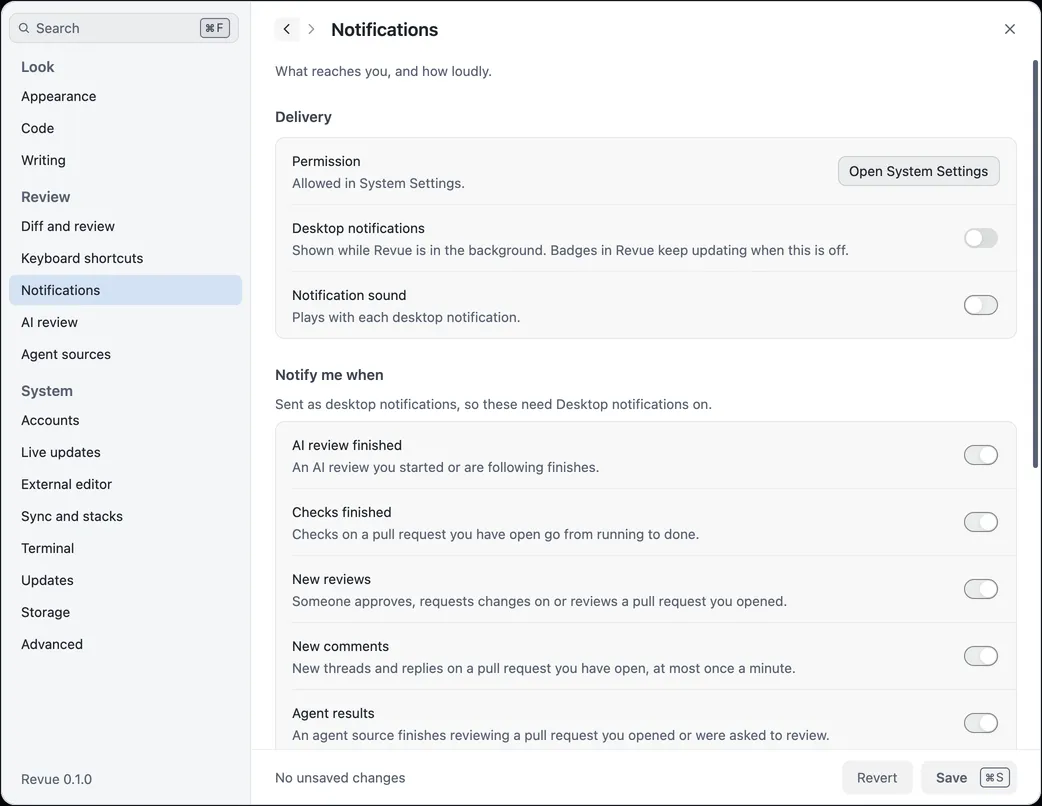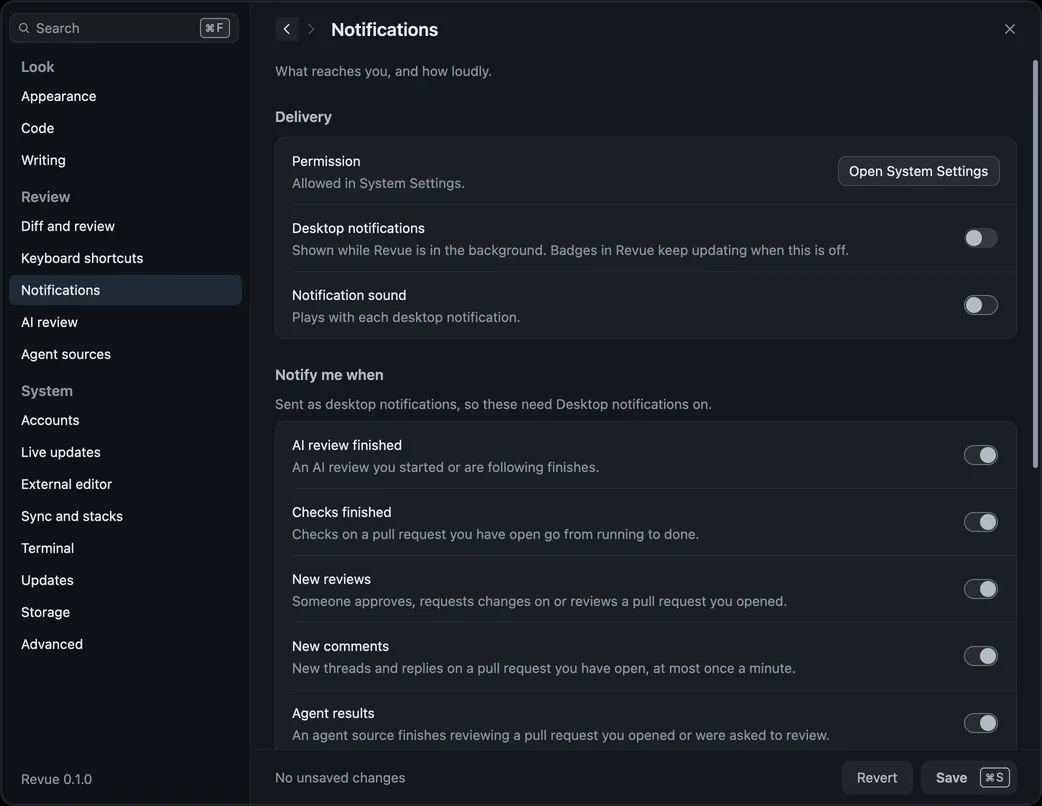
Desktop notifications show only while Revue is in the background. Badges in Revue keep updating either way.
## What can notify
[Section titled “What can notify”](#what-can-notify)
Under **Notify me when**, each kind has its own switch:
| Settings › Notifications | Options | Default |
| ------------------------ | --------- | ------- |
| AI review finished | On or off | On |
| Checks finished | On or off | On |
| New reviews | On or off | On |
| New comments | On or off | On |
| Agent results | On or off | On |
| Comments addressed | On or off | On |
| New snapshot | On or off | On |
**New snapshot** works only when **When a new snapshot arrives** is set to **Notify** in Settings › Sync and stacks.
## Quiet hours
[Section titled “Quiet hours”](#quiet-hours)
Turn on **Use quiet hours** to mute desktop notifications and sounds between two times, in your Mac’s time zone. Badges keep updating.
| Settings › Notifications | Options | Default |
| ------------------------ | ------------- | ------- |
| Use quiet hours | On or off | Off |
| Starts | A time of day | 22:00 |
| Ends | A time of day | 08:00 |
## Notices in the window
[Section titled “Notices in the window”](#notices-in-the-window)
Inside the window, notices stack in the corner of the diff. Information and success notices leave on their own after a moment. Warnings and errors stay until you close them or act on them. An error’s Show details has what git, GitHub or the model said, with its error code, a Copy button and **Learn more**, which opens what to do about that code in [Error codes](/troubleshooting/error-codes/).
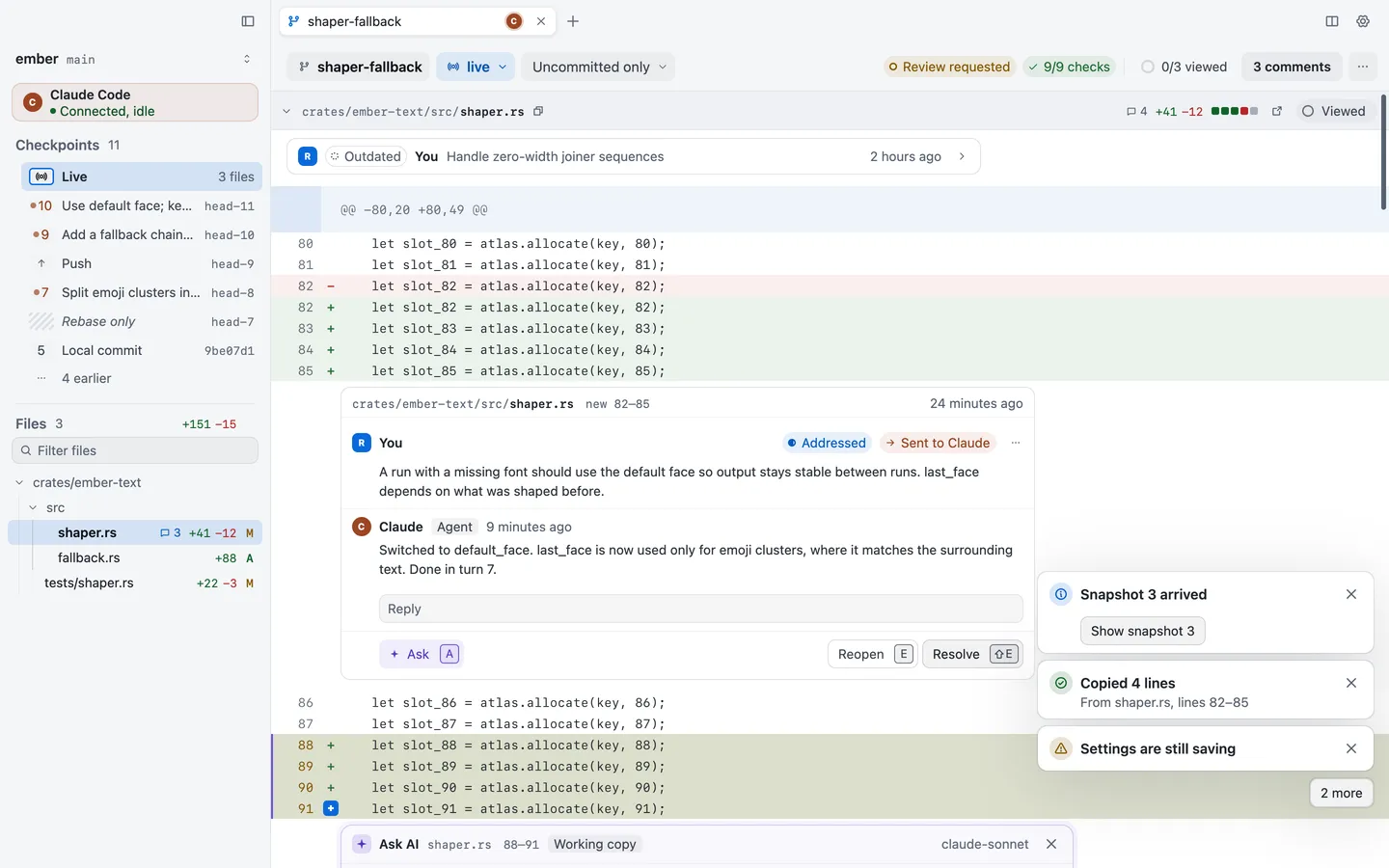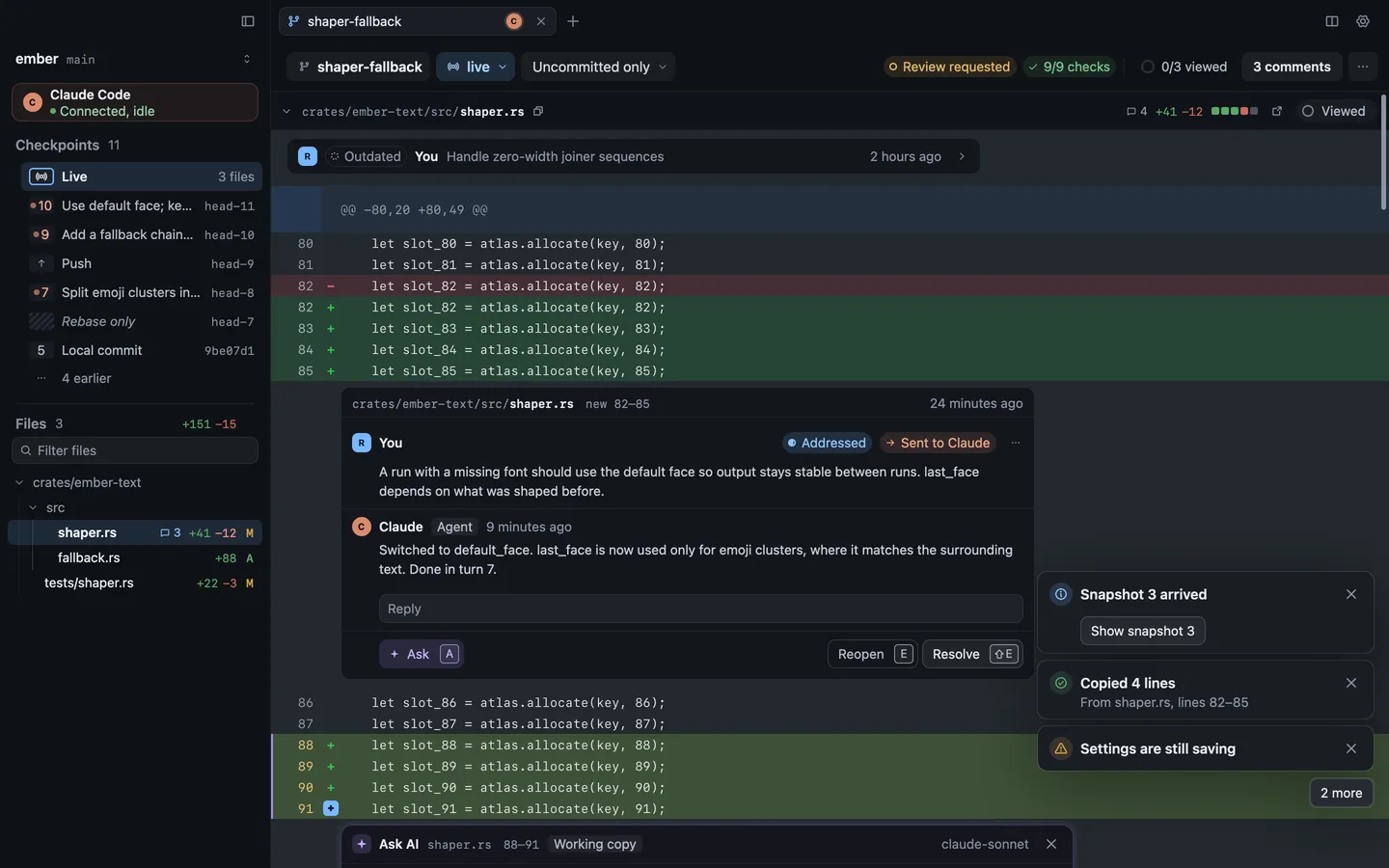
Window › Focus Notices moves the keyboard to the newest notice, so you can take its buttons with `⇥` and `↩︎`. `Esc` goes back to where you were. Window › Dismiss Notices closes them all.
| Action | Key |
| ------------- | --------- |
| Focus notices | `⌃``⌘``N` |
## Related
[Section titled “Related”](#related)
* [Settings › Notifications](/reference/settings/#notifications)
* [Get help](/troubleshooting/get-help/)
# Open pull requests, branches and folders
> Every way to open something in Revue: the Inbox, a folder, the terminal and a Revue link.
Each tab in Revue reads one thing: a pull request, a branch, your working copy or a comparison. This page covers every way to open one. A new tab (`⌘``T`) opens on the Inbox.
## From the Inbox
[Section titled “From the Inbox”](#from-the-inbox)
The [Inbox](/guides/inbox/) lists the pull requests waiting for you. Select one and press `↩︎`, or choose **Open review** in the preview pane. Each pull request opens in a tab of its own, on its Overview. If it already has a tab, Revue goes to that tab.
You can also find any pull request from the command palette. Press `⌘``K` (or `⇧``⌘``P`) and type part of its title or number. The palette searches your tabs, commands, the files in this comparison, branches and pull requests, worktrees and GitHub. When nothing matches, it offers to search GitHub for what you typed. Type `>` first to list only commands.
## From a folder or Open Recent
[Section titled “From a folder or Open Recent”](#from-a-folder-or-open-recent)
To review a checkout on your Mac, choose **File › Open Repository** (`⌘``O`) and pick its folder. Revue opens the branch that’s checked out, with its stack and snapshots. **File › Open Recent** lists the last folders you opened. An empty pane offers the same choices.
A branch and its pull request open in separate tabs. The branch tab shows what’s on your Mac. The pull request tab shows what GitHub has, and is where you review it. The one exception is a layer of a gh-stack stack checked out on this Mac: its pull request opens as that layer, so you don’t get a second tab.
## From the terminal
[Section titled “From the terminal”](#from-the-terminal)
With the [command line tool](/start/install/#install-the-command-line-tool) installed:
```sh
revue # open this checkout
revue ~/src/ember # open another checkout
revue --pr owner/repo#123 # open a pull request from anywhere
revue --pr owner/repo#123 --path src/retry.rs --line 42
```
Revue opens it in the running app. Add `--new-tab` to always make a new tab, or `--new-window` for a new window. `--pr` can also go straight to a thread, a comment, a review or a line. [Command line](/reference/cli/) lists every option.
## From a Revue link
[Section titled “From a Revue link”](#from-a-revue-link)
A Revue link names a pull request, and can point at a thread, a comment, a review or a line in it. It looks like `revue://pr/owner/repo/123?thread=…`. Anyone with Revue who opens it goes straight there.
* **Copy one:** select a thread and choose **Edit › Copy Revue Link to Thread**. For someone without Revue, choose **Edit › Copy GitHub Link to Thread** instead.
* **Open one:** click it in any app, or pass it to the command line: `revue 'revue://pr/owner/repo/123?thread=…'`.
Links to GitHub pull requests in a description or comment open in Revue as a tab too. Other links open in your browser.
## Branch tabs follow your checkout
[Section titled “Branch tabs follow your checkout”](#branch-tabs-follow-your-checkout)
A branch tab follows your checkout. When you switch branch in Terminal or another app:
* **If the tab is in front,** a notice says “Checkout switched to” the new branch, with **Show it** and **Stay here**. Stay here keeps the tab where it is.
* **If the tab isn’t in front,** it moves, and says “Switched to” the new branch the next time you look at it.
A tab you pointed somewhere yourself, by choosing a layer or a snapshot, stays where it is. Its context bar offers the checked-out layer instead. A comment you’re still writing also keeps the tab where it is. Running `revue` in the checkout moves its tab to the branch and lets it follow again. Revue never switches your branch.
## Related
[Section titled “Related”](#related)
* [Triage your Inbox](/guides/inbox/)
* [Command line](/reference/cli/)
* [Work with a stack](/guides/stacks/)
# Report an issue
> Send a report from inside Revue, signed with an SSH key that’s on your GitHub account.
When something goes wrong, Help › Report an Issue sends a report with what you write and the details needed to look into it. You see everything before it goes, and you choose what to include.
## Send a report
[Section titled “Send a report”](#send-a-report)
1. Choose Help › Report an Issue. If an error’s details have a Report button, choosing it starts the report with that error’s code and title filled in.
2. Write a short summary, and what happened in the details: what you did, what you expected and what happened instead.
3. Check what’s included. Choose Show on any row to see exactly what will be sent.
4. Choose Send report, and approve the request or touch your security key if you’re asked.
Revue says “Report sent” with a reference such as R-42. Keep it if you might write about the report later.
You need to be signed in to GitHub in Revue, because the report is sent under your GitHub username. See [Sign in to GitHub](/start/github-sign-in/).
## What’s included
[Section titled “What’s included”](#whats-included)
Every item is ticked to begin with. Untick any you’d rather not send.
* **Revue and this Mac:** the versions of Revue and macOS, and your Mac’s model, chip and memory.
* **Diagnostics:** the report Help › Copy Diagnostics makes.
* **Recent errors:** the error codes Revue showed in the last 24 hours.
* **Recent crashes:** crash reports from the last 7 days.
* **Recent log:** the last 200 lines of Revue’s log.
* **Settings:** the settings that change how Revue behaves.
* **Current view:** which screen and mode you were in, and how many files and comments it showed, without their names.
* **Link to usage statistics:** this Mac’s install ID, which links the report to the usage statistics this Mac has sent, so Ryan can see what led up to the problem.
Paths show your home folder as \~, and tokens, email addresses and the names of your repositories and branches are taken out of the items. What you write in the summary and details is sent as you wrote it, so leave out anything private. If the summary or details look like they hold a token, Revue says so and won’t send until you remove it.
Copy report puts the same report on the clipboard instead, so you can send it another way.
## How Revue signs a report
[Section titled “How Revue signs a report”](#how-revue-signs-a-report)
Revue shows a report is from you by signing it with an SSH key that’s on your GitHub account. Revue’s server checks the signature against the public keys GitHub lists for your account, so nobody can send a report under your name without your key. No GitHub sign-in or token is sent.
The sheet shows which key will sign under your username. When more than one of your keys would work, you can choose another. Revue looks for keys in this order:
1. The key git signs commits with, if you sign with SSH.
2. Keys in an SSH agent, including the macOS keychain, 1Password and Secretive.
3. Key files in `~/.ssh`.
Revue never reads a private key itself. Your SSH agent or `ssh-keygen` does the signing:
* **1Password or Secretive** asks you to approve the request.
* **A security key** asks for a touch.
* **A key file with a passphrase** asks for the passphrase in the sheet. Revue hands it to `ssh-keygen` once and doesn’t keep it.
## Add an SSH key to GitHub
[Section titled “Add an SSH key to GitHub”](#add-an-ssh-key-to-github)
If no key on this Mac is on your GitHub account, Revue can’t sign the report and says “Add an SSH key to GitHub”. To make a new key and add it:
1. In Terminal, run `ssh-keygen -t ed25519` and press Return to accept the suggested file.
2. Copy the public key with `pbcopy < ~/.ssh/id_ed25519.pub`.
3. On GitHub, open Settings › SSH and GPG keys and click New SSH key. Either key type, authentication or signing, works. Paste the key and click Add SSH key.
4. Come back to Revue and choose Check again.
If you already have a key in an SSH agent, such as 1Password, copy its public half with `ssh-add -L` instead, and add that line to GitHub. A key you just added can take a few minutes to count.
Revue doesn’t use certificates, DSA keys, ECDSA keys on the P-521 curve, or RSA keys shorter than 2048 bits.
## When a report can’t be sent
[Section titled “When a report can’t be sent”](#when-a-report-cant-be-sent)
Your report is saved when sending fails, and Revue offers it again the next time it opens.
| Revue says | What to do |
| ------------------------------------------------------------ | --------------------------------------------------------------------------------------------- |
| Couldn’t reach Revue’s server | Check your connection, then choose Try again. |
| Revue’s server didn’t accept the signature | Try again, or choose another key. |
| GitHub doesn’t list this key | If you just added the key, wait a few minutes and try again, or choose another key. |
| GitHub doesn’t show you as the account Revue is signed in to | Sign in to GitHub again in Revue, then send. |
| Your Mac’s clock is off by more than 10 minutes | Turn on setting the date and time automatically in System Settings, then try again. |
| You’ve sent several reports recently | Try again in a little while. Your report is kept. |
| Your GitHub account is too new | Copy the report and send it another way. |
| Revue can’t send reports right now | Copy the report and send it another way. |
| The report wasn’t signed | Your SSH agent turned the request down or it was cancelled. Try again, or choose another key. |
| Signing took too long | Nothing answered the request to sign. Try again, or choose another key. |
| That passphrase didn’t work | Type the key’s passphrase again. |
| This Mac’s ssh-keygen can’t use this security key | Add the key to an SSH agent, or choose another key. |
| Your SSH agent signed with an old algorithm | Choose another key, or update the agent. |
## Delete your reports
[Section titled “Delete your reports”](#delete-your-reports)
Reports are kept until Ryan deletes them. To have yours deleted, email <ryan@ryanclark.me> with a report’s reference, such as R-42, or your GitHub username for all of them.
So that nobody can get someone else’s reports deleted, Ryan replies with a short random message in a file, `challenge.txt`. Sign exactly that file with the SSH key the report was signed with, or any SSH key now on your GitHub account, and send back the `challenge.txt.sig` it makes: `ssh-keygen -Y sign -n revue-delete@ryc.sh -f ~/.ssh/id_ed25519 challenge.txt`
Use your own key’s file in place of `~/.ssh/id_ed25519`. If your key is only in an SSH agent, such as 1Password, ask Ryan for the command to use with it. A signature made for anything else, such as a signed git commit, isn’t accepted. [Privacy](/privacy/#reports-you-send) says what’s kept after a report is deleted.
# Review a pull request
> Read a pull request, comment on it and submit your review.
This guide covers a review from start to finish: reading a pull request, leaving comments and sending your review to GitHub. Your comments wait in your pending review, where only you can see them, until you submit.
## Open the pull request
[Section titled “Open the pull request”](#open-the-pull-request)
Use whichever is closest:
* **From the Inbox.** **Needs you** lists the pull requests waiting for your review. Select one and press `↩︎`.
* **From the command palette.** Press `⌘``K` and type the pull request’s number or title.
* **From the terminal.** Run `revue --pr owner/repo#123`.
* **From a Revue link** someone sent you. It opens at the thread it names.
Each pull request opens in its own tab. To read two side by side, split the pane with `⌘``\`. [Open pull requests, branches and folders](/guides/open/) has more.
## Start from the Overview
[Section titled “Start from the Overview”](#start-from-the-overview)
A pull request opens on its **Overview**: the description, a timeline of each push and review, and the threads people have started. When you’ve reviewed it before, the timeline says which snapshot you last reviewed and offers the changes since then.
A column at the Overview’s right keeps **Before merge**, **Checks**, **Reviewers**, labels, assignees and linked issues in sight while the timeline scrolls. In a narrower window, or with the review panel open, the column folds into a row of buttons under the pull request’s header, and each opens its part.
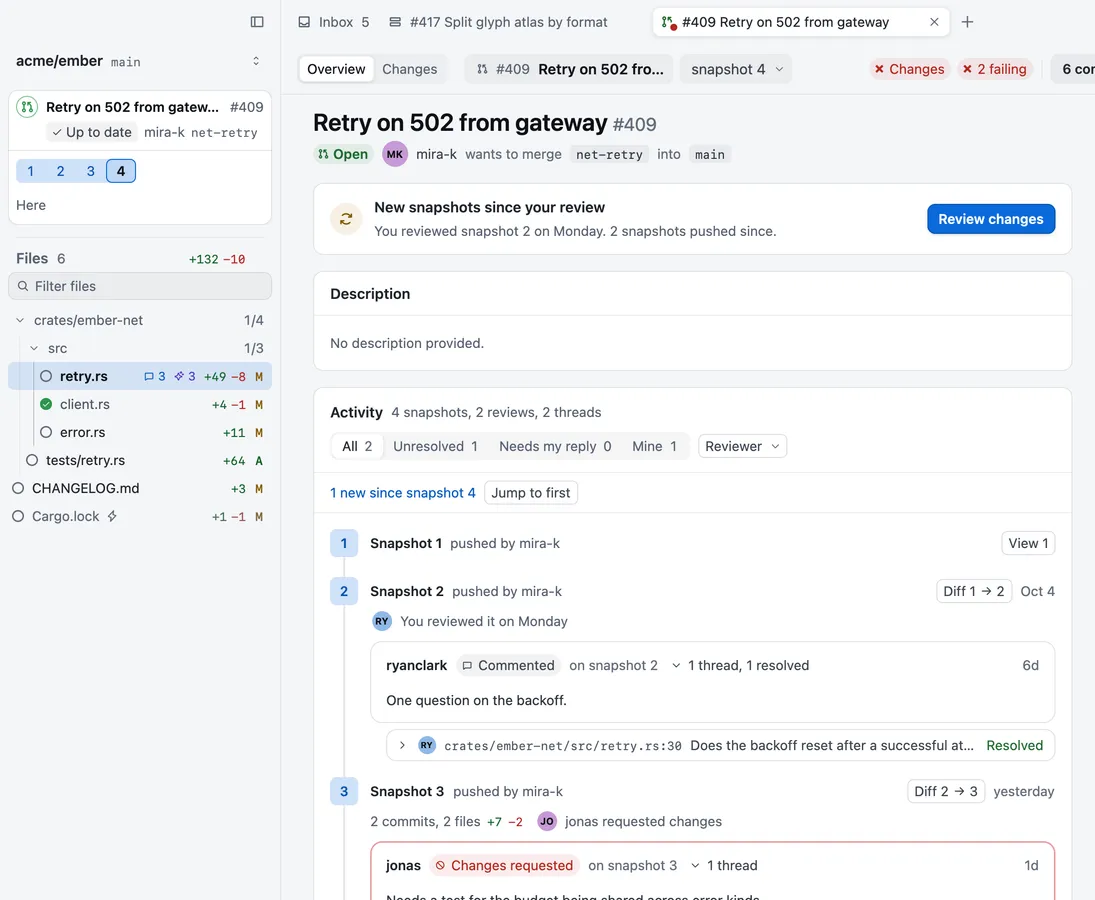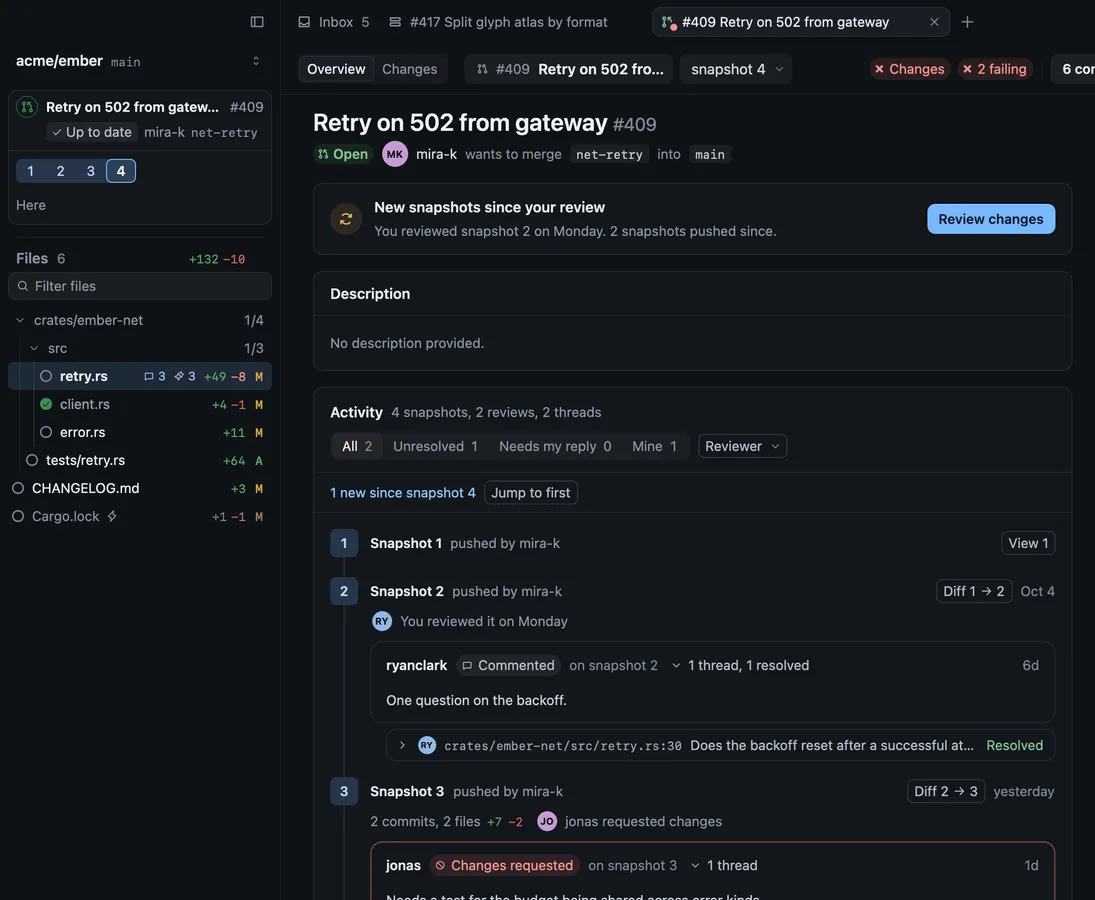
Read the description, then choose **Changes** at the top left, or press `⌥``⌘``O`. The same key takes you back to the Overview.
## Read the changes
[Section titled “Read the changes”](#read-the-changes)
The sidebar lists the changed files. Generated files and lockfiles are collapsed, with the reason. Choose **Show diff** in the file’s header to read one, or **View › Show All Generated Files**.
* Press `J` and `K` to move to the next and previous file, or `⌘``P` to go to a file by name.
* Press `U` to switch between unified and split layout, and `⌥``Z` to turn wrapping on or off.
* In split layout, an added or deleted file spans the whole diff, with one column of line numbers, so none of the window is left empty. To draw added files on the right and deleted files on the left instead, turn off **View › New and Deleted Files Full Width**, or choose **On their side** for **New and deleted files** in **Settings › Diff and review**.
* Press `⌘``F` to search in the diff.
* To see more of the file around a change, show more lines above or below it, up to the whole file.
* With a checkout of the repository open in Revue, press `O` to open the file in your editor at the line you’re reading.
Whitespace, context lines and the default layout are in **Settings › Diff and review**.
## Mark files viewed
[Section titled “Mark files viewed”](#mark-files-viewed)
Press `V` when you’ve read a file. Its circle in the sidebar fills in, and the count beside its folder goes up.
A viewed mark stays until that file’s diff changes. If the author pushes again and the file changes, the mark is cleared, so you know to read it again.
Tip
Coming back after a push? Press `R` for **Changes since last look**. It shows only what was pushed since the snapshot you last looked at. See [Re-review with snapshots](/guides/snapshots/).
## Comment and suggest changes
[Section titled “Comment and suggest changes”](#comment-and-suggest-changes)
* **Comment on lines.** Select one or more lines and press `C`, or choose **Comment** in the bar over your selection. Choose **Add comment** or press `⌘``↩︎` to save it.
* **Suggest a change.** Select lines on the right side, then choose **Suggest change** in the comment. It becomes a GitHub suggestion the author can accept. **Attach image** adds an image.
* **Reply to a thread.** Select the thread and press `↩︎`, or write in its **Reply** box. A reply to a GitHub thread posts at once. It doesn’t wait for your review.
* **Resolve a thread.** Press `E`, or choose **Resolve**. Resolving a GitHub thread resolves it on GitHub at once.
* **Edit or delete your own comment.** Press `↩︎` or `⌫` on it. `⌘``.` lists everything you can do with a comment.
Your new comments go into your **pending review**. They’re marked **Pending**, and only you can see them until you submit.

Press `N` and `P` to step through unresolved threads. Press `⌥``⌘``K`, or choose the comment count at the top right, to see every comment in one list.
## Check CI
[Section titled “Check CI”](#check-ci)
The bar at the top shows how the checks stand, such as how many are failing. **Checks**, in the Overview’s column and in the review panel, groups each job under its workflow, with **Re-run** for one that failed and **Re-run failed** for all of them. A running workflow starts folded to one row.
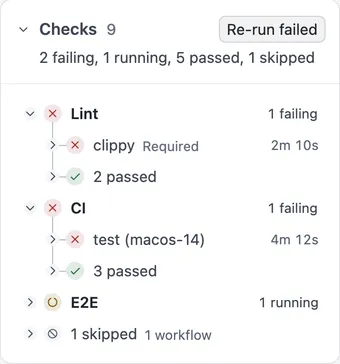
Choose a job to open its log in a tab of the bottom pane. A failed job opens at its failed step. You can search the log, and press `F8` and `⇧``F8` to step through its errors. **Re-run job** in the log’s bar runs a failed job again and follows the new attempt.
**More log actions** (⋯) in the log’s bar has **Copy step**, **Copy log** and **Save log**. A long log reads better on its own: **Open as tab** moves it to a tab beside the pull request, and **Move to bottom pane** brings it back.
Revue keeps the last status it read for each pull request, its checks and reviews, so a tab shows it at once. While it asks GitHub again, the review panel says “Checking GitHub…”. Offline, it offers **Retry** and says when the copy you see was read, such as “Offline. Showing GitHub as of 10:42.”
## Submit your review
[Section titled “Submit your review”](#submit-your-review)
1. Choose **Review** at the top right, or press `⌥``⌘``R`, to open the review panel. It lists the other reviews, the checks and your pending comments.
2. Choose a verdict: **Comment**, **Approve** or **Request changes**. From anywhere in the pull request, `⌥``⌘``E`, `⌥``⌘``A` and `⌥``⌘``X` choose one. Choosing a verdict sends nothing.
3. Add a summary if you want one. For Request changes, the box asks you to say what needs to change.
4. Choose the button at the bottom of the panel, named for your verdict, or press `⌘``↩︎`.
Revue sends the review and your pending comments to GitHub together, as one review.

Discarding a review
**Discard** in the review panel, or **Review › Discard Review**, deletes every pending comment in your review. Revue asks “Discard your pending review?” first. Press `⌘``⌫` to confirm, or `↩︎` to keep it.
If your connection drops while a reply is posting, Revue says “Your reply may have posted. Reload threads to check before sending it again.” Choose **Reload threads** to see what GitHub saved before you try again.
## Keys for this guide
[Section titled “Keys for this guide”](#keys-for-this-guide)
| Action | Key |
| --------------------------- | --------- |
| Show overview or changes | `⌥``⌘``O` |
| Next file | `J` |
| Previous file | `K` |
| Go to file | `⌘``P` |
| Switch unified and split | `U` |
| Wrap lines | `⌥``Z` |
| Search in diff | `⌘``F` |
| Open current file in editor | `O` |
| Mark file viewed | `V` |
| Add comment | `C` |
| Reply | `↩︎` |
| Resolve thread | `E` |
| Comment actions | `⌘``.` |
| Next unresolved thread | `N` |
| Previous unresolved thread | `P` |
| Show comments | `⌥``⌘``K` |
| Show or hide review panel | `⌥``⌘``R` |
| Comment verdict | `⌥``⌘``E` |
| Approve | `⌥``⌘``A` |
| Request changes | `⌥``⌘``X` |
In the review panel, `⌘``↩︎` submits your review. Every key is listed in [Keyboard shortcuts](/reference/keyboard-shortcuts/), and you can change most of them in **Settings › Keyboard shortcuts**.
## Related
[Section titled “Related”](#related)
* [Pending reviews and local comments](/concepts/comments/)
* [Re-review with snapshots](/guides/snapshots/)
* [Run an AI review](/guides/ai-review/)
# Export and import settings
> Move your settings to another Mac, or reset them to the defaults.
Your settings live on this Mac, in Revue’s data folder. To use the same themes, fonts, shortcuts and choices on another Mac, export them to a file and import it there. You can also put everything back to the defaults.
All three are under Your settings in Settings › Advanced.
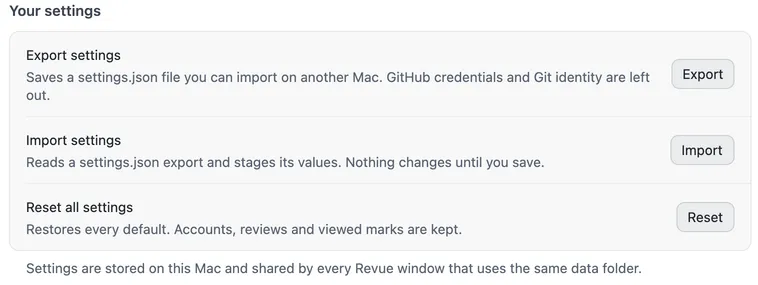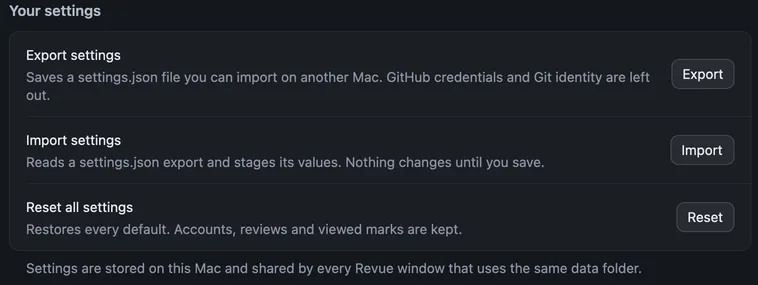
## Export
[Section titled “Export”](#export)
Choose Export beside Export settings, and pick where to save the file. Revue writes a `settings.json` with every setting and shortcut. Your GitHub credentials and your Git identity are left out.
## Import
[Section titled “Import”](#import)
On the other Mac, choose Import beside Import settings and pick the `settings.json`. Revue reads it and stages its values on each page, so you can look before anything changes. The footer counts the unsaved changes. Choose Save (`⌘``S`) to keep them, or Revert to drop them.
## Reset
[Section titled “Reset”](#reset)
Choose Reset beside Reset all settings. Revue asks “Reset every setting and shortcut to its default? Nothing changes until you save.” Confirm, then choose Save. Your GitHub account, your reviews and your viewed marks are kept.
To reset only your keys, use Restore default shortcuts in Settings › Keyboard shortcuts. See [Change keyboard shortcuts](/guides/change-shortcuts/).
## Related
[Section titled “Related”](#related)
* [Settings](/reference/settings/)
* [Files and folders](/reference/files/)
# Re-review with snapshots
> Read only what changed since you last looked, compare any two pushes and leave rebases out.
When the author pushes again, you don’t need to read the whole pull request a second time. Revue keeps every push, so you can read only what changed since you last looked, or compare any two pushes.
## What a snapshot is
[Section titled “What a snapshot is”](#what-a-snapshot-is)
A snapshot is the pull request as it stood after one push. Snapshot 2 shows the full pull request as of its second push, not only what changed since snapshot 1. To see only what changed between two snapshots, you read a **range**. [Snapshots and ranges](/concepts/snapshots/) explains both.
The snapshot control in the bar at the top says which one you’re reading, and whether it’s the latest. Press `]` and `[` to step to the next and previous snapshot.
## Changes since last look
[Section titled “Changes since last look”](#changes-since-last-look)
Revue remembers the last snapshot you looked at. When a push lands on a pull request you’ve read, the bar offers the changes, such as “2 new since snapshot 4”, with **Show** and a dismiss button.
* Choose **Show**, press `R`, or choose **Go › Changes Since Last Look**. Revue opens the range from the snapshot you last looked at to the latest one.
* To go back to the whole pull request, choose **Whole pull request** in the bar.
A snapshot counts as looked at once you’ve read it for a moment. To set it by hand, choose **Go › Mark as Looked** (`⇧``⌘``L`).
## Compare two snapshots
[Section titled “Compare two snapshots”](#compare-two-snapshots)
1. Open the snapshot menu from the snapshot control in the bar.
2. Choose **Range**.
3. Choose the first snapshot, then Shift-click the second. In the stack card in the sidebar, Shift-click two snapshot tiles to do the same.
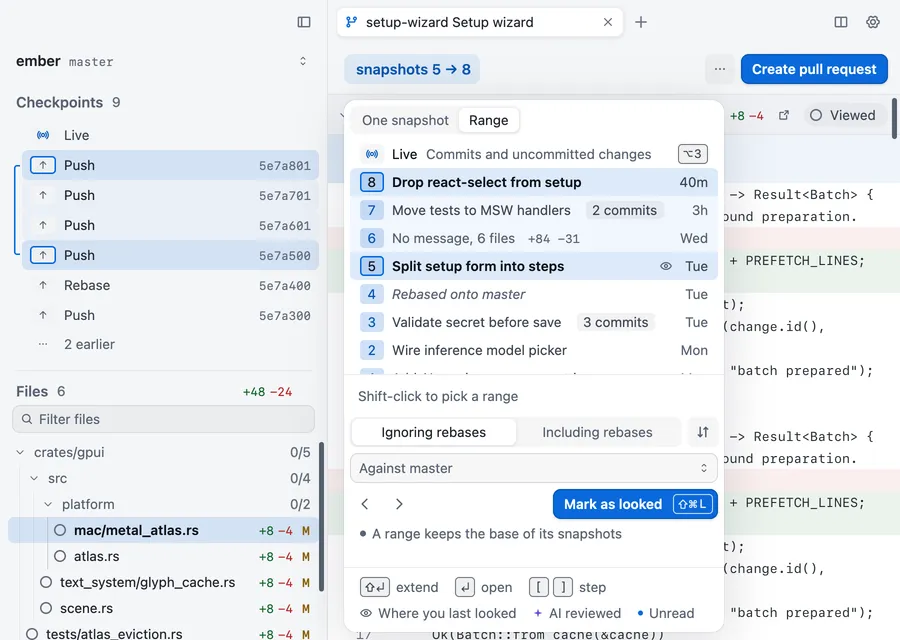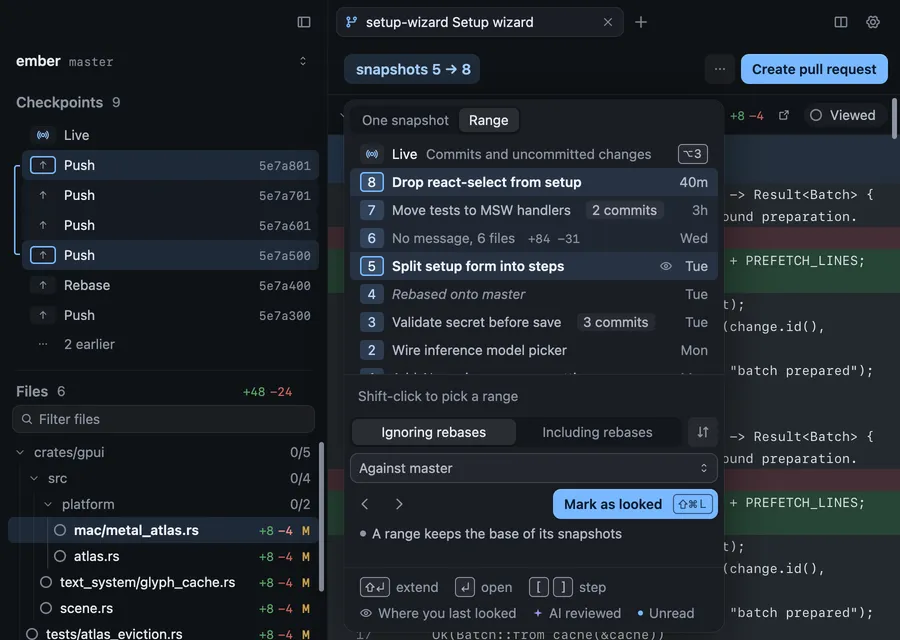
The bar then reads, for example, “snapshots 5 → 8”. Press `⌥``1` to go back to one snapshot, and `⌥``2` to return to a range. You can read comments in a range, but you can’t add one there.
## Ignore rebases
[Section titled “Ignore rebases”](#ignore-rebases)
When the base branch moved between two snapshots, a range would also show every commit that came in from the base. The snapshot menu’s **Ignoring rebases** leaves those out and shows only how this pull request’s own work changed. **Including rebases** compares the two snapshots as they are. Ignoring rebases hides nothing the author wrote.
A push that only rebased, with no change to the code, is a rebase-only snapshot. Revue shows it as a hatched segment rather than a numbered one, unless you turn off **Quiet rebase-only snapshots**.
## When a new snapshot arrives
[Section titled “When a new snapshot arrives”](#when-a-new-snapshot-arrives)
When someone pushes, the new snapshot arrives and what you’re reading stays put. **When a new snapshot arrives** in **Settings › Sync and stacks** decides how Revue tells you:
* **Notify** marks the new snapshot in the bar and posts a notice.
* **Badge only** marks the new snapshot in the bar. This is the default.
* **Silent** marks nothing.
## Carry viewed marks
[Section titled “Carry viewed marks”](#carry-viewed-marks)
A file you marked viewed keeps its mark in the next snapshot when its diff didn’t change. If the push changed the file, the mark is cleared so you read it again. Turn off **Carry viewed marks across snapshots** in **Settings › Diff and review** to start every snapshot with no files viewed.
## Settings
[Section titled “Settings”](#settings)
| Setting | Where | Options | Default |
| ----------------------------------- | -------------------------- | -------------------------- | ---------- |
| When a new snapshot arrives | Settings › Sync and stacks | Notify, Badge only, Silent | Badge only |
| Quiet rebase-only snapshots | Settings › Sync and stacks | On or off | On |
| Carry viewed marks across snapshots | Settings › Diff and review | On or off | On |
## Keys
[Section titled “Keys”](#keys)
| Action | Key |
| ----------------------- | --------- |
| Next snapshot | `]` |
| Previous snapshot | `[` |
| Changes since last look | `R` |
| Snapshot | `⌥``1` |
| Range | `⌥``2` |
| Mark as looked | `⇧``⌘``L` |
## Related
[Section titled “Related”](#related)
* [Snapshots and ranges](/concepts/snapshots/)
* [Review a pull request](/guides/review-a-pull-request/)
* [Keyboard shortcuts](/reference/keyboard-shortcuts/)
# Work with a stack
> Move through a stack of pull requests layer by layer, and check out the layer you’re on.
Review a stack one layer at a time, each layer showing only what it adds on top of the one below. This page shows how to move through a stack, check a layer out and tell Revue which branch the stack is built on.
Note
Revue reads stacks. It never creates, restacks or reorders one. Use your stack tool for that, and Revue follows what it did.
## How Revue finds a stack
[Section titled “How Revue finds a stack”](#how-revue-finds-a-stack)
Open a pull request or a branch that’s part of a stack, and the stack card appears in the sidebar above the files. Revue puts it together from GitHub’s own stack and from your checkout, including stacks made with gh-stack. [Stacks and layers](/concepts/stacks/#where-stacks-come-from) explains how the two are combined.

A branch with no stack is read as a single layer, so everything on this page works on a plain branch too. To hide the card, turn off Show stack sidebar in Settings › Sync and stacks.
## Move between layers
[Section titled “Move between layers”](#move-between-layers)
Click a layer in the stack card to open it in the same tab. ⌘-click it to open it in a new tab, or right-click it for the layer’s menu. From the keyboard, or from the Go menu:
| Action | Key |
| -------------- | ------ |
| Next layer | `⇧``↓` |
| Previous layer | `⇧``↑` |
* **Go › Go to Checked-Out Layer** opens the layer your checkout is on.
* **Go › Open Layer in New Tab** opens a layer in a tab of its own.
Each layer’s diff is compared with the layer below it, so moving up the stack shows each change on its own.
## Read a layer’s state
[Section titled “Read a layer’s state”](#read-a-layers-state)
Each row ends with the layer’s state, such as Draft, Needs rebase or Merged, and the line under the context bar says what it means for the tab you’re reading. [Stacks and layers](/concepts/stacks/#states) lists every state.
## Check out a layer
[Section titled “Check out a layer”](#check-out-a-layer)
To see a layer’s uncommitted work, or to change it, check it out. On a layer no checkout holds, the line under the context bar says “Check out this layer to see uncommitted work.” Choose **Check out** there, or the **Check out** button on the layer’s row in the stack card.
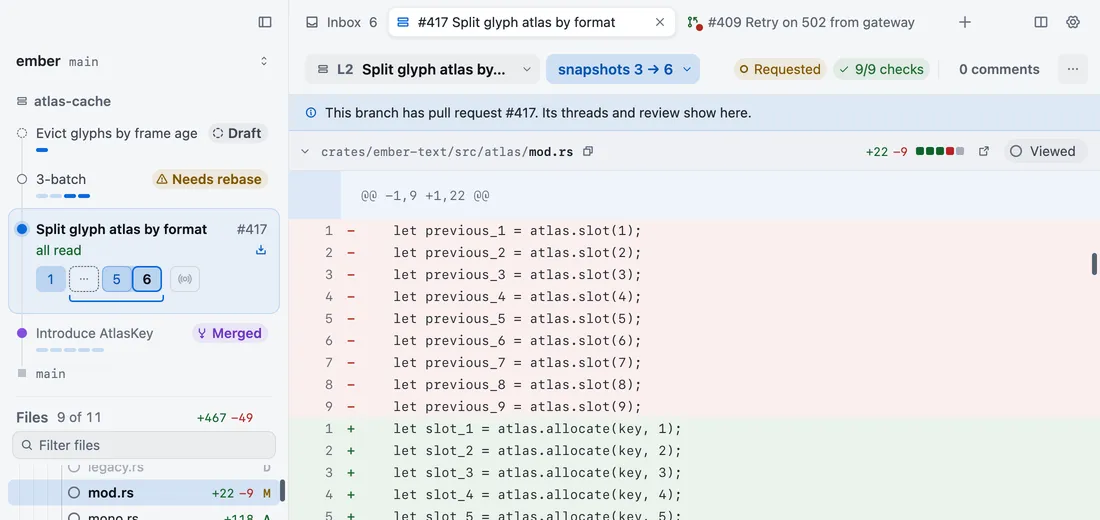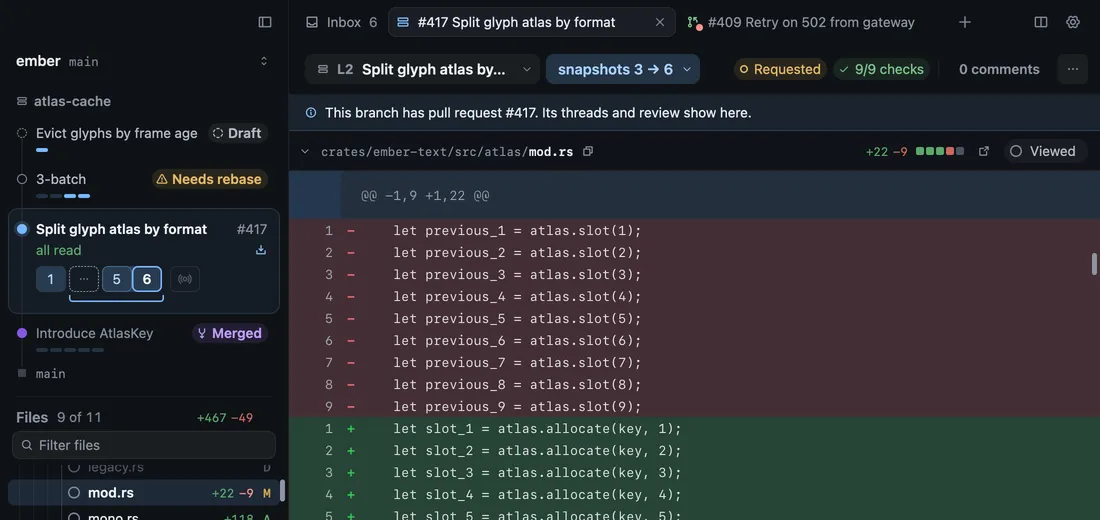
Revue leaves your current checkout alone. It makes a git worktree in a folder beside your checkout, named after it with `.worktrees` on the end, such as `ember.worktrees/split-atlas` for the branch `split-atlas` of a checkout at `ember`. A `/` in a branch name becomes `-` in the folder’s name.
A new worktree has none of your ignored files, such as dependencies and build output. Revue can prepare it in the background. In Settings › External editor › Worktree setup, for the repository you have open:
* **Prepare new worktrees** turns the setup on or off.
* **Install command** runs a command in the new worktree. Left at `auto`, Revue runs `pnpm install --frozen-lockfile --prefer-offline` when the worktree has a `pnpm-lock.yaml`. Leave it blank to skip installing.
* **Paths to clone from this checkout** copies ignored paths, such as build outputs, from your checkout. They’re copied as APFS clones, so they use almost no disk, and existing files are never replaced.
When a layer and its pull request have both moved, the line under the context bar says so and offers what fits: **Push**, **Pull**, **Rebase** onto GitHub’s commits, or **Force push**, which asks first. These act on that one branch. They never restack the layers above it.
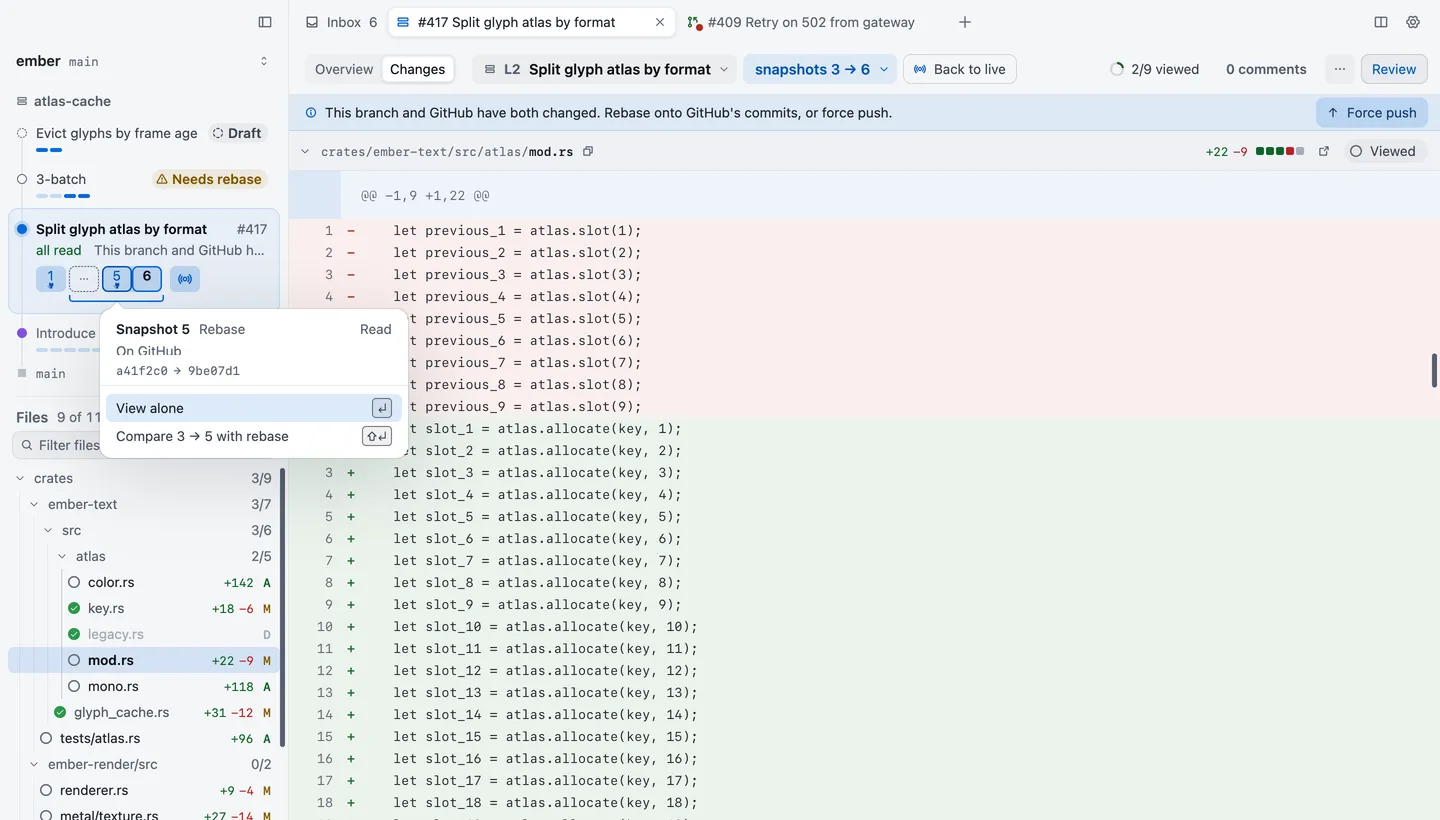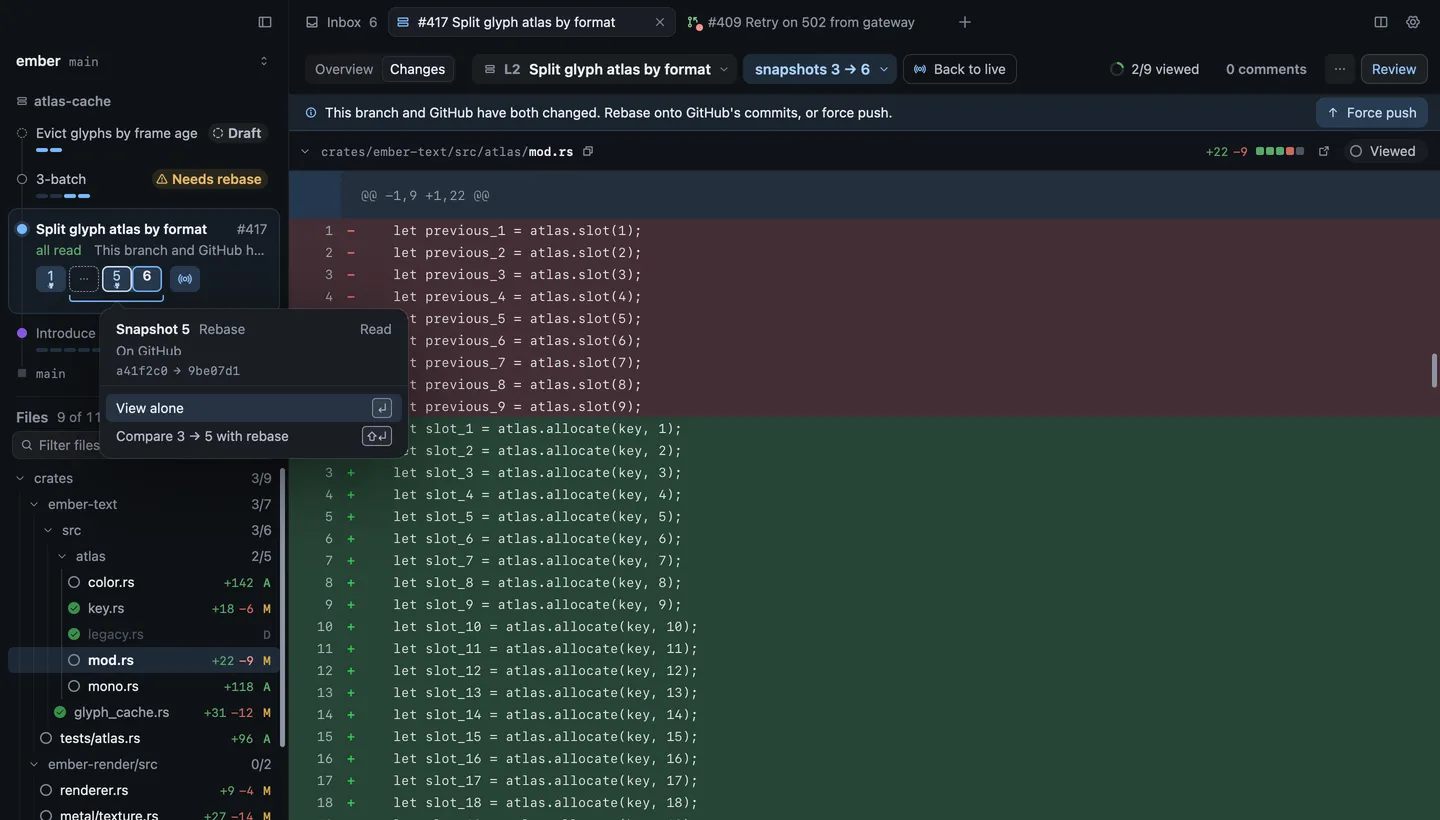
## Set the trunk
[Section titled “Set the trunk”](#set-the-trunk)
The trunk is the branch the stack is built on. Revue finds it by itself. If it picks the wrong one, name it here. A stack whose own state names a parent branch keeps it.
| Settings › Sync and stacks | Options | Default |
| -------------------------- | --------- | -------------------- |
| Default trunk branch | Any text | Detect automatically |
| Show stack sidebar | On or off | On |
## Related
[Section titled “Related”](#related)
* [Stacks and layers](/concepts/stacks/)
* [Review your changes before you push](/guides/local-changes/)
* [Re-review with snapshots](/guides/snapshots/)
# Manage disk space
> See what Revue keeps on your Mac, set limits and clear what it can fetch again.
Revue keeps copies of the repositories and diffs you read so they open quickly. Settings › Storage shows how much space that takes, sets limits on it, and clears what Revue can fetch or work out again.
## What uses space
[Section titled “What uses space”](#what-uses-space)
Settings › Storage starts with a chart of everything Revue keeps on this Mac, in five parts:
* **Repository mirrors**: partial copies of the GitHub repositories you open pull requests from.
* **Kept checkouts**: whole checkouts of pull requests and folders, written out for Ask AI and AI review.
* **Diff cache**: diffs Revue has worked out, and its last copy of pull request threads and your Inbox.
* **Other caches**: syntax colouring, CI logs and images from comments and avatars.
* **Your data and logs**: the database with your snapshots, comments and review results, your drafts, themes and settings, and Revue’s log and crash reports.
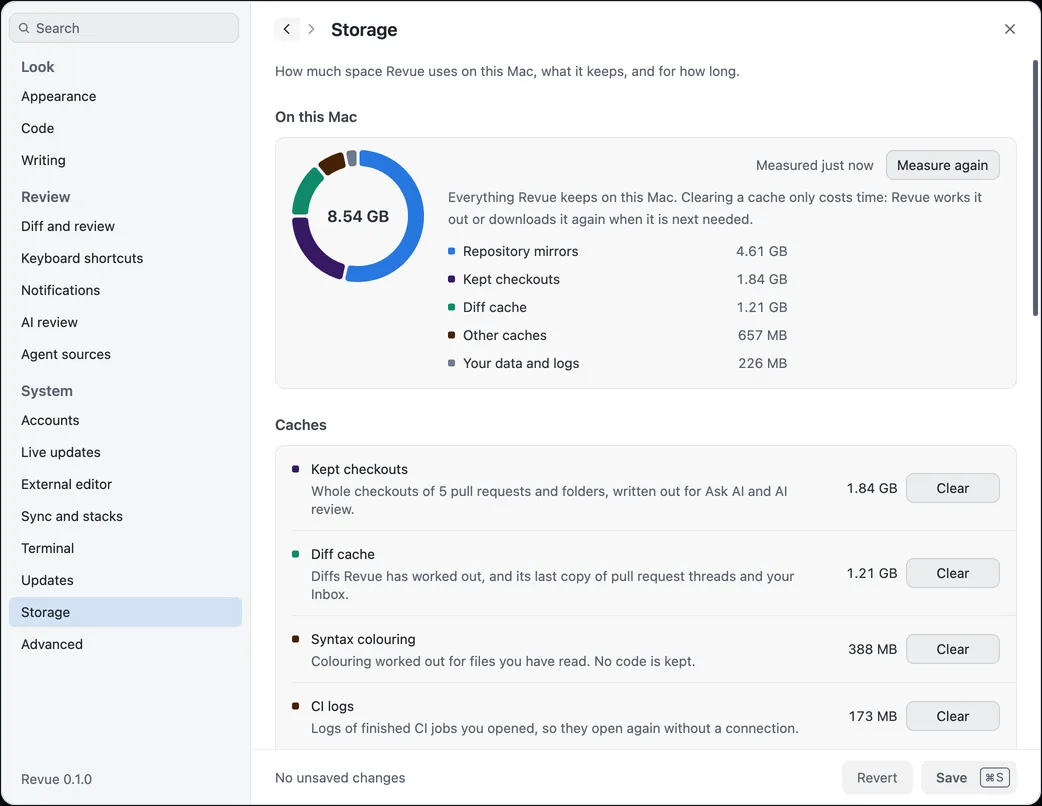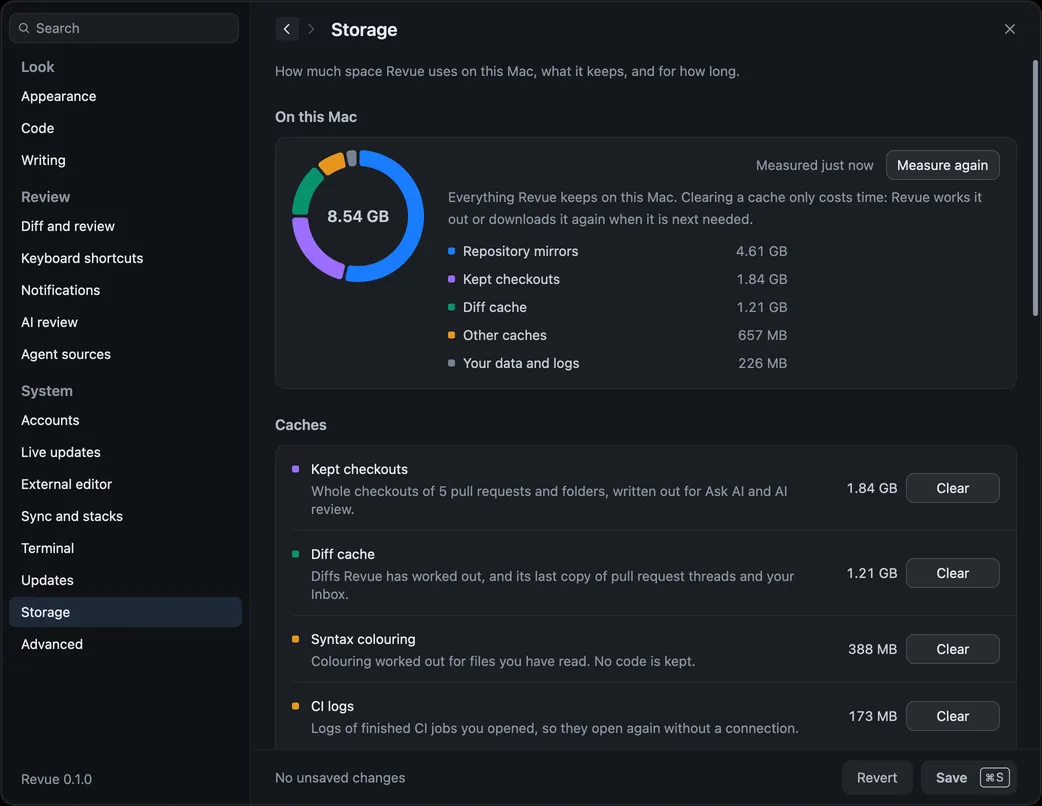
Under the chart, rows grouped as Caches, Repositories, Diagnostics and Your data give each kind its size and **Show in Finder**. **Measure again** measures them anew. Where each one lives is on [Files and folders](/reference/files/).
## Limits
[Section titled “Limits”](#limits)
Revue keeps the caches within these limits by itself. It removes what was read longest ago first, and never a checkout a tab has open.
| Settings › Storage | Options | Default |
| --------------------- | -------------------------------------------------- | ------- |
| Diff cache limit | 256 MB, 512 MB, 1000 MB, 2000 MB, 4000 MB, 8000 MB | 512 MB |
| Keep checkouts for | 7 days, 14 days, 30 days, 90 days | 14 days |
| Checkouts limit | 1000 MB, 2000 MB, 5000 MB, 10000 MB, 20000 MB | 2000 MB |
| CI logs limit | 64 MB, 128 MB, 256 MB, 512 MB, 1000 MB | 256 MB |
| Remove unused mirrors | Never, After 90 days, After 180 days, After a year | Never |
A kept checkout also goes once its pull request is merged or closed. Removing a repository’s mirror means older snapshots of its pull requests may not open again.
## Clear
[Section titled “Clear”](#clear)
* **Caches**: **Clear** on a cache row empties it at once. Clearing a cache never touches your reviews, comments or viewed marks, and only costs time, as Revue works it out or downloads it again when it’s next needed.
* **Repository mirrors**: **Remove unused** asks first, naming the mirrors no pull request has used within the limit above, and removes them.
* **Logs and crash reports**: **Remove older** removes the log from before and the crash reports, after asking.
Revue never clears your database, drafts, themes or settings. To start your settings again, use **Reset all settings** in Settings › Advanced. See [Export and import settings](/guides/settings-files/).
## Related
[Section titled “Related”](#related)
* [Files and folders](/reference/files/)
* [Settings › Storage](/reference/settings/#storage)
* [Uninstall Revue](/guides/uninstall/)
# Tabs, panes and windows
> Open several changes at once in tabs, split panes and windows.
Keep several pull requests, branches and terminals open at once, side by side or in their own windows, and pick up where you left off the next time Revue opens.
## One tab, one change
[Section titled “One tab, one change”](#one-tab-one-change)
Each tab reads one thing: a pull request, a branch, a folder, a terminal or the Inbox. Opening something already in a tab switches to that tab rather than opening it twice. File › New Tab (`⌘``T`) opens a tab where you pick what to read, and File › Reopen Closed Tab (`⇧``⌘``T`) brings back the last one you closed.
`⌘``1` to `⌘``8` pick a tab by its place, and `⌘``9` picks the last one. File › Move Tab to New Window gives a tab a window of its own, and you can drag a tab to another pane or window.
## Split a pane
[Section titled “Split a pane”](#split-a-pane)
A window holds one or more panes, and each pane has its own tabs. Pane › Split Right (`⌘``\`) and Pane › Split Down (`⇧``⌘``\`) add a pane beside or under the one you’re in. Pane › New Empty Pane adds one with nothing open yet, and Pane › Move Tab to New Pane moves the current tab into a new pane.
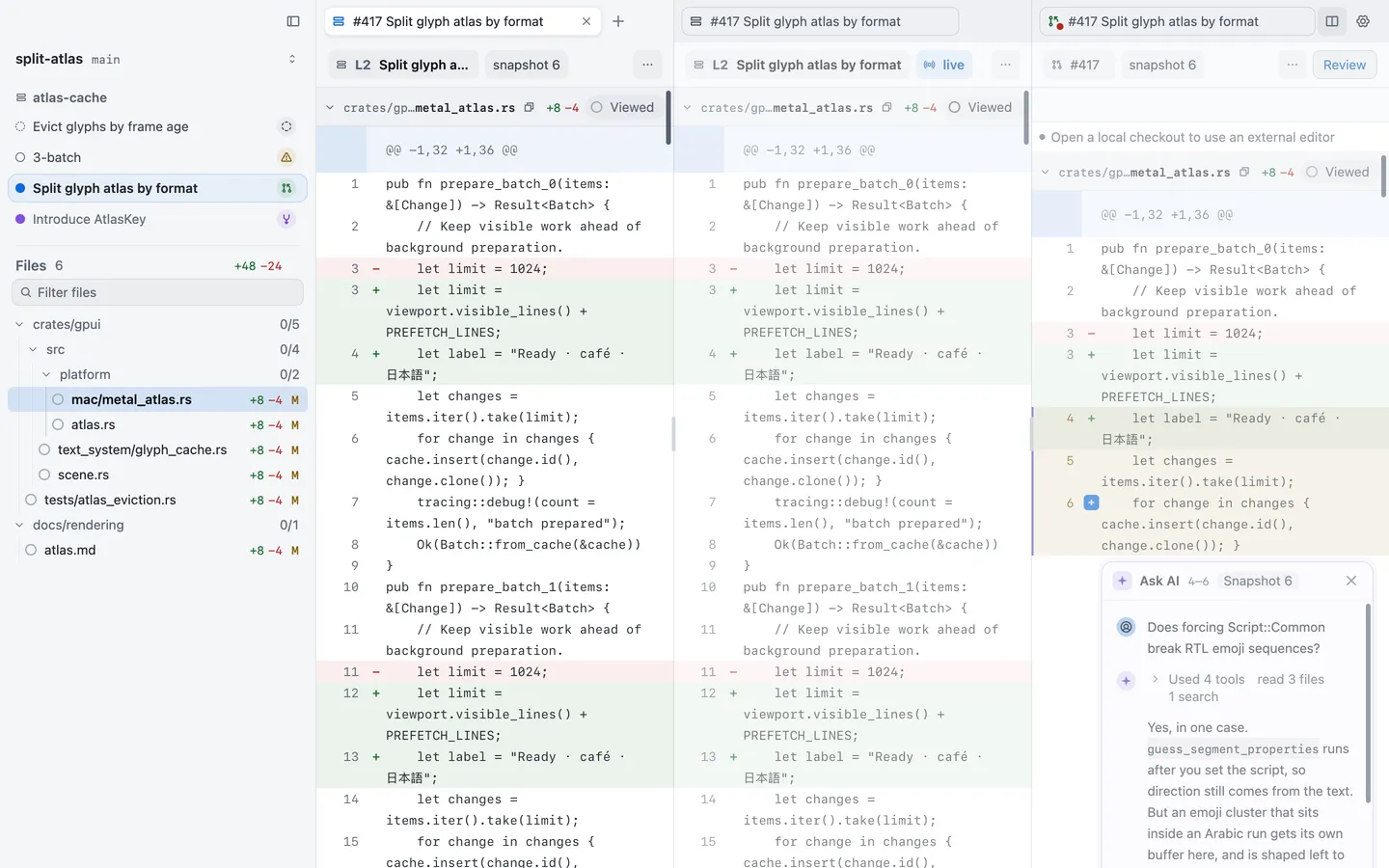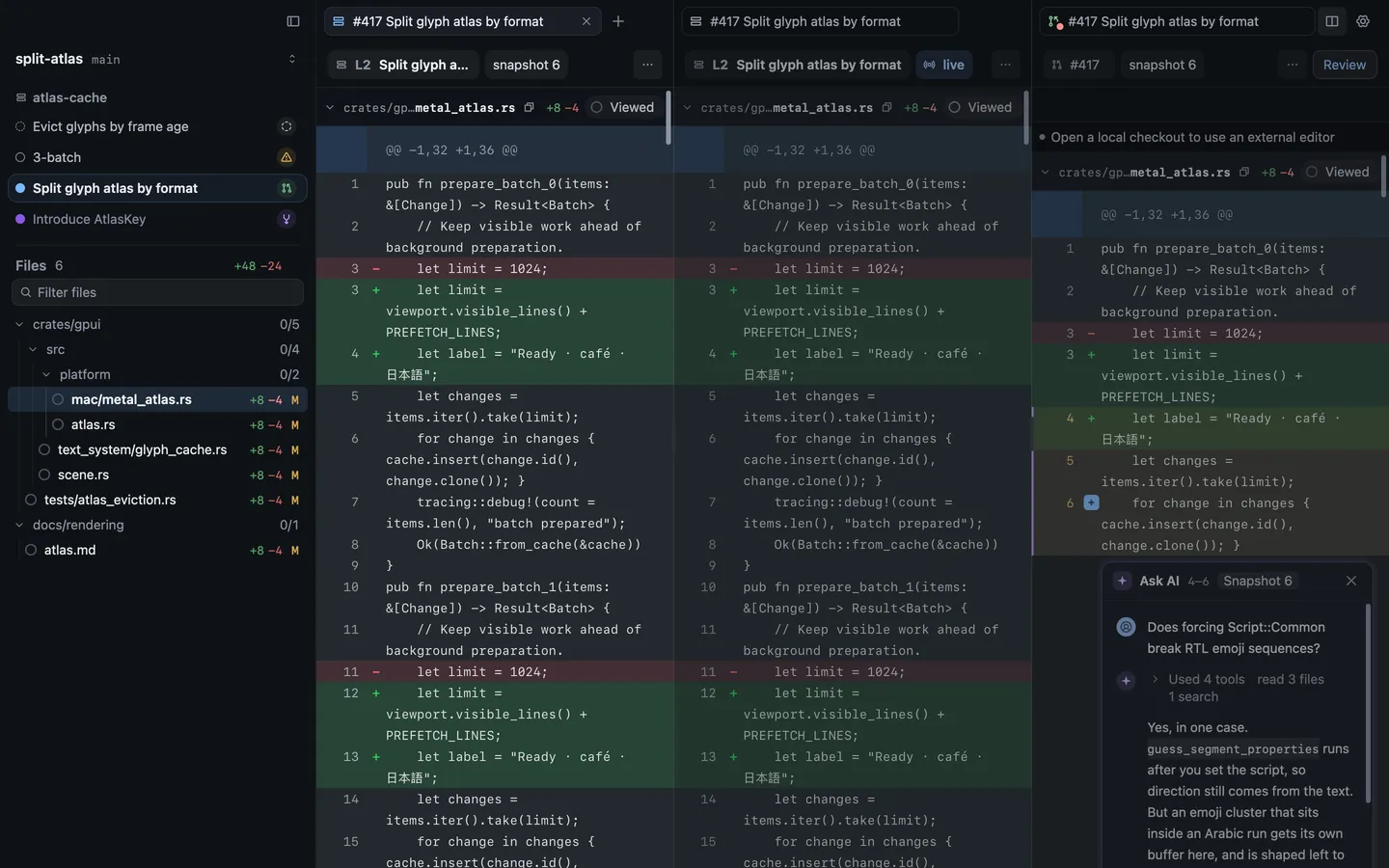
The pane button at the end of each tab strip has the same commands, plus Merge all panes, which puts every tab back in one pane, and Close pane. Settings › Appearance › Focused pane chooses how Revue marks the pane you’re in.
## Move and resize panes
[Section titled “Move and resize panes”](#move-and-resize-panes)
`⌥``⌘` with an arrow moves to the pane in that direction, and `⌘``]` and `⌘``[` step through them in order. Drag the line between two panes to resize them, or use Pane › Resize Pane. Pane › Maximise Pane (`⇧``⌘``↩︎`) shows the current pane alone until you choose it again, and Pane › Equalise Panes gives every pane the same room.
| Action | Key |
| -------------------- | ---------- |
| Split right | `⌘``\` |
| Split down | `⇧``⌘``\` |
| New empty pane | `⌥``⌘``N` |
| Select next pane | `⌘``]` |
| Select previous pane | `⌘``[` |
| Maximise pane | `⇧``⌘``↩︎` |
| Equalise panes | `⌃``⌘``=` |
| Make pane wider | `⌃``⌘``→` |
| Make pane narrower | `⌃``⌘``←` |
## Restore at launch
[Section titled “Restore at launch”](#restore-at-launch)
When you quit, Revue saves your windows, panes and tabs, with their sizes and places. The next time it opens, they come back as they were. Each tab shows a placeholder until its checkout or pull request is read again, and a tab that can’t be reopened says why, with Retry.
## Related
[Section titled “Related”](#related)
* [Use the command palette](/guides/command-palette/)
* [Use the terminal](/guides/terminal/)
* [Keyboard shortcuts](/reference/keyboard-shortcuts/#tabs-and-panes)
# Use the terminal
> Run a terminal in Revue’s bottom pane, with your own theme, and Claude Code in it.
Revue has a terminal under the diff, so you can run tests, build or talk to Claude Code without leaving the change you’re reading.
## Show the bottom pane
[Section titled “Show the bottom pane”](#show-the-bottom-pane)
Press `⌃``` ` ``, or choose View › Show Bottom Pane, to show or hide the bottom pane. The key works from anywhere, including a text field or the terminal itself. Drag the pane’s top edge to change its height. The height is the same whichever tab the pane shows, and Revue keeps it between launches.
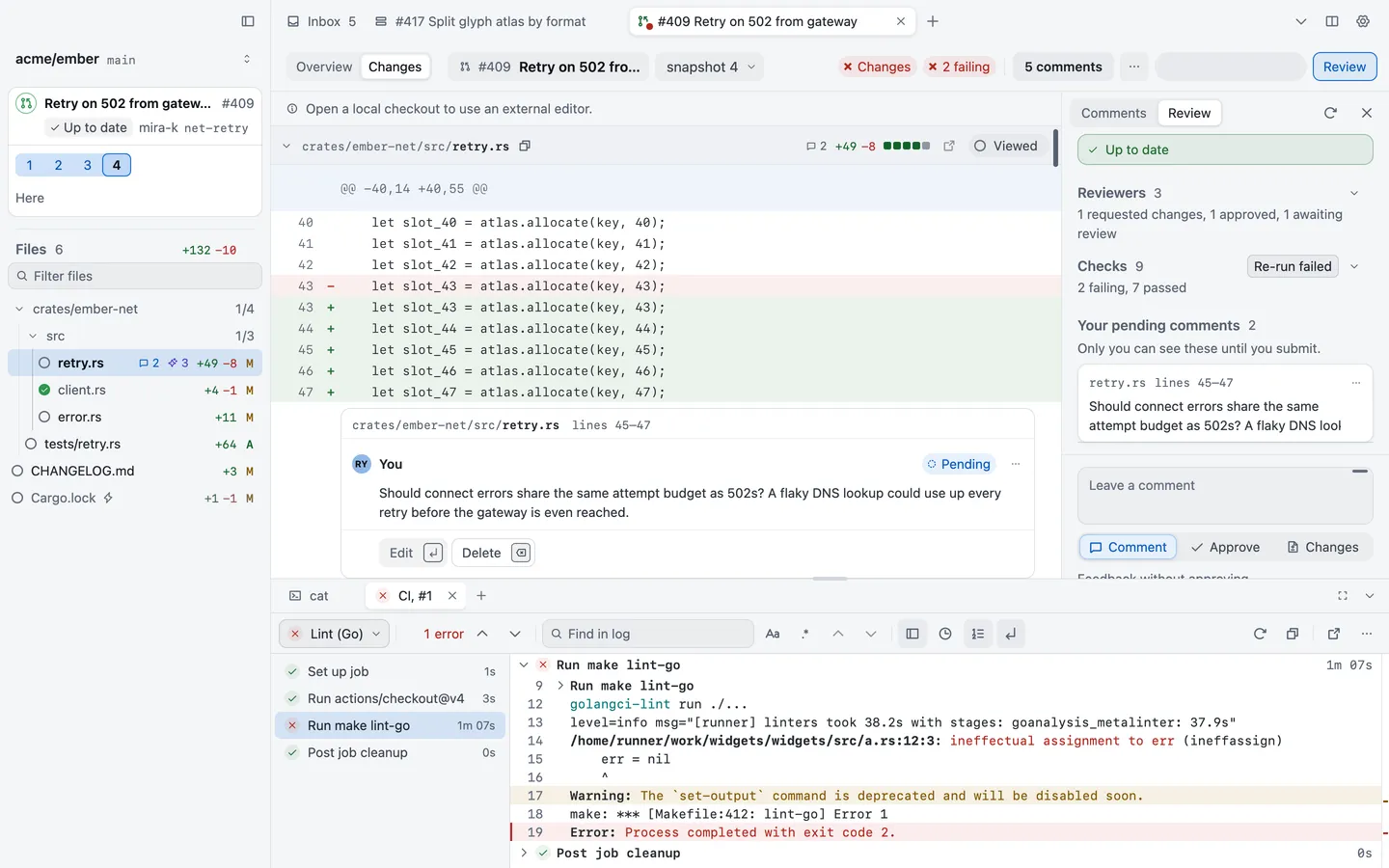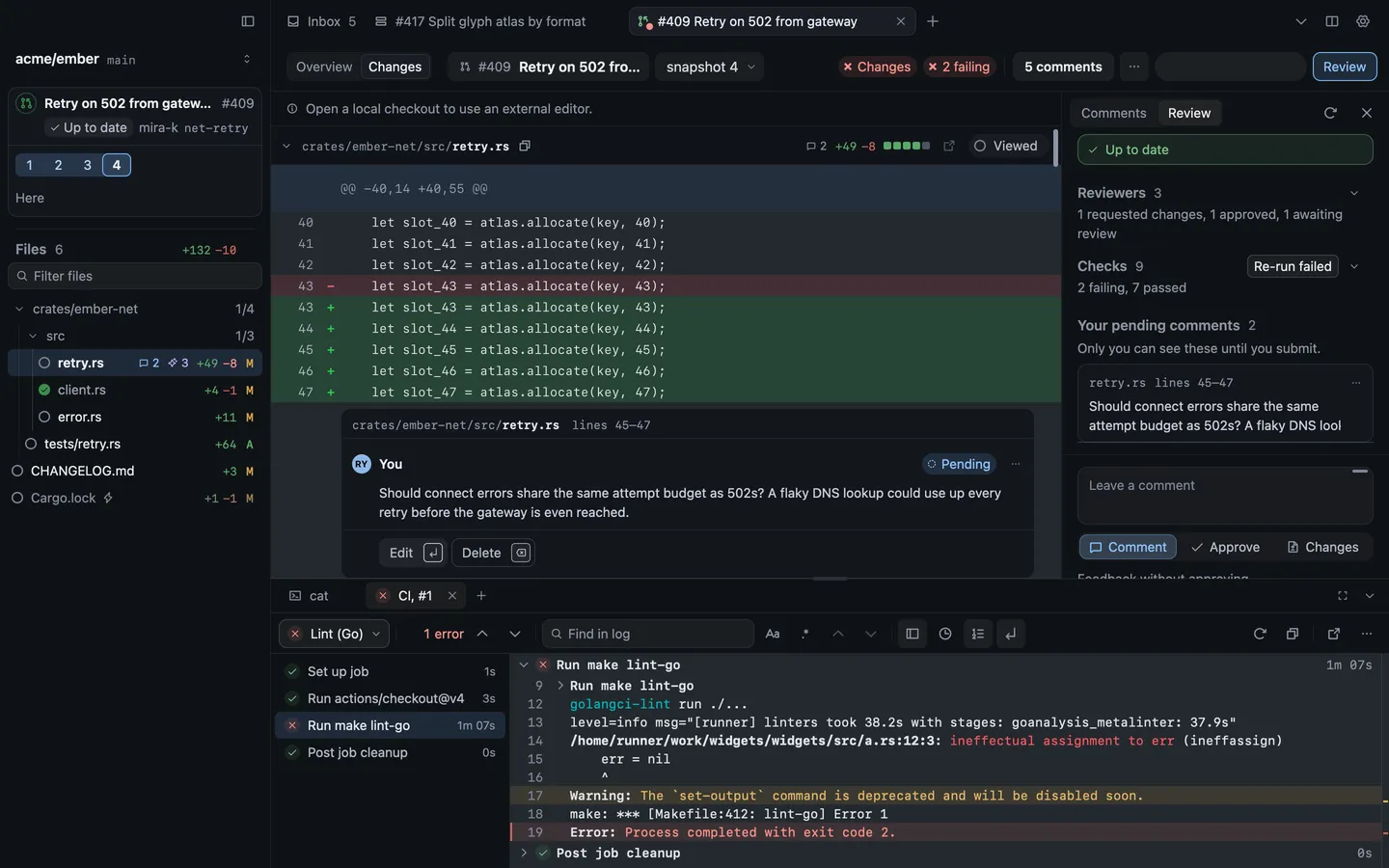
## Terminal tabs
[Section titled “Terminal tabs”](#terminal-tabs)
Press `⌃``⇧``` ` ``, or choose View › Terminal › New Terminal Tab, to open a terminal. It starts in the folder of the terminal you’re in, or else the checkout or layer you were reading last. The bottom pane also holds CI logs you open from a pull request’s checks, each as a tab beside your terminals.
View › Terminal has the terminal’s own commands, such as Clear Terminal (`⌘``L`) and Select Command Output (`⇧``⌘``A`), which selects what the last command printed.
| Action | Key |
| --------------------- | ------------- |
| Show bottom pane | `⌃``` ` `` |
| New terminal tab | `⌃``⇧``` ` `` |
| Clear terminal | `⌘``L` |
| Select command output | `⇧``⌘``A` |
| Previous prompt | `⌘``↑` |
| Next prompt | `⌘``↓` |
## Import a terminal theme
[Section titled “Import a terminal theme”](#import-a-terminal-theme)
To make Revue’s terminal look like the one you use, open Settings › Terminal. Revue lists the terminals it found on your Mac, from iTerm2, Terminal, Ghostty, Alacritty, kitty, WezTerm and Warp. Choose Import beside one, and Revue shows what it will take (colours, font, spacing, cursor and Option keys) and where it read them. Choose Import, then Save in Settings to keep it.
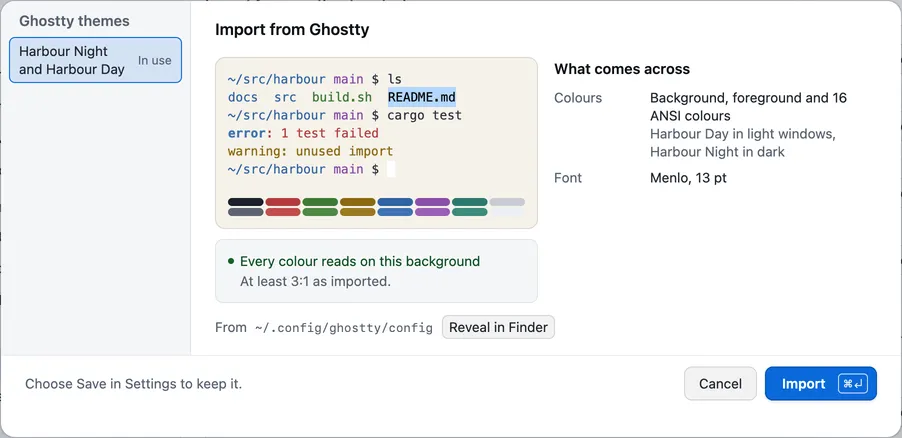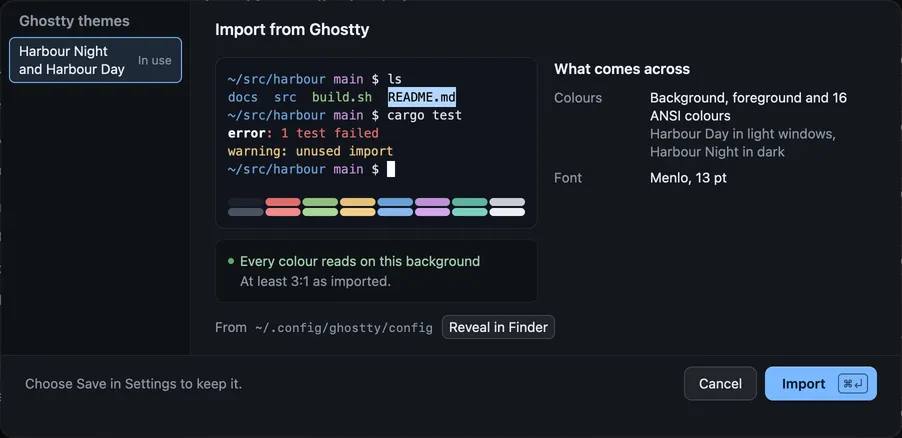
Settings › Terminal also sets the font, spacing, cursor and colours by hand. Terminal colours set to Match takes the colours from your code theme, so the terminal turns light and dark with the diff.
## Claude Code in the terminal
[Section titled “Claude Code in the terminal”](#claude-code-in-the-terminal)
Review › Start Claude Code opens a terminal and runs Claude Code in it. Claude Code started any other way in a Revue terminal connects too. Once it’s connected:
* Lines you select in a diff go with your next prompt, and Review › Mention Selection in Claude Code (`⇧``⌘``I`) mentions them at once.
* With Review Claude’s edits on, Claude asks before each edit and the edit opens in Revue for you to accept (`⌘``↩︎`) or reject (`⌘``⌫`).
| Settings › Terminal | Options | Default |
| --------------------------------- | --------- | -------- |
| Claude Code command | A command | `claude` |
| Share selections with Claude Code | On or off | On |
| Review Claude’s edits | On or off | Off |
To send review comments to Claude Code, see [Review Claude Code’s work](/guides/claude-code/).
## Related
[Section titled “Related”](#related)
* [Tabs, panes and windows](/guides/tabs-and-panes/)
* [Settings › Terminal](/reference/settings/#terminal)
# Themes and fonts
> Choose interface and code themes, import one from another app, and set fonts and zoom.
Make Revue look like the editor and terminal you already use: pick its themes, bring in a theme from another app, change any colour, and set the fonts and sizes you read best.
## Interface and code themes
[Section titled “Interface and code themes”](#interface-and-code-themes)
Revue has two kinds of theme, chosen separately in Settings:
* The **interface theme** colours the sidebar, bars, menus and sheets. It’s in Settings › Appearance.
* The **code theme** colours the diff and syntax. It’s in Settings › Code, with dozens of built-in themes such as GitHub Dark, Dracula, Nord and Tokyo Night.
Each has a theme for dark windows and one for light windows. Mode chooses which you see: Light, Dark, or System, which follows your Mac. An interface theme set to Match takes its colours from your code theme. View › Appearance switches the mode and opens the theme pickers from the menu bar.
| Settings › Appearance | Options | Default |
| --------------------------------- | --------------------------------- | ----------- |
| Mode | Light, Dark, System | System |
| Interface theme | Any interface theme | Revue Dark |
| Interface theme for light windows | Any interface theme | Revue Light |
| Accent | Blue, Coral, Amber, Green, Violet | Blue |
| Use theme accent | On or off | On |
## Import a theme
[Section titled “Import a theme”](#import-a-theme)
Revue can bring in the theme you use elsewhere. Choose View › Appearance › Import Theme, or Import theme in Settings › Appearance › Custom themes. It reads themes from VS Code, Cursor, VSCodium, Windsurf, JetBrains IDEs, Zed and Sublime Text, and TextMate `.tmTheme` files.
Setup offers the same the first time you open Revue. It lists the themes it found in your editors and terminals, and Preview shows one in Revue before you keep it.
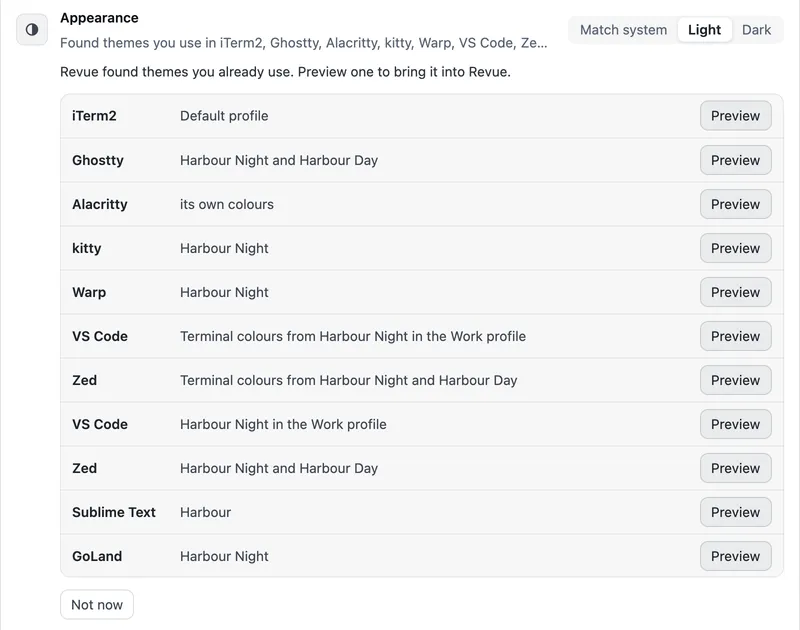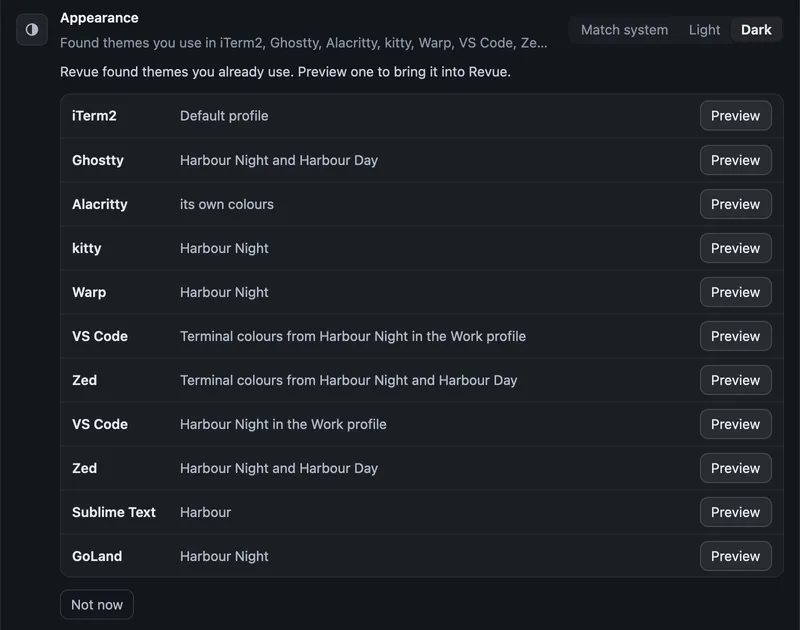
## Make your own
[Section titled “Make your own”](#make-your-own)
To change any colour, open a theme picker and choose Customise current theme, or choose New from in Settings › Appearance › Custom themes to start from another theme. The editor changes the background, text, line numbers, links, added and removed lines, hunk headers, search matches and selection, and warns when text gets hard to read. Your themes are listed in Custom themes, where you can duplicate, edit or remove them.
## Fonts and zoom
[Section titled “Fonts and zoom”](#fonts-and-zoom)
Each kind of text has its own font, weight, size and line height:
* **Interface text** in Settings › Appearance. Its size moves every other interface size with it.
* **Code** in Settings › Code, with ligatures, thin strokes and syntax italics.
* **What you write**, pull request titles and descriptions and comments, in Settings › Writing.
* **The terminal** in Settings › Terminal.
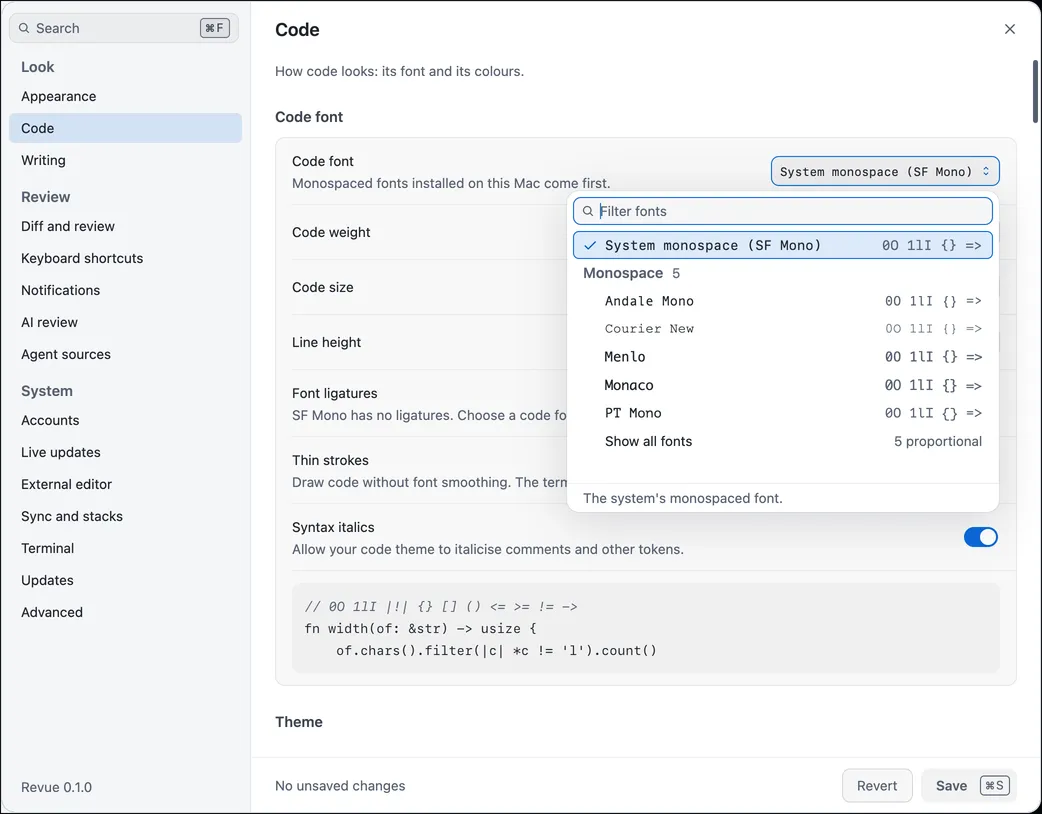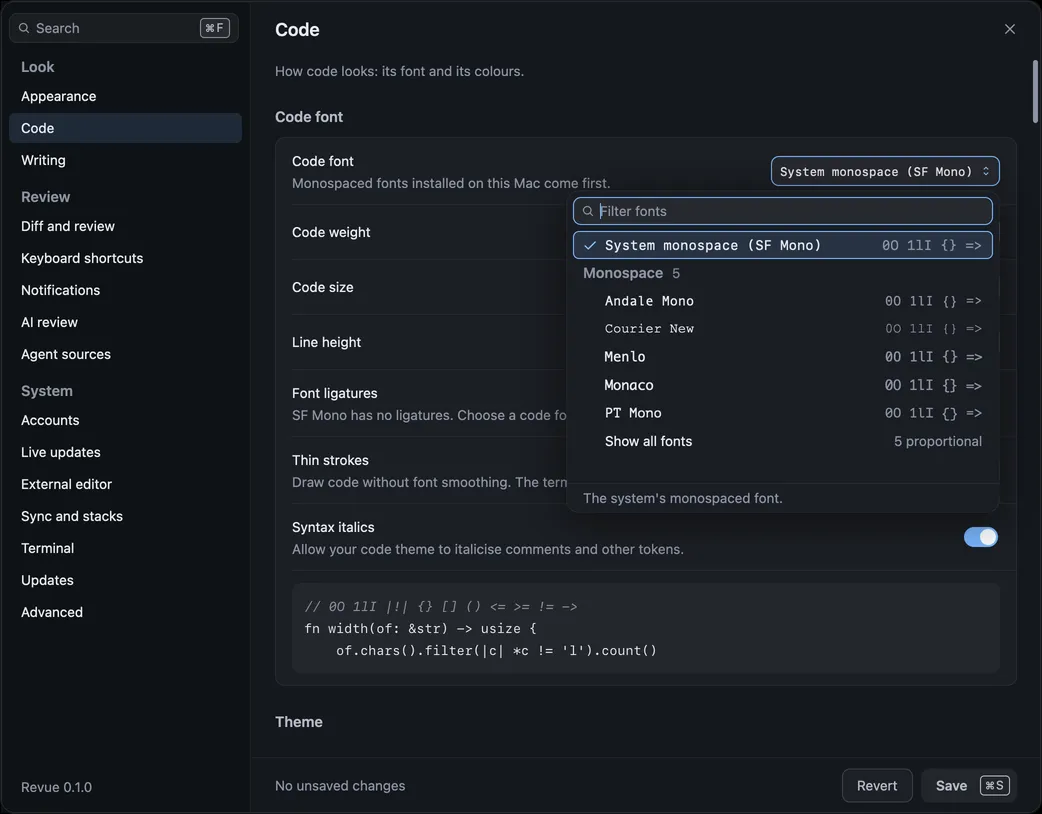
View › Zoom In and Zoom Out scale the interface from 80% to 140%, the same as Interface zoom in Settings › Appearance. Actual Size goes back to 100%.
| Action | Key |
| ----------- | ------ |
| Zoom in | `⌘``=` |
| Zoom out | `⌘``-` |
| Actual size | `⌘``0` |
| Setting | Where | Options | Default |
| ------------------- | --------------------- | ---------------------------------- | ------- |
| Interface zoom | Settings › Appearance | 80% to 140%, in steps of 5% | 100% |
| Interface font | Settings › Appearance | Any installed font | System |
| Interface text size | Settings › Appearance | 13 pt to 16 pt, in steps of 0.5 pt | 13.5 pt |
| Code font | Settings › Code | Any installed font | System |
| Code size | Settings › Code | 10 pt to 18 pt, in steps of 0.5 pt | 13 pt |
| Line height | Settings › Code | 1.2× to 2×, in steps of 0.05× | 1.7× |
## Related
[Section titled “Related”](#related)
* [Use the terminal](/guides/terminal/) to import a terminal theme.
* [Settings › Appearance](/reference/settings/#appearance)
# Uninstall Revue
> Remove the Claude Code plugin, git hooks, the app and Revue’s data from your Mac.
Revue has no uninstaller. To remove it completely, take out the parts it added to other tools first, then the app, then its data. Do them in this order, because the first two need the `revue` command.
## Remove the plugin
[Section titled “Remove the plugin”](#remove-the-plugin)
If you installed the Claude Code plugin, remove it first with Remove plugin in Settings › AI review, or run:
```sh
revue agents uninstall
```
Otherwise every new Claude Code session says once that Revue is missing. See [Claude Code plugin](/reference/claude-code-plugin/#remove-it) for what this removes.
## Remove git hooks
[Section titled “Remove git hooks”](#remove-git-hooks)
If you installed Revue’s git hooks in a checkout, remove them there:
```sh
cd path/to/checkout
revue hooks uninstall
```
It removes only hooks Revue wrote, and leaves your own alone. `revue hooks status` shows whether a checkout has any. See [Command line](/reference/cli/#revue-hooks).
## Delete the app
[Section titled “Delete the app”](#delete-the-app)
1. Quit Revue.
2. Drag Revue from Applications to the Bin.
3. If you installed the command line tool, delete it. It’s owned by an administrator, so use `sudo`:
```sh
sudo rm /usr/local/bin/revue
```
## Delete Revue’s data
[Section titled “Delete Revue’s data”](#delete-revues-data)
Deleting the app leaves your data, so a reinstall finds your reviews again. To remove it too, delete these folders. [Files and folders](/reference/files/) lists what each holds.
```sh
rm -rf ~/.revue
rm -rf ~/Library/Application\ Support/Revue\ Native
rm -rf ~/Library/Caches/Revue
rm -rf ~/Library/Logs/Revue
```
Danger
This deletes your local comments, snapshots, drafts and review results for good. Nothing on GitHub changes, but what was only on this Mac can’t be brought back.
Revue may also have made these, only if you asked:
* Worktrees for stack layers, in a folder beside each checkout named after it with `.worktrees` on the end. Remove them with `git worktree remove` so git forgets them too.
* Agent source tokens in your Keychain, under `revue.agent-review.` followed by the source’s ID. Removing each source in Settings › Agent sources before you uninstall deletes them. Otherwise delete them in Keychain Access.
# Update Revue
> How Revue checks for new versions, and how to check now and install.
Revue updates itself from updates.ryc.sh. Once you allow it, it checks in the background and tells you when a new version is ready. You can also check at any time.
## Automatic checks
[Section titled “Automatic checks”](#automatic-checks)
Revue doesn’t check on its own until you say it may. The first time you open Revue, after Setup, a notice asks “Check for updates automatically?” Choose Turn on, or Not now to check only when you ask. What is sent shows exactly what each check carries: the version you have and an update access code that every copy shares, with no account.
You can change your answer later in Settings › Updates, with Check for updates automatically. How often to check sets the interval: every hour (the default), every 6 hours, every day or every week.
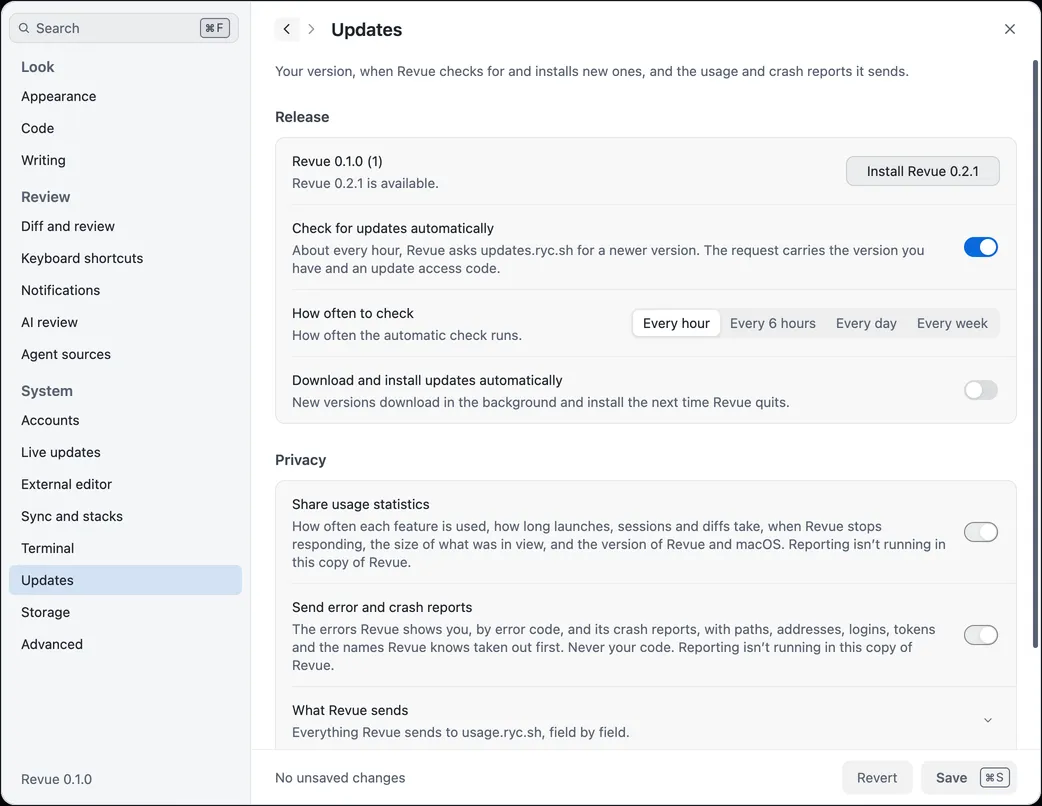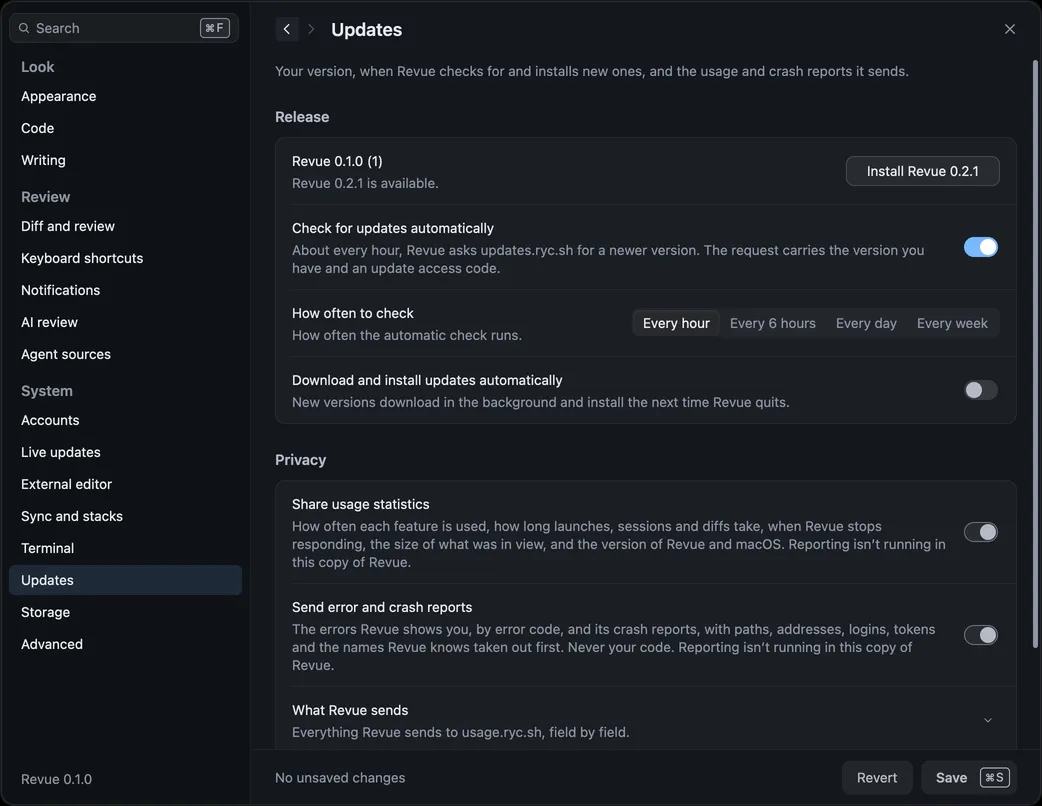
## Check now
[Section titled “Check now”](#check-now)
Choose Revue › Check for Updates, or Check for updates in Settings › Updates, at any time. This works whether or not automatic checks are on. Settings › Updates shows your version and what the last check found.
## When updates install
[Section titled “When updates install”](#when-updates-install)
When Revue finds a new version, an update window shows it with its notes, and you choose whether to install it now. Settings › Updates also says that a new version is available until you do.
To skip the asking, turn on Download and install updates automatically in Settings › Updates. New versions then download in the background and install the next time Revue quits. It needs automatic checks on.
After an update, a notice offers What’s New, the release notes for the version you now have. Help › What’s New in Revue shows them any time, and the [Changelog](/changelog/) has every version.
## Run from Applications
[Section titled “Run from Applications”](#run-from-applications)
Revue can only update itself from your Applications folder. If you opened it from the disk image, or macOS is running it from a temporary location, Settings › Updates says so. Quit Revue, drag it to Applications, eject the disk image and open Revue from Applications. If your account can’t write to the folder Revue is in, move it to an Applications folder you own. See [Common problems](/troubleshooting/#updates).
## Related
[Section titled “Related”](#related)
* [Install Revue](/start/install/)
* [Privacy](/privacy/)
* [APP-004](/troubleshooting/error-codes/#app-004)
# Revue
> Review pull requests, stacks and your own local work on your Mac, before and after you push.
[Review pull requests](/guides/review-a-pull-request/)Read the changes, comment and suggest, then submit your review to GitHub. Your comments wait until you do.
[Re-review with snapshots](/guides/snapshots/)Revue keeps every push. After a new one, read only what changed since you last looked.
[Review your agent’s work](/guides/claude-code/)Comment on what Claude Code or Codex wrote, send it your comments and check what it addressed.
[Work with a stack](/guides/stacks/)Read each layer against the one below it. Revue reads your stack from gh-stack and never changes it.
Requires macOS 14.5 or later.
# Privacy: what Revue stores and sends
> What Revue keeps on your Mac, what it sends and to whom, and how to turn sending off.
Revue runs on your Mac and keeps your reviews there. It talks to GitHub, to the AI tools you run, and to two servers of its own, for updates and for usage statistics and the issue reports you send. This page says what goes where. The two lists below are the ones in Help › What Revue Stores and Sends, word for word.
## Stored on this Mac
[Section titled “Stored on this Mac”](#stored-on-this-mac)
* `~/.revue/`
The database with snapshots, local comments, settings and review results. Partial copies of the GitHub repositories you open. A GitHub token, only if Revue signed you in itself rather than through the GitHub CLI. The Claude Code plugin’s files once you install it. Revue’s log. The install ID, the key that makes its codes for your repositories, your reporting choices and reports waiting to be sent.
* `~/Library/Application Support/Revue Native/`
Your windows and tabs, recent folders, layout and Inbox read history. Comment drafts, viewed marks and images waiting to be attached. The list of agent sources, without their tokens. What onboarding has shown you, and the tour’s sample repository while a tab has it open.
* `~/Library/Caches/Revue/`
Images from comments and syntax colouring, which Revue can fetch or work out again.
* Keychain
Agent source tokens.
* Elsewhere, only if you ask
Worktrees for stack layers, in a folder beside the checkout named after it with .worktrees on the end. The revue command, in /usr/local/bin. The Claude Code plugin’s registration, in Claude Code’s own settings. Git hooks installed with revue hooks. A lock file in \~/.claude/ide while a terminal tab runs Claude Code.
[Files and folders](/reference/files/) lists what’s inside each folder.
## Sent from this Mac
[Section titled “Sent from this Mac”](#sent-from-this-mac)
* GitHub
While you are signed in, requests for your Inbox and the pull requests you open, with their reviews, checks and stacks. The Inbox asks about once a minute while it is open. The reviews, comments and replies you submit, and what you push. Git fetches of the repositories you open. People’s avatars, and images in comments unless you turn them off in Settings › Diff and review.
* Your AI provider
The change, and the files of its repository the tool reads while it works, through your own Claude Code or Codex, when you run AI review, ask about lines or draft a pull request description. Not otherwise, unless you turn on automatic review.
* An agent source
Nothing until you add one. Then requests for the pull requests it reviewed and the ones you open, what you do with its findings, and the reviews you ask it for. Local work reporting, only if you turn it on for that source: the name of this Mac, and for each repository you allow, the names, commit subjects and sizes of your unmerged branches. Their code only when a review of one is requested.
* GitHub, through your browser
Only if you turn on live updates in Settings › Live updates. Revue then reads your GitHub session cookie from Chrome, Brave or Firefox to hear about changes as they happen. Off by default.
* updates.ryc.sh, for updates
After you allow it, about every hour, and when you choose Check for Updates: a request for the newest version. It carries the version you have and an update access code that every copy shares, and no account. Like any web request, it carries your IP address.
* usage.ryc.sh, for usage and crash reports
Unless you turn them off in Settings › Updates: counts of the features you use and the settings you change, how long launches, sessions and diffs take, when Revue stops responding, and the errors and crashes Revue meets, by error code, with paths, addresses, logins, tokens and the names of the repositories, branches and folders Revue knows taken out first. Repositories, branches and pull requests are counted by codes made on this Mac, which no one can turn back into names, and the size of a stack or diff only in ranges. They carry a random install ID, the versions of Revue and macOS, the kind of processor and the update access code. Never your code, comments or prompts. Like any web request, it carries your IP address.
* usage.ryc.sh, for issue reports you send
Only when you choose Help › Report an Issue and press Send report: your GitHub username, the summary and details you write, and the items you leave ticked, each of which you can preview first. Revue signs the report with an SSH key that’s on your GitHub account, so it sends that key’s public half and the signature. Paths show your home folder as \~, and tokens and email addresses are taken out of attached items. Ryan gets an email with your username and summary, and Cloudflare’s AI reads the summary and details to write the email’s subject. Reports are kept until Ryan deletes them. Like any web request, it carries your IP address.
Pictures in comments are turned off with Load images in comments, in Settings › Diff and review › Comments. Live updates are turned on in Settings › Live updates, which Settings › Accounts links to.
## Usage statistics and crash reports
[Section titled “Usage statistics and crash reports”](#usage-statistics-and-crash-reports)
The first time you open Revue, a notice says “Revue sends usage statistics and crash reports to help improve it.” Nothing is sent before that. Its What is sent button, and What Revue sends in Settings › Updates, list every field. In short:
* **When:** about every five minutes while you use Revue, and when you quit, to usage.ryc.sh.
* **Who you are:** a random install ID made on this Mac, the versions of Revue and macOS, and whether the Mac has Apple silicon or an Intel processor. No account and no name.
* **What happened:** launches, sessions and how long they lasted, the features you used and how you reached them, the settings you changed, timings such as diff loads, and when Revue stopped responding.
* **What it was about:** repositories, branches and pull requests appear only as 12-character codes made with a key that never leaves your Mac, and sizes only as ranges, such as 21 to 100 lines.
* **Errors and crashes:** an error code such as GIT-012, and the error’s sentence with paths, names, logins, tokens and the names of repositories and branches taken out first.
* **Never:** your code, comments, prompts or file contents, or the longer text under an error.
On macOS 27 and later, each report is signed with a key made for this install, so the server can tell it came from a genuine copy of Revue. Like any web request, a report carries your IP address.
## Reports you send
[Section titled “Reports you send”](#reports-you-send)
When you choose Help › Report an Issue, Revue sends a report only after you choose Send report. It goes to usage.ryc.sh, a server Ryan runs, and includes:
* Your GitHub username. Revue shows the report is from you by signing it with an SSH key that’s on your GitHub account, so it sends that key’s public half and the signature. Your SSH agent or ssh-keygen does the signing, so Revue never reads your private key, and no GitHub sign-in or token is sent. The server checks the signature against the public keys GitHub shows for your account.
* The summary and details you write, exactly as you wrote them.
* The items you leave ticked, each of which you can preview first: the versions of Revue and macOS and your Mac’s model, chip and memory, the diagnostics report, recent error codes and crash reports, the last 200 lines of Revue’s log, settings that change how Revue behaves, and which screen and mode you were on with how many files and comments it showed, without their names. Paths show your home folder as \~, and tokens, email addresses and the names of your repositories and branches are taken out.
* This Mac’s install ID, from the Link to usage statistics item. It links the report to the usage statistics this Mac has sent, so Ryan can see what led up to the problem. It’s ticked like every other item, and you can untick it.
Ryan gets an email about each report, with your username and GitHub ID, your summary in full, the versions of Revue and macOS, whether the Mac has Apple silicon or an Intel processor, the error codes, which items you included, the fingerprint of the key that signed it, and a Genuine Revue line saying whether the report could be checked as coming from a genuine copy of Revue. To write the email’s subject, the server passes your summary and details, and nothing else from the report, to Cloudflare’s AI. Because of that, the subject can mention something from your details. Everything else stays on the server. Like any web request, a report carries your IP address.
Reports don’t expire. They’re kept until Ryan deletes them. To have a report deleted, email <ryan@ryanclark.me> with its reference, such as R-42, or your GitHub username for all of yours. So that nobody can get someone else’s reports deleted, Ryan replies with a short random message in a file, `challenge.txt`, and asks you to sign exactly that file, with the SSH key the report was signed with or any SSH key now on your GitHub account: `ssh-keygen -Y sign -n revue-delete@ryc.sh -f ~/.ssh/id_ed25519 challenge.txt`
If your key is only in an SSH agent, such as 1Password, ask Ryan for the command to use with it. A signature you made for anything else, such as a signed git commit, isn’t accepted. Ryan then deletes the reports from Revue’s server and the emails about them from his inbox. Revue’s server keeps a note that a report number was deleted, and when, but nothing that was in it. For a day after a report arrives, the server also keeps your GitHub ID and when the report arrived, even if the report is deleted, so that deleting reports can’t get around the limit on how many can be sent. [Report an issue](/guides/report-an-issue/) has the steps for sending one.
## Turn sending off
[Section titled “Turn sending off”](#turn-sending-off)
| To stop | Do this |
| ----------------------- | -------------------------------------------------------------------------------------------------------------------- |
| Usage statistics | Turn off Share usage statistics in Settings › Updates. |
| Error and crash reports | Turn off Send error and crash reports in Settings › Updates. |
| Update checks | Turn off Check for updates automatically in Settings › Updates. Revue › Check for Updates still checks when you ask. |
| Your AI provider | Don’t run AI review, Ask AI or drafts, and leave Review new snapshots automatically off in Settings › AI review. |
| Live updates | Leave them off in Settings › Live updates. They’re off unless you turn them on. |
| An agent source | Remove it in Settings › Agent sources. |
| Issue reports | Nothing to turn off. A report is sent only when you choose Send report. |
Turning a report switch off sends one last count saying so, and nothing of that kind after it. Reset ID, in Settings › Updates, makes a new install ID and a new key, so earlier reports can’t be matched with later ones.
## Copy Diagnostics
[Section titled “Copy Diagnostics”](#copy-diagnostics)
When you ask for help, Help › Copy Diagnostics puts a report on the clipboard. Nothing is sent until you paste it somewhere yourself. It holds your Revue and macOS versions, where Revue runs from, the update status, the tools Revue found and the `PATH` it uses, how GitHub is connected, data sizes and the last 200 lines of the log. Tokens, the update code, email addresses, repository names and your home folder are left out. See [Get help](/troubleshooting/get-help/).
# Environment variables
> The environment variables Revue reads, for scripting and development builds.
Revue needs no environment variables. These are for running a second copy alongside your own, scripting the [command line](/reference/cli/), and trying other AI models. Set them in the shell that starts Revue or runs `revue`. An app opened from Finder or the Dock doesn’t see them.
## Data folders
[Section titled “Data folders”](#data-folders)
| Variable | What it does |
| ------------------------ | --------------------------------------------------------------------------------------------------------------------------------------------------------------------------------- |
| `REVUE_DATA_DIR` | Revue’s data folder, `~/.revue` unless you set it. Drafts, windows and caches then go in `native-state` and `cache` folders inside it, instead of Application Support and Caches. |
| `REVUE_NATIVE_DATA_DIR` | A folder for everything the app keeps, as development builds use. The data folder is its `backend` folder, drafts and windows go in `state` and caches in `cache`. |
| `REVUE_NATIVE_STATE_DIR` | Where drafts, viewed marks, windows and tabs go, ahead of either variable above. |
The agent commands, `revue hooks` and the developer commands read only `REVUE_DATA_DIR`. To point them at a copy of Revue started with `REVUE_NATIVE_DATA_DIR=<dir>`, set `REVUE_DATA_DIR=<dir>/backend`. [Files and folders](/reference/files/) lists what each folder holds.
## The review server
[Section titled “The review server”](#the-review-server)
These are read by the [developer commands](/reference/cli/#for-developers).
| Variable | What it does |
| --------------------------------------------------- | --------------------------------------------------------------------------------------------------- |
| `REVUE_BIND` | The address `revue serve` listens on, `127.0.0.1:8787` unless you set it. |
| `REVUE_UI_TOKEN` | In a release build, the server answers only requests carrying this value in a `revue_token` cookie. |
| `REVUE_SYNC_STATE` | Which pull requests `revue serve` syncs: `open`, the default, or `all`. |
| `REVUE_GITHUB_API_BASE`, `REVUE_GITHUB_GRAPHQL_URL` | Another GitHub API to talk to, such as a test server. |
## AI models and tools
[Section titled “AI models and tools”](#ai-models-and-tools)
These override Settings › AI review for AI review and Ask AI. A variable you set wins over the setting.
| Variable | What it does |
| ------------------------- | ------------------------------------------------------------------- |
| `REVUE_CLAUDE_BIN` | The `claude` command to run, instead of the one on your `PATH`. |
| `REVUE_CODEX_BIN` | The `codex` command to run, when Settings › AI review uses Codex. |
| `REVUE_FINDER_MODEL` | The Claude model that looks for problems. `sonnet` by default. |
| `REVUE_VERIFIER_MODEL` | The Claude model that checks each problem found. `opus` by default. |
| `REVUE_SYNTHESIZER_MODEL` | The Claude model that writes up the review. `opus` by default. |
| `REVUE_ASK_MODEL` | The Claude model Ask AI answers with. `opus` by default. |
Claude Code’s plugin sets two more for its own use. `REVUE_AGENT_SESSION` names the session in each command Claude runs, so a reply is credited to it. `REVUE_BIN` names the `revue` the plugin runs, if you need to point it somewhere else.
## Caches
[Section titled “Caches”](#caches)
| Variable | What it does |
| ----------------------- | -------------------------------------------------------------------------------------------------------------------------------------------- |
| `REVUE_CACHE_BUDGET_MB` | The diff cache limit in megabytes, in place of Settings › Storage › Diff cache limit. Past it, the diffs read longest ago are removed first. |
# Files and folders
> Where Revue keeps its data on your Mac, and what it writes elsewhere only when you ask.
Revue keeps everything in a few folders in your home folder, plus a few Keychain items. This page lists what’s in each one, for when you want to back something up, free space or remove Revue completely. Settings › Storage shows how much each part uses, and [Manage disk space](/guides/storage/) explains what you can clear.
[Environment variables](/reference/environment/) can move these folders, which development builds do.
## \~/.revue
[Section titled “\~/.revue”](#revue)
Revue’s data folder, which the app and the `revue` command share.
| Path | What it holds |
| -------------------------- | ---------------------------------------------------------------------------------------------------------------------- |
| `db.sqlite3` | The database: snapshots, local comments, settings and review results. |
| `db.sqlite3.cache.sqlite3` | The diff cache: diffs Revue has worked out, and its last copy of pull request threads and your Inbox. |
| `mirrors/` | Partial copies of the GitHub repositories you open pull requests from. |
| `trees.noindex/` | Kept checkouts: whole checkouts of pull requests and folders, written out for Ask AI and AI review. |
| `token` | A GitHub token, only if Revue signed you in itself rather than through the GitHub CLI. |
| `integrations/claude-code` | The Claude Code plugin, once you install it. It points to the newest copy in `integrations/claude-code.versions/`. |
| `desktop/desktop.log` | Revue’s log. Once it passes 5 MB, Revue moves it aside as `desktop.log.1` when it next opens. |
| `telemetry/` | The install ID, the key that makes codes for your repositories, your reporting choices and reports waiting to be sent. |
Danger
Deleting `~/.revue` deletes your local comments, snapshots and review results for good. Revue can fetch pull requests again, but not those.
## Application Support
[Section titled “Application Support”](#application-support)
`~/Library/Application Support/Revue Native/` holds your windows and tabs, recent folders, layout and Inbox read history. It also holds comment drafts, viewed marks and images waiting to be attached, the list of agent sources (without their tokens), what onboarding has shown you, and the tour’s sample repository while a tab has it open.
## Caches
[Section titled “Caches”](#caches)
`~/Library/Caches/Revue/` holds what Revue can fetch or work out again:
| Path | What it holds |
| -------------------- | ----------------------------------------------------------------------------- |
| `comment-images-v1/` | Pictures from comments and people’s avatars. |
| `ci-logs/` | Logs of finished CI jobs you opened, so they open again without a connection. |
| `syntax-v1.sqlite` | Syntax colouring for files you’ve read. No code is kept. |
Crash reports go to `~/Library/Logs/Revue/`.
## Keychain
[Section titled “Keychain”](#keychain)
Each agent source’s token is a Keychain item whose server is `revue.agent-review.` followed by the source’s ID. Removing the source in Settings › Agent sources deletes it.
With live updates on, Revue also reads your browser’s own Keychain item (such as Chrome Safe Storage) to read its GitHub sign-in. It never changes that item.
## Things Revue makes only when you ask
[Section titled “Things Revue makes only when you ask”](#things-revue-makes-only-when-you-ask)
| What | Where | Made by |
| ------------------------------------- | ------------------------------------------------------------------------- | ------------------------------------------------------------------------------- |
| Worktrees for stack layers | A folder beside the checkout, named after it with `.worktrees` on the end | Checking out a layer |
| The `revue` command | `/usr/local/bin/revue` | Setup, or Revue › Install Command Line Tool |
| The Claude Code plugin’s registration | Claude Code’s own settings | Installing the plugin. See [Claude Code plugin](/reference/claude-code-plugin/) |
| Git hooks | The checkout’s `.git/hooks/post-rewrite` and `commit-msg` | `revue hooks install`. See [Command line](/reference/cli/#revue-hooks) |
| A lock file | `~/.claude/ide` | A terminal tab running Claude Code, while it runs |
# Keyboard shortcuts
> Every keyboard shortcut in Revue, grouped the way Help › Keyboard Shortcuts groups them.
These are Revue’s default keys, grouped as Help › Keyboard Shortcuts groups them. That sheet (`⌘``/`, or `?` in the Inbox) shows the same list with any keys you’ve changed.
Keys marked **Yes** can be changed in Settings › Keyboard shortcuts. See [Change keyboard shortcuts](/guides/change-shortcuts/).
`⌘``.` cancels as `Esc` does, as in other Mac apps: it closes a sheet, a popover or a menu, and stops an Ask AI answer that’s still coming. On a comment it lists the comment’s actions instead, and in a terminal the program you’re running gets it.
Single-letter keys
Keys with no modifier, such as `J` or `V`, act only while no text field, terminal or menu has focus. In a text field they type the letter.
## Navigate
[Section titled “Navigate”](#navigate)
| Action | Key | You can change it |
| -------------------------- | --------- | ----------------- |
| Go to file | `⌘``P` | Yes |
| Next file | `J` | Yes |
| Previous file | `K` | Yes |
| Next comment | `⌥``↓` | Yes |
| Previous comment | `⌥``↑` | Yes |
| Show comments | `⌥``⌘``K` | Yes |
| Next layer | `⇧``↓` | Yes |
| Previous layer | `⇧``↑` | Yes |
| Command palette | `⌘``K` | No |
| Go to line | `⌃``G` | No |
| Go to symbol | `⇧``⌘``R` | No |
| Next unresolved thread | `N` | No |
| Previous unresolved thread | `P` | No |
| Next finding | `F8` | No |
| Previous finding | `⇧``F8` | No |
| Next change | `⌥``⇧``↓` | No |
| Previous change | `⌥``⇧``↑` | No |
| Filter files | `T` | No |
| First file | `Home` | No |
| Last file | `End` | No |
## Snapshots
[Section titled “Snapshots”](#snapshots)
| Action | Key | You can change it |
| ----------------------- | --------- | ----------------- |
| Next snapshot | `]` | Yes |
| Previous snapshot | `[` | Yes |
| Changes since last look | `R` | Yes |
| Snapshot | `⌥``1` | No |
| Range | `⌥``2` | No |
| Live | `⌥``3` | No |
| Uncommitted only | `⌥``W` | No |
| Mark as looked | `⇧``⌘``L` | No |
| Backport comparison | `⌥``4` | No |
## Review
[Section titled “Review”](#review)
| Action | Key | You can change it |
| -------------------------------- | ---------- | ----------------- |
| Comment actions | `⌘``.` | Yes |
| Resolve thread | `E` | Yes |
| Resolve addressed comment | `⇧``E` | Yes |
| Ask about finding or comment | `A` | Yes |
| Dismiss finding | `D` | Yes |
| Apply finding | `F` | Yes |
| Mark file viewed | `V` | Yes |
| Open current file in editor | `O` | Yes |
| Show or hide review panel | `⌥``⌘``R` | Yes |
| Comment verdict | `⌥``⌘``E` | Yes |
| Approve | `⌥``⌘``A` | Yes |
| Request changes | `⌥``⌘``X` | Yes |
| Add comment | `C` | No |
| Ask AI | `⌘``I` | No |
| Send comments to Claude | `⌥``⌘``↩︎` | No |
| Commit | `⌘``↩︎` | No |
| Focus pull request form | `⌘``'` | No |
| Reveal in diff | `↩︎` | No |
| Reply | `↩︎` | No |
| Edit comment | `↩︎` | No |
| Delete comment | `⌫` | No |
| Mention selection in Claude Code | `⇧``⌘``I` | No |
| Accept Claude’s edit | `⌘``↩︎` | No |
| Reject Claude’s edit | `⌘``⌫` | No |
`⌘``↩︎` depends on where you are. In the diff it opens Commit, while the review panel has focus it submits your review, and while you review Claude’s edits it accepts the edit. Submit Review has no key of its own in the menu for that reason. `↩︎` reveals a comment in the diff from the comments list, and replies to or edits the comment you’ve selected.
## Editing
[Section titled “Editing”](#editing)
| Action | Key | You can change it |
| ---------------------- | --------- | ----------------- |
| Change case | `⇧``⌘``U` | Yes |
| Mark task done | `⌘``J` | Yes |
| Select next occurrence | `⌘``D` | No |
## View
[Section titled “View”](#view)
| Action | Key | You can change it |
| ------------------------ | ---------- | ----------------- |
| Switch unified and split | `U` | Yes |
| Show or hide sidebar | `⌘``B` | Yes |
| Show overview or changes | `⌥``⌘``O` | Yes |
| Show Inbox preview | `⌥``⌘``\` | Yes |
| Search in diff | `⌘``F` | Yes |
| Wrap lines | `⌥``Z` | No |
| Show bottom pane | `⌃``` ` `` | No |
| Zoom in | `⌘``=` | No |
| Zoom out | `⌘``-` | No |
| Actual size | `⌘``0` | No |
## Actions
[Section titled “Actions”](#actions)
| Action | Key | You can change it |
| ---------------------- | ------------ | ----------------- |
| Refresh | `⌘``R` | Yes |
| Open settings | `⌘``,` | Yes |
| Copy path | `⌥``⌘``C` | No |
| Copy pull request link | `⌥``⇧``⌘``C` | No |
| Copy branch name | `B` | No |
| New window | `⌘``N` | No |
| Open repository | `⌘``O` | No |
| Keyboard shortcuts | `⌘``/` | No |
| Focus notices | `⌃``⌘``N` | No |
| Show context menu | `⌃``↩︎` | No |
`⌥``⌘``C` copies the file’s path in the diff, but turns Match Case on and off while the find bar is open.
## Tabs and panes
[Section titled “Tabs and panes”](#tabs-and-panes)
| Action | Key | You can change it |
| -------------------- | ------------- | ----------------- |
| New tab | `⌘``T` | No |
| New terminal tab | `⌃``⇧``` ` `` | No |
| Close tab | `⌘``W` | No |
| Reopen closed tab | `⇧``⌘``T` | No |
| Show next tab | `⌃``⇥` | No |
| Show previous tab | `⌃``⇧``⇥` | No |
| Split right | `⌘``\` | No |
| Split down | `⇧``⌘``\` | No |
| New empty pane | `⌥``⌘``N` | No |
| New empty pane below | `⌥``⇧``⌘``N` | No |
| Select pane left | `⌥``⌘``←` | No |
| Select pane right | `⌥``⌘``→` | No |
| Select pane above | `⌥``⌘``↑` | No |
| Select pane below | `⌥``⌘``↓` | No |
| Select next pane | `⌘``]` | No |
| Select previous pane | `⌘``[` | No |
| Maximise pane | `⇧``⌘``↩︎` | No |
| Equalise panes | `⌃``⌘``=` | No |
| Make pane wider | `⌃``⌘``→` | No |
| Make pane narrower | `⌃``⌘``←` | No |
| Make pane taller | `⌃``⌘``↓` | No |
| Make pane shorter | `⌃``⌘``↑` | No |
`⌘``1` to `⌘``8` pick a tab by its place, and `⌘``9` picks the last tab. `⇧``⌘``]` and `⇧``⌘``[` also move between tabs. `⌘``]` and `⌘``[` move between panes, except in Settings, where they go forward and back.
## Inbox
[Section titled “Inbox”](#inbox)
| Action | Key | You can change it |
| --------- | ------ | ----------------- |
| Mark read | `E` | No |
| Snooze | `H` | No |
| Needs you | `⌥``1` | No |
| Your PRs | `⌥``2` | No |
| Stacks | `⌥``3` | No |
| Snoozed | `⌥``4` | No |
| Done | `⌥``5` | No |
| Worktrees | `⌥``6` | No |
| Drafts | `⌥``7` | No |
In the Inbox, `J` and `K` (or `↓` and `↑`) move through the list, `↩︎` opens the selected row, `⌘``Z` undoes Mark read or Snooze, and `/` searches. The Inbox uses `⌥``1` to `⌥``7` for its views, the same keys the diff uses to choose how you read a change.
## Terminal
[Section titled “Terminal”](#terminal)
| Action | Key | You can change it |
| --------------------- | --------- | ----------------- |
| Clear terminal | `⌘``L` | No |
| Select command output | `⇧``⌘``A` | No |
| Previous prompt | `⌘``↑` | No |
| Next prompt | `⌘``↓` | No |
| Scroll to top | `⌘``Home` | No |
| Scroll to bottom | `⌘``End` | No |
| Page up | `⌘``PgUp` | No |
| Page down | `⌘``PgDn` | No |
## Settings
[Section titled “Settings”](#settings)
| Action | Key | You can change it |
| ------- | ------ | ----------------- |
| Back | `⌘``[` | No |
| Forward | `⌘``]` | No |
## Tour
[Section titled “Tour”](#tour)
| Action | Key | You can change it |
| --------------------------- | --------- | ----------------- |
| Next tour stop | `⌃``⌥``→` | Yes |
| Previous tour stop | `⌃``⌥``←` | Yes |
| Move focus to the tour card | `⌃``⌥``T` | Yes |
# Menu bar
> Every command in Revue’s menu bar, menu by menu, with its key.
Every command in Revue’s menu bar, in the order the menus list them, with its key where it has one. Headings inside a menu are in italics. A command that doesn’t apply to what’s in front is dimmed.
Keys you can change are marked on [Keyboard shortcuts](/reference/keyboard-shortcuts/), and [Change keyboard shortcuts](/guides/change-shortcuts/) explains how.
## Revue
[Section titled “Revue”](#revue)
* **About Revue**
* **Check for Updates**
* **Settings** (`⌘``,`)
* **Install Claude Code Plugin**
* **Install Command Line Tool**
* Services
* **Hide Revue** (`⌘``H`)
* **Hide Others** (`⌥``⌘``H`)
* **Show All**
* **Quit Revue** (`⌘``Q`)
Revue › Install Claude Code Plugin opens the plugin’s row in Settings › AI review (see [Claude Code plugin](/reference/claude-code-plugin/)). Revue › Install Command Line Tool opens Setup at the command line tool’s row (see [Command line](/reference/cli/)).
## File
[Section titled “File”](#file)
* **New Tab** (`⌘``T`)
* **New Window** (`⌘``N`)
* **Open Repository** (`⌘``O`)
* **Open Recent**
* **Clear Menu**
* **Reopen Closed Tab** (`⇧``⌘``T`)
* **Move Tab to New Window**
* **Close Tab** (`⌘``W`)
* **Close Pane**
* **Close Window** (`⇧``⌘``W`)
## Edit
[Section titled “Edit”](#edit)
* **Undo** (`⌘``Z`)
* **Redo** (`⇧``⌘``Z`)
* **Cut** (`⌘``X`)
* **Copy** (`⌘``C`)
* **Paste** (`⌘``V`)
* **Select All** (`⌘``A`)
* **Change Case** (`⇧``⌘``U`)
* **Mark Task Done** (`⌘``J`)
* **Copy Path** (`⌥``⌘``C`)
* **Copy Pull Request Link** (`⌥``⇧``⌘``C`)
* **Copy Revue Link to Thread**
* **Copy GitHub Link to Thread**
* **Copy Branch Name** (`B`)
* **Copy Missing Lines**
* **Copy Kept Lines**
* **Find**
* **Find** (`⌘``F`)
* **Find Next** (`⌘``G`)
* **Find Previous** (`⇧``⌘``G`)
* **Select Next Occurrence** (`⌘``D`)
* **Skip to Next Match**
* **Use Selection for Find** (`⌘``E`)
* **Show Context Menu** (`⌃``↩︎`)
## View
[Section titled “View”](#view)
* **Show Sidebar** (`⌘``B`)
* **Show Bottom Pane** (`⌃``` ` ``)
* **Show Inbox Preview** (`⌥``⌘``\`)
* *Read*
* **Snapshot** (`⌥``1`)
* **Range** (`⌥``2`)
* **Live** (`⌥``3`)
* **Backport Comparison** (`⌥``4`)
* **Uncommitted Only** (`⌥``W`)
* **Include Branch Commits**
* **Since My Last Look**
* **Choose Backport Source**
* **Overview**
* **Changes**
* **Split Diff** (`U`)
* **New and Deleted Files Full Width**
* **Wrap Lines** (`⌥``Z`)
* **Line Numbers**
* **Word Highlights**
* **Collapse Unchanged**
* **Show More Source Lines**
* **Show Generated File**
* **Show All Generated Files**
* **Whitespace**
* **Show All**
* **Ignore Trailing**
* **Ignore All Whitespace**
* **Ignore Blank Lines**
* **Resolved Comments**
* **Show**
* **Collapse**
* **Hide**
* **Terminal**
* **New Terminal Tab** (`⌃``⇧``` ` ``)
* **Show Bottom Pane** (`⌃``` ` ``)
* **Clear Terminal** (`⌘``L`)
* **Select Command Output** (`⇧``⌘``A`)
* **Previous Prompt** (`⌘``↑`)
* **Next Prompt** (`⌘``↓`)
* **Scroll to Top** (`⌘``Home`)
* **Scroll to Bottom** (`⌘``End`)
* **Page Up** (`⌘``PgUp`)
* **Page Down** (`⌘``PgDn`)
* **Appearance**
* **System**
* **Light**
* **Dark**
* **Interface Theme**
* **Code Theme**
* **Import Theme**
* **Zoom In** (`⌘``=`)
* **Zoom Out** (`⌘``-`)
* **Actual Size** (`⌘``0`)
* **Enter Full Screen** (`⌃``⌘``F`)
## Go
[Section titled “Go”](#go)
* **Back** (`⌘``[`)
* **Forward** (`⌘``]`)
* **Command Palette** (`⌘``K`)
* **Go to File** (`⌘``P`)
* **Go to Line** (`⌃``G`)
* **Go to Symbol** (`⇧``⌘``R`)
* **Inbox**
* **Needs You** (`⌥``1`)
* **Your Pull Requests** (`⌥``2`)
* **Stacks** (`⌥``3`)
* **Snoozed** (`⌥``4`)
* **Done** (`⌥``5`)
* **Worktrees** (`⌥``6`)
* **Drafts** (`⌥``7`)
* **Mark Read** (`E`)
* **Snooze** (`H`)
* **Open Backport Source**
* *Files*
* **Next File** (`J`)
* **Previous File** (`K`)
* **First File** (`Home`)
* **Last File** (`End`)
* **Next Change** (`⌥``⇧``↓`)
* **Previous Change** (`⌥``⇧``↑`)
* *Comments and findings*
* **Next Comment** (`⌥``↓`)
* **Previous Comment** (`⌥``↑`)
* **Next Pending Comment**
* **Previous Pending Comment**
* **Next Unresolved Thread** (`N`)
* **Previous Unresolved Thread** (`P`)
* **Next Finding** (`F8`)
* **Previous Finding** (`⇧``F8`)
* **Next Agent Result**
* **Previous Agent Result**
* **Reveal in Diff** (`↩︎`)
* *Snapshots*
* **Next Snapshot** (`]`)
* **Previous Snapshot** (`[`)
* **Changes Since Last Look** (`R`)
* **Go to Latest**
* **Back to Snapshot**
* **Back to Live**
* **Mark as Looked** (`⇧``⌘``L`)
* *Layers*
* **Next Layer** (`⇧``↓`)
* **Previous Layer** (`⇧``↑`)
* **Go to Checked-Out Layer**
* **Open Layer in New Tab**
## Review
[Section titled “Review”](#review)
* **Show Review Panel** (`⌥``⌘``R`)
* **Show Comments** (`⌥``⌘``K`)
* **Refresh** (`⌘``R`)
* *Your review*
* **Verdict**
* **Comment** (`⌥``⌘``E`)
* **Approve** (`⌥``⌘``A`)
* **Request Changes** (`⌥``⌘``X`)
* **Submit Review**
* **Discard Review**
* *Comments*
* **Add Comment** (`C`)
* **Suggest Change**
* **Reply** (`↩︎`)
* **Edit Comment** (`↩︎`)
* **Resolve Thread** (`E`)
* **Comment Actions** (`⌘``.`)
* **Open on GitHub**
* **Delete Comment** (`⌫`)
* *Findings*
* **Apply Finding** (`F`)
* **Add Finding as Comment**
* **Ask About Finding** (`A`)
* **Dismiss Finding** (`D`)
* **Show Dismissed Findings**
* *AI review*
* **Run AI Review**
* **Ask AI** (`⌘``I`)
* **Review This Slice**
* **Review This Slice From Scratch**
* **Run Agent Again**
* **Cancel Agent Run**
* **Refresh Agent Results**
* **Show Unconfirmed Agent Findings**
* *Claude Code*
* **Send Comments to Claude** (`⌥``⌘``↩︎`)
* **Show Claude Code Session**
* **Copy Resume Command**
* **Forget Session**
* **Start Claude Code**
* **Mention Selection in Claude Code** (`⇧``⌘``I`)
* **Accept Claude’s Edit** (`⌘``↩︎`)
* **Reject Claude’s Edit** (`⌘``⌫`)
* **Review Claude’s Edits**
* **Mark File Viewed** (`V`)
* **Mark Matching Files Viewed**
* **Open in Editor** (`O`)
* **Commit** (`⌘``↩︎`)
* **Create Pull Request**
* **Focus Pull Request Form** (`⌘``'`)
The items under *Claude Code* name the agent of the session in front, so they read Codex when a Codex session is the one connected, and Send Comments counts the comments it would send.
## Pane
[Section titled “Pane”](#pane)
* **Split Right** (`⌘``\`)
* **Split Down** (`⇧``⌘``\`)
* **New Empty Pane** (`⌥``⌘``N`)
* **New Empty Pane Below** (`⌥``⇧``⌘``N`)
* **Move Tab to New Pane**
* **Select Pane Left** (`⌥``⌘``←`)
* **Select Pane Right** (`⌥``⌘``→`)
* **Select Pane Above** (`⌥``⌘``↑`)
* **Select Pane Below** (`⌥``⌘``↓`)
* **Select Next Pane** (`⌘``]`)
* **Select Previous Pane** (`⌘``[`)
* **Maximise Pane** (`⇧``⌘``↩︎`)
* **Equalise Panes** (`⌃``⌘``=`)
* **Resize Pane**
* **Wider** (`⌃``⌘``→`)
* **Narrower** (`⌃``⌘``←`)
* **Taller** (`⌃``⌘``↓`)
* **Shorter** (`⌃``⌘``↑`)
## Window
[Section titled “Window”](#window)
* **Minimize** (`⌘``M`)
* **Zoom**
* **Show Previous Tab** (`⌃``⇧``⇥`)
* **Show Next Tab** (`⌃``⇥`)
* **Focus Notices** (`⌃``⌘``N`)
* **Dismiss Notices**
* **Bring All to Front**
## Help
[Section titled “Help”](#help)
* **Take the Tour**
* **Read a Pull Request**
* **Review and Submit**
* **Work a Stack**
* **Review Local Work with an Agent**
* **Use Agent Results**
* **Use the Keyboard**
* **How Revue Works**
* **Set Up Revue**
* **Keyboard Shortcuts** (`⌘``/`)
* **What’s New in Revue**
* **Show Hints**
* **What Revue Stores and Sends**
* **Revue Documentation**
* **Show Logs in Finder**
* **Copy Diagnostics**
* **Acknowledgements**
Help › Revue Documentation opens this site. Help › Report an Issue sends a signed report from inside Revue (see [Report an issue](/guides/report-an-issue/)), Help › Copy Diagnostics puts a report on the clipboard for [Get help](/troubleshooting/get-help/), and Help › Show Logs in Finder shows Revue’s log.
# Settings
> Every setting in Revue, what it does and its default, in the order Settings lists them.
Open Settings with Revue › Settings (`⌘``,`). Its sidebar groups the pages as Look, Review and System, in the order below, and the search field at its top finds any setting by name. Changes aren’t kept until you choose Save (`⌘``S`), and Revert puts back what you had.
Each page below has a table of its settings, what they do, their options and the default. Pages Revue draws itself, such as Updates and Live updates, are described in words. To move your settings to another Mac or reset them, see [Export and import settings](/guides/settings-files/).
## Look
[Section titled “Look”](#look)
### Appearance
[Section titled “Appearance”](#appearance)
Theme, layout, accessibility and interface text.
#### Theme
[Section titled “Theme”](#theme)
| Setting | What it does | Options | Default |
| --------------------------------- | ----------------------------------------------------------------------------------------------- | --------------------------------- | ----------- |
| Mode | System follows your Mac and switches between your dark and light themes. | Light, Dark, System | System |
| Interface theme | Sidebar, bars, menus and modals in dark windows. Match takes its colours from your code theme. | Any interface theme | Revue Dark |
| Interface theme for light windows | Sidebar, bars, menus and modals in light windows. Match takes its colours from your code theme. | Any interface theme | Revue Light |
| Use theme accent | Use the accent colour a theme brings instead of the Accent setting. | On or off | On |
| Accent | Highlights your selection and unread changes. | Blue, Coral, Amber, Green, Violet | Blue |
#### Layout
[Section titled “Layout”](#layout)
| Setting | What it does | Options | Default |
| ---------------- | ------------------------------------------------- | ------------------------------ | --------------- |
| Density | Row spacing in the file tree and stack. | Compact, Comfortable, Spacious | Comfortable |
| Interface zoom | | 80% to 140%, in steps of 5% | 100% |
| Sidebar position | | Left, Right | Left |
| Focused pane | How a split window marks the pane that has focus. | Dim other panes, Outline, None | Dim other panes |
#### Accessibility
[Section titled “Accessibility”](#accessibility)
| Setting | What it does | Options | Default |
| ----------------- | --------------------------------------------------------------------------------------- | --------- | ------- |
| Reduce motion | Turns off animations in bars, menus and controls. Your Mac’s setting is also respected. | On or off | Off |
| Increase contrast | Use the high-contrast interface theme. Your Mac’s setting is also respected. | On or off | Off |
#### Interface text
[Section titled “Interface text”](#interface-text)
| Setting | What it does | Options | Default |
| --------------------- | ------------------------------------------------------------------------------------------ | ---------------------------------- | ------- |
| Interface font | Any font installed on this Mac. | Any installed font | System |
| Interface text weight | Base weight for interface text. Headings and emphasised controls keep their hierarchy. | 100 to 900, in steps of 100 | 400 |
| Interface text size | Size of body text. Every other interface text size moves with it. Code keeps its own size. | 13 pt to 16 pt, in steps of 0.5 pt | 13.5 pt |
| Interface line height | | 1× to 2.5×, in steps of 0.1× | 1.6× |
### Code
[Section titled “Code”](#code)
How code looks: its font and its colours.
#### Code font
[Section titled “Code font”](#code-font)
| Setting | What it does | Options | Default |
| -------------- | ---------------------------------------------------------------- | ---------------------------------- | ----------- |
| Code font | Monospaced fonts installed on this Mac come first. | Any installed font | System |
| Code weight | | 100 to 900, in steps of 100 | 400 |
| Code size | | 10 pt to 18 pt, in steps of 0.5 pt | 13 pt |
| Line height | | 1.2× to 2×, in steps of 0.05× | 1.7× |
| Font ligatures | | On or off | On |
| Thin strokes | Draw code without font smoothing. The terminal follows this too. | Never, Retina only, Always | Retina only |
| Syntax italics | Allow your code theme to italicise comments and other tokens. | On or off | On |
### Custom themes
[Section titled “Custom themes”](#custom-themes)
Import themes from VS Code, JetBrains IDEs, Zed, Sublime Text and TextMate, or start from a built-in one and change any colour.
Custom themes lists the themes you’ve imported or made. Import brings in a theme from another app, and Customise current theme or New from starts one from a theme you have. Each colour can then be changed: background, text, line numbers, links, added and removed lines, hunk headers, search matches and selection.
### Writing
[Section titled “Writing”](#writing)
Fonts for what you write: pull request titles, descriptions and comments, and spell checking.
#### Pull request title
[Section titled “Pull request title”](#pull-request-title)
| Setting | What it does | Options | Default |
| ----------- | ---------------------------------------------------------------------------------------------- | ---------------------------- | ------- |
| Font | Used in the pull request title. Size follows Interface text size in [Appearance](#appearance). | Any installed font | System |
| Weight | | 100 to 900, in steps of 100 | 600 |
| Line height | | 1× to 2.5×, in steps of 0.1× | 1.4× |
#### Descriptions and comments
[Section titled “Descriptions and comments”](#descriptions-and-comments)
| Setting | What it does | Options | Default |
| ----------- | ----------------------------------------------------------------------------------------------------------------------- | ---------------------------- | ------- |
| Font | Used in pull request descriptions, comments and replies. Size follows Interface text size in [Appearance](#appearance). | Any installed font | System |
| Weight | | 100 to 900, in steps of 100 | 400 |
| Line height | | 1× to 2.5×, in steps of 0.1× | 1.6× |
#### Spelling
[Section titled “Spelling”](#spelling)
| Setting | What it does | Options | Default |
| -------------- | ---------------------------------------------------------------------------------------------- | --------- | ------- |
| Check spelling | Underline misspelled words in comments, descriptions, commit messages and pull request titles. | On or off | On |
## Review
[Section titled “Review”](#review)
### Diff and review
[Section titled “Diff and review”](#diff-and-review)
How diffs look, viewed marks, comments and backports.
#### Display
[Section titled “Display”](#display)
| Setting | What it does | Options | Default |
| --------------------- | ------------------------------------------------------------------ | -------------------------------------------------------------------- | ---------- |
| Layout | The View menu and the top bar change these too. | Unified, Split | Unified |
| New and deleted files | Where split view draws a file that has only new or only old lines. | Full width, On their side | Full width |
| Wrap lines | | On or off | On |
| Whitespace | | Show all, Ignore trailing, Ignore all whitespace, Ignore blank lines | Show all |
| Context lines | Unchanged lines shown around each hunk. | 0 to 10, in steps of 1 | 3 |
| Word highlights | Emphasise the changed tokens inside a changed line. | On or off | On |
| Collapse unchanged | When off, the whole file shows around the changes. | On or off | On |
| Line numbers | | On or off | On |
| Tab width | Spaces per tab. | 2 to 8, in steps of 2 | 4 |
#### Viewed marks
[Section titled “Viewed marks”](#viewed-marks)
| Setting | What it does | Options | Default |
| ----------------------------------- | ------------------------------------------------------------------------- | --------- | ------- |
| Mark viewed on scroll | Mark a file after you reach its end. Working-copy files are never marked. | On or off | Off |
| Carry viewed marks across snapshots | Keep the check when the file is unchanged in the new snapshot. | On or off | On |
#### Comments
[Section titled “Comments”](#comments)
| Setting | What it does | Options | Default |
| ----------------------- | -------------------------------------------------------------------------------------------------------------------------------- | -------------------- | -------- |
| Load images in comments | Draw screenshots and badges in pull request comments and your own comments. Agent findings and Ask AI answers never load images. | On or off | On |
| Resolved comments | Collapse folds a resolved thread to one row at its line. Hide leaves it out of the diff, and the comment list still lists it. | Show, Collapse, Hide | Collapse |
#### Backports
[Section titled “Backports”](#backports)
| Setting | What it does | Options | Default |
| ------------------------------------ | ----------------------------------------------------------------------------------------------------------------- | -------------------------- | ---------- |
| Check backports against their source | Compare a labelled pull request with the pull requests it was backported from. | On or off | On |
| Repositories | Pull requests in these repositories are checked. Used when Check backports against their source is on. | A list of owner/repo names | Not set |
| Label | A pull request with this label is checked when you open it. Used when Check backports against their source is on. | Any text | `backport` |
### Keyboard shortcuts
[Section titled “Keyboard shortcuts”](#keyboard-shortcuts)
Click a shortcut, then press the new keys. Esc cancels.
Every key marked **Yes** on [Keyboard shortcuts](/reference/keyboard-shortcuts/) can be changed here. Each changed shortcut has its own Reset, and Restore default shortcuts resets them all.
| Setting | What it does |
| ------------------ | ---------------------------------------------------------------------------------------------------- |
| Show or hide Revue | A global shortcut that works from any app. Press it again to hide Revue. New installs have none set. |
### Notifications
[Section titled “Notifications”](#notifications)
What reaches you, and how loudly.
| Setting | What it does | Options | Default |
| --------------------- | --------------------------------------------------------------------------------------- | --------- | ------- |
| Desktop notifications | Shown while Revue is in the background. Badges in Revue keep updating when this is off. | On or off | Off |
| Notification sound | Plays with each desktop notification. | On or off | Off |
#### Notify me when
[Section titled “Notify me when”](#notify-me-when)
| Setting | What it does | Options | Default |
| ------------------ | --------------------------------------------------------------------------------------------------------------------------------------------------- | --------- | ------- |
| AI review finished | An AI review you started or are following finishes. | On or off | On |
| Checks finished | Checks on a pull request you have open go from running to done. | On or off | On |
| New reviews | Someone approves, requests changes on or reviews a pull request you opened. | On or off | On |
| New comments | New threads and replies on a pull request you have open, at most once a minute. | On or off | On |
| Agent results | An agent source finishes reviewing a pull request you opened or were asked to review. | On or off | On |
| Comments addressed | Claude or Codex addresses comments you sent from this checkout. | On or off | On |
| New snapshot | A new snapshot arrives on the layer you are reading. Needs new snapshots set to Notify in Sync and stacks. [Open Sync and stacks](#sync-and-stacks) | On or off | On |
#### Quiet hours
[Section titled “Quiet hours”](#quiet-hours)
| Setting | What it does | Options | Default |
| --------------- | ---------------------------------------------------------------------------------------------------------- | ------------- | ------- |
| Use quiet hours | Mutes desktop notifications and sounds between these times, in your Mac’s time zone. Badges keep updating. | On or off | Off |
| Starts | | A time of day | 22:00 |
| Ends | | A time of day | 08:00 |
### AI review
[Section titled “AI review”](#ai-review)
Choose an installed agent for code questions, reviews and pull request drafts.
| Setting | What it does | Options | Default |
| ---------------------------------- | ---------------------------------------------------------------------------------------------------------------------------------- | ---------------------------------------------------------------- | ----------- |
| AI provider | Uses the Claude Code or Codex CLI installed on your Mac, signed in with its own account. | Claude Code, Codex | Claude Code |
| Codex executable | An executable name on PATH or an absolute path. Arguments are supplied by Revue. | A command | `codex` |
| Codex model | Used for reviews and pull request drafts. Models come from your Codex catalogue. | Any text | Not set |
| Ask AI model | Answers questions about selected lines. Leave empty to use the Codex model. | Any text | Not set |
| Enable AI | Allow reviews, local code questions and pull request drafts. Turning this off leaves existing results and running requests intact. | On or off | On |
| Sensitivity | Quiet asks for consequential, high-confidence bugs. Thorough also investigates edge cases and uncertain defects. | Quiet, Balanced, Thorough | Balanced |
| Focus areas | Choose which specialist reviewers run. Keep at least one selected. | Correctness, Error handling, Security, Performance, Tests, Reuse | All |
| Show findings inline | When off, group findings under each file’s header. | On or off | On |
| Review new snapshots automatically | Start a local review with the selected AI provider when a new recorded snapshot arrives on the layer you have open. | On or off | Off |
| Finding model | The Claude model the specialist reviewers use. | Any text | `sonnet` |
| Verification model | The Claude model that checks whether each candidate is a real issue. | Any text | `opus` |
| Synthesis model | The Claude model that combines duplicate findings after verification and drafts pull request descriptions. | Any text | `opus` |
| Ask AI model | Answers questions about selected lines. Reviews keep their own models. | Any text | `opus` |
#### Agent command
[Section titled “Agent command”](#agent-command)
| Setting | What it does | Options | Default |
| ----------------------- | -------------------------------------------------------------------------------- | -------------------------------- | -------- |
| Claude executable | An executable name on PATH or an absolute path. Arguments are supplied by Revue. | A command | `claude` |
| Per-turn timeout | How long one agent call may run before Revue stops it and counts it as failed. | 15 s to 1800 s, in steps of 15 s | 180 s |
| Concurrent review turns | How many reviewer calls run at the same time during one review. | 1 to 16, in steps of 1 | 8 |
### Agent sources
[Section titled “Agent sources”](#agent-sources)
Review agents on servers that speak Revue’s agent review protocol. Their findings, comment triage and fixes for GitHub pull requests show beside Revue’s own.
| Setting | What it does |
| ----------------- | ------------------------------------------------------------------------------------------------------------- |
| Sources | The agent sources Revue reads. Add source adds one, and each source can be edited or removed. |
| Report local work | Optional, per source. Reports your unmerged branches in the repositories you allow. See [Privacy](/privacy/). |
## System
[Section titled “System”](#system)
### Accounts
[Section titled “Accounts”](#accounts)
Your GitHub account, live updates and the Git identity of the checkout you have open.
#### GitHub
[Section titled “GitHub”](#github)
| Setting | What it does |
| ------------ | ------------------------------------------------------------------------------------------------------- |
| Your account | The GitHub account Revue uses, with Open profile and Check again. Shows how to sign in when you aren’t. |
| Live updates | Opens [Live updates](#live-updates). |
#### Git identity
[Section titled “Git identity”](#git-identity)
For the checkout you have open and its worktrees. Only the fields you edit are written to that repository’s Git config, and blank author fields use your global Git identity.
| Setting | What it does |
| -------------- | --------------------------------------- |
| Author name | The name on commits you make in Revue. |
| Author email | The email on commits you make in Revue. |
| Signing key | The key commits are signed with. |
| Commit signing | Whether commits are signed, and how. |
### Live updates
[Section titled “Live updates”](#live-updates)
How Revue keeps notifications, pull requests and checks up to date. Pull request sync runs as Sync and stacks sets it. Live updates are optional and make changes appear instantly.
| Setting | What it does |
| ----------------- | --------------------------------------------------------------------------------------------------------------------------------------------- |
| Pull request sync | Checks GitHub for changes to the pull requests Revue tracks, as often as [Sync and stacks](#sync-and-stacks) sets. |
| Live updates | Off by default. Reads your GitHub sign-in from a browser so changes appear as they happen. See [Turn on live updates](/guides/live-updates/). |
| Browser | The browser whose GitHub sign-in live updates read. Automatic reads your default browser. |
| Live job logs | Included with live updates: a CI log tab shows a running job’s lines as the job writes them. |
### External editor
[Section titled “External editor”](#external-editor)
Where files open, and how new worktrees are set up.
#### Opening files
[Section titled “Opening files”](#opening-files)
| Setting | What it does | Options | Default |
| ----------------- | ------------------------------------------------------------------------------------------------------------- | --------------------------------------------------------------------------------------------------------------------------------------------------------------- | ---------------- |
| Editor | Automatic opens the first supported editor installed on your Mac. | Automatic, Zed, Visual Studio Code, VS Code Insiders, Cursor, VSCodium, GoLand, IntelliJ IDEA, WebStorm, PyCharm, CLion, RustRover, Sublime Text, Custom editor | Automatic |
| Editor executable | An executable path or command on PATH, without shell arguments. Leave blank to use the detected installation. | A command | Not set |
| Open with | Project and file opens the checkout as a project with the file in it. File only opens the file by itself. | Project and file, File only | Project and file |
#### Worktree setup
[Section titled “Worktree setup”](#worktree-setup)
These rows apply to the repository of the local checkout Revue has open. With no checkout open, the section says “No local checkout open”.
| Setting | What it does | Default |
| --------------------------------- | --------------------------------------------------------------------------------------------------------------------------------------------------------------------------------- | ------- |
| Prepare new worktrees | When Revue creates a worktree to open a stack layer, set it up in the background for this repository. | On |
| Install command | `auto` runs `pnpm install --frozen-lockfile --prefer-offline` when `pnpm-lock.yaml` is present. Leave blank to skip. Arguments are split on spaces and never run through a shell. | `auto` |
| Paths to clone from this checkout | Ignored paths such as build outputs, separated by commas. Copied as APFS clones, so they use almost no disk. Existing files are never replaced. | None |
### Sync and stacks
[Section titled “Sync and stacks”](#sync-and-stacks)
How Revue reads your repositories, keeps pull requests up to date and shows stacks and new snapshots.
#### Repository
[Section titled “Repository”](#repository)
| Setting | What it does | Options | Default |
| -------------------- | -------------------------------------------------------------------------------------------------------- | ------------- | -------------------- |
| Backend | Auto uses jj when it is installed and falls back to Git. Takes effect when Revue restarts. | Auto, Git, jj | Auto |
| Default trunk branch | A local branch name such as main. Leave blank to detect it. Stacks with their own parent branch keep it. | Any text | Detect automatically |
#### Pull request sync
[Section titled “Pull request sync”](#pull-request-sync)
| Setting | What it does | Options | Default |
| ------------------------------- | ------------------------------------------------------------------------------------------------------ | ------------------------------- | ------- |
| Sync tracked pull requests | Fetches GitHub updates for pull requests Revue tracks. Watching local checkouts carries on either way. | On or off | On |
| Sync interval | How often tracked pull requests are fetched from GitHub. | 30 s to 900 s, in steps of 30 s | 60 s |
| Refresh when returning to Revue | Checks local changes and GitHub when the window comes to the front. | On or off | On |
#### Stacks and snapshots
[Section titled “Stacks and snapshots”](#stacks-and-snapshots)
| Setting | What it does | Options | Default |
| --------------------------- | ----------------------------------------------------------------------------------------------------------------------------------------- | -------------------------- | ---------- |
| Show stack sidebar | Display the surrounding stack above the file tree. | On or off | On |
| Quiet rebase-only snapshots | Snapshots that only rebase show as a hatched segment in the timeline, not a numbered chapter. | On or off | On |
| When a new snapshot arrives | You stay on the snapshot you are reading. Notify also posts a notice, Badge only marks the new snapshot in the bar, Silent marks nothing. | Notify, Badge only, Silent | Badge only |
### Terminal
[Section titled “Terminal”](#terminal)
Font, spacing, colours and keys for terminal panes. Import them from another terminal.
#### Font and spacing
[Section titled “Font and spacing”](#font-and-spacing)
| Setting | What it does | Options | Default |
| ---------------- | ------------------------------------------------------------------------------------------------------------------ | --------------------------------- | ----------- |
| Font | Used for letters, digits and punctuation. | Any installed font | System |
| Weight | | 100 to 900, in steps of 100 | 500 |
| Non-ASCII font | Used for everything from U+0080, such as box drawing, Nerd Font icons and CJK. | Any installed font | System |
| Size | | 6 pt to 72 pt, in steps of 0.5 pt | 14 pt |
| Column spacing | Cell width as a multiple of the font’s character width, measured as iTerm2 does. | 0.5× to 2×, in steps of 0.01× | 0.88× |
| Line spacing | | 0.5× to 2.5×, in steps of 0.01× | 1.1× |
| Thin strokes | Draw text without font smoothing. Code in diffs follows this too. Retina only matches iTerm2’s default. | Never, Retina only, Always | Retina only |
| Minimum contrast | Moves text colours away from their background until they differ by at least this much. 0% leaves them as they are. | 0% to 100%, in steps of 5% | 0% |
#### Cursor
[Section titled “Cursor”](#cursor)
| Setting | What it does | Options | Default |
| ------- | ------------------------------------------------------------------ | --------------------- | ------- |
| Shape | Programs can still choose their own, as editors do in insert mode. | Block, Bar, Underline | Block |
| Blink | While the terminal has focus. Reduce motion keeps it still. | On or off | Off |
#### Keys
[Section titled “Keys”](#keys)
| Setting | What it does | Options | Default |
| ------------------ | -------------------------------------------------------------------------------------------------------------- | -------------------------- | ------- |
| Option key as Meta | A chosen Option key sends Esc+ for shell shortcuts. An Option key not chosen types characters such as accents. | Left, Right, Both, Neither | Left |
#### Colours
[Section titled “Colours”](#colours)
| Setting | What it does | Options | Default |
| ---------------- | ------------------------------------------------------------------------------------------------------------------------------ | ------------------------ | --------------------------------------------------------------------------------------------------------------------------------- |
| Terminal colours | Match uses your code theme’s colours, so the terminal turns light and dark with the diff. Choose Custom to set your own below. | Match code theme, Custom | Match code theme |
| Foreground | Used when Terminal colours is Custom. | A colour | `#dcdcdc` |
| Background | A p3: prefix marks a Display P3 colour. Used when Terminal colours is Custom. | A colour | `p3:#04080c` |
| Bold colour | Leave blank to draw bold text in its own colour. Used when Terminal colours is Custom. | A colour | `#ffffff` |
| Cursor | Used when Terminal colours is Custom. | A colour | `#ffffff` |
| Selection | Used when Terminal colours is Custom. | A colour | `#b3d7ff` |
| ANSI colours | The 16 colours, black to bright white, separated by commas. Used when Terminal colours is Custom. | A list of colours | `#14191e,#b43c2a,#00c200,#c7c400,#2744c7,#c040be,#00c5c7,#c7c7c7,#686868,#dd7975,#58e790,#ece100,#a7abf2,#e17ee1,#60fdff,#ffffff` |
#### Colours in light windows
[Section titled “Colours in light windows”](#colours-in-light-windows)
| Setting | What it does | Options | Default |
| ------------ | ----------------------------------------------------------------------------------------------------------------------------------------- | ----------------- | ------- |
| Foreground | Light windows use these and dark windows the colours above. Importing a single theme replaces both. Used when Terminal colours is Custom. | A colour | Not set |
| Background | A p3: prefix marks a Display P3 colour. Used when Terminal colours is Custom. | A colour | Not set |
| Bold colour | Leave blank to draw bold text in its own colour. Used when Terminal colours is Custom. | A colour | Not set |
| Cursor | Used when Terminal colours is Custom. | A colour | Not set |
| Selection | Used when Terminal colours is Custom. | A colour | Not set |
| ANSI colours | The 16 colours, black to bright white, separated by commas. Used when Terminal colours is Custom. | A list of colours | Not set |
#### Claude Code
[Section titled “Claude Code”](#claude-code)
| Setting | What it does | Options | Default |
| --------------------------------- | ---------------------------------------------------------------------------------------------------------------------------------- | --------- | -------- |
| Claude Code command | What Start Claude Code runs in a new terminal. Claude Code started any other way in a Revue terminal also connects. | A command | `claude` |
| Share selections with Claude Code | Lines you select in a diff go with your next prompt to Claude Code in a terminal on that checkout. | On or off | On |
| Review Claude’s edits | Claude Code asks before each edit, even in auto mode, and the edit opens here to accept or reject. Only for sessions Revue starts. | On or off | Off |
### Updates
[Section titled “Updates”](#updates)
Your version, when Revue checks for and installs new ones, and the usage and crash reports it sends.
#### Release
[Section titled “Release”](#release)
| Setting | What it does |
| ------------------------------------------ | ------------------------------------------------------------------------------------------------------ |
| Check for updates | A button that asks updates.ryc.sh for a newer version now. |
| Check for updates automatically | Checks in the background, at the interval below. |
| How often to check | Every hour, Every 6 hours, Every day or Every week. |
| Download and install updates automatically | New versions download in the background and install the next time Revue quits. Needs automatic checks. |
#### Privacy
[Section titled “Privacy”](#privacy)
| Setting | What it does |
| ---------------------------- | ------------------------------------------------------------------------------- |
| Share usage statistics | Sends counts of the features you use to usage.ryc.sh. See [Privacy](/privacy/). |
| Send error and crash reports | Sends errors and crashes, by error code, to usage.ryc.sh. |
| What Revue sends | Shows everything Revue sends, field by field. |
| Install ID | The random ID reports carry. Reset ID makes a new one. |
### Storage
[Section titled “Storage”](#storage)
How much space Revue uses on this Mac, what it keeps, and for how long.
#### Keeping
[Section titled “Keeping”](#keeping)
| Setting | What it does | Options | Default |
| --------------------- | ----------------------------------------------------------------------------------------------------------------------------------------------------------------------------- | -------------------------------------------------- | ------- |
| Diff cache limit | Past this, the diffs read longest ago are removed first. Checked shortly after Revue opens and every six hours. Reviews and viewed marks are kept. | 256 MB, 512 MB, 1000 MB, 2000 MB, 4000 MB, 8000 MB | 512 MB |
| Keep checkouts for | A checkout whose pull request you haven’t opened for this long is removed. So is one whose pull request merged or closed. | 7 days, 14 days, 30 days, 90 days | 14 days |
| Checkouts limit | Past this, the checkouts viewed longest ago are removed first. One in use is never removed. | 1000 MB, 2000 MB, 5000 MB, 10000 MB, 20000 MB | 2000 MB |
| CI logs limit | Past this, the logs read longest ago are removed first. | 64 MB, 128 MB, 256 MB, 512 MB, 1000 MB | 256 MB |
| Remove unused mirrors | Removes a repository’s mirror once no pull request of it has been opened for this long, unless a tab has one open. Earlier snapshots of its pull requests may not open again. | Never, After 90 days, After 180 days, After a year | Never |
### Advanced
[Section titled “Advanced”](#advanced)
Logs and moving your settings to another Mac.
#### Diagnostics
[Section titled “Diagnostics”](#diagnostics)
| Setting | What it does | Options | Default |
| --------- | ------------------------------------------------------------------------- | ----------------------------------------- | ------- |
| Log level | How much Revue writes to its log. Takes effect the next time Revue opens. | Errors only, Warnings, Info, Debug, Trace | Info |
#### Your settings
[Section titled “Your settings”](#your-settings)
| Setting | What it does | Options | Default |
| ------------------ | ----------------------------------------------------------------------------------------------------------- | -------- | ------- |
| Export settings | Saves a settings.json file you can import on another Mac. GitHub credentials and Git identity are left out. | A button | |
| Import settings | Reads a settings.json export and stages its values. Nothing changes until you save. | A button | |
| Reset all settings | Restores every default. Accounts, reviews and viewed marks are kept. | A button | |
#### Hints and tour
[Section titled “Hints and tour”](#hints-and-tour)
| Setting | What it does | Options | Default |
| ------------- | --------------------------------------------------------------------- | --------- | ------- |
| Show hints | A short hint the first time something matters. At most two a session. | On or off | On |
| Tour progress | Where you are in each part of the tour. | A button | |
# Common problems
> What to do when Revue shows a problem, from Setup to posting a review.
Each problem below starts with what Revue says, word for word. A boxed `…` stands for a part Revue fills in, such as a folder or a browser. Where the problem has an error code, the fix is under that code on [Error codes](/troubleshooting/error-codes/), and an error’s details name its code (“Error GH-006”). If your problem isn’t here, see [Get help](/troubleshooting/get-help/).
## Setup and sign-in
[Section titled “Setup and sign-in”](#setup-and-sign-in)
### Git is missing
[Section titled “Git is missing”](#git-is-missing)
Setup’s Git row says:
> “Install Apple’s tools: `…`”
Revue needs git, which comes with Apple’s command line developer tools. Choose Copy command, paste it into Terminal (it’s `xcode-select --install`), and follow the installer. Then choose Check again.
### The GitHub CLI has no sign-in to share
[Section titled “The GitHub CLI has no sign-in to share”](#the-github-cli-has-no-sign-in-to-share)
> “The GitHub CLI has no sign-in to share. Run `…`.”
Revue can use the GitHub CLI’s sign-in, and the CLI has none. See [GH-006](/troubleshooting/error-codes/#gh-006).
### GitHub isn’t connected
[Section titled “GitHub isn’t connected”](#github-isnt-connected)
> “Connect GitHub to see your pull requests.”
Revue has no GitHub account to read with. See [GH-002](/troubleshooting/error-codes/#gh-002).
### GitHub’s rate limit was reached
[Section titled “GitHub’s rate limit was reached”](#githubs-rate-limit-was-reached)
> “GitHub’s rate limit was reached. Check again in a few minutes.”
See [GH-001](/troubleshooting/error-codes/#gh-001).
### Revue can’t reach GitHub
[Section titled “Revue can’t reach GitHub”](#revue-cant-reach-github)
> “Couldn’t check your GitHub connection. Local review still works.”
See [NET-001](/troubleshooting/error-codes/#net-001).
### The sign-in code expired or was declined
[Section titled “The sign-in code expired or was declined”](#the-sign-in-code-expired-or-was-declined)
> “This code expired. Generate a new one to continue.”
> “Authorization was declined on GitHub. Try again whenever you are ready.”
See [GH-002](/troubleshooting/error-codes/#gh-002).
### Revue couldn’t install the command line tool
[Section titled “Revue couldn’t install the command line tool”](#revue-couldnt-install-the-command-line-tool)
> “Revue couldn’t write to `…`. Run this in Terminal instead:”
The folder for the `revue` command, `/usr/local/bin`, belongs to an administrator on a new Mac. Choose Copy command, paste it into Terminal and enter your password when `sudo` asks. Then choose Check again.
### The revue command opens another copy of Revue
[Section titled “The revue command opens another copy of Revue”](#the-revue-command-opens-another-copy-of-revue)
A notice says:
> “The revue command needs updating”
> “It still opens `…`.”
The `revue` command was installed by a copy of Revue that has moved or gone. Choose Point it here, and Revue shows what it will write before it changes anything. Setup’s Command line tool row offers the same.
## Updates
[Section titled “Updates”](#updates)
### Revue is running from the disk image
[Section titled “Revue is running from the disk image”](#revue-is-running-from-the-disk-image)
> “Move Revue to Applications and open it from there to get updates.”
> “macOS is running Revue from a temporary location. Move Revue to Applications, then open it again.”
See [APP-004](/troubleshooting/error-codes/#app-004).
### An update can’t be installed
[Section titled “An update can’t be installed”](#an-update-cant-be-installed)
> “Revue couldn’t replace itself in `…`. Move it to your own Applications folder, or ask an administrator.”
See [APP-004](/troubleshooting/error-codes/#app-004).
### Revue can’t reach the update server
[Section titled “Revue can’t reach the update server”](#revue-cant-reach-the-update-server)
> “Revue couldn’t reach the update server.”
See [APP-004](/troubleshooting/error-codes/#app-004).
### An update failed its signature check
[Section titled “An update failed its signature check”](#an-update-failed-its-signature-check)
> “An update failed its signature check, so Revue ignored it. Nothing was installed.”
> “An update was downloaded but failed its signature check, so it wasn’t installed.”
Nothing on your Mac changed. See [APP-004](/troubleshooting/error-codes/#app-004).
## Claude Code and Codex
[Section titled “Claude Code and Codex”](#claude-code-and-codex)
### Claude Code not found
[Section titled “Claude Code not found”](#claude-code-not-found)
The AI review row in the ⋯ menu says:
> “Claude Code not found. Install it”
Codex shows the same message with its own name. See [AI-001](/troubleshooting/error-codes/#ai-001).
### The plugin is turned off
[Section titled “The plugin is turned off”](#the-plugin-is-turned-off)
> “Claude Code has the plugin turned off, so sessions don’t receive the comments you send.”
Choose Turn on in Settings › AI review or in Setup. See [Claude Code plugin](/reference/claude-code-plugin/).
### Revue is missing
[Section titled “Revue is missing”](#revue-is-missing)
At the start of a Claude Code session, Claude says the Revue plugin is installed but Revue itself is missing or too old. The plugin can’t find a `revue` it can run. Install or update Revue, open it from Applications, then run `revue agents install` so the plugin records where Revue is. If you’ve stopped using Revue, remove the plugin with `claude plugin uninstall revue@revue`.
### No agent session shows
[Section titled “No agent session shows”](#no-agent-session-shows)
The plugin acts only in checkouts Revue knows. Open the checkout in Revue first, then start Claude Code in it, or start a new session if one was already running.
### The session says Not listening
[Section titled “The session says Not listening”](#the-session-says-not-listening)
The agent’s menu in the context bar says:
> “Not listening”
A session waits up to 30 minutes for your comments after each turn, then stops listening. Nothing is lost: comments you send arrive with your next prompt.
### The session says Idle
[Section titled “The session says Idle”](#the-session-says-idle)
The agent’s menu in the context bar says:
> “Idle (no recent activity)”
Revue has heard nothing from the session for over 10 minutes. Claude Code says nothing when you press Esc to interrupt a turn, and a single long tool call reads this way too. The session hasn’t ended. Your next prompt, the next tool call or the end of the turn shows its state again.
### No checkpoints are recorded
[Section titled “No checkpoints are recorded”](#no-checkpoints-are-recorded)
Checkpoints are recorded on the checked-out branch, so a detached HEAD records none. Check out a branch.
### Codex can’t run revue commands
[Section titled “Codex can’t run revue commands”](#codex-cant-run-revue-commands)
> “Revue’s data folder is read-only here.”
Codex’s `workspace-write` sandbox stops it writing to `~/.revue`. Add the folder’s full path to `~/.codex/config.toml`, then start Codex again:
```toml
[sandbox_workspace_write]
writable_roots = ["/Users/you/.revue"]
```
See [Use Revue with Codex](/guides/codex/).
## AI review
[Section titled “AI review”](#ai-review)
### An AI turn timed out or ran out of credit
[Section titled “An AI turn timed out or ran out of credit”](#an-ai-turn-timed-out-or-ran-out-of-credit)
> “Your Anthropic account is out of credit. Add credit, then try again.”
See [AI-002](/troubleshooting/error-codes/#ai-002) and [AI-003](/troubleshooting/error-codes/#ai-003).
### A fix touches files that can run code
[Section titled “A fix touches files that can run code”](#a-fix-touches-files-that-can-run-code)
> “These files can run code on checkout, build or when an editor opens them.”
See [AI-016](/troubleshooting/error-codes/#ai-016).
## Live updates
[Section titled “Live updates”](#live-updates)
### Keychain access wasn’t allowed
[Section titled “Keychain access wasn’t allowed”](#keychain-access-wasnt-allowed)
> “Try again, then choose Always Allow when macOS asks.”
macOS asked before Revue read your browser’s key in the Keychain, and it was refused. See [NET-002](/troubleshooting/error-codes/#net-002).
### Live updates need GitHub signed in
[Section titled “Live updates need GitHub signed in”](#live-updates-need-github-signed-in)
> “Live updates need GitHub signed in through `…`. `…` isn’t signed in. Sign in to GitHub there, or choose another profile. Revue retries on its own.”
Live updates read your GitHub sign-in from a browser profile, and that profile isn’t signed in. Sign in to github.com in it, or pick another profile in Settings › Live updates. Pull requests still update through pull request sync.
### Chrome isn’t installed
[Section titled “Chrome isn’t installed”](#chrome-isnt-installed)
> “Live updates need GitHub signed in through `…`, and `…` isn’t installed on this Mac. Install it and sign in to GitHub there, then `…`.”
Revue reads the sign-in from Chrome unless your default browser is Brave or Firefox. Install the browser, sign in to GitHub there, or choose another browser in Settings › Live updates.
## Posting
[Section titled “Posting”](#posting)
### A comment may have posted
[Section titled “A comment may have posted”](#a-comment-may-have-posted)
> “Couldn’t confirm what GitHub saved. Refresh to check before trying again.”
The card says May have posted. See [GH-011](/troubleshooting/error-codes/#gh-011).
## Development builds
[Section titled “Development builds”](#development-builds)
### The command line can’t see a development build’s data
[Section titled “The command line can’t see a development build’s data”](#the-command-line-cant-see-a-development-builds-data)
A development build started with `REVUE_NATIVE_DATA_DIR=<dir>` keeps its data in that folder, while the agent commands, such as `revue comments`, read `~/.revue`. Run them with `REVUE_DATA_DIR=<dir>/backend`. See [Environment variables](/reference/environment/).
# Error codes
> What each Revue error code means and what to do about it.
An error’s details name its code, such as “Error GIT-012”. Find the code below, grouped by the part of Revue it comes from, for what went wrong and what to do. If your problem has no code, start with [Common problems](/troubleshooting/).
## Git
[Section titled “Git”](#git)
### GIT-000
[Section titled “GIT-000”](#git-000)
**Unclassified git failure**
Revue couldn’t tell what went wrong. Choose Help › Copy Diagnostics and see [Get help](/troubleshooting/get-help/).
### GIT-001
[Section titled “GIT-001”](#git-001)
**Git didn’t answer in time**
Git took too long to answer, so Revue stopped waiting. A very large repository, a slow disk or network drive, or a Mac that’s busy can all cause it. Revue tries again on its next read, or choose Retry where the message offers it. If it keeps happening in one repository, check that `git status` runs quickly there in Terminal.
### GIT-002
[Section titled “GIT-002”](#git-002)
**Revue couldn’t open the repository**
Revue couldn’t read the folder as a git checkout. Make sure the folder still exists and is a git or jj checkout, then open it again with File › Open Repository. Show details has git’s own words.
### GIT-003
[Section titled “GIT-003”](#git-003)
**Revue couldn’t load the diff**
Git couldn’t read this comparison, often because a commit it needs isn’t in the checkout or was removed by a rebase. Choose Retry in the bar above the diff. If a pull request’s commits are gone from GitHub, open a snapshot that still exists. Show details has git’s own words.
### GIT-004
[Section titled “GIT-004”](#git-004)
**Revue couldn’t list or read worktrees**
Revue couldn’t ask git which worktrees the checkout has, so it can’t tell where a branch is checked out. Choose Retry. If it keeps happening, run `git worktree prune` in the checkout to clear worktrees whose folders are gone.
### GIT-005
[Section titled “GIT-005”](#git-005)
**Nothing was committed**
Git or jj refused the commit. Your message is kept. Show details has their own words: often a commit hook failed, or signing needs a key or a password. Fix what it says, then commit again. To check your signing settings, see Settings › Accounts › Git identity.
### GIT-007
[Section titled “GIT-007”](#git-007)
**Revue couldn’t load branches**
The list of branches didn’t load. Choose Try again. If it keeps happening, check the checkout in Terminal with `git branch`.
### GIT-008
[Section titled “GIT-008”](#git-008)
**Revue couldn’t read the comparison’s revisions**
One of the branches, commits or tags you picked to compare couldn’t be read. Check that it still exists in the checkout, then pick it again.
### GIT-009
[Section titled “GIT-009”](#git-009)
**Some files couldn’t be replayed onto the new base**
When you read a range that ignores rebases, Revue replays the older snapshot onto the new base. Some files didn’t replay cleanly, so their diff also shows changes that came from upstream. The banner says how many. Read those files with that in mind, or choose Including rebases in the snapshot menu to compare the snapshots as they are. See [Re-review with snapshots](/guides/snapshots/).
### GIT-010
[Section titled “GIT-010”](#git-010)
**A kept checkout couldn’t be moved or removed**
Revue keeps whole checkouts of pull requests for Ask AI and AI review, and couldn’t move or delete one. It tries again later, and a new one is made when it’s needed. If disk space runs short, clear Kept checkouts in Settings › Storage. See [Manage disk space](/guides/storage/).
### GIT-011
[Section titled “GIT-011”](#git-011)
**jj couldn’t be read, so git’s IDs are shown**
Revue reads change IDs from jj when the checkout uses it, and jj failed, so Revue showed git’s commit IDs instead. Nothing is lost. Run `jj status` in the checkout to see what jj says. If it reports divergent operations, fix them with jj, and Revue reads change IDs again on its next refresh.
### GIT-012
[Section titled “GIT-012”](#git-012)
**Revue can’t watch the checkout**
macOS didn’t let Revue watch the checkout’s files for changes, so Revue looks for changes on a timer instead. Changes still show up, a little later.
### GIT-013
[Section titled “GIT-013”](#git-013)
**Revue couldn’t read the stack**
Revue couldn’t work out the stack this branch is part of. Choose Retry. If it keeps happening, check that the branches in the stack still exist, and see [Work with a stack](/guides/stacks/).
### GIT-014
[Section titled “GIT-014”](#git-014)
**A snapshot menu action failed**
The snapshot menu couldn’t do what you asked, such as reading a snapshot or setting a range. Choose Retry in the menu. Show details has git’s own words.
### GIT-017
[Section titled “GIT-017”](#git-017)
**The checkout, or its cancel, failed**
Revue couldn’t check out the layer in its own worktree, or couldn’t stop a checkout that was running. Show details has git’s own words. Fix what it says and try again.
### GIT-018
[Section titled “GIT-018”](#git-018)
**Revue couldn’t push**
Git refused the push. Show details has its words. Most often the branch on GitHub has commits you don’t have, so pull first, or you don’t have permission to push to it.
### GIT-019
[Section titled “GIT-019”](#git-019)
**Revue couldn’t show more lines**
Revue couldn’t read the file to show the lines around a change, usually because the commit is no longer in the checkout. Refresh with Review › Refresh (⌘R) and try again.
### GIT-020
[Section titled “GIT-020”](#git-020)
**Refresh failed**
Revue couldn’t read the checkout or GitHub again. What you see is from the last read that worked, and Revue tries again on its own. Choose Refresh (⌘R) to try now. Show details has what went wrong.
### Not errors in Git
[Section titled “Not errors in Git”](#not-errors-in-git)
Revue asked you something, or held back for a reason you can act on. Nothing failed.
#### GIT-006
[Section titled “GIT-006”](#git-006)
**The commit finished with warnings**
The commit was made, and git printed warnings as it ran, usually from a commit hook. Show details has what it said. Nothing is lost, but read the warnings in case a hook changed something.
#### GIT-015
[Section titled “GIT-015”](#git-015)
**The checkout changed since you picked these**
Files changed in the checkout after you picked what to commit, so Revue didn’t commit a selection that no longer matches. Choose Refresh, check your picks and commit again.
#### GIT-016
[Section titled “GIT-016”](#git-016)
**That folder isn’t a checkout of the pull request’s repository**
The folder you picked is a clone of a different repository. Pick a clone of the pull request’s repository.
## GitHub
[Section titled “GitHub”](#github)
### GH-000
[Section titled “GH-000”](#gh-000)
**Unclassified GitHub failure**
Revue couldn’t tell what went wrong. Choose Help › Copy Diagnostics and see [Get help](/troubleshooting/get-help/).
### GH-001
[Section titled “GH-001”](#gh-001)
**GitHub’s rate limit was reached**
GitHub limits how many requests an account can make in an hour, and Revue reached it. Wait, then try again. Where Revue knows when the limit resets, it says the time and tries again then. Other apps and scripts using the same account, including the GitHub CLI, count toward the same limit.
### GH-002
[Section titled “GH-002”](#gh-002)
**Sign in to GitHub again**
Revue has no GitHub account to use, or GitHub stopped accepting the one it had, for example because the token was revoked or expired. Choose Connect, or sign in again in Settings › Accounts. If Revue uses the GitHub CLI’s sign-in, run `gh auth login` in Terminal. See [Sign in to GitHub](/start/github-sign-in/).
A sign-in code from Setup or Settings works for a limited time, and only if you allow access on GitHub’s page. If it expired or was declined, choose Try again for a new code.
### GH-003
[Section titled “GH-003”](#gh-003)
**The Inbox couldn’t refresh**
Revue couldn’t ask GitHub for your Inbox. It shows the last results it had and tries again on its own. Choose Retry to try now. Show details has what GitHub or the connection said.
### GH-004
[Section titled “GH-004”](#gh-004)
**GitHub returned partial results**
GitHub answered without some details for one or more pull requests in your Inbox, so those rows may be missing a status or a count. Revue asks again on its next refresh, which usually fills them in.
### GH-005
[Section titled “GH-005”](#gh-005)
**Some stacks couldn’t be read**
Revue couldn’t read some stacks from GitHub, so their pull requests show on their own for now. Revue asks again on its next refresh.
### GH-006
[Section titled “GH-006”](#gh-006)
**The GitHub CLI isn’t working**
Revue uses the GitHub CLI’s sign-in, and `gh` is missing, isn’t signed in or didn’t answer. Install it, or run `gh auth login` in Terminal, then choose Retry. You can also sign in from Revue with a code in Settings › Accounts. See [Sign in to GitHub](/start/github-sign-in/).
In Setup, the GitHub row offers Copy command for `gh auth login` and Check again once you’ve run it.
### GH-007
[Section titled “GH-007”](#gh-007)
**The Inbox is showing its last results**
The Inbox couldn’t refresh, so it shows what it had last, and the banner says why. Choose Retry. Show details has what GitHub or the connection said.
### GH-008
[Section titled “GH-008”](#gh-008)
**A pull request couldn’t be synced**
Revue couldn’t read a pull request’s latest state from GitHub. It tries again at the next sync, and nothing is lost meanwhile. To try now, choose Review › Refresh (⌘R).
### GH-009
[Section titled “GH-009”](#gh-009)
**Revue couldn’t look up a layer’s pull request**
Revue couldn’t ask GitHub which pull request a stack layer’s branch has. The layer keeps the last answer Revue had, and Revue asks again later.
### GH-010
[Section titled “GH-010”](#gh-010)
**Your reaction wasn’t saved**
GitHub didn’t save the reaction, so Revue put the reactions back as they were. Try again. Show details has GitHub’s reason.
### GH-011
[Section titled “GH-011”](#gh-011)
**Your review or comment wasn’t sent**
GitHub didn’t take your review, comment or reply, or Revue couldn’t confirm that it did. Your draft is kept. If the card says May have posted, choose Reload threads first to check what GitHub saved, so nothing posts twice. Then send it again. Show details has GitHub’s reason. See [Pending reviews and local comments](/concepts/comments/).
### GH-012
[Section titled “GH-012”](#gh-012)
**Revue couldn’t read GitHub’s branch**
Revue couldn’t read the pull request’s branch on GitHub, so it can’t show what a push would replace. Revue reads the pull request again. Try once it has refreshed.
### GH-013
[Section titled “GH-013”](#gh-013)
**GitHub denied the operation**
GitHub refused, usually because your account doesn’t have permission for it in this repository, such as pushing, merging or adding to a stack, or because of a rate limit. Check your access to the repository on GitHub.
### GH-014
[Section titled “GH-014”](#gh-014)
**GitHub couldn’t find it**
GitHub has no such repository, pull request or comment, or your account can’t see it. Check the repository and your access, and refresh in case it was deleted or moved.
### GH-015
[Section titled “GH-015”](#gh-015)
**GitHub reported a conflict**
Something changed on GitHub since Revue last read it, such as a new push or another review. Refresh with Review › Refresh (⌘R), then try again.
### GH-016
[Section titled “GH-016”](#gh-016)
**GitHub rejected the request**
GitHub didn’t accept the values sent, often because the pull request changed since Revue read it. Refresh the pull request, check what you picked and try again. Show details has GitHub’s reason.
### GH-017
[Section titled “GH-017”](#gh-017)
**GitHub doesn’t have the pull request yet**
GitHub hasn’t finished making the pull request, or hasn’t published what Revue asked for. Wait a moment and refresh.
### GH-018
[Section titled “GH-018”](#gh-018)
**The CI log couldn’t be read**
Revue couldn’t read the job’s log from GitHub. It tries again at the next poll while the job runs. If it keeps failing, open the job on GitHub.
### GH-019
[Section titled “GH-019”](#gh-019)
**GitHub hasn’t published this log yet**
The job ended, but GitHub hasn’t made its log available. That can take a while for some jobs. Try again later, or open the job on GitHub.
### GH-021
[Section titled “GH-021”](#gh-021)
**The stack is gone, or stacks are off**
The pull request was created, but GitHub no longer has the stack it was meant to join, or stacked pull requests are turned off for this repository. Check the stack on GitHub, then add the pull request to a stack there if you want it in one.
### GH-022
[Section titled “GH-022”](#gh-022)
**The stack is busy**
Another change to the same stack was going on, so GitHub turned this one away. Try again in a moment.
### GH-023
[Section titled “GH-023”](#gh-023)
**The pull request wasn’t added to its stack**
The pull request was created, but GitHub didn’t add it to the stack. Show details has GitHub’s reason. Add it to the stack on GitHub, or check what changed with Check again.
### GH-025
[Section titled “GH-025”](#gh-025)
**Revue couldn’t set up its connection to GitHub**
Nothing was sent, because Revue couldn’t prepare a secure connection to GitHub. This can happen when macOS gives Revue no certificates to trust. Revue tries again after a pause. If it keeps happening, copy Diagnostics and see [Get help](/troubleshooting/get-help/).
### Not errors in GitHub
[Section titled “Not errors in GitHub”](#not-errors-in-github)
Revue asked you something, or held back for a reason you can act on. Nothing failed.
#### GH-020
[Section titled “GH-020”](#gh-020)
**This log has expired**
GitHub keeps CI logs for a limited time, and this job’s log is gone. Nothing failed. Run the job again on GitHub if you need its log.
#### GH-024
[Section titled “GH-024”](#gh-024)
**The stack changed since you checked**
Between the check before creating and the create itself, the stack changed on GitHub, for example a pull request became the new top or joined another stack. Nothing failed. Look at the stack as it is now and try again.
## AI
[Section titled “AI”](#ai)
### AI-000
[Section titled “AI-000”](#ai-000)
**Unclassified AI failure**
Revue couldn’t tell what went wrong. Choose Help › Copy Diagnostics and see [Get help](/troubleshooting/get-help/).
### AI-001
[Section titled “AI-001”](#ai-001)
**Revue couldn’t find Claude Code or Codex**
Revue runs the AI provider chosen in Settings › AI review, and couldn’t find its command line tool.
1. Install Claude Code or Codex and sign in to it, if you haven’t.
2. If it’s installed somewhere that isn’t on your `PATH`, set its full path in Settings › AI review › Agent command, as Claude executable or Codex executable.
3. Check that Settings › AI review › Provider names the tool you use.
See [Run an AI review](/guides/ai-review/) for what AI review needs.
### AI-002
[Section titled “AI-002”](#ai-002)
**An AI turn took too long**
One call to Claude Code or Codex ran past the per-turn timeout, so Revue stopped it and counted it as failed. A large change can take longer than the limit.
Raise Settings › AI review › Per-turn timeout, which is 180 seconds by default, or review a smaller range, then try again. Lowering Concurrent review turns can help too, since fewer calls then run at once.
### AI-003
[Section titled “AI-003”](#ai-003)
**Your AI account is out of credit**
Claude Code or Codex said its account has no credit left, so the turn couldn’t run. Revue uses that tool’s own account and doesn’t pay for it.
Add credit with your provider, or choose the other provider in Settings › AI review, then try again.
### AI-004
[Section titled “AI-004”](#ai-004)
**Ask AI didn’t answer**
The question ended without an answer. Ask again. If it keeps happening, check that Claude Code or Codex works in Terminal, and see Show details for what the model said.
### AI-005
[Section titled “AI-005”](#ai-005)
**Nothing was applied**
Revue couldn’t make the change Ask AI suggested, usually because the file changed since the answer was written. Ask again so the answer reads the file as it is now. Show details has why.
### AI-006
[Section titled “AI-006”](#ai-006)
**The AI review failed**
The review stopped before it finished. Run it again from Review › Run AI Review. If it fails again, check that Claude Code or Codex works in Terminal and has credit, and see [Run an AI review](/guides/ai-review/).
### AI-007
[Section titled “AI-007”](#ai-007)
**Part of the AI review failed**
One step of the review, such as looking for one kind of problem or merging duplicate findings, failed, and Revue went on without it. The findings you see are real, but the review may have missed some. Run it again for a full pass.
### AI-008
[Section titled “AI-008”](#ai-008)
**Revue AI couldn’t answer**
Revue’s AI couldn’t answer on a comment card. Try again. Show details has what the model said. If it keeps happening, check that Claude Code or Codex works in Terminal.
### AI-009
[Section titled “AI-009”](#ai-009)
**The fix wasn’t applied**
Revue couldn’t apply the fix to your checkout, often because the files changed since the fix was written. The card says why. Where it’s offered, a three-way apply merges the fix with your changes, but it may leave conflict markers to resolve. You can also make the change by hand.
### AI-011
[Section titled “AI-011”](#ai-011)
**The checkout doesn’t match the fix**
The fix was written for a commit your checkout isn’t at, or the pull request no longer has. The card says which. Fetch the commit where it’s offered, check out the layer, or choose another folder. If the pull request moved on, ask for a new fix.
### AI-012
[Section titled “AI-012”](#ai-012)
**Revue couldn’t undo the suggestion**
Revue couldn’t take back a suggestion it applied, often because the file changed since. Your files are as they were after the suggestion. Undo it by hand in your editor. Show details has why.
### AI-013
[Section titled “AI-013”](#ai-013)
**Ask AI couldn’t get the snapshot’s files**
Ask AI works on a copy of the snapshot, and Revue couldn’t fetch or copy its files. Check your connection and that your GitHub account can read the repository, then ask again.
### AI-014
[Section titled “AI-014”](#ai-014)
**Interrupted AI reviews couldn’t be cleared up**
When Revue opens, it marks AI reviews that were running when it last quit as failed. That step failed, so an old review may still say it’s running. Run the review again.
### AI-015
[Section titled “AI-015”](#ai-015)
**Claude Code disconnected, or its file couldn’t be read**
Claude Code disconnected before you answered its edit, or Revue couldn’t read the file it wants to change. Answer Claude in the terminal instead. See [Review Claude Code’s work](/guides/claude-code/).
### AI-017
[Section titled “AI-017”](#ai-017)
**Revue couldn’t stop the AI review**
The review goes on. Try again, or let it finish. Show details has why.
### AI-018
[Section titled “AI-018”](#ai-018)
**A finding or comment action failed**
Revue couldn’t do what you chose on a finding or triaged comment, such as dismiss it or add it as a comment. Try again. Show details has why.
### AI-019
[Section titled “AI-019”](#ai-019)
**A problem with an agent source or the Claude Code plugin**
Revue couldn’t add, change, remove or reach an agent source, or the Claude Code plugin needs attention. For a source, check its address and token in Settings › Agent sources. For the plugin, see the state Settings › AI review shows and [Claude Code plugin](/reference/claude-code-plugin/).
### AI-020
[Section titled “AI-020”](#ai-020)
**Reviewer of an AI review not recorded**
If it keeps happening, choose Help › Copy Diagnostics and see [Get help](/troubleshooting/get-help/).
### Not errors in AI
[Section titled “Not errors in AI”](#not-errors-in-ai)
Revue asked you something, or held back for a reason you can act on. Nothing failed.
#### AI-010
[Section titled “AI-010”](#ai-010)
**The fix was applied with conflicts, or is still staged**
The fix is in your files, but either some parts conflicted with your changes and left conflict markers, or its files are still staged. Nothing failed and nothing was committed. Resolve the markers, check the change, then commit.
#### AI-016
[Section titled “AI-016”](#ai-016)
**A fix changes files that can run code**
The fix touches files that can run code on checkout, on build or when an editor opens them, so Revue warns and lists them before you apply it.
This isn’t an error. Read the change to each listed file before you apply the fix, and leave it if you aren’t sure what it does.
## Creating pull requests
[Section titled “Creating pull requests”](#creating-pull-requests)
### PR-000
[Section titled “PR-000”](#pr-000)
**Unclassified pull request failure**
Revue couldn’t tell what went wrong. Choose Help › Copy Diagnostics and see [Get help](/troubleshooting/get-help/).
### PR-001
[Section titled “PR-001”](#pr-001)
**Revue couldn’t update the base**
Revue couldn’t bring the pull request’s base up to date before creating it. Check that the base branch still exists on GitHub, pick it again and try again.
### PR-002
[Section titled “PR-002”](#pr-002)
**The pull request wasn’t created**
GitHub didn’t create the pull request. Your draft is kept, so nothing you wrote is lost. Show details has GitHub’s reason. Fix what it says and try again. See [Commit and create a pull request](/guides/commit-and-create-pr/).
### PR-004
[Section titled “PR-004”](#pr-004)
**Preflight found a problem**
Before creating the pull request, Preflight checks the branch and the base with git and GitHub, and one check didn’t pass. Its row says what’s wrong. Fix it, then check again before you create the pull request.
### PR-005
[Section titled “PR-005”](#pr-005)
**A problem with the pull request draft**
Something in the draft couldn’t be used. The banner says what went wrong. Fix it, or dismiss the banner and try again.
### Not errors in creating pull requests
[Section titled “Not errors in creating pull requests”](#not-errors-in-creating-pull-requests)
Revue asked you something, or held back for a reason you can act on. Nothing failed.
#### PR-003
[Section titled “PR-003”](#pr-003)
**A force push needs your answer**
Your branch on GitHub has commits that a push from here would replace, so Revue asks before it force pushes. Nothing failed. Read what would be replaced, then choose whether to go on.
#### PR-006
[Section titled “PR-006”](#pr-006)
**The pull request was created with warnings**
The pull request exists, but GitHub didn’t take everything, for example some reviewers or labels. Nothing else failed. Show details says what was left out, so you can add it on GitHub.
#### PR-007
[Section titled “PR-007”](#pr-007)
**That backport source wasn’t accepted**
The pull request you named as a backport’s source couldn’t be used, for example because it isn’t a pull request of this repository. Nothing failed. Check the number or link and try again. See [Check a backport against its source](/guides/backports/).
## Data on this Mac
[Section titled “Data on this Mac”](#data-on-this-mac)
### STORE-000
[Section titled “STORE-000”](#store-000)
**Unclassified local data failure**
Revue couldn’t tell what went wrong. Choose Help › Copy Diagnostics and see [Get help](/troubleshooting/get-help/).
### STORE-001
[Section titled “STORE-001”](#store-001)
**The diff cache isn’t available**
Revue couldn’t open its diff cache file, so it keeps diffs in memory for now. Everything still works, but diffs are worked out again after Revue quits. Check that your disk has space and that `~/.revue` is yours, then restart Revue. See [Files and folders](/reference/files/).
### STORE-002
[Section titled “STORE-002”](#store-002)
**Revue couldn’t tidy its caches**
Revue keeps its caches within the limits in Settings › Storage, and a pass that removes old entries failed. It tries again later. Nothing you made is lost. If space runs short, clear caches in Settings › Storage. See [Manage disk space](/guides/storage/).
### STORE-003
[Section titled “STORE-003”](#store-003)
**Revue couldn’t load comments**
Revue couldn’t read the local comments for this checkout. It tries again on its next read. If it keeps happening, check that your disk has space, then restart Revue. Show details has why.
### STORE-004
[Section titled “STORE-004”](#store-004)
**Inbox history couldn’t be saved**
Mark read and Snooze still work, but Revue couldn’t save them, so they may not last until Revue opens again. Check that your disk has space. Show details has why.
### STORE-005
[Section titled “STORE-005”](#store-005)
**Revue couldn’t restore your windows or tabs**
Revue couldn’t reopen a window or tab, or the drafts it had saved. The saved file is kept and never overwritten with an empty one. Choose Retry on a tab that couldn’t be reopened, or open the checkout or pull request again.
### STORE-006
[Section titled “STORE-006”](#store-006)
**A comparison wasn’t kept in the diff cache**
Revue worked out a diff but couldn’t save it in its cache. Nothing is lost: it’s worked out again next time you open it.
### STORE-007
[Section titled “STORE-007”](#store-007)
**A slice request’s answer wasn’t recorded**
Revue answered a request to review a local slice, but couldn’t record the answer, so it may ask again. Nothing else failed.
### STORE-009
[Section titled “STORE-009”](#store-009)
**Pull request status copy not kept**
If it keeps happening, choose Help › Copy Diagnostics and see [Get help](/troubleshooting/get-help/).
### Not errors in data on this Mac
[Section titled “Not errors in data on this Mac”](#not-errors-in-data-on-this-mac)
Revue asked you something, or held back for a reason you can act on. Nothing failed.
#### STORE-008
[Section titled “STORE-008”](#store-008)
**Thread placement read as outdated**
If it keeps happening, choose Help › Copy Diagnostics and see [Get help](/troubleshooting/get-help/).
## Network
[Section titled “Network”](#network)
### NET-000
[Section titled “NET-000”](#net-000)
**Unclassified network failure**
Revue couldn’t tell what went wrong. Choose Help › Copy Diagnostics and see [Get help](/troubleshooting/get-help/).
### NET-001
[Section titled “NET-001”](#net-001)
**Revue can’t reach GitHub**
Revue sent a request and got no answer, so your Mac may be offline, or a VPN, proxy or firewall is in the way. Revue tries again on its own, and local review works meanwhile. If a review or comment was being sent, refresh before sending it again, as it may have been saved.
### NET-002
[Section titled “NET-002”](#net-002)
**Live updates couldn’t connect**
Revue couldn’t keep its live connection to GitHub through your browser’s sign-in. Pull requests still update through pull request sync, and Revue reconnects on its own. If Settings › Live updates says why, such as a sign-in or Keychain problem, fix that. See [Turn on live updates](/guides/live-updates/).
If Settings › Live updates says Keychain access wasn’t allowed, choose Try again, then choose Always Allow when macOS asks. Revue reads nothing until you do.
### NET-003
[Section titled “NET-003”](#net-003)
**Revue couldn’t list your browser’s profiles**
Revue couldn’t read the browser’s list of profiles, so there’s none to choose in Settings › Live updates. The details say what went wrong. Check that the browser is installed, or choose another browser.
## The app
[Section titled “The app”](#the-app)
### APP-000
[Section titled “APP-000”](#app-000)
**Unclassified app failure**
Revue couldn’t tell what went wrong. Choose Help › Copy Diagnostics and see [Get help](/troubleshooting/get-help/).
### APP-001
[Section titled “APP-001”](#app-001)
**Revue couldn’t load settings**
Revue couldn’t read your saved settings. Choose Open settings, then Retry. If it keeps happening, check that your disk has space and that `~/.revue` is yours. Show details has why.
### APP-002
[Section titled “APP-002”](#app-002)
**Revue couldn’t save the setting**
The change didn’t reach your saved settings, so it may not last. Try it again in Settings. If it keeps happening, check that your disk has space. Show details has why.
### APP-004
[Section titled “APP-004”](#app-004)
**The update check or install failed**
Revue couldn’t check for updates or install one. Settings › Updates says why:
* **Running from the disk image, or from a temporary location macOS chose.** Revue can only update itself from Applications. Quit Revue, drag it to Applications, eject the disk image and open Revue from Applications.
* **It couldn’t replace itself in its folder.** Your account can’t write there. Move Revue to an Applications folder you own, or ask whoever manages your Mac.
* **It couldn’t reach the update server.** Check your network and try Revue › Check for Updates later. If a number in brackets follows, the server answered and turned the request away, so copy Diagnostics and see [Get help](/troubleshooting/get-help/).
* **An update or the update list failed its signature check.** Revue installs only updates signed by its developer, so it installed nothing and nothing on your Mac changed. Don’t try to work around it. Copy Diagnostics and see [Get help](/troubleshooting/get-help/).
See [Update Revue](/guides/update/).
### APP-005
[Section titled “APP-005”](#app-005)
**The theme couldn’t be imported**
Revue couldn’t read the theme you picked, or it isn’t a kind Revue imports. Revue imports themes from VS Code, JetBrains IDEs, Zed, Sublime Text and TextMate. Check the theme and import it again. See [Themes and fonts](/guides/themes-and-fonts/).
### APP-006
[Section titled “APP-006”](#app-006)
**A theme changed, can’t be read, or is hard to read**
The theme you chose was changed or removed since you picked it, couldn’t be read, or has too little contrast between text and background. The banner says which. Choose another theme, import it again, or change its colours in Settings › Appearance › Custom themes.
### APP-007
[Section titled “APP-007”](#app-007)
**Revue couldn’t open a window**
macOS didn’t give Revue a new window, for example when moving a tab to its own window. Try again. If it keeps happening, quit and reopen Revue.
### APP-011
[Section titled “APP-011”](#app-011)
**A link couldn’t open**
Revue couldn’t open the Revue link you followed, often because it names something that no longer exists or that your account can’t see. The notice says why. Where it offers it, choose Retry, or open the pull request on GitHub.
### APP-015
[Section titled “APP-015”](#app-015)
**The review server couldn’t start**
`revue serve` couldn’t listen on its address, usually because another copy is already serving there. Stop the other one, or set `REVUE_BIND` to another address. If it warns that the address isn’t local, set `REVUE_UI_TOKEN` too. See [Environment variables](/reference/environment/).
### APP-016
[Section titled “APP-016”](#app-016)
**Background refresh failed**
Revue couldn’t read the checkout or pull request again in the background. What’s on screen is from the last read that worked. Choose Try again. Show details has what git said.
### APP-017
[Section titled “APP-017”](#app-017)
**Revue couldn’t open the file chooser**
macOS didn’t show the window for picking a file or folder. Choose Try again.
### APP-018
[Section titled “APP-018”](#app-018)
**Revue couldn’t save the log**
Revue couldn’t write the CI log to the place you picked, often because that folder is read-only or full. The notice says why. Choose Try again and pick another folder.
### Not errors in the app
[Section titled “Not errors in the app”](#not-errors-in-the-app)
Revue asked you something, or held back for a reason you can act on. Nothing failed.
#### APP-003
[Section titled “APP-003”](#app-003)
**Settings are still saving**
You tried to quit or close while Settings was still writing your changes, so Revue waited. Nothing failed. Wait a moment, or retry in Settings, then close again.
#### APP-008
[Section titled “APP-008”](#app-008)
**Your shortcuts changed**
A default key changed in this version of Revue, and Revue moved yours to the new key, or kept the old key because you already use the new one for something else. Nothing failed. The notice says which. Its button opens Settings › Keyboard shortcuts, where a banner offers Keep to go back to your old key. See [Change keyboard shortcuts](/guides/change-shortcuts/).
#### APP-009
[Section titled “APP-009”](#app-009)
**Reset all settings?**
You chose Reset all settings in Settings › Advanced, and Revue asks before it does. Nothing has changed yet. Confirm to put every setting back to its default, or cancel. Accounts, reviews and viewed marks are kept either way.
#### APP-010
[Section titled “APP-010”](#app-010)
**Closing waits for work to finish**
A request, a draft save or Settings was still finishing when you tried to close, so Revue kept the window or tab open. Nothing failed. Close again once it finishes.
#### APP-012
[Section titled “APP-012”](#app-012)
**A detached HEAD is shown**
The checkout isn’t on a branch, so Revue shows the commit it’s at. Nothing failed, but checkpoints and some branch actions need a branch. Check out a branch to use them.
#### APP-013
[Section titled “APP-013”](#app-013)
**This tab stays on its layer**
The branch moved, but the tab has a comment draft open, so Revue keeps it where it is so the draft isn’t lost. Nothing failed. Finish or discard the draft, or choose Switch to follow the branch now.
#### APP-014
[Section titled “APP-014”](#app-014)
**This slice can’t be reviewed**
Review This Slice isn’t available for this slice right now, and the notice says why. Nothing failed.
## Notices and forms
[Section titled “Notices and forms”](#notices-and-forms)
### UI-000
[Section titled “UI-000”](#ui-000)
**Unclassified notice or banner**
Revue couldn’t tell what went wrong. Choose Help › Copy Diagnostics and see [Get help](/troubleshooting/get-help/).
### Not errors in notices and forms
[Section titled “Not errors in notices and forms”](#not-errors-in-notices-and-forms)
Revue asked you something, or held back for a reason you can act on. Nothing failed.
#### UI-001
[Section titled “UI-001”](#ui-001)
**Revue didn’t do that**
What you asked for can’t happen right now, and the notice, or the line under the control you used, says why. Nothing failed. Do what it says, then try again.
#### UI-002
[Section titled “UI-002”](#ui-002)
**The dismiss reason is too long**
A reason for dismissing a finding has a length limit, and the line under it says how far over you are. Shorten it, then dismiss again.
#### UI-003
[Section titled “UI-003”](#ui-003)
**That value isn’t accepted**
A field in the theme editor has a value Revue can’t use, and the line under it says why. Colours are hex values, such as `#1F6FEB`. Change the value, or press Esc to put back the one you had.
## Crashes
[Section titled “Crashes”](#crashes)
### PANIC-001
[Section titled “PANIC-001”](#panic-001)
**Revue crashed**
Something inside Revue went wrong and it quit. Open Revue again. A crash report was saved in `~/Library/Logs/Revue/`. If it keeps happening, choose Help › Copy Diagnostics and see [Get help](/troubleshooting/get-help/).
# Get help
> Report an issue from inside Revue, or copy Revue’s diagnostics and send them yourself.
If [Common problems](/troubleshooting/) and [Error codes](/troubleshooting/error-codes/) don’t solve it, send a report. Revue can send one itself, or put everything someone needs to help you on the clipboard for you to send.
## Report an issue
[Section titled “Report an issue”](#report-an-issue)
1. Choose Help › Report an Issue.
2. Write what happened.
3. Check what’s included.
4. Choose Send report, and approve or touch your SSH key if you’re asked.
Revue signs the report with an SSH key that’s on your GitHub account, so it needs you signed in to GitHub in Revue. [Report an issue](/guides/report-an-issue/) has the details, and [Privacy](/privacy/#reports-you-send) says what’s sent and how long it’s kept.
## If Revue can’t find an SSH key
[Section titled “If Revue can’t find an SSH key”](#if-revue-cant-find-an-ssh-key)
If none of the SSH keys on this Mac are on your GitHub account, Revue says “Add an SSH key to GitHub”. Make a key and add it with the four steps in [Add an SSH key to GitHub](/guides/report-an-issue/#add-an-ssh-key-to-github), then choose Check again.
If you forward your SSH agent to other servers (`ForwardAgent yes`), those servers can ask it to sign too, including Revue reports. Forward it only to servers you trust.
## Copy Diagnostics
[Section titled “Copy Diagnostics”](#copy-diagnostics)
Choose Help › Copy Diagnostics. Revue takes a few seconds to gather the report, says “Gathering diagnostics” while it works, and then “Copied diagnostics” once the report is on the clipboard. Nothing is sent anywhere until you paste it.
If an error’s details show a code, such as “Error GIT-012”, choose Copy in the details too, and paste it with the report.
## What’s in them
[Section titled “What’s in them”](#whats-in-them)
* Revue’s version, the macOS version and where Revue runs from.
* How updates stand.
* The tools Revue found (git, the GitHub CLI, jj, Claude Code and Codex) and the `PATH` it uses.
* How GitHub is connected, without your account’s name.
* How much space Revue’s data uses.
* The last 200 lines of Revue’s log.
Tokens, the update access code, email addresses, repository names and owners, and your home folder are taken out before the report reaches the clipboard. Read it before you send it if you like. It’s plain text.
## Where to send them
[Section titled “Where to send them”](#where-to-send-them)
Paste the diagnostics to Ryan in Slack, with a line about what you were doing, or send them with Help › Report an Issue.
## Logs
[Section titled “Logs”](#logs)
If someone asks for Revue’s log, choose Help › Show Logs in Finder. It shows `~/.revue/desktop/desktop.log`. Once the log passes 5 MB, Revue moves it aside as `desktop.log.1` when it next opens. Crash reports are in `~/Library/Logs/Revue/`.
To make the log say more, set Log level in Settings › Advanced to debug or trace, then quit and open Revue again, since the level takes effect the next time Revue opens. Put it back to info afterwards, as a detailed log grows quickly.
## Ask your agent
[Section titled “Ask your agent”](#ask-your-agent)
Claude Code and Codex can answer questions about Revue from this site. The whole site is one text file at <https://revue.ryc.sh/llms-full.txt>, with every page, shortcut, setting and error code in it. Ask your agent to read it, then ask your question.
# Changelog
> What changed in each Revue release.
## 0.1.0
### New
[Section titled “New”](#new)
#### Review pull requests on your Mac
[Section titled “Review pull requests on your Mac”](#review-pull-requests-on-your-mac)
Revue is a Mac app for reading and reviewing GitHub pull requests, stacks and your own local work, before and after you push.
* Each tab reads one thing: a pull request, a branch, your working copy or a comparison. Split a pane to read two side by side.
* Diffs are unified or split, with syntax highlighting and more context on request. Generated files and lockfiles are folded, with the reason.
* Mark files viewed as you go. The mark stays until that file’s diff changes.
* Write comments, reply to threads, resolve them and suggest changes. Your comments wait in a pending review that only you can see until you submit it as Comment, Approve or Request changes.
* The review panel shows the pull request’s reviews, checks and your pending comments. Failing checks open their logs in Revue.
#### Snapshots: see what changed since you last looked
[Section titled “Snapshots: see what changed since you last looked”](#snapshots-see-what-changed-since-you-last-looked)
* Every push to a pull request is kept as a snapshot. Revue remembers the last one you read.
* Changes since last look opens everything pushed since then as one range, so a re-review reads only what is new.
* Compare any two snapshots. Ignoring rebases leaves out what came from a moved base and shows only how the work changed.
* When someone pushes while you read, the new snapshot arrives without moving what you are looking at.
#### Inbox
[Section titled “Inbox”](#inbox)
* The Inbox lists review requests, your pull requests and the ones you follow, in Needs you, Your PRs, Stacks, Snoozed and Done.
* Mark read and Snooze are kept on your Mac and change nothing on GitHub.
* With live updates turned on in Settings, the Inbox hears about changes as they happen.
#### Stacks
[Section titled “Stacks”](#stacks)
* Revue reads stacks of branches from gh-stack. Each layer’s diff is compared with the layer below it, not with main.
* Each layer says where it stands: Open, Draft, Merged, Closed, Needs rebase, GitHub only or Local only.
* Check out a layer into its own worktree to see its uncommitted work.
#### Local work
[Section titled “Local work”](#local-work)
* Open a checkout with the `revue` command, or from File › Open Repository. A branch tab follows your checkout, and asks before it moves when you switch branch.
* Live shows the files on your Mac before you commit. Checkpoints keep what your branch looked like at each commit or rebase.
* Comments on a local branch stay on your Mac and are never sent to GitHub.
* Commit chosen files, hunks or lines. Draft a pull request’s title and description and check its preflight before you push and create it.
#### Coding agents and AI review
[Section titled “Coding agents and AI review”](#coding-agents-and-ai-review)
* Send your comments to a Claude Code or Codex session working in the same checkout. The agent can reply and mark them addressed, and you check and resolve them.
* Install the Claude Code plugin from the Revue menu. With Review Claude’s Edits on, Claude’s proposed edits open in Revue as a diff to accept or reject.
* AI review runs Claude Code or Codex on your Mac, with your own account, to look for problems in a snapshot. Its findings appear in the diff, and Apply writes a fix to your working file.
* Select lines and use Ask AI to ask about them. Each selection keeps its own conversation.
* A terminal in the bottom pane opens in the checkout you are reading.
#### Getting around
[Section titled “Getting around”](#getting-around)
* The command palette finds a pull request, a branch, a file or a command.
* Single keys move through files, comments and findings, and every shortcut can be changed. Help › Keyboard Shortcuts lists them.
* Copy a Revue link to a thread, and anyone with Revue opens straight to it.
* Help › Take the Tour walks through the real interface a task at a time, and Help › How Revue Works explains its terms.
#### Settings and appearance
[Section titled “Settings and appearance”](#settings-and-appearance)
* Choose the interface theme and the code theme separately, and import themes from VS Code and TextMate.
* Choose the code font, the interface’s text size, a zoom from 80 to 140 percent, density and which side the sidebar sits on.
* Settings can be exported to a file and imported on another Mac.
#### Updates and privacy
[Section titled “Updates and privacy”](#updates-and-privacy)
* Revue checks for new versions every hour, once you allow it, and installs them from Revue › Check for Updates. Settings › Updates changes how often, or turns it off.
* Revue sends counts of the features you use, timings, and error and crash reports to help fix problems. Paths, logins, tokens and the names of repositories and branches are taken out first, and your code, comments and prompts are never sent. Turn them off in Settings › Updates.
* Help › What Revue Stores and Sends lists everything Revue keeps on your Mac and everything it sends, and where.